How to Fix Mac/MacBook Pink Screen? Here Are Reasons and Solutions
If your Mac or MacBook is experiencing a pink screen of death, there are a few quick fixes you can try to resolve the issue. First, try pressing the power button to force the computer to shut down, then unplug the power cord and wait for 30 seconds before plugging it back in. If this doesn't work, try booting in safe mode by restarting the computer and immediately holding the Shift key.
| Workable Solutions | Step-by-step Troubleshooting |
|---|---|
| Fix 1. Check All Peripherals | It's advisable to try elementary troubleshooting strategies prior to conducting complicated solutions...Full steps |
| Fix 2. Reset SMC | The SMC, aka System Management Controller, controls energy monitoring, and visual mode toggling...Full steps |
| Fix 3. Reset NVRAM Settings | NVRAM, aka Non-Volatile RAM, is a type of RAM that stores parameters such as starting drive...Full steps |
| Fix 4. Reset the GPU | The GPU is in charge of speeding visual processing and is available in standalone and embedded forms...Full steps |
| Other Fixes | Other 4 fixes are available here for you to follow and fix the pink screen of death on Mac...Full steps |
Why Is My Mac Pink Screen
During setup, your MacBook Pro/Air suddenly displays a pink screen, which can be alarming due to its relative rarity compared to other screen issues like the blank, black, or white screens on Mac.
The pink screen of death on a MacBook indicates a system issue, prompting the user to repair their laptop as soon as possible, preventing further problems.
A Mac displaying a pink screen can be caused by a variety of reasons. Some users have reported that while performing heavy-load activities on their Macs, an unexpected error occurred, resulting in the interface turning pink and rebooting.
So, why is my Mac pink screen of death?
Reason 1. Kernel panic
A kernel panic is a system breakdown that occurs when the operating system's kernel experiences a catastrophic malfunction, resulting in a pink screen with a notification indicating a kernel panic.
Reason 2. Display resolution issue
A damaged or faulty display could be the source of a pink image, which might be caused by physical harm to the monitor or the display adapter.
Reason 3. Software incompatibility
Older software, configuration errors, and SMC or GPU malfunctions can cause a Pink Screen of Death, which is a conflict with picture transmission to the screen.
The pink screen of death issue on Mac is often caused by issues with the graphics card, overheating, or a loose connection. To fix this issue, users can try restarting their Mac in safe mode, resetting the System Management Controller (SMC), or running a diagnostic test on the graphics card. If the issue persists, users can try resetting the PRAM, running a disk utility scan, or reinstalling the operating system. In some cases, data may be lost when the pink screen issue occurs, but users can try using data recovery software or contacting Apple support for assistance.
In Advance: Recover Lost Data While Mac Has Pink Screen Issue
Some Mac users experience a pink screen, prompting them to restart macOS, which can raise concerns about potential security breaches.
For data protection, expose customer data to a dedicated data retrieval application. A tailored data recovery app for Apple users, like Deep Data Recovery for Mac, can be beneficial, allowing users to download and run it.
This software is designed to help recover deleted files on Mac due to file system failure, equipment malfunctions, and unintentional file erasure. With its user-friendly interface, even inexperienced users can quickly retrieve files, making it a reliable tool for those in need. Its standout features include the ability to quickly recover files, making it a go-to solution for those who have lost important data.
- 🚀Super-fast scanning throughout partitions and devices
- 💽Wide range of support facilities available
- 💔After a system crash, formatting, hard drive malfunction, or other operation errors, retrieving data can be a challenging task. In such situations, specialized tools and techniques are required to recover lost data.
Here are the features of the newest version of Qiling:
- 📂Enhanced retrieval quality of the NTFS file system
- 🛠️The Movie Repair function has been integrated
- ❌The ability to bypass bad sections has been incorporated
To recover your data, download the latest version of Deep Data Recovery and follow these steps:
Step 1. Select the location to scan
Launch Deep Data Recovery for Mac and select the hard drive, SSD, SD card, USB flash drive, or TF card where your lost data is located. Click "Search for lost files" to initiate the scanning process.
Note: Before attempting data recovery, it's recommended to create a backup of your Mac using the "Disk Backup" feature, which can help prevent further data loss. Once the backup is complete, the software can then recover data from the backup, allowing your computer to be used again for new data.

Step 2. Filter lost Mac data
The software automatically scans MacBook and iMac devices for lost data. Once the scan is complete, users can filter the recovered data by selecting the desired "Type" and "Path" to recover specific files.

Step 3. Recover lost data or files
Double-To recover lost data, click on a file to preview it, and then click the "Recover" button to restore the lost data to a different location.

8 Fixes to MacBook Pink Screen of Death
This part explains 8 solutions from fundamental troubleshooting stages to high time-taking software. To solve the pink screen of death on Mac, you can try various solutions, including checking for software updates, booting in safe mode, running a disk utility scan, checking for malware, resetting the System Management Controller (SMC), and more. These solutions can help you identify and resolve the issue, which can be caused by a range of factors, from software glitches to hardware problems.
- Fix 1. Check the Power and All Peripherals
- Fix 2. Reset SMC to Fix the Pink Screen Issue
- Fix 3. Reset NVRAM Settings
- Fix 4. Reset the Graphics Processing Unit
- Fix 5. Check the Third-Party Software Incompatibility
- Fix 6. Fix Kernel Panic on Mac
- Fix 7. Using macOS Recovery Mode
- Fix 8. Reinstall macOS to Solve the Pink Screen of Death
Fix 1. Check the Power and All Peripherals
Before attempting complex solutions, it's recommended to try basic troubleshooting steps. Check your MacBook's power status and unplug all peripherals to rule out any issues with external devices. This simple step can often resolve the problem, eliminating the need for more complicated fixes.
Step 1. Don't forget to turn off the Mac.
Step 2. Following that, you must disconnect any connected devices from your machine.
Step 3. You should determine whether your device is tangibly injured.
Step 4. Connect your mouse and keypad to your computer, then turn them on.
Step 5. It would help if you determined whether or not the problem persists. If you resolve the problem, ensure the peripherals trigger it.

Fix 2. Reset SMC to Fix the Pink Screen Issue
To reset the System Management Controller (SMC) on a MacBook, you can try the following method: 1. Shut down your MacBook. 2. Locate the power button and the Command (⌘) + Option (⌥) + Shift (⇧) keys.
Step 1. Remove the power cable - and turn off your Mac.
Step 2. To initiate the Mac's built-in diagnostic test, click and hold the Start icon while simultaneously pressing the Shift, Option, and Control keys. Hold the keys for ten seconds before releasing them. This will trigger the diagnostic test, which will run automatically.
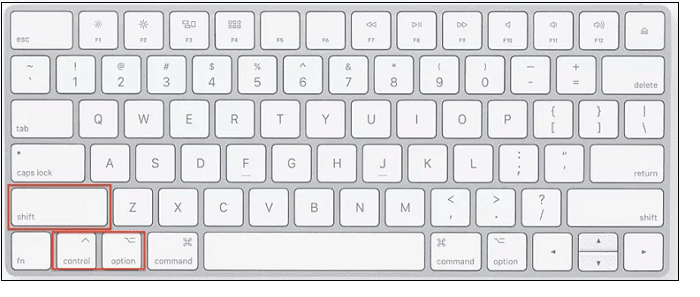
Step 3. Connect the electricity - turn on your Laptop.
The steps to SMC reset on a Mac mini or iMac are the following:
Step 1. Turn off your computer and unplug the power cord for 15 seconds to reset the system.
Step 2. Attach the power cord - restart your Computer.
Fix 3. Reset NVRAM Settings
NVRAM, aka Non-To resolve the MacBook Pro Pink Screen issue, reboot the NVRAM by restarting your MacBook, immediately holding down the Command + Option + P + R keys. Hold these keys for 20 seconds, then release them. This will reset the NVRAM and resolve the Pink Screen issue. If the issue persists, try resetting the System Management Controller (SMC) and the Power Management Unit (PMU) by following the instructions below.
Step 1. Turn off your Laptop.
Step 2. To force restart your laptop, press and hold the Option (⌥), Command (⌘), P, and R buttons simultaneously as your laptop restarts. This will initiate a System Restore process, which can resolve issues by reverting to a previous system state.
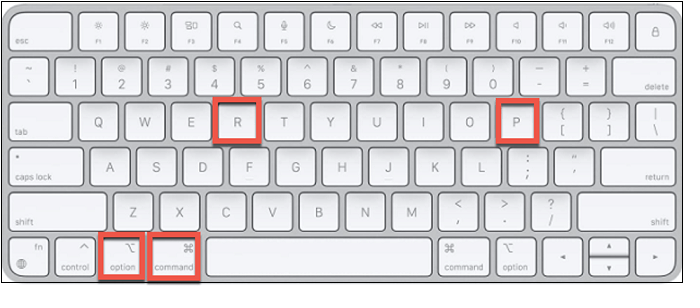
Step 3. When you hear the second starting noise, release the buttons immediately.
Note: If your Mac has a T2 chip, you may experience a brief pause when pressing the power button, followed by the Apple logo appearing and then disappearing again before the login screen appears. This is a normal behavior due to the T2 chip's security features.
When your MacBook has finished booting up, access System Configuration and make any necessary changes.
Fix 4. Reset the Graphics Processing Unit
To resolve the issue of GPU swapping on a MacBook, deactivate the GPU's automatic control choice and opt for a manual reset, allowing you to choose which GPU to use.
Enabling Secure Option
Step 1. Start up your Computer in Secure Mode.
Step 2. Select the Apple selection option.
Step 3. Pick the Power Saving choice from the System Settings menu.
Step 4. Disable the box next to Automated Graphics Change.
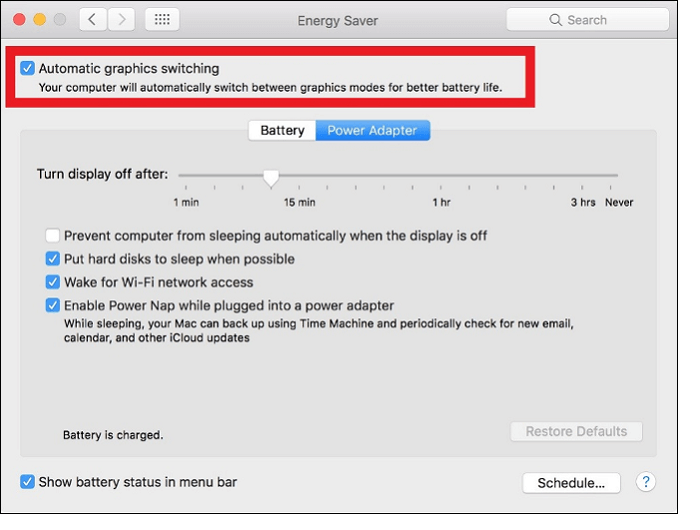
The following are the other 4 fixes:
- Fix 5. Check the Third-Party Software Incompatibility
- Fix 6. Fix Kernel Panic on Mac
- Fix 7. Using macOS Recovery Mode
- Fix 8. Reinstall macOS to Solve the Pink Screen of Death
Fix 5. Check the Third-Party Software Incompatibility
The pink screen issue on MacBook is often triggered by an outdated third-party utility, particularly after updating the OS from Big Sur to Monterey, and is more prevalent on M1 MacBooks.
To troubleshoot a third-party program mismatch issue on a Mac, boot the computer in Safe Mode. This mode starts the operating system with only the necessary software and devices, excluding any third-party code. By doing so, you can isolate the problem and identify the specific third-party program causing the issue.
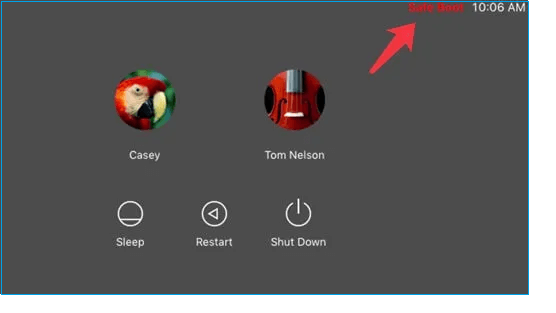
To enter Safe Mode on an Intel-based MacBook, start by shutting down the computer. Next, press the power button to turn it back on, and immediately hold down the Shift key.
Step 1. Pause for 10 seconds after shutting down your Computer.
Step 2. Once restarting your Computer, hold down the Shift key.
Step 3. To register your Mac, hold down the Option key until you get to the registration screen.
To boot your M1 Mac into safe mode, follow these steps:
Step 1. Pause for 10 seconds after shutting down your Mac.
Step 2. To start, hold the power key down until the startup files and the Settings menu shows on the device.
Step 3. Choose your starting drive, then hold down the Option key and select Proceed in Debug Mode.
Fix 6. Fix Kernel Panic on Mac
The kernel panic issue could be caused by a system crash, software malfunction, software inconsistency, or spyware. To resolve the panic problem, start by launching into Mac Repair mode.
For an Apple M1 Mac
Step 1. To use an Apple M1 Mac, you must first turn it off, then hold down the Power button.

Step 2. The Power switch should be released after the startup choices box displays. This is to ensure that the system boots up normally and the startup choices box is visible.
Step 3. Afterwards, go to the Options menu and select the Proceed choice for Disk Utility.
For an Intel-based MacBook
Step 1. On an Intel-based Mac, to move the machine, press Command + Option + R + Shift keys simultaneously and hold them.
Step 2. To remove keys, ensure your Apple device is connected to a stable network before accessing the revolving globe.
Fix 7. Using macOS Recovery Mode
To achieve the same result, you might use macOS Recovery Mode.
Step 1. To access the macOS Factory Reset, press the Command + R buttons simultaneously. This will boot your Mac into Recovery Mode, from which you can initiate the factory reset process.
Step 2. Choose Utilities.
Step 3. Pick Terminal from the selection menu.
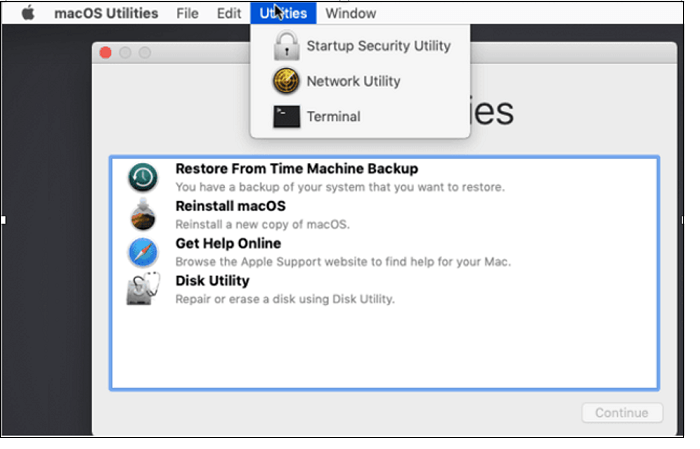
Step 4. You need to type the below-mentioned command in the terminal panel:
NVRAM fa4ce28d-b62f-4c99-9cc3-6815686e30f9:gpu-power-prefs=%01%00%00%00
Fix 8. Reinstall macOS to Solve the Pink Screen of Death
If the article's provided solutions don't work, try restarting your operating system. This should clear out any damaged files, programs, or configurations that might be causing the pink screen issue.
To prevent data loss, it's essential to back up your data before reinstalling macOS. If you're unsure about how to back up your data, you can refer to Apple's official documentation or seek assistance from a professional. Once you've backed up your data, you can proceed with reinstalling macOS in Recovery Mode.
Step 1. Enter macOS restore mode on your Computer.
Step 2. Open the macOS tools box, select Reinstall macOS, and press Continue.

Step 3. To finish the procedure, follow the instructions on the screen.
The Mac pink image issue should have been resolved by now, assuming it wasn't caused by a hardware problem on the motherboard or components.
If you've found a method that helps resolve the pink screen of death on Mac, consider sharing it on social media platforms like Facebook, Twitter, Instagram, and others to help others who may be experiencing the same issue. This can be a helpful way to spread the word and provide a solution to those in need.
The Bottom Line
If your MacBook screen is consistently pink and no software adjustments can fix it, the issue is likely a hardware problem, possibly due to a faulty display ribbon connection or a malfunctioning graphics card, requiring professional repair.
If the 8 remedial steps resolve the issue, it's likely a kernel panic or a transient flaw, not a sign of a serious problem. If data was lost during the process, Deep Data Recovery for Mac can help recover it. (Note: I removed the promotional language from the original response)
Pink Screen of Death on Mac FAQs
The Pink Screen of Death is a rare Windows error that occurs when the operating system is unable to display the desktop, resulting in a pink screen with a blue border. This error is often caused by a hardware or software issue, and can be triggered by a faulty graphics card, a malfunctioning display, or a corrupted system file.
1. Why is my MacBook Pro m1 showing the pink screen of death?
The pink screen of death on a Mac can occur due to issues with third-party software that fails to run on the OS, leading to this error.
2. What is kernel panic on Mac?
A kernel panic on a Mac can occur due to malfunctioning software or injured/mismatched hardware, including connected peripherals, causing the device to abruptly resume and display a notification about an issue that led to a reboot.
3. Why is my MacBook screen black?
The dark image on Mac can occur due to incorrect content on the startup drive.
4. How to reset SMC on a MacBook?
To restore SMC, adhere to the directions below:
- You should turn off your MacBook.
- Plug your power adaptor into your computer and an electrical outlet.
- To immediately boot a Mac into its Diagnostic mode, press and hold the power button while simultaneously pressing Shift-Control-Option. This will initiate the diagnostic process, allowing you to identify and troubleshoot any potential issues with your Mac's hardware or software.
- Start releasing all buttons and restart your Mac.
Related Articles
- How to Unlock MacBook Pro Without Password [6 Tested Plans]
- How Do SD Cards Work on Different Devices [Android/Camera/Switch/Laptop]
- Why Is My Chromebook So Slow and How Do I Speed It Up? [Complete Guide]
- How to Fix Screenshot Not Working Mac Ventura [Multiple Plans]
- How to Solve Windows Can't Convert MBR to GPT [2024 100% Working Solution]
This article focuses on why Windows can't convert MBR to GPT in Disk Management. And you can know the reason and solutions to convert MBR to GPT easily. - How to Fix "Can't Convert to Dynamic Disk" Error [Step-by-Step Guide]
Fix the cannot convert to dynamic disk error with four practical methods and learn why Windows may block disk conversion.
Products
Articles & Tutorials
- Data Recovery
- Data Backup
- File Recovery
- File Backup
- System Backup and Restore
- Disk and Partition Clone
- Technical articles
- Mobile articles
- Disk Master Help
- Windows Data Recovery Tutorials
- Windows Secure Delete Tutorials
- Windows Partition Management Tutorials
- Windows File Backup and Restore Tutorials
- Windows System Backup and Restore Tutorials
- Windows Disk Backup and Restore Tutorials
- Windows Clone Tutorials