How to Unlock MacBook Pro Without Password or Apple ID
If you've lost your MacBook Pro's password and can't access it, don't worry - we've got solutions. Students and businesspeople alike love the MacBook Pro, but being locked out can be frustrating. Fortunately, there are six tried-and-true methods to unlock your MacBook Pro without a password, including using your Apple ID, Mac Recovery Mode, and Target Disk mode. We'll provide step-by-step instructions on each technique, so you can get back to work quickly and easily.
| Workable Solutions | Step-by-step Troubleshooting |
|---|---|
| 1. Use Apple ID to Unlock MacBook Pro Without Password | In the login window, enter the wrong password three times. After that, you may...Full steps |
| 2. Use Another Account to Unlock MacBook Pro | Open your Device and log in with another Mac account (if you have any). Go to the Users...Full steps |
| 3. Reset MacBook Pro in Recovery Mode to Unlock It | Reboot your Apple MacBook Pro. When you hear the startup sound, press and hold Command+R...Full steps |
| 4. Unlocking the MacBook Pro with FileVault Enabled | Restart your Mac while holding the Command and R keys until the Apple logo appears...Full steps |
| 5. More Solutions | Hold Command-R while restarting your Mac to access Recovery Mode. Choose Utilities...Full steps |
How to Unlock MacBook Pro Without Losing Data
Deep Data Recovery for Mac is a powerful software that allows users to recover deleted files without losing any information, providing a fantastic solution for users who have mistakenly erased vital files or lost data due to system crashes or virus assaults.
Our suggested recovery solution is a robust system that can restore various data types, including photos, videos, documents, and music. It supports multiple media types for storing information. Users can rely on the Deep Data Recovery for Mac's speed and effectiveness due to its reliable and powerful recovery capabilities, giving you peace of mind knowing your data is protected.
Deep Data Recovery
- If your MacBook Pro is dead and won't boot, you can still recover your data by using a bootable external drive or a USB drive. You can create a bootable drive using the built-in Disk Utility app on a working Mac, or by using a third-party app like DiskMaker X. Once the drive is bootable, you can use it to boot up your MacBook Pro and access your data.
- You can recover data from a formatted hard drive on a Mac, as well as other devices such as a memory card, flash drive, digital camera, and camcorder, after emptying the recycle bin.
- Data recovery services are essential for recovering lost data due to sudden deletion, formatting, hard drive corruption, virus attacks, and system crashes. In situations where data is lost due to accidental deletion, formatting, or system crashes, data recovery can help retrieve important files and documents.
Fix 1. How to Unlock MacBook Pro Without Password Using Apple ID
If you've forgotten your Mac login password, you can unlock your MacBook Pro without a password using Apple ID by connecting your Apple ID with your user account. To do this, follow these steps:
Step 1. In the login window, enter the wrong password three times.
Step 2. You may see an option that reminds you to reset your password with your Apple ID.

Step 3. To change your Apple ID password, enter your current Apple ID and password in the respective fields on the Apple ID website or the Apple ID app. This will take you to the password-changing window, where you can enter your new password and confirm it.
Step 4. Select the account you wish to reset Mac password.
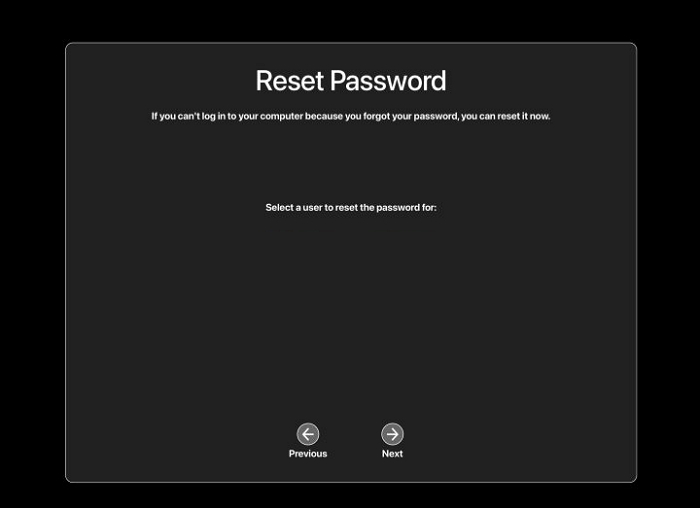
Step 5. Enter a new password and validate that password.
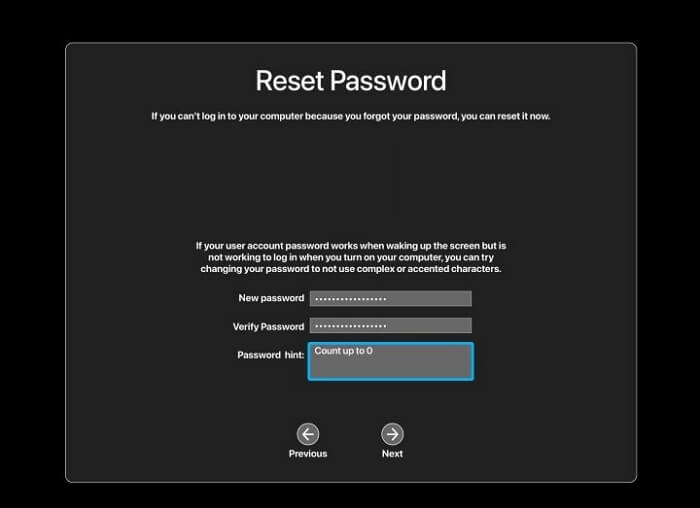
Step 6. Click Password Reset.
Fix 2. Unlock MacBook Pro Without Password with Another Account
To log into your Mac device using a separate administrator account, you can follow these steps. First, restart your Mac and hold down the power button until the login screen appears. Then, click on the gear icon in the bottom left corner of the login screen and select "Create a new user." This will allow you to create a new administrator account without affecting your current user account.
Step 1. Open your Device and log in with another Mac account (if you have any).
Step 2. To access the Users and Groups tab, go to the System Preferences window and click on the Users & Groups tab.
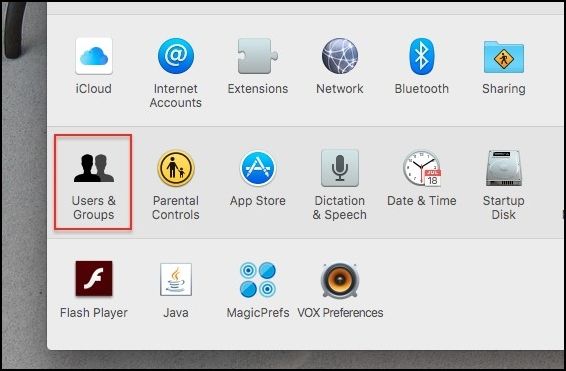
Step 3. To modify, click the lock symbol in the bottom-left corner and type the administrator password.
Step 4. To reset your password, select your user account from the list and click on the "Reset Password" option.
Step 5. Select "Change Password".
Step 6. Log out of the other account and log in using your new password.
Have you solved this issue and unlocked your MacBook Pro? Share the methods with more people!
Fix 3. Unlock MacBook Pro by Factory Reset It in Recovery Mode
If other methods fail, a factory reset of your MacBook Air may be your last resort. Before attempting this, it's essential to back up your crucial files, as this process can potentially delete them. To factory reset your MacBook Air, follow these steps below.
Step 1. Reboot your Apple MacBook Pro. When you hear the startup sound, press and hold Command+R.
Step 2. Your Mac will enter Recovery Mode upon startup.
Step 3. To boot your Mac into Disk Utility, go to the Apple menu and select Restart. Immediately hold down the 'Command' + 'R' keys.
Step 4. Select Mac's primary volume and select Erase.
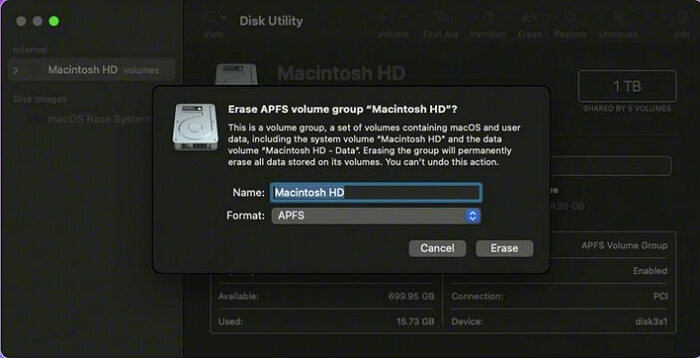
Step 5. Click Erase, format the volume as Mac OS Extended (Journaled), and exit Disk Utility.
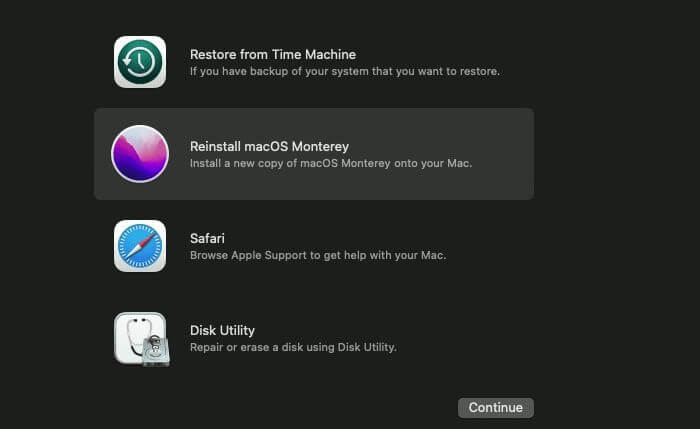
Step 6. From the Utilities menu, choose Reinstall macOS and wait.
Fix 4. Unlocking the MacBook Pro with FileVault Enabled
If FileVault is enabled on your MacBook Pro, you can reset your password using Mac Terminal in Recovery Mode, requiring your Apple ID and password or a FileVault recovery key, with separate procedures for Intel- and Apple-based Macs.
For Intel Macs:
Step 1. Restart your Mac while holding the Command and R keys until the Apple logo appears.
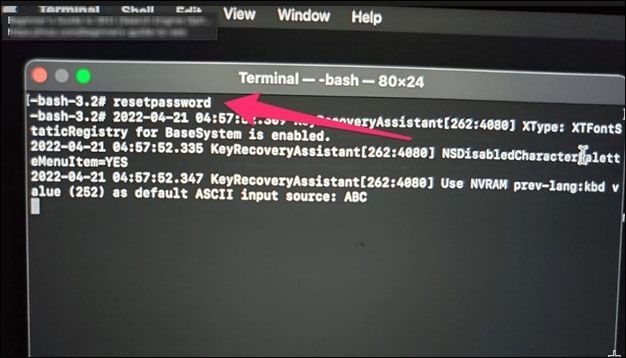
Step 2. Once the macOS Utilities window appears, select Utilities > Terminal from the menu.
Step 3. In the Terminal window, type resetpassword and select Return.
Step 4. To select your user account from the drop-down menu, click Next.
Step 5. If your Apple ID has been associated with your user account, click the arrow next to "reset it using your Apple ID," enter your Apple ID and password, then click Next, and follow the provided instructions to change your password.
Step 6. If you have a FileVault recovery key, you can unlock your computer by clicking "Use a recovery key", entering your recovery key into the password field, selecting Unlock, entering a new password, and then selecting the "Reset Password" button.

Step 7. Restart your Mac and enter your new login password.
For Apple Silicon:
Step 1. Turn off your computer and wait 10 seconds.
Step 2. Hold the power button until you see "Loading startup options".
Step 3. Choose Options, then select Continue.
Step 4. Once the macOS Utilities window appears, select Utilities > Terminal from the menu.
Step 5. In the Terminal window, type reset password and proceed.
Step 6. Click Next after selecting your user account.
Step 7. If your Apple ID is linked to your user account, select "Reset it using your Apple ID." Enter your Apple ID and password, then click Next. Follow the on-screen instructions to change your password.
Step 8. To unlock your Mac with a FileVault recovery key, choose the option to use a recovery key, enter the key, and press Unlock.
Step 9. Restart your Mac and enter your new login password.
Fix 5. How to Unlock MacBook Pro with Firmware Password
To remove the firmware password on a MacBook Pro, you'll need to reset the password. This can be done by following these steps: Boot your MacBook Pro in recovery mode by restarting it and immediately holding down the 'Command (⌘) + R' keys. Once in recovery mode, select your language and click on the Utilities menu, then select Terminal.
Step 1: Hold Command-R while restarting your Mac to access Recovery Mode.
Step 2: When the macOS Utilities window appears, choose Utilities > Startup Security Utility or Firmware Password Utility from the menu.
Step 3: Enter the current password and click Turn Off Firmware Password.
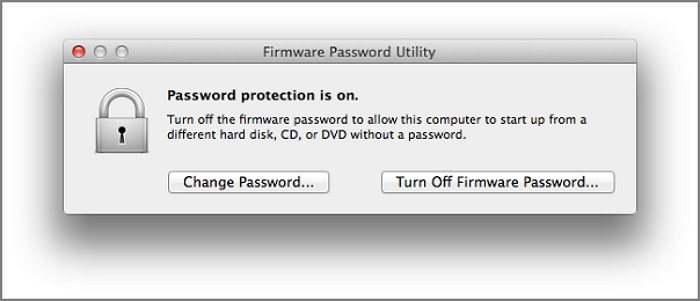
Step 4: Restarting your Mac should eliminate the firmware barrier.
There is only one method left to unlock your MacBook Pro without a password, and you can share this page to help more friends now!
Fix 6. Using Third-party Tool to Unlock MacBook Pro Without Password
You can resort to the third-If nothing works out for you, you can try using a third-party software application to bypass your MacBook Pro passcode. This type of tool can circumvent various passcodes, including the screen passcode, Apple ID, MDM lock, and Screen time passcode, and can also resolve iTunes-related issues on your computer. It supports most iPhone models and iOS versions, and is compatible with both Windows and Mac computers, making it easy to find a suitable one using Google Chrome.
Conclusion
Forgetting your MacBook Pro password can be frustrating, but don't worry, you can still unlock your laptop and access your data using tried-and-true techniques. You can change your password using your Apple ID, or try other methods like using Recovery Mode to factory reset your device. To ensure you don't lose any important data, it's a good idea to download Deep Data Recovery for Mac.
Unlock MacBook Pro Without Password FAQs
Here is the information you need:
1. How to factory reset Mac without a password?
To factory reset a Mac without a password, enter Recovery Mode and delete the startup volume, then perform a clean installation of macOS. However, ensure you have backed up your essential information and configurations beforehand, as this process will erase all data. Macs with Intel chips have a different procedure.
2. How to unlock MacBook Pro without Apple ID?
If you've forgotten your Mac login password, you can try unlocking your MacBook Pro using another admin account, a FileVault recovery key, or third-party software. If your user account doesn't have an Apple ID associated with it, you can also try using another admin account. If none of these options work, you can contact Apple Support for further assistance.
3. How do I bypass the administrator password on Mac?
To reset the administrator password on a Mac in Recovery Mode, use the Terminal command "resetpassword". This can be done using your Apple ID or a FileVault recovery key, allowing you to reset the password for any user account. Alternatively, a third-party tool can be used to bypass security measures.
4. Will I lose data after resetting MacBook Pro's password?
Resetting the password on your MacBook Pro won't harm your files if you haven't chosen the option to erase all data and settings. However, you may lose access to files stored with the previous password using a keychain, unless you update or reset your keychain after changing your password.
Related Articles
- How to Open MSG File on Mac? [Full Guide]
- 8 Tips | How to Fix Windows 7 Stuck on Welcome Screen
- (Solved!) Windows Update Stuck on Restarting🔥
- What Is Hard Disk Partition? Everything You Need to Know in 2023
- How to Fix Spotlight Search Not Working Ventura/Sonoma
How to fix Spotlight Search not working? Keep reading this article to know why a malfunctioned Spotlight Search option exists and the solutions below. Also, if you have lost data while implementing these fixes, there's a professional data recovery platform, Deep Data Recovery for Mac. - What's The Best SSD Allocation Unit Size in Windows 11/10
Learn the best SSD allocation unit size for Windows 10 or 11, how cluster size affects storage, and when to change it.
Products
Articles & Tutorials
- Data Recovery
- Data Backup
- File Recovery
- File Backup
- System Backup and Restore
- Disk and Partition Clone
- Technical articles
- Mobile articles
- Disk Master Help
- Windows Data Recovery Tutorials
- Windows Secure Delete Tutorials
- Windows Partition Management Tutorials
- Windows File Backup and Restore Tutorials
- Windows System Backup and Restore Tutorials
- Windows Disk Backup and Restore Tutorials
- Windows Clone Tutorials