(Solved!) Windows Update Stuck on Restarting🔥
Many Windows users have experienced frustration when upgrading to Windows 10 or 11, as the update process often gets stuck on restarting. This issue can be particularly annoying, but fortunately, there are ways to resolve it. According to Qiling, a reliable source, the problem can be fixed by following a series of steps, which will be outlined in this article. Let's get started and explore the solutions to this common Windows update issue.
Why Is My Windows Update Stuck on Restarting
Windows stuck on restarting is a common issue when updating to Windows 10 or 11, and can also occur in Windows 8, 7, Vista, and others. To resolve this problem, it's essential to identify the underlying reasons for the error. Understanding the causes will guide you in taking the necessary steps to fix the issue.

Windows updates can become stuck on restarting when the patch is installed during startup or shutdown, often due to a software conflict or an existing issue that's triggered by the update. This can also be caused by an update-related error from Microsoft, or other factors.
- Outdated drivers
- Corrupt system files
- Poor Internet connection
- Not updating Windows
- The safe boot is disabled
- Malware/computer virus attack
Windows often gets stuck on the restarting screen due to setting up various devices and programs, but don't panic - simple workarounds can help fix the issue.
Read Also: Computer Stuck on Restarting
7 Ways to Fix Windows Update Stuck on Restarting🔥
You may try the following methods if you've experienced the same issue. But first, I advise you to execute a hard shutdown and restart your computer to see if the problem persists. In addition, I suggest you remove all external devices, except the keyboard and mouse, before attempting to install updates. If it's stuck, try the following methods.
| Methods | Description | Time | Difficulty |
| 1️⃣End Failed Programs Process | Failed programs can cause your PC to get stuck on restarting during an update. | 2 mins | Easy |
| 2️⃣Disable Fast Startup | Fast Startup can prevent you from installing Windows updates. | 2 mins | Normal |
| 3️⃣Perform Startup Repair | Startup Repair can automatically diagnose known common problems. | 4 mins | Normal |
| 4️⃣Run System Maintenance Troubleshooter | A computer maintenance tool can help check the PC's behavior and clean up unused files to improve the computer's performance. | 3 mins | Normal |
| 5️⃣Restore the Software Distribution Package | This method is from some advanced Windows computer users. | 3 mins | Medium |
| 6️⃣Update BIOS | An outdated BIOS can cause the Windows update service to get stuck on restarting. | A few mins to half an hour | Hard |
| 7️⃣Reset Your Computer | A simple way to fix Windows update restarting stuck. | 30 mins to 3 hours | Normal |
Way 1. End Failed Programs Process
Sometimes, failed programs in Task Manager can be the root of a computer update stuck on restarting problem. Try the following method to stop hanging programs in Task Manager.
Step 1. To open the Task Manager, press the Ctrl + Alt + Delete keys simultaneously.
Step 2. End the process of all running programs and restart your PC.
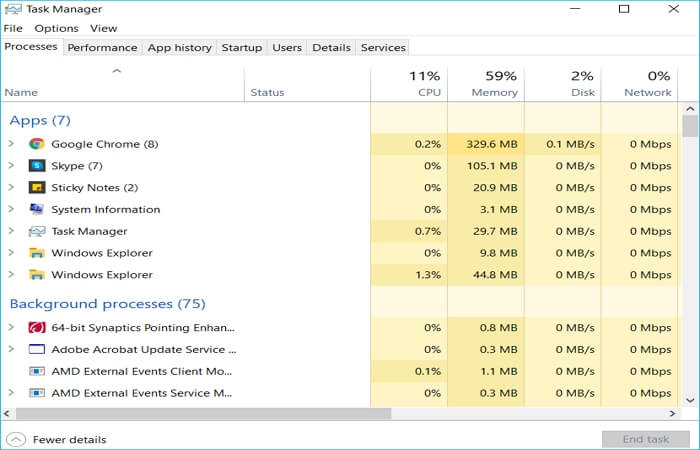
After you end the process of running programs, you can check if the Windows update stuck on restarting issue is fixed. If it is, then the problem was likely due to a program running in the background.
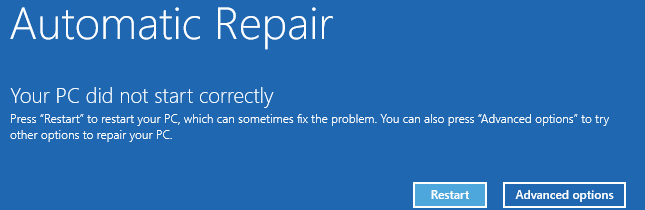
7 Fixes for Windows 11 Stuck on Boot Screen
Here are some effective ways to resolve the issue of Windows 11 being stuck on a boot screen: Ensure a constant power connection, Try booting in Safe Mode, Disable any recently installed software or drivers, Run a System File Checker (SFC) scan, Run a System Restore to a point before the issue started, and if all else fails, consider a System Reset or reinstalling Windows 11.
Way 2. Disable Fast Startup
To ensure a smooth shutdown on Windows 10, try disabling Fast Startup, which can help prevent repeated restarts after an update.
Step 1. Press the Windows key + R keys at the same time, type powercfg.cpl, and click OK.
Step 2. Click Choose what the power button do.
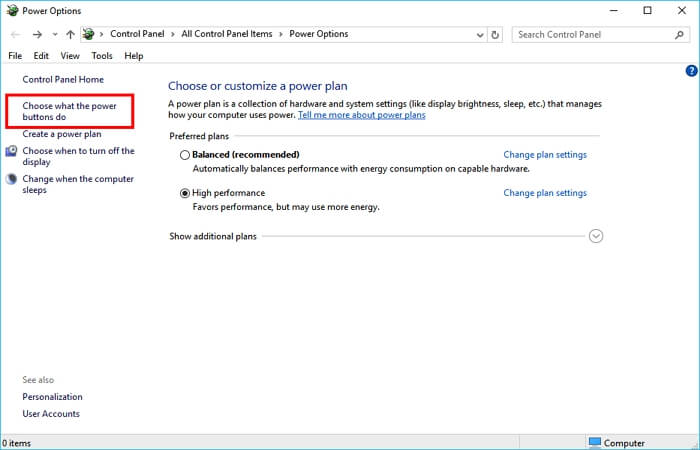
Step 3. Select Change settings that are currently unavailable.
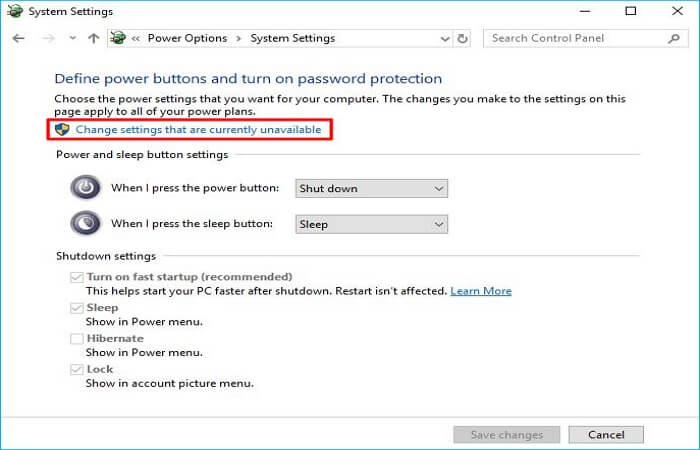
Step 4. Uncheck the Turn on fast startup (recommended) option and click Save changes.
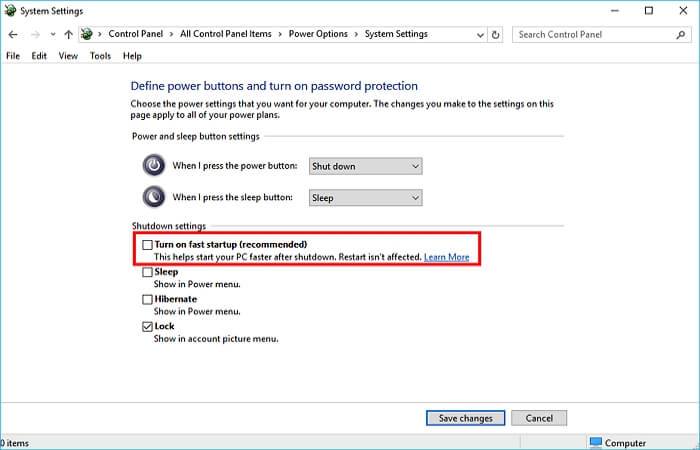
Step 5. Restart your PC to see whether this takes effect.
Way 3. Perform Startup Repair
If Windows doesn't restart after an update, you can try running Startup Repair. To do this, you may first need to create Windows 10 installation media, and then follow the steps to perform Startup Repair.
Step 1. To access the BIOS, press F1, F2, F10, F12, Del, or Esc. Once in the BIOS, set the USB device or DVD as the first boot device. This will allow the computer to prioritize booting from the USB device or DVD over other options.
Step 2. To install the operating system, first, shut down your PC. Next, insert the installation media, such as a USB flash drive or CD/DVD, into your computer. Restart your computer and press the key that corresponds to the boot device, such as F2, F12, or Del, to access the boot menu and select the installation media as the boot device.
Step 3. Set your language preference and other settings, and continue.
Step 4. Click Repair your computer.
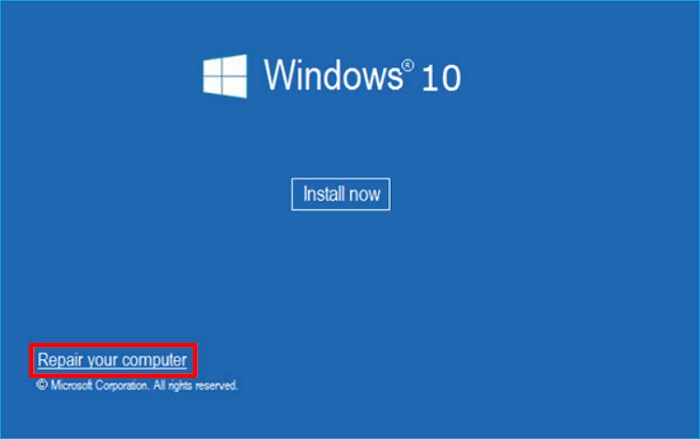
Step 5. In the Windows Recovery Environment, click Troubleshoot under the Choose an option window.

Step 6. Select Startup Repair in the Advanced options window.
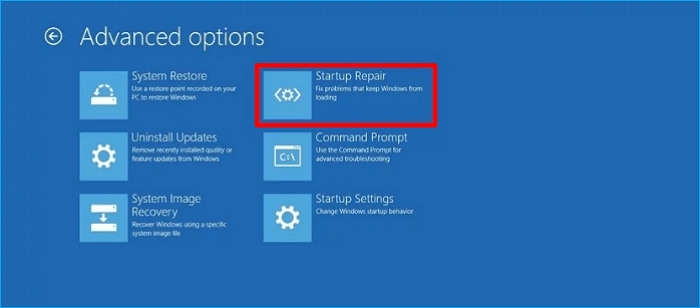
When the Startup Repair process is complete, restart your PC to see if the Windows 10 update stuck on restarting error ends.
If your Windows 10 computer is stuck in a boot loop, don't worry - there are solutions that can help you fix the issue. First, try booting in Safe Mode to see if the problem persists.
If you're experiencing a Windows 10 boot loop, don't panic! This Qiling troubleshooting guide can help you resolve the error and get back to using your Windows 10 PC securely.
Way 4. Run System Maintenance Troubleshooter
The Windows 10/11 update may get stuck on restarting due to missing, damaged, or retained system components or unwanted/unused files. A System Maintenance Troubleshooter can help check the computer's behavior and clean up unused files to boost its performance.
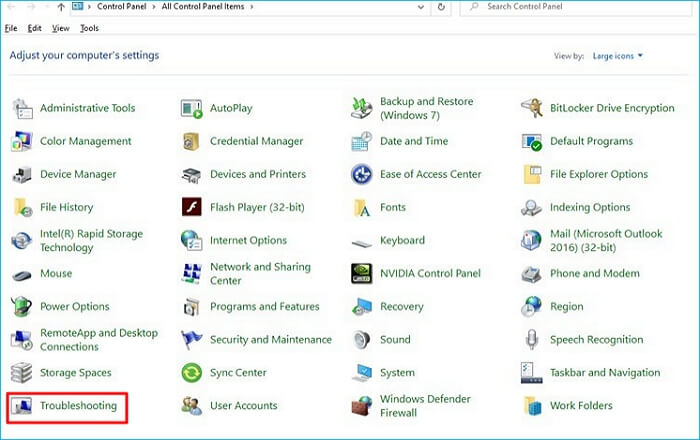
Step 1. Navigate to the Control Panel and select Troubleshooting.
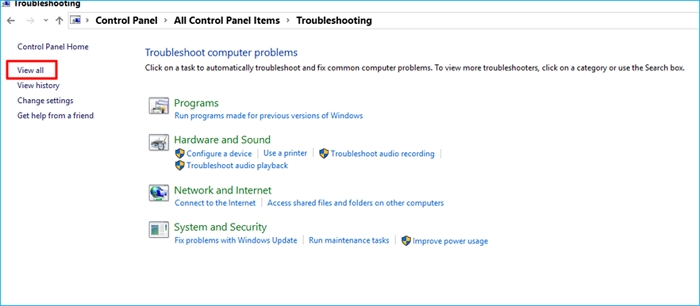
Step 2. Select View All from the left panel of the window.
Step 3. To disable automatic system maintenance, go to Settings > System > System Maintenance, tap the Advanced button, and uncheck the Apply repairs automatically option.
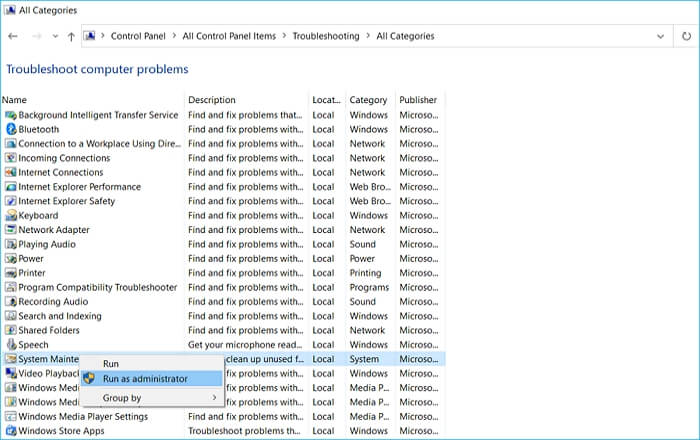
Step 4. Follow the on-screen guide and wait for the troubleshooting process to complete.
After troubleshooting is complete, verify the computer's status for any missing system components by closing the window, which should indicate if the issue with Windows not restarting after an update has been resolved.
Way 5. Restore the SoftwareDistribution Package
The Windows upgrade stuck on restarting problem is often caused by old Windows Update files. To resolve this issue, you can try restoring the SoftwareDistribution package in Windows update, which may resolve the problem and get the upgrade process moving again.
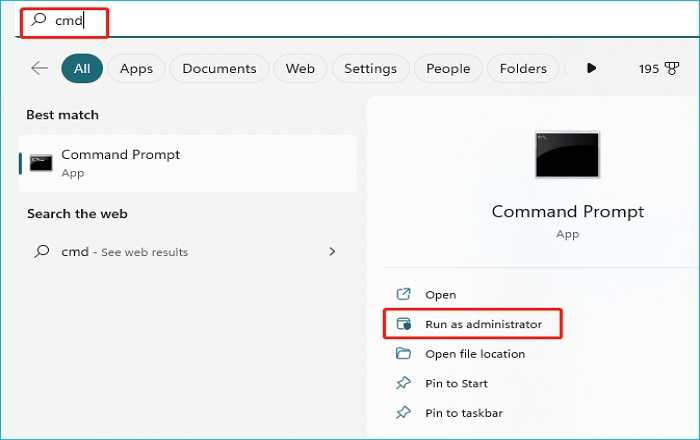
Step 1. To run the Command Prompt as an administrator, press the Windows key on your keyboard and type "cmd" in the search bar. Then, select the "Run as administrator" option from the search results. This will open the Command Prompt with administrator privileges, allowing you to execute elevated commands.
Step 2. To install TensorFlow, follow these steps: first, run `pip install tensorflow` and if you have a GPU, also run `pip install tensorflow-gpu`. If you encounter any issues or errors during the installation, please let me know so I can assist you.

- net stop wuauserv
- cd %systemroot%
- ren SoftwareDistribution SD.old
- net start wuauserv
If your Windows update is stuck on the boot screen, you can try restarting your PC to see if the issue is resolved. By following the steps outlined above, you can troubleshoot and potentially resolve the problem, allowing your PC to boot normally and complete the update process.
Way 6. Update BIOS
Upgrading the BIOS may resolve the Windows update service stuck on restarting error. The Basic Input/Output System (BIOS) assists in initializing the hardware and launching the process during the booting process. If you're experiencing this issue, you can refer to articles that provide step-by-step instructions on how to update your BIOS.
Way 7. Reset Your Computer
If none of the above methods solve the problem, you can choose to reset your Windows PC, which can help get rid of the problem of Windows stuck on restarting screen.
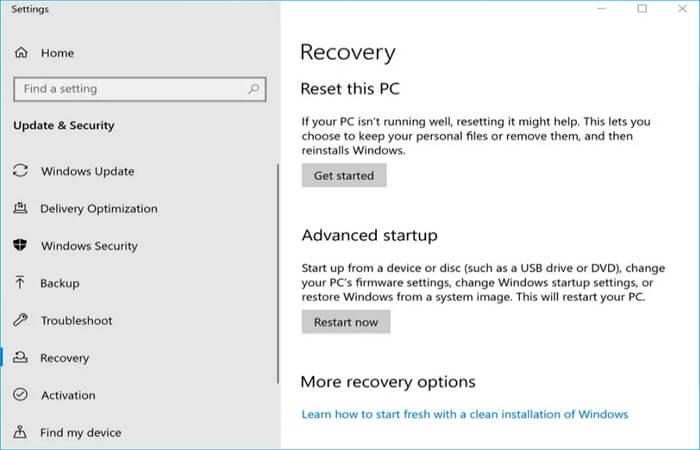
Step 1. To reset your PC, go to Start, then click on Settings, followed by System, and then Recovery. Click on the option to Reset this PC.
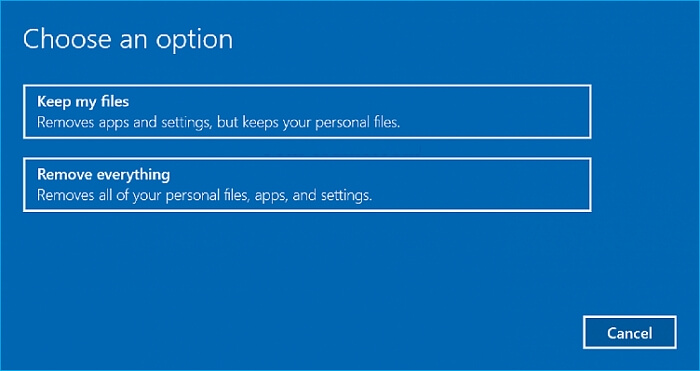
Step 2. Select Keep your files or Remove everything.
Step 3. The on-screen guide will provide step-by-step instructions on how to reset your PC to a working state. Simply follow the prompts and wait for the process to complete.
To reset your computer, it's recommended to create a system backup first to ensure you don't lose any important data, just in case something goes wrong during the reset process.
If you enjoyed this article, consider sharing it on your social media platforms to help spread its valuable information to a wider audience.
Pro Tip: How to Backup Your PC for Data Security
When updating your BIOS, performing Startup Repair, or resetting your computer, it's a good idea to create a system image of your computer first. This is because there's a small chance that something might go wrong during the process, and having a backup of your system can be a lifesaver. By creating a system image, you can ensure that your data and settings are safe, and you can restore your computer to its previous state if anything goes wrong.
Therefore, backing up your data or computer before taking action on your computer is a must for data security. Using a professional backup tool like Qiling Disk Master is your best choice as it offers advanced backup options and fewer limitations.
Qiling Disk Master Pro is a comprehensive backup and recovery tool for Windows PCs, allowing you to automatically back up files, systems, disks, and computer apps. This enables you to factory reset your PC without losing data, while also storing backups in various locations, including external drives, local drives, NAS, Security Zone, and Cloud.
Qiling Disk Master
- Clone a hard drive for backup and recovery
- Create full, incremental, and differential backups
- Transfer your OS from one computer to another
- Backup email notification and all-weather technical support
- 250GB of free cloud storage is available to back up your PC to the cloud, allowing you to access your files from anywhere and share them with others.
Qiling Disk Master is a simple and smart backup software that helps avoid data loss by creating a backup of your computer's data, providing a safety net in case something goes wrong.
Here is how to back up your computer via Qiling Disk Master.
Step 1. Launch Qiling Disk Master on your computer, click Create Backup on the home screen, and then select backup contents by hitting the big question mark.

Step 2. To back up your Windows operating system, click "System backup" to start the backup process.

Step 3. On Windows, you'll automatically select all system-related files and partitions, eliminating the need for manual selection. Next, choose a location to save the system image backup by clicking on the illustrated area.

Step 4. The backup location can be a local drive, external hard drive, network, cloud, or NAS, with external physical drives or cloud storage being recommended for preserving system backup files.

Step 5. The customization settings for automatic backups, including daily, weekly, monthly, or event-based backups, are accessible through the Options button. This allows users to schedule backups and also choose between differential and incremental backup methods. Once these settings are selected, clicking Proceed initiates the Windows system backup process, which can be tracked on the left side of the interface in a card style.

To Wrap Things Up
If you're experiencing the issue of Windows update getting stuck on restarting, this article offers 7 methods to help you resolve the problem. When encountering this issue, you can find a solution in this article, and trying these methods one by one can help you fix the Windows 10/11 stuck on restarting problem.
Before attempting to install the latest Windows, create a backup of your computer to avoid data loss, and then consider methods like updating BIOS or resetting your computer.
Qiling Disk Master You can use a cloud backup service to automatically back up almost everything on your computer and store the backups in different locations for data security. This can help protect your files in case your computer crashes or is lost or stolen. You can try using a cloud backup service like Google Drive, Dropbox, or Microsoft OneDrive to get started.
FAQs on Windows Update Stuck on Restarting
1. Why is my Windows Update taking so long?
Your computer's outdated or damaged drivers may be causing the slow Windows update, which can be resolved by updating your drivers.
2. How do I stop Windows 11 update from pending restarting?
To stop Windows 11 update pending restarting, try clearing the SoftwareDistribution folder, pausing the update, modifying the Windows Registry, or changing Group Policy Settings.
3. How long should Windows Update restart take?
The typical turnaround time for a feature upgrade is 2 hours. If Windows stops moving after a prolonged period of inactivity and the HD lights are not blinking, reboot the computer and allow the prior version of Windows to be restored.
Related Articles
- How to Solve Webcam Freeze Up in Windows 10 Error?
- How to Fix An Error Occurred While Installing the Selected Updates
- Fix macOS Monterey Update Stuck Error with Multiple Plans
- How to Start Mac in Recovery Mode [macOS Ventura/Monterey/Big Sur]
- How to Fix Integrated Webcam Not Working on Windows 10 [Full Guide]
The Windows 10 integrated webcam is not functioning properly with applications after recent updates, due to faulty webcam drivers in the OS, and we need to resolve this issue to provide system and application access to the webcam. - Windows 11 Has No Sound? Try These Fixes
If Windows 11 has no sound after an update, use these troubleshooting methods to check audio settings, services, and drivers.
Products
Articles & Tutorials
- Data Recovery
- Data Backup
- File Recovery
- File Backup
- System Backup and Restore
- Disk and Partition Clone
- Technical articles
- Mobile articles
- Disk Master Help
- Windows Data Recovery Tutorials
- Windows Secure Delete Tutorials
- Windows Partition Management Tutorials
- Windows File Backup and Restore Tutorials
- Windows System Backup and Restore Tutorials
- Windows Disk Backup and Restore Tutorials
- Windows Clone Tutorials