Fix macOS Monterey Update Stuck Error with Multiple Plans
The macOS Monterey update may be stuck on the Apple logo and may be stuck while downloading or installing. If you're experiencing this issue, you can try to fix it by following the steps outlined in the written tutorial linked below. This tutorial provides a detailed guide on how to troubleshoot and resolve the problem, allowing you to successfully update your macOS to Monterey.
| macOS Monterey Stuck | Step-by-step Troubleshooting |
|---|---|
| Problem 1. macOS Monterey Stuck on the Apple Logo | Save your work, and restart the Mac. Press and hold the power button (Apple Silicon)...Full steps |
| Problem 2. macOS Monterey Stuck While Downloading | Check the Status of the Apple System on Your Mac. Check the Internet Connection ...Full steps |
| Problem 3. macOS Monterey Stuck During the Installation | Restart Mac to Refresh the macOS Monterey Update. Disable FileVault on Mac to...Full steps |
About macOS Monterey Update
The macOS Monterey is a popular base system, being the 12th version of macOS and succeeded by macOS Ventura, but compatibility is a significant factor in updating it on the system.
The systems that can upgrade to macOS Monterey include:
- MacBook Pro - Early 2015 and later
- iMac - Late 2015 and later
- MacBook Air - Early 2015 and later
- iMac Pro - 2017 and later
- MacBook - Early 2016 and later
- Mac mini - Late 2014 and later
- Mac Pro - Late 2013 and later
The macOS Monterey update or Ventura upgrade can get stuck due to various reasons such as poor internet connection, slow Wi-Fi speed, antivirus software interference, issues on Apple's server, or using a VPN.
If you're experiencing issues with the macOS Monterey update, don't worry - there are multiple solutions to try. This post provides a comprehensive guide on how to resolve the problem when the update gets stuck on the Apple logo, as well as when it's stuck on downloading or installing.
Fix macOS Monterey Update Stuck on Apple Logo with 2 Methods
If you're trying to update to macOS Monterey, you may encounter an issue where the update gets stuck on the Apple logo. Fortunately, there are two solutions to resolve this problem. You can try using Mac's built-in macOS update option, which is usually a straightforward process.
Before starting the process, it's essential to back up all your data on your Mac to prevent data loss. You can use the Qiling Dara Recovery Wizard for Mac Pro software to create a backup, which can be downloaded for free by clicking the green button below. This precautionary step will ensure that your important files and information are safe, giving you peace of mind as you proceed with the process.
Back Up Your Mac and Never Lose Data
To back up and restore your MacBook or iMac without using Time Machine, iCloud, or external hard drives, you can use the built-in "Backup and Restore" feature in macOS. This feature allows you to create a backup of your Mac's system and data, which can then be used to restore your Mac to its current state.
Fix 1. Try Safe Mode to Fix macOS Monterey Update Stuck on the Apple logo
To resolve the macOS Monterey Update Stuck on the Apple Logo, one of the simplest ways is to boot Mac to Safe Mode, which was specifically designed to resolve various software issues.
Let's take a look at the steps:
Step 1. Save your work, and restart the Mac.
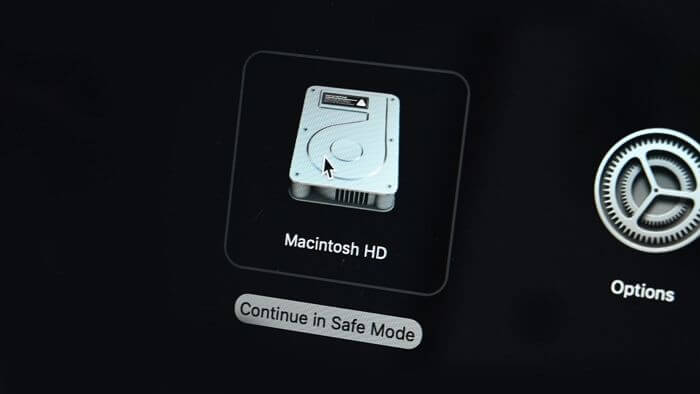
Step 2. To boot your Mac in Safe Mode, press and hold the power button (for Apple Silicon) or Shift key (for Intel) until you see "Loading startup options" appear on the screen. Once this happens, click on "Continue" to boot your Mac in Safe Mode.
Step 3. To troubleshoot the issue, you can try restarting your Mac in Safe Mode, which disables all third-party kernel extensions and loads only the necessary kernel extensions, allowing you to update your software without any potential conflicts. By restarting your Mac and logging in, you will be in Safe Mode. Then, you can attempt to update your software and see if the issue is resolved.
Fix 2. Try Recovery Mode to Fix macOS Monterey Update Stuck on the Apple logo
To resolve the Monterey Update Stuck on Apple Logo issue, you can try using Recovery Mode, which allows you to access Disk Utility to fix any issues on the startup disk.
Here are the steps you should follow:
Step 1. To force shut down the system, press and hold the Power button for some time.
Step 2. To boot Mac into Disk Utility, press the Power button and hold the Command-R keys simultaneously. This will initiate the boot process into the Disk Utility tool.
Step 3. Press the power button on your Mac and immediately hold down the Command (⌘) + R keys. Keep holding them until you see the Apple logo and hear the boot chimes. Release the keys when you come across the Apple logo.
Step 4. Under macOS Utility, press the Disk Utility on Mac.
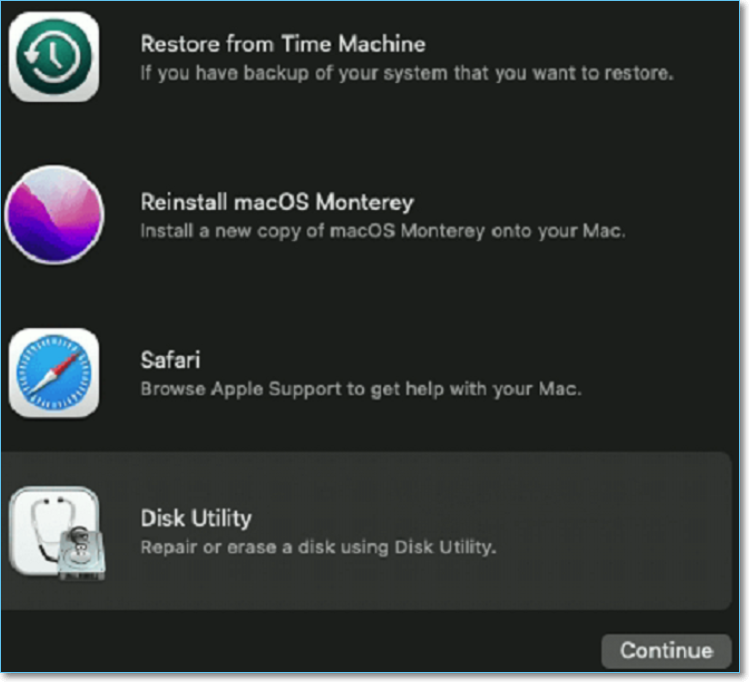
Step 5. Select the Startup Drive that has the main system.
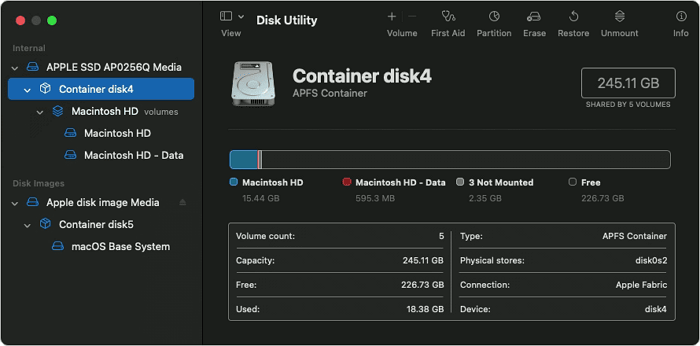
Step 6. Press the First Aid option present on the top. This will locate and fix errors within the disk, taking some time.
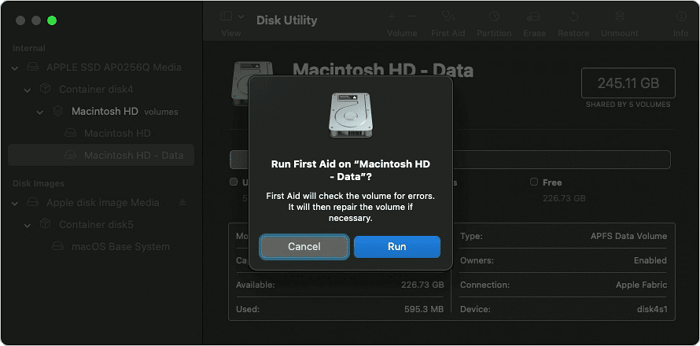
Step 7. Restart the system after the process ends.
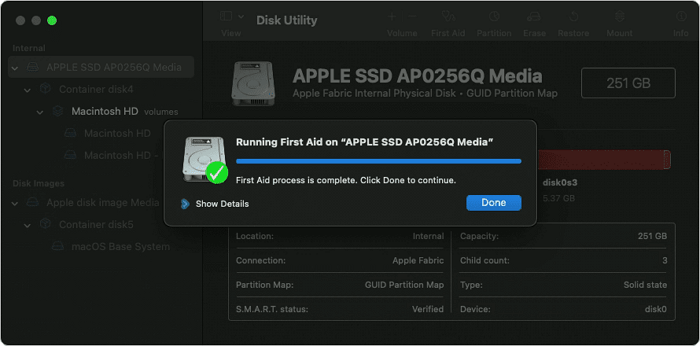
Step 8. To ensure the system is in recovery mode when you click on Reinstall macOS, follow these steps: Click on the Apple logo in the top left corner and select Restart. Immediately hold down the Command (⌘) + R keys.
Step 9. Follow the instructions on-screen to go ahead with the update.
How to Fix macOS Monterey Update Stuck While Downloading
The macOS Monterey update may get stuck while downloading due to Apple server failure, poor internet environment, or lack of disk space.
Fix 1. Check the Status of the Apple System on Your Mac
The macOS Monterey update may get stuck while downloading, but patience is key. However, if hours pass and the issue persists, it's a good idea to check the status of Apple's servers, as a high volume of users trying to update at the same time can cause server overload.
To check the status of Apple's servers and macOS software updates, visit the System Status page on Apple's official website. If the icon is green, it indicates that everything is functioning normally. However, if it's red or yellow, it means there are issues with Apple's servers that may be affecting the update process.
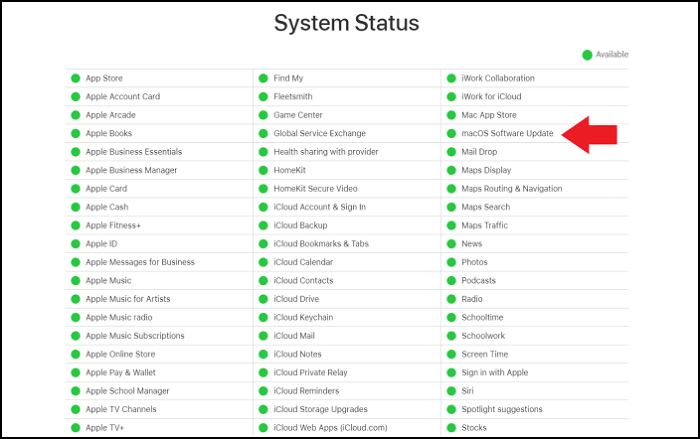
If you're having trouble downloading the Windows 10 update, wait at least 24 hours before trying again. Before attempting the download, check the System Status page to see if the update is available. If the icon is green, it's ready to download.
Fix 2. Check the Internet Connection When macOS Monterey Downloading Stuck
The macOS Monterey update may get stuck while downloading due to a bad internet connection. To resolve this, check the System Status page of Apple to ensure everything is working properly, and then verify your internet speed. A slow speed may cause the update to halt.
To resolve internet problems, you can try restarting your router or moving it closer to your Mac to improve connectivity. This may resolve the issue and allow you to download the content.
Try disconnecting and reconnecting your Wi-Fi, and if that doesn't work, consider switching to a different Wi-Fi connection.
Fix 3. Check the Disk Space on Mac When macOS Monterey Downloading Stuck
Insufficient storage space on a Mac can cause issues with downloading the macOS Monterey update, potentially causing it to get stuck during the download process.
Upgrading to a new version of macOS requires a significant amount of free space on your system, with major upgrades needing at least 12 gigabytes of available space.
To check out the storage space, start by looking for the storage unit you want to use. Make sure it's clean and dry, and that the lock is in good condition.
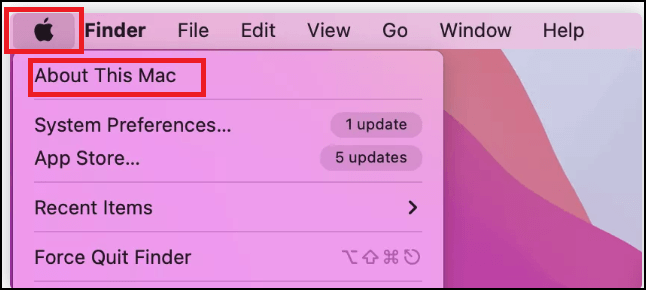
Step 1. Click on the Apple menu present at the top-left part of the screen.
Step 2. Now, select the "About this Mac" option.
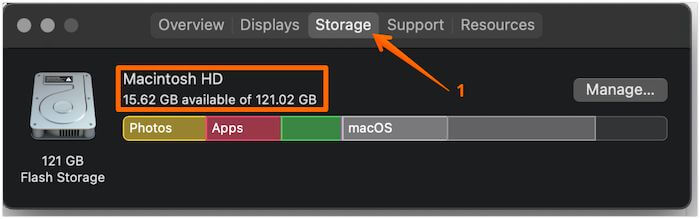
Step 3. Click on the Storage tab.
Step 4. Give the system some time to provide the desired results.
Step 5. The bar at the top indicates the used and available storage space on the device, providing a visual representation of the remaining capacity.
macOS Monterey Update Stuck While Installing
If you're experiencing issues with installing macOS Monterey, try waiting a while as the installation process can take a significant amount of time. If you're still experiencing problems, you may need to take further action.
Fix 1. Restart Mac to Refresh the macOS Monterey Update
The simplest solution is to restart the Mac, which will cancel the installation of the update and require restarting the software update again.
The software update will resume from where it stopped previously, or if not, it will start from the beginning again, eliminating the possibility of being stuck during installation.
Fix 2. Disable FileVault on Mac to Solve Installation Stuck
FileVault is a security feature on Mac that can sometimes interfere with the update process, so turning it off may resolve installation update problems.
To disable FileVault on a Mac, you need to first make sure that your Mac is turned on, then click on the Apple logo in the top left corner of the screen and select Restart from the dropdown menu. Next, hold down the power button until your Mac restarts, then immediately hold down the 'r' key.
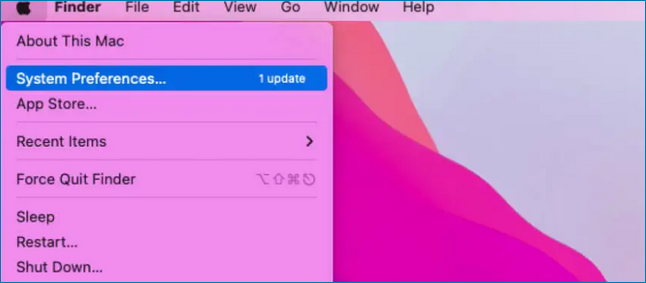
Step 1. Go to the Apple menu and click on it.
Step 2. Now, select System Preferences.
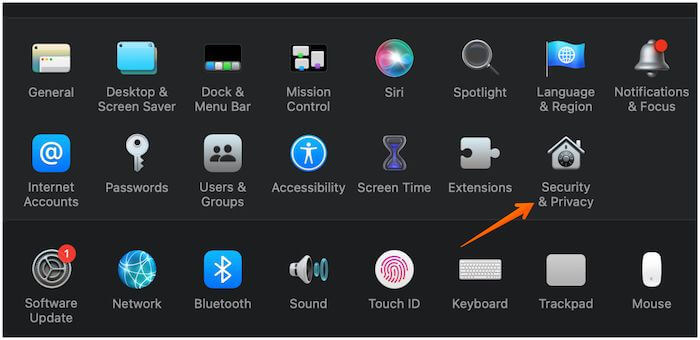
Step 3. Click on the Security & Privacy option.
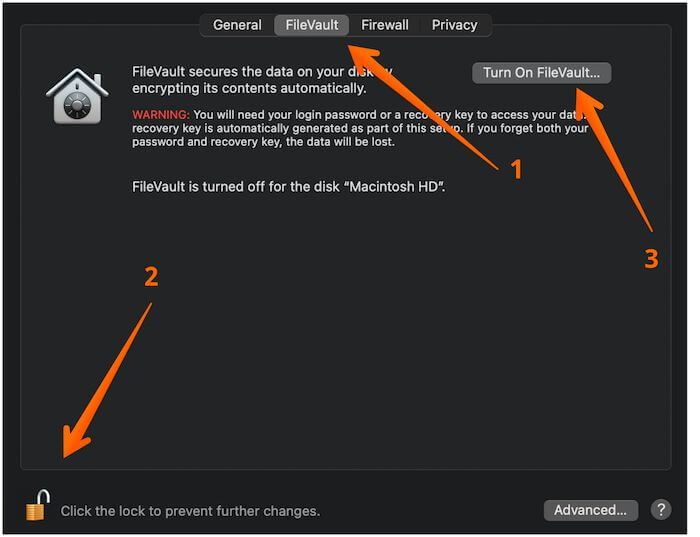
Step 4. To enable FileVault on your Mac, click on the Apple logo in the top-left corner and select System Preferences. From there, click on the Security & Privacy tab. In the left-hand menu, select FileVault. Then, click on the Turn On FileVault button.
Step 5. To turn off FileVault, you need to enter the administrator name and password, then click on the "Turn Off FileVault" option.
Step 6. Update the system and see if the same issue remains.
Fix 3. Update macOS Monterey in Safe Mode
If the above methods don't work, you must move on to the technical fixes. Use the Mac Safe mode to fix the macOS Monterey update stuck while installing, as it allows the system to run with the bare necessities, excluding third-party applications.
If you have an Intel-based Mac, these are the steps you need to follow:
Step 1. Shut down the system. Wait for a few seconds.
Step 2. After restarting the system, press and hold the Shift key as soon as the system boots up, and keep holding it until you see the Apple logo on the screen. This will allow you to access the Recovery Mode.
In case you have Apple Silicon, there is no need to worry. For that, you can adopt these steps:
Step 1. Firstly, shut down the Mac. Now, wait for some time.
Step 2. To access the startup options window, press the Power button and hold it until you see the startup options window appear on your screen.
Step 3. Now, click on Macintosh HD. Press the Shift key and hold it. Next, click and hold on the Applications folder.
Step 4. Click on Continue and release the key.
Step 5. Click on the "Safe boot" option in the top-right part of the screen.

Now that the system has entered Safe mode, you can move ahead with the macOS update.
Fix 4. Re-Download and Install macOS 12 Monterey
Sometimes, canceling the installation and downloading the macOS again is a better idea. Here are the steps. Take a look:
Step 1. Go to the App Store. Type macOS 12 Monterey.
Step 2. To download, click on the View option and Get option later.
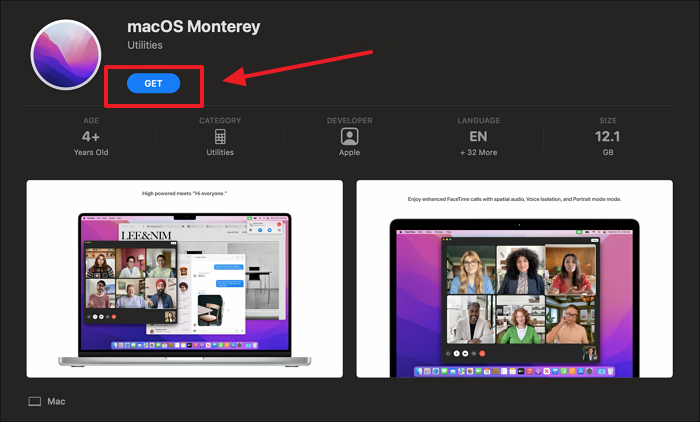
Step 3. The message is asking if you're certain you want to download macOS 12, a software update for Mac computers. It's a confirmation prompt to ensure you're aware of the download process and its potential impact on your device.
Step 4. Click on the Download button.
Wait for the downloading and installation process to finish.
When macOS Monterey Update Stuck, Can I Recover Lost Data
Have you resolved the Monterey update issue? Sometimes, data loss can lead to anxiety during or after the upgrade. Losing precious data is bound to cause panic. However, there is no need to worry!
For that, you can opt for professional recovery software and choose Deep Data Recovery for Mac.
Many users choose Deep Data Recovery for Mac because of its effectiveness in retrieving lost data, user-friendly interface, and ability to recover a wide range of file types. The software's advanced algorithms and scanning capabilities allow it to thoroughly search for and recover deleted or lost files, even if they have been overwritten.
- Files can be recovered on a Mac for various reasons, including accidental deletion, malware attacks, downgrade issues, system crashes, and more. Additionally, files can also be recovered from the Mac Trash.
- Recover different types of data, including documents, images, and videos, as well as Mac deleted email recovery.
- Restoring lost data to the cloud can be a lifesaver, especially when it comes to services like Dropbox, Google Drive, and OneDrive. These cloud storage platforms allow users to access and share files from anywhere, but they can also be vulnerable to data loss due to technical issues, human error, or other factors.
The software is easy to use and offers excellent results, and it also allows you to use a filter to locate and recover lost data immediately. If you're eager to use Deep Data Recovery for Mac, follow these simple steps.
Note: To create a backup, click on "Disk Backup" on the left first. This allows you to recover data from a backup image in case the disk is damaged or data is accidentally deleted or lost.
Step 1. Select the location
After updating to macOS Sonoma/Ventura/Monterey/Big Sur, select the disk where you lost data and click "Search for lost files".

Step 2. Find lost data after the scan
Deep Data Recovery for Mac scans the selected disk volume, displaying the scanning results in the left pane, allowing users to find wanted data using file type and file path.

Step 3. Recover data after macOS update
Select the target files that were unknowingly lost during or after the update and click the "Recover" button to retrieve them all.

Summary
The macOS Monterey update can get stuck due to various issues, whether it's during installation, downloading, or even at the Apple logo stage. However, there are multiple solutions that can be tried to resolve the issue, and adopting these fixes may help get the update unstuck.
Experiencing data loss due to the update problem can be a severe issue. In such cases, it's a good idea to choose a professional data recovery software, such as Deep Data Recovery for Mac, which is an easy-to-use, reliable, and efficient tool offering many features.
macOS Monterey Update Stuck FAQs
To fix macOS Monterey updates stuck while installing, downloading, etc., one can try restarting the update, checking for software updates, resetting the System Management Controller (SMC), and resetting the NVRAM. Additionally, running a disk utility scan, resetting the System Configuration, and checking for any issues with the Time Machine backup can also be helpful. It's also a good idea to check for any issues with the internet connection and ensure that the computer is plugged into a power source.
How to upgrade macOS Monterey to Ventura?
You can download and install macOS Ventura to update from macOS Monterey.
- 1. Download macOS Ventura and install it in the App store.
- 2. Clean install macOS Ventura with the bootable installer.
- 3. Upgrade from macOS Monterey to Ventura directly in Software Update.
Why is my macOS Monterey update taking so long?
The Mac update is taking a long time to complete in Monterey due to factors such as a slow internet connection, peak hour downloads, and upgrading from an older version, which can prolong the software download process.
Why is my macOS Monterey update stuck at less than a minute remaining?
To fix the Mac update stuck at less than a minute remaining Monterey issue, cancel the download, check for any remaining files in the Applications folder, boot into Safe Mode, and then try downloading and installing the operating system again.
Can you cancel a Mac Monterey update in progress?
You can cancel a Mac Monterey update in progress by going to System Preferences and unchecking the options that keep Mac updated, or by using the Terminal app and typing the command "sudo /usr/sbin/softwareupdate --ignore "macOS [name of update]"
Related Articles
- How to Fix Computer Turns on But No Display - Solutions Are Here!
- [Fixed] External Hard Drive Not Showing Up in Disk Management on Windows 10/11
- How to Delete Files Older Than X Days on Windows 11/10 with File Explorer, CMD, PowerShell
- Windows 10 Internet Explorer Has Stopped Working
- What Is CIFS? Common Internet File System Explained
Have you ever heard about CIFS? In this article, we will briefly highlight CIFS's functionality and features in a brief manner. We will also distinguish between CIFS, NFS, and SMB protocols to provide you with additional information. - What Is DOS? Disk Operating System Explained (All You Need to Know)
DOS or MS-DOS was one of the leading operating systems once. This article will explain what it is if it's still used today, and how it worked.
Products
Articles & Tutorials
- Data Recovery
- Data Backup
- File Recovery
- File Backup
- System Backup and Restore
- Disk and Partition Clone
- Technical articles
- Mobile articles
- Disk Master Help
- Windows Data Recovery Tutorials
- Windows Secure Delete Tutorials
- Windows Partition Management Tutorials
- Windows File Backup and Restore Tutorials
- Windows System Backup and Restore Tutorials
- Windows Disk Backup and Restore Tutorials
- Windows Clone Tutorials