How to Fix An Error Occurred While Installing the Selected Updates
Mac users who encounter an error while installing or downloading software updates may see a notification with the texts "Installation failed. An error occurred while installing the selected updates." This error can appear in the Software Update system preference panel and has been experienced by users of macOS Sonoma, Ventura, Catalina, Big Sur, Mojave, and other older versions.
After researching and attempting to replicate the issue, several underlying causes have been identified for the "Installation failed, an error occurred while installing the selected updates" error. To resolve this issue, users can try verifying their internet connection, repairing their MacBook in safe mode, or resetting their router configuration, among other solutions.
However, before proceeding with the troubleshooting steps, we will discuss the reasons for this error. Let's get started!
Why Does the Error Occurred While Installing the Selected Updates
Here are the potential reasons that might lead to the "an error occurred while installing the selected updates" error on a MacBook:
⚔️1. Conflict due to third-party kernel extension software
Affected users have reported that many third-party tools can cause this error, as they interact with the kernel. To resolve this issue, users must uninstall kernel extension software, such as CPU Gadget, Parallels, or Little Snitch, before attempting to download the remaining update again.
🍎2. Apple server problem
This error occurs when Apple encounters an issue with their Software Update delivery framework. To resolve this, identify the server issue and wait for Apple to fix it.
⏱️3. Problems with NVRAM or PRAM caches
Problems with PRAM or NVRAM caches may also prevent a MacBook from downloading a pending system update, but resetting these caches can resolve the issue.
🌐4. Network instability
A network issue may cause problems with downloading a system update for a MacBook, which can be resolved by resetting or restarting the router if the issue is related to an IP or TCP data inconsistency.
⌨️5. Damaged OS-based temporary files
Damaged or distorted leftovers from an earlier attempt at downloading the system OS might hinder any fresh attempts at installing the Big Sur or a higher version of macOS. To resolve this, start by eliminating the caches folder before reattempting the update.

Clean Install macOS Sonoma: Latest Update Steps
This article will provide you with detailed steps to update your macOS, which involves using Terminal command lines.
How to Fix An Error Occurred While Installing the Selected Updates on Mac
In this part of fixing "an error occurred while installing the selected updates," we provides the 7 tips to eliminate this error.
You can try the solutions below to fix this error, whether you're using macOS Big Sur, Ventura, or older versions. You must remember to protect your data security and proceed with the fixes.
- Fix 1. Check Internet Connection
- Fix 2. Install in Mac Safe Mode
- Fix 3. Repair the Mac with First Aid
- Fix 4. Create a macOS Bootable Installer
- Fix 5. Get rid of Kernel Extension Software
- Fix 6. Reset Your Router Configuration
- Fix 7. Check for a Server Issue
Fix 1. Check Internet Connection
To troubleshoot DNS problems, poor internet connection, and other network-driven errors impeding software updates, investigate your internet connection by following these steps:
Step 1. To ensure your Mac is online, you can search for random stuff on Google. This simple action can help verify that your internet connection is working properly.
Step 2. Relaunch your router and restart the MacBook.
Step 3. Move to another network.
Step 4. If your Wi-Fi is loading content at a slower pace, switch to an Ethernet connection instead.
Step 5. If you're experiencing issues with your internet connection, you can try using a custom DNS address, such as Google's public DNS at "8.8.8.8" or "8.8.
Fix 2. Install in Mac Safe Mode
To fix the issue "an error occurred while installing the selected updates," you can try running the installer in safe mode by booting your Mac in safe mode. This can be done by restarting your Mac and immediately holding the Shift key. Once in safe mode, run the installer and see if the issue persists.
Step 1. To restart your Mac in safe boot mode, restart your computer and hold the Shift key immediately after powering it back on, continuing to hold it until you see the login prompt. This will allow your Mac to boot with a minimal set of system extensions and drivers, potentially helping to resolve issues with startup or system stability.
Step 2. To troubleshoot issues, run the "First Aid" tool in Disk Utility. This can be accessed by going to "Applications," then "Utilities," and finally selecting "Disk Utility." From there, you can run a diagnostic test on your startup disk to identify and potentially fix any problems.
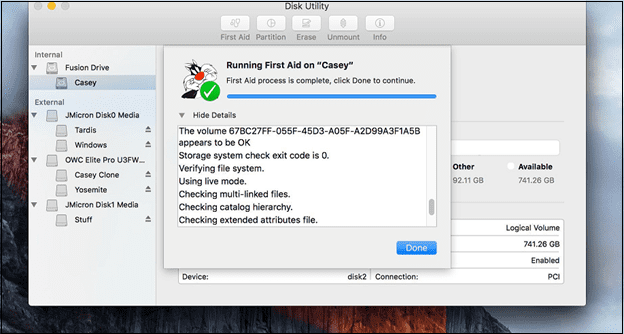
Step 3. Although still in Safe Boot mode, navigate to "Applications", then start the "Install Mac OS Catalina" installer.
To resolve the issue of the printer not turning on, check the power cord and ensure it's securely connected to both the printer and the wall outlet. Also, verify that the outlet is working by plugging in another device.
Fix 3. Repair the Mac with First Aid
Disk Utility's First Aid feature can verify and mend disk problems on external and internal disks, which may be the cause of the error preventing an update from installing. To address this, start the Mac in macOS Recovery Mode and use First Aid to scan the startup disk for any issues. If problems are found, resolve them before proceeding with the upgrade.

When your Mac is experiencing issues, you may need to boot it in Safe Mode or Recovery Mode. Safe Mode disables all third-party kernel extensions and loads only the necessary system files, allowing you to troubleshoot and resolve problems. On the other hand, Recovery Mode provides access to various tools, including Disk Utility, Terminal, and a restore feature, to help you repair or reinstall your operating system.
This post will cover the two Mac modes, Safe Mode and Recovery Mode, explaining their definitions, how to use them, and their key differences.
Fix 4. Create a macOS Bootable Installer
To install macOS, you can create a bootable installer on a USB flash drive, external hard drive, or a storage device with around 14 GB of available space. This process won't erase your existing drive, so be sure to back up your MacBook with Time Machine if you're experiencing issues.
To ensure your MacBook has an internet connection, obtain firmware and details specific to your macOS model. Then, build a macOS bootable installer with the installed version. Boot from the external bootable installer on your Intel Mac by following these steps:
Step 1. Connect the "bootable installer" on your Mac.
Step 2. When your Mac is first turned on, you'll see a black screen. To access the boot menu, press the "Option" key on your keyboard while the screen is black.
Step 3. Liberate the key when viewing your bootable volumes.
Step 4. Opt for the "bootable installer" and hit the "up arrow."
Step 5. Select your preferred language.
Step 6. Opt for "Install macOS (version)," and hit the Continue button.
Step 7. Go through the on-screen installation process.
Fix 5. Get rid of Kernel Extension Software
If you're experiencing an error during the Mac update installation, it's possible that third-party software, specifically kernel extension software, is causing the issue. To resolve this, you'll need to remove any kernel extension software that might be interfering with the update. This involves going through the steps to identify and uninstall any such software.
Step 1. To access the "Finder", click on the Launchpad icon at the bottom of the screen, which resembles a grid of application icons. This will open a window displaying a grid of available applications, and you can select the "Finder" icon from this grid to launch the application.
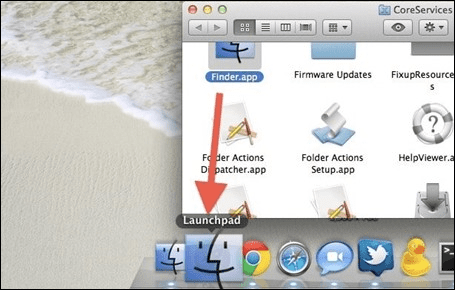
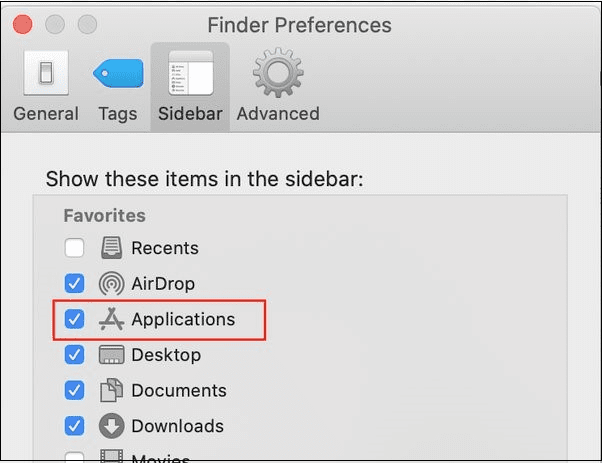
Step 2. Access the "Applications" tab from the "Finder" app and spot the "kernel extension" software.
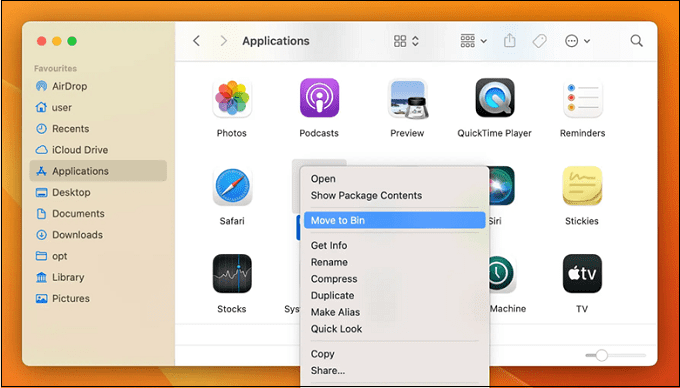
Step 3. Once you've identified the problematic software, right-click on it and choose "Move to Bin" from the context menu that appears.
Step 4. Type your login credentials to grant the vital permissions to uninstall the application.
Step 5. After uninstalling, reboot your Mac, wait for the next startup to complete, then reinstall Big Sur.
Fix 6. Reset Your Router Configuration
To be sure that no network-If your macOS system is unable to reboot itself due to a related configuration or stored information, the next logical step would be to perform a thorough network device reset. This process involves resetting all network devices, including the router, modem, and any other network-related hardware, to their default settings.
- Notice:
- Before resetting your network device, be aware that it will erase any recent network setup, including blocked items or forwarded ports, so they will be lost.
Step 1. Press and hold the reset button for 10 seconds, until the front LEDs flash simultaneously. This indicates the reset process has started.
Step 2. If the router is fully reset, you'll need to re-establish the internet connection by re-entering your PPPoE login credentials and see if the problem is resolved.
If you're looking for solutions on how to factory reset your Mac without passwords, visit the linked page.
Fix 7. Check for a Server Issue
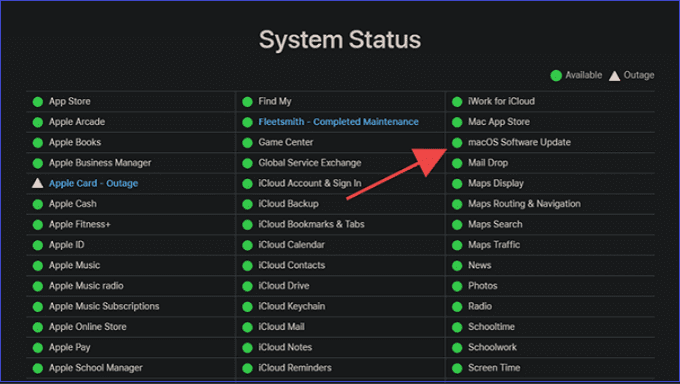
To determine if Apple is experiencing issues with the macOS Software Update, visit Apple's System Status page, which will indicate if there are any problems or interruptions related to the macOS Software Update feature.
How to Recover Lost Data with Software After Updating Mac
To recover missing files after a Mac update, using data recovery software is the best approach. This software can scan your hard disk and allow you to select which lost data you'd like to retrieve. A useful option for restoring deleted files after a macOS update is Deep Data Recovery for Mac Pro, which offers a range of capabilities to aid in the recovery process.
- Recover data from various storage media on macOS, including hard disk drives (HDDs), solid-state drives (SSDs), USB drives, and other devices.
- Restoring files for macOS updates, including Sonoma, Ventura, Monterey, Big Sur, Catalina, and High Sierra, is a crucial process to ensure that all data is safely backed up and easily recoverable in case of an update failure or other issues.
- Utilize robust scanning techniques to locate deleted information across various operating and storage systems, ensuring comprehensive data recovery.
Download this professional data recovery tool now!
Conclusion
The tutorial provides helpful guidance to resolve the error message "an error occurred while installing selected updates" when upgrading a Mac, making the updating process much smoother and easier to manage.
An Error Occurred While Installing the Selected Updates FAQs
Go through the FAQs below to get more information about this error:
1. How do I fix an error that occurred while installing the selected updates on Mac?
If you're experiencing issues while installing selected updates on your Mac, try one of the 7 easy fixes mentioned above. Go through each fix carefully, and don't be afraid to try two or more if one resolution doesn't work out.
2. Why does my Mac keep saying errors while installing?
The "Mac an error occurred while preparing the installation" issue may arise if the installer used for updating or installing macOS is corrupted. To resolve this, obtain the installer from Apple's official website and reinstall the operating system to see if the error is fixed.
3. How to fix an error that occurred while downloading the updates 102?
If error 102 on Mac appears with an explanation like "An error occurred while downloading the updates", your network may be malfunctioning. To check if your network is functioning properly, restart your Internet connections by visiting a website in a web browser. Then, try updating the apps again.
4. How to fix the update that cannot be installed on this computer Mac?
If you were unable to update your Mac successfully, restarting it may resolve any issues. After the reboot, go to System Preferences, select Software Update, and download the update. Alternatively, you can directly download the update from Apple's support page.
Related Articles
- Efficient Tutorial: Create Multiple Partitions on USB Drive Using Diskpart
- Windows Update Troubleshooter Download Full Version [2024 Tips]
- Can't Format External Hard Drive? 6 Ways to Help
- Is RAID 0 SSD Worth It for Gaming [Complete Guide in 2023]
Are you curious about this question: is RAID 0 SSD worth it for gaming? This article covers everything about RAID 0, and you can know the complete answer about RAID 0 SSD for gaming. - What Is C Drive on a PC in 2022 [Full Guide on How to Manage it]
What is C drive? This article focuses on its definition, specific functions, and how to manage the C drive on a PC. Besides, it also introduces a professional helper to manage the C drive. - What Is CDR File and How to Open & Convert It? [Full Description]
What is a CDR file? Do you know how to open and convert it? This article provides a full description of CDR files.
Products
Articles & Tutorials
- Data Recovery
- Data Backup
- File Recovery
- File Backup
- System Backup and Restore
- Disk and Partition Clone
- Technical articles
- Mobile articles
- Disk Master Help
- Windows Data Recovery Tutorials
- Windows Secure Delete Tutorials
- Windows Partition Management Tutorials
- Windows File Backup and Restore Tutorials
- Windows System Backup and Restore Tutorials
- Windows Disk Backup and Restore Tutorials
- Windows Clone Tutorials