What Is C Drive on a PC in 2022 [Full Guide on How to Manage it]
The C drive is a common storage location on a PC where data is often stored, but what exactly is it? This article aims to provide a better understanding of the C drive, so let's dive in and learn more about it.
What Is C Drive?
The C drive on a computer is the primary hard disk drive, where the operating system and most programs are installed. It's usually the main storage drive for the computer and contains the majority of the operating system files, as well as user data and installed applications. In most cases, the C drive is the default drive letter assigned to the primary hard disk drive, but it can vary depending on the computer's configuration and setup.
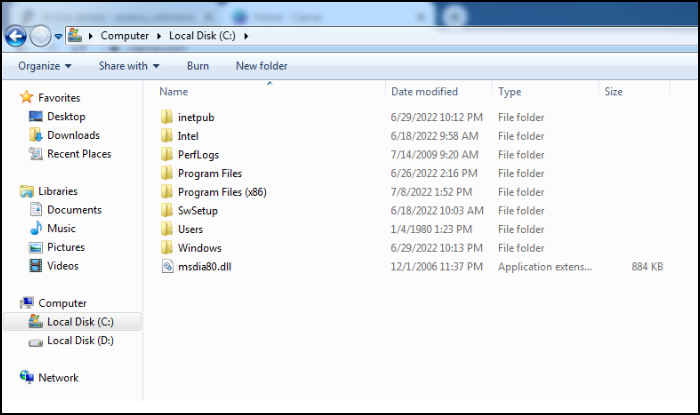
The C drive, also known as the system partition, is a term used to describe the primary drive in a computer system where the operating system and essential programs are stored. This drive is typically where the system is installed and is used to boot up the computer. It's often the default drive where users store their personal files, documents, and applications, making it a central hub for the computer's operations.
The system partition and boot partition, also known as the system volume and boot volume, are essential disk partitions that must be configured for a computer to operate, typically existing on a hard disk drive or solid-state drive.
When people refer to their computer's hard drive (or SSD), they are referring to what the operating system calls the C drive.
The C drive is the primary hard disk partition that contains the operating system and system files, serving as the first active primary partition that the system can recognize, storing the computer's boot sector and vital information.
The computer's hard drive contains all the necessary information for the computer to operate, including the operating system and software, and is essential for the computer's operation when powered up.
After learning its definition, do you know how to open your C drive on your computer?
Where Is My C Drive?
To get to your C drive, you can look for the "This PC" or "Computer" icon on your desktop or in your start menu, which should have a list of all connected drives, including your C drive. Alternatively, you can use the File Explorer to navigate to your C drive by clicking on the "This PC" or "Computer" option in the left sidebar, then selecting your C drive from the list of drives. If you're still having trouble finding your C drive, you can try checking the drive letter assignments in the Disk Management console or by looking for the drive in the File Explorer's search bar.
Step 1. Press the Windows button on the keyboard.
Step 2. Type "File Explorer".
Step 3. I'll assume you're referring to the File Explorer window. In that case, the "Local Disk (C:)" icon represents the C drive of your computer, which is the primary drive where your operating system and most of your files are stored.
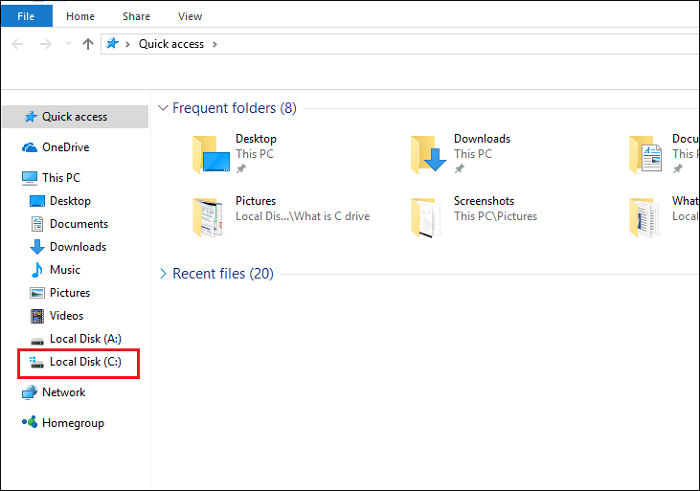
To help, the C drive can store files, programs, and operating systems. It can also serve as the primary drive for the computer, providing a central location for storing and accessing data. Additionally, the C drive can be used to install programs and applications, allowing users to run them from the drive. Furthermore, it can be used to store user profiles, documents, and other important files, making it a crucial component of the computer's overall performance and functionality.
What Can C Drive Do?
The C drive is the primary boot drive of a PC, providing a permanent storage medium for vital files, and is crucial to the system's operation.
1. Store operating system and other related programs:
The C drive is the default location for the operating system and boot process in Windows PCs, typically the first non-removable nonvolatile storage device installed.
2. Store application software and device drivers:
C drive is the primary drive in a computer system, containing the operating system, programs, and default device drivers. It stores the default programs and device drivers, such as external hard drives, graphics cards, sound cards, and other programs.
3. Store personal data:
The C drive is the default location for your data, including photos, videos, and personal downloads, unless you specify a different location. Regularly backing up your C drive is essential to prevent data loss. You can find a link to help you with backing up your C drive.

Partition Backup|How to Backup Partition with Windows Partition Backup Software
You can back up a whole disk partition at any time, and this article provides step-by-step guides on how to do it for drives and partitions.

Managing your C drive effectively is crucial, as it stores many essential files. To keep your C drive in good order, you'll want to regularly clean up unnecessary files, update your operating system and software, and ensure you have sufficient free space. This can be achieved by deleting temporary files, uninstalling unused programs, and running disk cleanup and disk defragmentation tools.
How to Manage C Drive in Windows
Getting started with managing your C drive is a great first step in optimizing your computer's performance. A beginner's guide can provide a solid foundation, covering the basics of disk space, file organization, and troubleshooting common issues. From there, you can dive deeper into strategies for maximizing your C drive's potential, such as deleting unnecessary files, uninstalling unused programs, and using disk cleanup tools.
Separate Personal Data from C Drive:
It's common for users to store their operating system and other programs on the C drive, making it essential to keep it safe to prevent PC problems. To avoid data loss, it's crucial not to mix essential files with core programs, as this can lead to "deadly" consequences.
If you need to transfer large files between drives, you can use a tool or service specifically designed for this purpose, which can be found by following the link provided.
How to Move Large Files From One Drive to Another
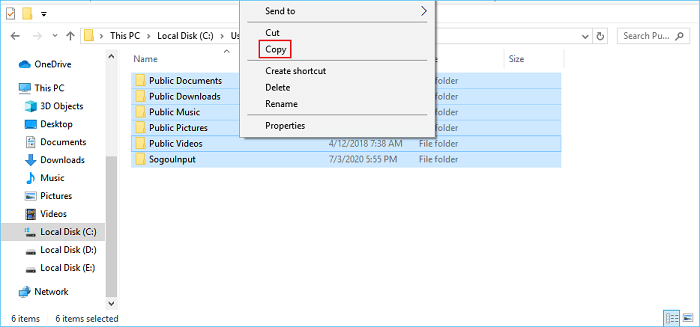
To move large files between drives and free up disk space, you can try copying and pasting, but if you have very large files, this method may fail. Instead, you can use a file transfer utility or a third-party software specifically designed for large file transfers. These tools can handle files of any size and provide a more reliable and efficient way to move files between drives.
Leave Enough Space for C Drive:
Leaving enough space for the C drive is crucial as it needs space to store the OS and other programs, but the C drive has limited storage space. To address this, you can use a third-party disk manager to extend the C drive, such as Qiling Partition Master, which is professional, efficient, and has a clear interface.
Now, let's see how to extend your C drive with Qiling Partition Master.
Option 1. Extend System C drive with unallocated space
- 1. Right-click on the System C: drive and select "Resize/Move".
- 2. To expand the C: drive, drag the system partition end into the unallocated space, effectively adding it to the C: drive.
- 3. To extend the C drive, click "Proceed" to execute the operations. This will allow you to extend the size of the C drive, potentially freeing up space and improving performance.
Option 2. Extend System C drive without unallocated space
- 1. Right-click a big partition with enough free space on the system disk, select "Resize/Move".
- 2. Drag the end of the big partition into itself for the unallocated space, then click "Proceed" to confirm.
- 2. Select the system drive at the disk partition section, and select "Resize/Move".
- 2. The end of System C drive should be dragged into the unallocated space to free up some space. This will move the System C drive to the left and make some space available on the right for other drives.
- 3. Proceed to save the changes and extend the C drive.
Besides leaving enough space for C drive, setting regular clean plans also matters in case C drive is out of space.
Regular Clean Plans
You now know how to add space to your C drive, but scheduled cleaning plans are also crucial. Since the C drive is the system disk, excessive space occupation can slow down your computer's running speed. System updates and other factors can also consume C drive space, making it essential to maintain a cleaning schedule to prevent space from being occupied too much.
It is wise to set scheduled clean plans. To do so, you can utilize various tools and resources available, such as cleaning schedules and checklists, to help you stay organized and on track.
To clean up C Drive in Windows 11, consider using the following top 5 tools: CCleaner, which removes temporary files and system logs; Disk Cleanup, a built-in tool that deletes unnecessary files; Glary Utilities, a comprehensive cleaning tool that frees up space; Auslogics Disk Defrag, which optimizes disk performance; and CleanGenius, a user-friendly tool that scans and cleans up unnecessary files. These tools can help you free up space and improve your computer's performance.
The all-The "C" drive is the central hub of most computers, and it's essential to keep it clean and organized. To achieve this, there are five top tools that can help. These tools can help you free up space, remove temporary files, and optimize your computer's performance, making it run smoothly and efficiently.
What Is C Drive: Conclusion
The C drive is a fundamental component of a computer's operating system, serving as the primary drive where the operating system, programs, and data are stored. It's the first drive to be installed and is often the default drive for installing software and storing files. To manage the C drive, you can utilize Qiling Partition Master, a multifunctional and user-friendly tool that can help with various tasks such as partitioning, formatting, and backing up the drive.
FAQs About What Is C Drive
If you're experiencing issues with your C drive, such as low disk space, corrupted files, or missing system files, you might be wondering what's going on and how to fix it. Are you running low on disk space and need to free up some space to install new software or store files? Or perhaps you're getting error messages about missing system files or corrupted files on your C drive, and you're not sure what to do.
1. Where is my C drive?
To find your C drive in Windows, open File Explorer and navigate to "This PC" to locate it.
2. What do I do when my C drive is full?
You can delete unnecessary files on the C drive to free up space. Additionally, you can use Qiling Partition Master to extend the C drive.
3. Should I save to C or D drive?
Users often save their operating system (OS) and related files on the C drive, while storing other files on the D drive or other drives, which helps keep files organized and makes it easier to recover data in case of loss.
Related Articles
- How to Format Internal Hard Drive Mac? [QuickStart]
- Hard Drive Not Spinning? Causes and Fixes Here!
- [Three Solutions] How to Backup Xbox 360 Hard Drive
- How to Fix "Mac Documents Folder is Empty" Error
- [FIXED] Could Not Initialize Graphics System on Windows 10 Computer
If you're tired of dealing with the frustrating error “Could not initialize graphics system” on your Windows 10 computer, this article has got you covered. It provides all the necessary solutions to help you resolve this issue once and for all. - 2023 Tips| Could Not Complete Your Request Because of a Program Error Photoshop
If you're experiencing an error in Photoshop due to a program error, try the suggested solutions to resolve the issue. Additionally, consider recovering your Photoshop files to a safe location using Qiling data recovery software, which can help protect your data on Windows 11/10/8/7.
Products
Articles & Tutorials
- Data Recovery
- Data Backup
- File Recovery
- File Backup
- System Backup and Restore
- Disk and Partition Clone
- Technical articles
- Mobile articles
- Disk Master Help
- Windows Data Recovery Tutorials
- Windows Secure Delete Tutorials
- Windows Partition Management Tutorials
- Windows File Backup and Restore Tutorials
- Windows System Backup and Restore Tutorials
- Windows Disk Backup and Restore Tutorials
- Windows Clone Tutorials