How to Format Internal Hard Drive Mac? [QuickStart]
Formatting the internal hard drive of a Mac becomes necessary when selling the device or when issues like malware, corrupted files, or space issues arise. To format the internal hard drive, you can use the built-in Disk Utility app on your Mac, which can erase all data on the drive and restore it to its factory settings. Alternatively, you can use a third-party formatting software or consult with a professional if you're not comfortable with the process. It's essential to back up any important files before formatting the hard drive to prevent data loss.
To format your Mac's internal hard drive and get rid of its data, follow the detailed guide below. It covers the best format for the Mac internal hard drive, followed by various methods for the Mac hard drive. Whether you're a beginner or a professional, this guide is designed to help you start the internal hard drive formatting process, beginning with the best format.
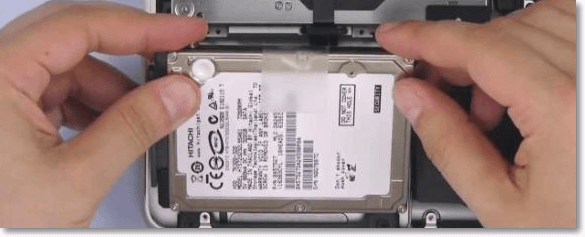
What is the Best Format for Mac Internal Hard Drive?
Mac users need to know that different hard drives have varying formats, and it's essential to ensure compatibility with Mac. Understanding the best format for Mac internal hard drives is crucial for both beginners and professionals.
Here's a detailed overview of the top four hard drive formats:
1. Apple File System or APFS: APFS, launched in 2017 and used in macOS Sierra, utilizes flash storage Solid-State Drives (SSDs) in devices like Mac Mini, iMac Pro, iMac, MacBook Pro, and MacBook. This format allows for rapid data sharing and duplication between files, with the ability to copy files in seconds. However, APFS is not ideal for external hard drives.
2. Hierarchical File System or HFS: The default formatting option in Mac, which comes with formatting the internal hard drive, is HFS+ (MacOS Extended), with Journaled as the improved version, followed by MacOS Extended Case Sensitive.
- 2.1 MacOS Extended (Journaled): It follows storing media on the drive while preventing the files from getting corrupted. MacOS Extended (Journaled) has the same limitations as MacOS Extended, with the added concern that it can only be used on Macs. It is a journaled file system that provides a high level of data security and integrity, but it can only be used on Macs.
- 2.2 MacOS Extended Case Sensitive: It has an additional case-sensitive feature along with all key features of the macOS Extended (Journaled) version. MacOS Extended Case Sensitive file system can lead to duplicate files due to simple human errors.
3. NTFS is a widely used internal hard drive format for Windows devices, but it creates read-only drives that prevent users from modifying or adding content.
4. exFAT is a file system format that allows for larger file sizes and volume sizes, making it ideal for Windows and Mac devices. However, it can lead to file corruption and requires frequent backups.

NTFS or exFAT for HDD, SSD, M.2, NVMe
There are two types of backups: full and incremental. Full backups save the entire database, while incremental backups save only the changes made since the last backup. This means that full backups are larger and take longer to complete, but they ensure that you have a complete copy of your database.
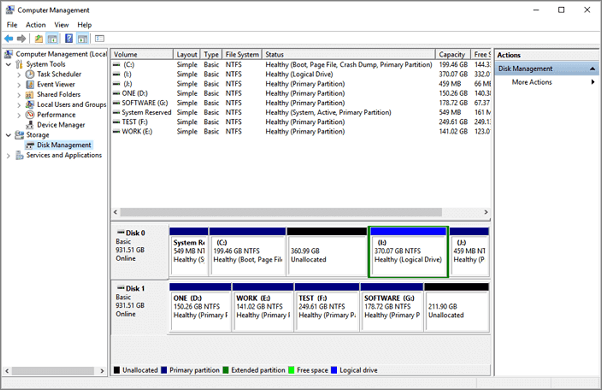
Users can easily choose the best format for their Mac internal hard drive, with APFS being the first in-built option, followed by macOS Extended (Journaled) and macOS Extended Case Sensitive. For Windows users, NTFS is a suitable choice, while exFAT is a cross-platform file exchange format.
How to Format Internal Hard Drive Mac?
- Fix 1: Format the Internal Disk with Disk Utility
- Fix 2. Use Terminal to Format Internal Hard Drive for Mac
Formatting the internal hard drive on a Mac can be simplified by understanding the different formats such as APFS, HFS, NTFS, exFAT, etc. Once familiar with these formats, users can choose the one that best suits their device's needs. The two primary methods for internal hard drive formatting on a Mac are:
Method 1: Format the Internal Disk with Disk Utility
The Disk Utility app on Mac is a free and easily accessible tool that allows you to format storage devices, including the startup disk, SSD, main hard drive, and USB flash drives. However, it's essential to back up your data before formatting, as it will erase all existing data on the drive. To format the internal hard drive on your Mac, you can use the Disk Utility feature, following simple steps that can be completed quickly.
Step 1. Start the Mac from macOS Recovery by immediately pressing and holding "Command + R" to open the "Utilities" window.
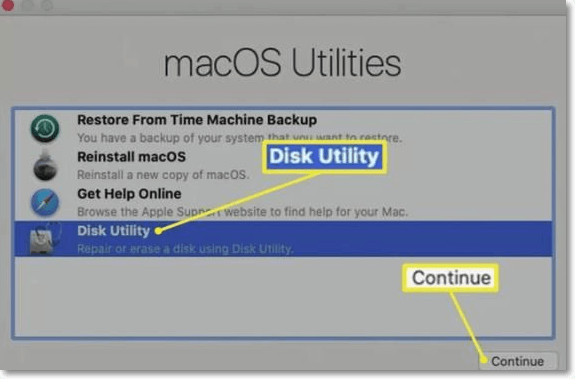
Step 2. To access the Disk Utility option from the macOS Recovery, click on the "Utilities" window and select the "Disk Utility" option. Then, click "Continue" to proceed.
Step 3. To find the data volume with the hard drive name and select it, you can follow these steps: First, go to the system settings or disk management utility on your computer. Then, locate the section that lists all the hard drives connected to your system, including the one with the data volume you're interested in.
Step 4. To delete an APFS volume, navigate to the "Disk Utility" application, select the APFS volume you wish to delete, click "Edit" in the top menu bar, and then select "Delete APFS Volume" from the drop-down menu. Alternatively, you can click the "delete button" (-) in the Disk Utility toolbar.
Step 5. Select "delete" from the pop-up.
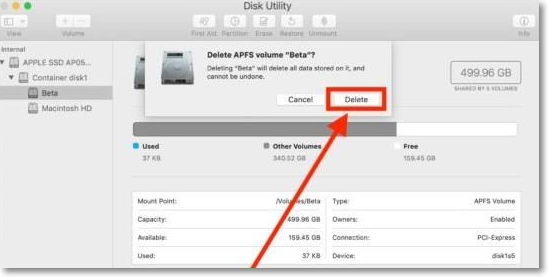
Step 6. After deleting the volume, select the hard drive name in the sidebar and press the "Erase" button, then enter the new name.
Step 7. To format a Mac drive for use with the computer, select the APFS format option or the recommended Mac format by default, then choose "Erase."
Step 8. Quit the disk utility in the Utilities window and reinstall macOS if you want to start this process.
Method 2. Use Terminal to Format Internal Hard Drive for Mac
To format the internal hard drive on a Mac using the terminal, open the Terminal application and access the command line. The process involves running a few commands to erase and reformat the drive. The steps include running the `diskutil list` command to identify the drive, followed by `diskutil eraseDisk` to erase the drive, and finally `diskutil secureErase` to securely erase the drive. This method allows for a more detailed control over the formatting process compared to the graphical user interface method.
Step 1. To access the terminal application, you can open it using Launchpad, Spotlight, or by navigating to the Applications/Utilities folder.
Step 2. 1. List all disk selections using the `list` verb.
diskutil eraseDisk FILE_SYSTEM DISK_NAME DISK_IDENTIFIER
Step 3. Here are the different commands for formatting internal hard drive for Mac based on the four different disk formatting options in one paragraph:
- To format an internal hard drive to MacOS External Journaled (JHFS+) from the terminal in Mac OS X, you can use the `diskutil` command. Specifically, you can use the `diskutil eraseDisk` command with the `JHFS+` format, like this: `diskutil eraseDisk JHFS+ 'External Drive' /dev/disk2` (replace `/dev/disk2` with the actual device path of the drive you want to format). This will completely erase the drive and format it as JHFS+, making it compatible with MacOS.
- diskutil eraseDisk JHFS6 DiskName /dev/ DiskNodeID
- To format an internal hard drive to MacOS Extended (HFS+) from the terminal in Mac OS X, you can use the `diskutil` command. First, ensure the drive is unmounted by running `diskutil unmountDisk /dev/diskXsX`, where `/dev/diskXsX` is the path to the drive. Then, run `diskutil eraseDisk HFS+ 'DriveName' /dev/diskXsX`, replacing `'DriveName'` with the desired name for the drive.
- diskutil eraseDisk HFS+ DiskName /dev/ DiskNodeID
- To format an internal hard drive to MS-DOS FAT32 from the command line in Mac OS X, you can use the `diskutil` command. First, you need to identify the disk you want to format by using the `diskutil list` command. Once you have the disk identifier, you can use the `diskutil eraseDisk` command to format the disk to FAT32.
- diskutil eraseDisk FAT32 DiskNameGoesHere /dev/ DiskNodeIDHere
- You can format an internal hard drive to ExFAT from the command line in Mac OS X using the `diskutil` command. Here is the command to format a drive to ExFAT: `diskutil eraseDisk -volumeName 'ExFAT' -fs exfat /dev/disk1`. Replace `/dev/disk1` with the actual path to the drive you want to format.
- diskutil eraseDisk ExFAT DiskName /dev/ DiskNodeID
Step 4. It is easy to select the common file format in the disk after completely erasing from the options like JHFS+, HFS+, FAT32, ExFAT, etc.
Final Verdict
Mac users can format the internal hard drive due to various reasons, and the first step is to choose the best format, such as APFS, HFS, NTFS, or exFAT, depending on the intended use.
Formatting the internal hard drive on a Mac can be done using either Disk Utility or Terminal, with detailed step-by-step guides and images available to assist users.
Related Articles
- [Fixed] Unable to Reset Your PC. A Required Drive Partition Is Missing
- Excel AutoSave Not Working Error in Windows 10/8/7
- How to Reset NVRAM/PRAM on Your MacBook Pro/Air [2022 Fresh Guide]
- How to Turn Off Xbox Controller on PC
- Fix External Hard Drive Not Formatted Error without Data Loss
Receive the "external hard drive not formatted" error when you try to access or open it? This article will tell you the possible reasons and how to fix it without losing data. - How to Factory Reset from BIOS on a Windows PC [Methods in 2023]
Learn how to factory reset from BIOS on a Windows PC with 2 proven methods. Step-by-step guide to reset BIOS settings and clear CMOS to restore default factory configurations.
Products
Articles & Tutorials
- Data Recovery
- Data Backup
- File Recovery
- File Backup
- System Backup and Restore
- Disk and Partition Clone
- Technical articles
- Mobile articles
- Disk Master Help
- Windows Data Recovery Tutorials
- Windows Secure Delete Tutorials
- Windows Partition Management Tutorials
- Windows File Backup and Restore Tutorials
- Windows System Backup and Restore Tutorials
- Windows Disk Backup and Restore Tutorials
- Windows Clone Tutorials