How to Fix Computer Stuck on Restarting | 2026 Hot Ways🔥
Key Takeaways:
- Windows PC may get stuck on restarting during or after an update due to various reasons. This can be caused by a corrupted system file, a faulty driver, or a software conflict.
- Outdated drivers, corrupted system files, and hardware issues can cause a computer to take a long time to restart.
- This guide offers 10+ fixes to resolve issues, including using the best Boot repair tool, which is also suitable for fixing a PC stuck on getting Windows ready, providing a comprehensive solution to various problems.
- If your HP laptop is stuck on a restarting screen on Windows 10, you can try troubleshooting the issue by checking for any pending updates, running a System File Checker scan, and resetting the Windows Update components. You can also try booting your laptop in Safe Mode, disabling any recently installed drivers or software, and checking for any hardware issues.
Being stuck in a cycle where your computer constantly reboots can be frustrating, especially when your PC takes forever to restart on Windows 10/11. But don't worry, this article is here to help you resolve the issue quickly and easily by following a simple tutorial.
Qiling Software offers practical and affordable solutions to resolve computer issues, including boot loop problems caused by Windows updates, without using complex technical jargon. Their guide provides step-by-step advice to help users get their computer back up and running smoothly.
Quick Guide to Fix Computer Stuck on Restarting
If your computer is stuck on reboot, you can try troubleshooting by following these three quick options. Firstly, check if your computer is overheating, as this can cause it to get stuck in a reboot loop.
1. Remove External Devices
Disconnecting external devices like USB drives, printers, or external hard drives can help resolve the issue of a computer getting stuck on restarting.
Step 1. Eject any linked devices, such as USB drives.
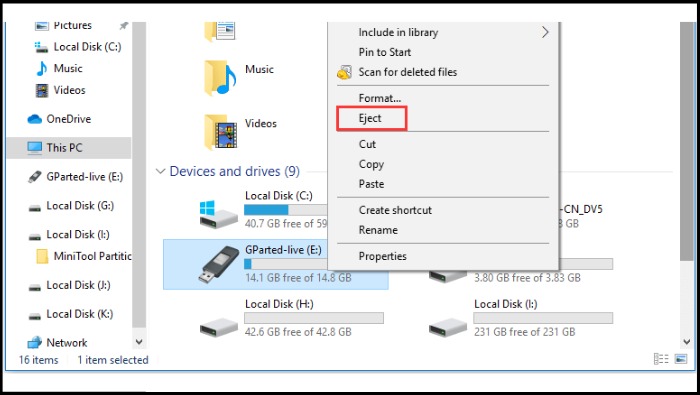
Step 2. Switch off the computer.
Step 3. Unplug any external devices and restart your computer.
Further Reading: Windows 10 Boot Loop
2. Perform a Hard Reboot
A hard reboot, or hard reset, is a technique to force a fresh startup on a computer by turning off the power, helping to restart the system and break a stuck restart loop.
Step 1. Hold the power button for 5-10 seconds to shut down.
Step 2. Wait for a few seconds.
Step 3. Power on your computer. Check if it restarts without issues.
3. Use the Boot Repair Tool
The Boot Repair tool is useful when a computer won't restart, helping to resolve various hard drive and system boot issues to ensure the system runs properly.
The Qiling Disk Master Professional has a remarkable "boot repair" feature that can efficiently fix issues like blue screen errors, black screen problems, and system failure, ensuring your system operates at its best again.
So, start by downloading Qiling Disk Master and follow these steps:
Step 1. After connecting the external drive/USB to your computer, start Qiling Disk Master, go to "Bootable Media," and click "Create bootable media."

Step 2. Insert a USB drive or CD/DVD and click "Proceed" to continue the installation process. Alternatively, you can burn the Windows ISO file to the storage media.

Step 3. Connect a bootable drive to a new computer, reboot by pressing F2/Del to enter the BIOS, set the bootable drive as the boot disk and exit by pressing F10.
Step 4. Boot the computer again and enter the WinPE interface. Then, open Qiling Disk Master and click "Fix Boot" in the "Tool and utilities" tab page.

Step 5: Select the system you want to repair and click "Proceed".

Step 6. The system has been successfully repaired. Click OK to complete the boot repair process.
Here are some comprehensive and sophisticated solutions to help you solve the computer stuck on restarting problem:
More Detailed Solutions to Fix Computer Stuck on Restarting
Here are 9 solutions for troubleshooting computers stuck in the boot loop:
- Method 1: Perform Windows Startup Repair
- Method 2. Boot in Safe Mode
- Method 3. Check the File System
- Method 4. Run SFC and Check Disk Utility
- Method 5. Run System Restore
- Method 6. Run Windows Troubleshooting
- Method 7. Disable Fast Startup
- Method 8. Roll Back Drivers
- Method 9. Perform a Clean Boot
If you're struggling to find a job, consider volunteering, taking online courses, or networking with people in your desired field. You can also update your resume and online profiles to make yourself more attractive to potential employers.
Method 1: Perform Windows Startup Repair
Windows 10 offers a startup repair feature to help solve simple unbootable problems, but it requires creating Windows 10 installation media first. To use this feature, follow the steps below.
Step 1. To enter the BIOS settings and set the Windows installation media as the first boot order, press and hold the F2, F10, or Delete key simultaneously, depending on the system's configuration, and then follow the on-screen instructions to set the USB drive or CD/DVD as the first boot device. This will allow the system to boot from the Windows installation media, enabling the installation of Windows on the computer.
Step 2. Boot Windows from USB and set the language etc.
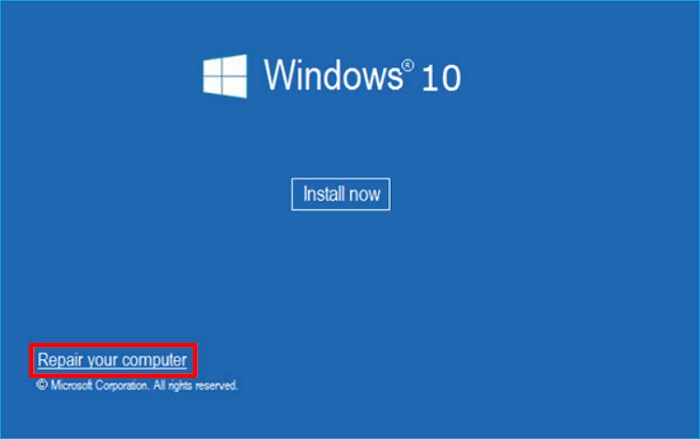
Step 3. Click "Repair your computer."
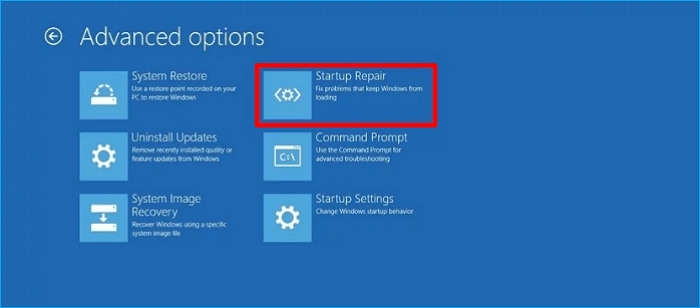
Step 4. To fix the issue with your computer, click on "Choose an option" and select the "Startup Repair" option, which will then start repairing your computer automatically.
Further Reading: Windows Boot Manager Not Showing in BIOS
Method 2. Boot in Safe Mode
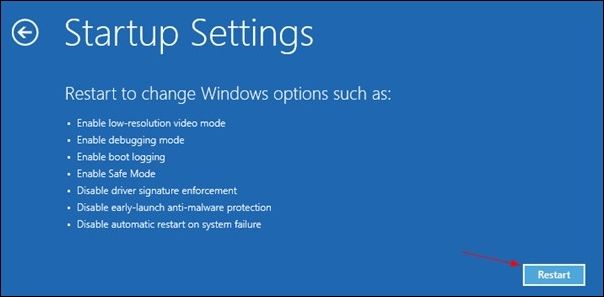
To troubleshoot a computer restart issue, you can try booting in safe mode. This involves restarting your computer and immediately starting to tap the F8 key, which will bring up a menu. From this menu, select "Safe Mode" and press Enter. This will start your computer with a minimal set of drivers and services, which can help you isolate the cause of the restart issue.
Step 1. When your computer restarts, hit the F8 key (or Shift + F8 on some computers) during the starting process.
Step 2. To access the Advanced Boot Options menu, you can restart your computer and immediately start tapping the F8 key. This will allow your machine to boot up in a minimal state, known as Safe Mode, where only the most basic drivers and programs are loaded. This can be useful for troubleshooting and resolving issues that may be causing your computer to malfunction or freeze.
Method 3. Check the File System
Qiling Disk Master is a Windows boot repair tool that also has a "Check File System" feature to help fix file system issues that may cause a computer to get stuck on restarting.
Here are the detailed steps to make the most of Qiling Disk Master:
Guide 1. Create A Bootable USB
Guide 2. Check Disk Errors
Step 1. Right-click the target partition that has a problem.
Step 2. Choose "Advanced" > "Check File System".
Step 3. Confirm if you want to hide the partition or not.
Step 4. Check the "Fix the error on the disk" option in the Check File System window.
Step 5. Click "Proceed" to check errors on your partition.
Other functions of Qiling Disk Master:
Method 4. Run SFC and Check Disk Utility
Using the Check Disk Utility and System File Checker (SFC) can improve system stability and potentially resolve the issue of a computer stuck on restarting.
Step 1. Access the Command Prompt in WinRE.
Step 2. To run the System File Checker, enter the command "sfc /scannow /offbootdir=C:\ /offwindir=D:\Windows" and press Enter.
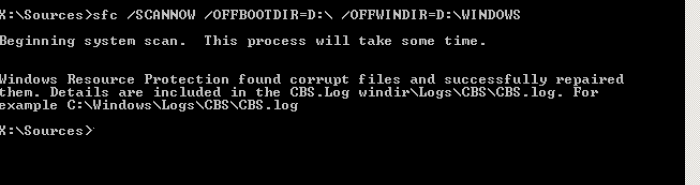
Step 3. Enter the command: "chkdsk D: /R" to run the disk check utility on the D drive. This command will scan the drive for any errors or issues and attempt to repair them.
Further Reading: SFC SCAN Stuck
Method 5. Run System Restore
When your computer keeps restarting, System Restore can help by restoring your PC to a previous time when it was working properly, if you have System Restore installed.
Step 1. In WinRE, select System Restore.
Step 2. Make a restore point selection and adhere to the on-screen directions.
Method 6. Run Windows Troubleshooting
Windows Troubleshooting is a feature that helps diagnose and resolve system maintenance-related issues, such as a computer restarting frequently.
Here is how to go about it:
Step 1. Press Windows + S, then type "Control Panel" and Enter.
Step 2. To perform a Windows Update, go to "System and Security" and select "Security" and then "Maintenance."
Step 3. Under "Maintenance," select "Start maintenance," and follow the on-screen prompts.
Method 7. Disable Fast Startup
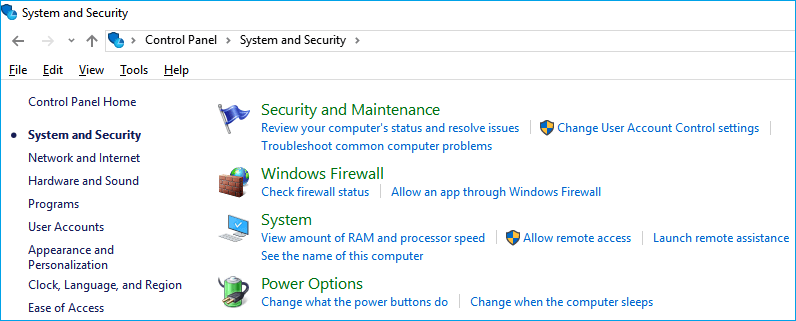
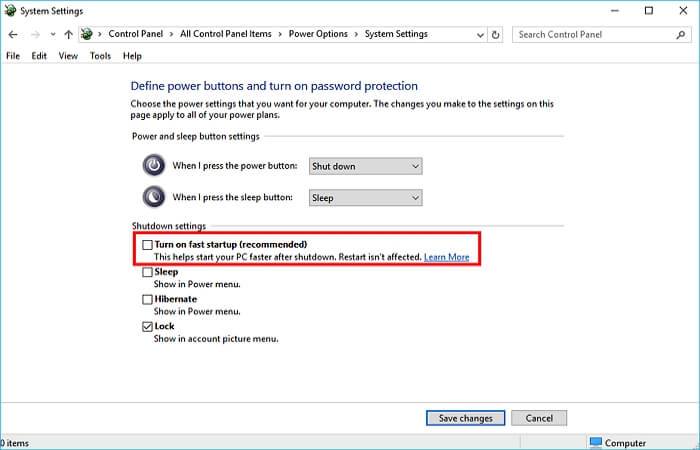
To disable Fast Startup, go to Start, then type "Control Panel" and open it. Next, click on "Power Options". In the "Choose what the power buttons do" section, click on "Change what power buttons do". Then, uncheck the box next to "Turn on fast startup (recommended)".
Step 1. To adjust the power button settings, navigate to the Control Panel, select "Hardware and Sound," then choose "Power Options." From there, click on "Change what the power buttons do."
Step 2. Select "Change settings that are currently available."
Step 3. Disable "Fast startup (recommended)."
Method 8. Roll Back Drivers
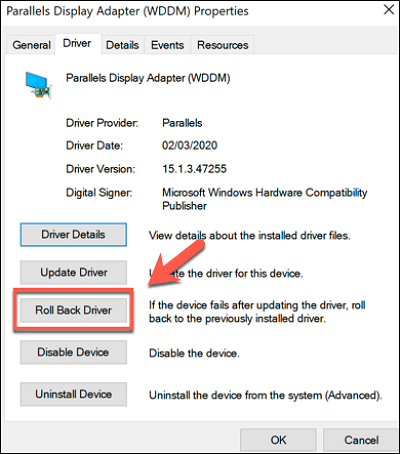
If you're experiencing restart problems after updating a device driver, try reverting to the earlier version to resolve the "computer stuck on restarting" issue. To do this, follow these steps:
Step 1. To access the Device Manager, click the Start button and right-click on it, then select "Device Manager" from the context menu.
Step 2. Right-click the device driver, such as your video card, and select "Properties."
Step 3. Under the "Driver" menu, select "Roll Back Driver."
Method 9. Perform a Clean Boot
To resolve the issue of a computer getting stuck on restarting, you can try a clean boot to isolate the problem caused by conflicts between startup applications and third-party services. This involves disabling all non-Microsoft services and applications to see if the issue persists, which can help identify the root cause and potentially resolve the problem.
Step 1. Type "services.msc" into the Run box, then click "OK."
Step 2. Check the box to hide all Microsoft services, and then click "OK" after selecting "Disable all".
Step 3. To access Task Manager, press "Ctrl + Alt + Esc."
Step 4. Select the "Startup" tab and disable any processes that aren't related to Microsoft.
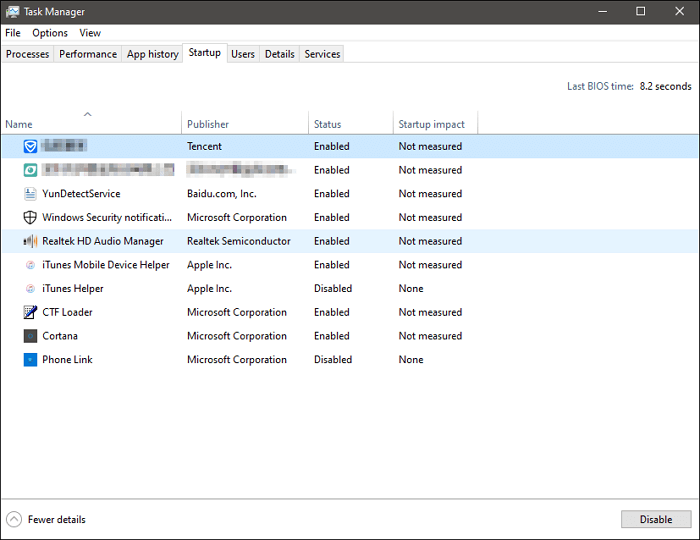
Step 5. To troubleshoot a computer that restarts repeatedly, start by restarting the computer normally. If it boots up properly, try reactivating startup programs and third-party services one by one to identify the problematic software or service causing the restart loop.
Why Computer Stuck on Restarting
Understanding the underlying reasons for this issue is key, as it will enable you to take proactive measures ahead of time, not only fixing the problem but also preventing it entirely.
Here are some reasons why your computer may keep restarting: software conflicts, hardware issues, overheating, outdated drivers, and corrupted system files, among others.
- Power FailureObsolete Drivers
- Corrupted System Files
- Problems with the Master Boot Record (MBR)
- Safe Boot Disabled
- Hardware Problems
- Boot Settings Misconfiguration
If your Windows PC gets stuck at the restart screen, you can find a solution in this article, regardless of the underlying problem. If you're unable to determine the cause, you can try using the Boot Repair feature of Qiling Disk Master.
Conclusion
You can try restarting your computer in safe mode, checking for malware, updating drivers, and running a system file checker to resolve the issue. If the problem persists, you can also try resetting the Windows Update components, running a disk cleanup, and checking for any hardware issues. These steps should help you troubleshoot and resolve the problem of your computer stuck on restarting.
Please share this guide with friends who may be experiencing similar computer issues. To ensure your computer runs smoothly, utilize Qiling Disk Master's advanced features and tools for a more effective solution.
FAQs About Computer Stuck on Restarting
Look no further if you're looking for further information and fixes regarding the problem of a computer that won't restart. These are a few frequently asked questions.
1. Why does my PC take so long to restart?
To speed up a delayed restart, consider disabling unnecessary startup items, closing any unnecessary background programs, and ensuring system updates are current, as these can sometimes cause delays.
2. What to do if Windows Update is stuck on restarting?
If Windows Update gets stuck when restarting, be patient and restart your computer manually. If possible, update in safe mode to avoid any potential issues.
3. How to fix Windows 10 stuck on the restarting screen?
You can force restart your PC.
Step 1. Press and hold the power button for 5-10 seconds to shut it down, then wait a few seconds before proceeding.
Step 2. Power on your computer and check if it restarts normally.
Related Articles
- The Local Device Name Is Already in Use
- Qiling Disk Master 16.0 Crack 2023 | Get Qiling Disk Master Crack License Key
- How to Delete NTFS Partition [Three Ways in 2026]
- How to Hide System Reserved Partition in Windows 11/10/8/7 [Step-by-Step Guide]
- Best PC Clear And Optimizer for Windows 10 & 11
Apart from built-in tools, which is the best PC cleaner and optimizer for Windows 10 or 11 computer? You can find the best PC cleaner for Windows PC from this article. - Deep PC Cleaning: Make the Computer Run Faster!
No one wants to use a slow computer. If you're looking for a deep PC cleaning service, this guide can help, This article shows you how to clean your PC from the outside and inside.
Products
Articles & Tutorials
- Data Recovery
- Data Backup
- File Recovery
- File Backup
- System Backup and Restore
- Disk and Partition Clone
- Technical articles
- Mobile articles
- Disk Master Help
- Windows Data Recovery Tutorials
- Windows Secure Delete Tutorials
- Windows Partition Management Tutorials
- Windows File Backup and Restore Tutorials
- Windows System Backup and Restore Tutorials
- Windows Disk Backup and Restore Tutorials
- Windows Clone Tutorials