How to Install Windows 10 on Second Hard Drive | 2 Ways🔥
To install Windows 10 on a second hard drive, you can either clone the existing Windows installation to the new drive or install a fresh copy of Windows 10 on the second hard drive. This allows for dual-booting or freeing up space on the first hard drive, and can be achieved using software like Qiling Software, which provides step-by-step instructions for both methods.
- Important
- The solutions in this guide are derived from Microsoft's official method for installing Windows from a flash drive, and we have also provided a more detailed and comprehensive guide. You can fully rely on this tutorial.
How to Install Windows 10 on Second Hard Drive
This tutorial covers two solutions to install Windows on a second hard drive/SSD. You can use a third-party OS migration tool, such as Qiling Disk Master, or a Microsoft tool, Microsoft Media Creation Tool, to create a Windows 10 installation disk.
| Method | 🏅Qiling Disk Master | 🥈Microsoft Media Creation Tool |
|---|---|---|
| ⏱️Duration | 5-8 minutes | More than 10 minutes |
| 💻Suitable System | The target system and original system are the same | installing a different system |
| 🧑💻Suitable users | All users | Computer experts |
Both methods can meet your needs, but Method 1 is a simpler and faster solution using a professional system migration tool, whereas Method 2 requires more steps and effort.
Method 1. Install Windows on Second Hard Drive Without USB
Qiling Disk Master allows you to migrate a Windows 10 system to a second hard disk without reinstalling Windows OS and Apps, simplifying and saving time when installing a Windows system, regardless of whether it's an SSD or HDD.
To install Windows 10 on a second hard drive without using a USB drive, you can use Qiling Disk Master. This software allows you to create a bootable disk from an ISO file, which can then be used to install Windows 10 on the second hard drive.
Note: When migrating your operating system to an SSD or HDD, be aware that it will erase and remove existing partitions and data on the target disk if there's not enough unallocated space. So, it's crucial to back up any important data on the target disk to an external drive beforehand to avoid losing valuable information.
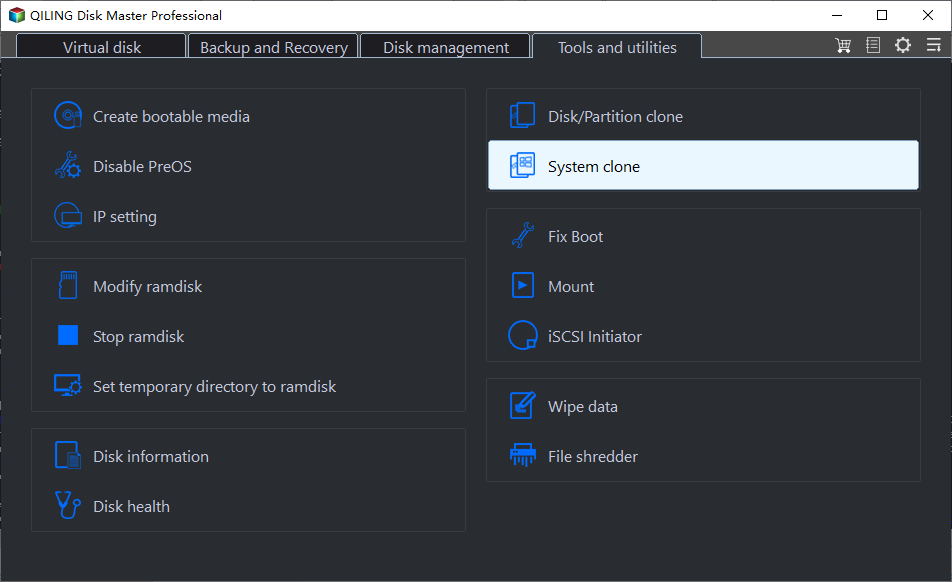
Step 1. To proceed, go to the "Tools and utilities" tab page, select "System clone", and then click "Next" to continue.
Step 2. Select the target disk you want to clone. Click "Next".

Step 3. Preview the layout of your target disk, and click the disk layout options to customize it as desired. After that, click "Start" to initiate the OS migration to the new disk.

Step 4. The user needs to confirm the disk deletion and data loss by clicking "Yes" after checking the warning message, which will result in the deletion of data and partitions on the target disk. It's essential to have backed up important data beforehand to avoid any potential loss.

Step 5. When you see a confirming message, tick "Adjust the order to boot from the clone target disk" and click the respective button to start up your computer from the clone target disk.
- Reboot Now: It means to restart the PC and boot the operating system from the newly installed disk right away.
- Done: it means to make the changes later.
After cloning, Qiling Disk Master will ask if you want to set up the cloned drive as a boot disk. You can choose according to your needs.
See also:
Method 2. Make Windows 10 Installation Disk via ISO File
If your target system is not the same as the one on your original computer, you can download the Windows ISO file and do a fresh installation, which involves a more complicated process. To create a Windows installation disk, you can follow a procedure that includes downloading the Windows ISO file.
Guide 1. Download the Windows 10 ISO file:
You can download the Windows 10 ISO file from Microsoft's website at Windows 10 Download.
- Notice:
- If you've downloaded Qiling Disk Master, you can use this tool to burn an ISO to a USB drive.
Guide 2. Burn the Windows ISO file to USB
After downloading the Windows 10 ISO file, use the Microsoft Media Creation Tool to burn it to a hard disk that is formatted as NTFS and has enough space. Then, follow the steps to prepare Windows 10 installation media.
Step 1. After downloading the Windows Media Creation Tool, you'll need to agree to the Microsoft license terms and then create installation media for another computer.
Step 2. In turn, follow the prompts to select the language, Windows version, architecture, and media.
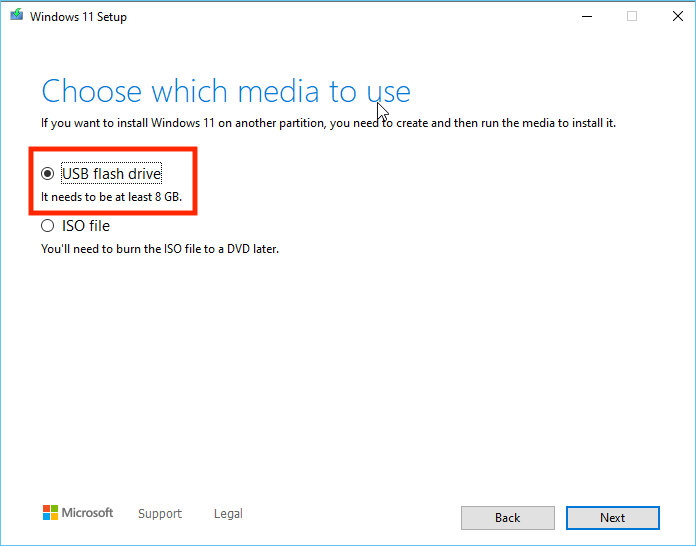
Step 3. Wait for the process to complete to finish creating the USB installation drive.
Guide 3. Set Up the Installation Process
After creating the Windows 10 installation disk, you can install Windows 10 on the second hard drive with USB. Please refer to the following steps:
Step 1. Insert a USB with a copy of Windows 10 into your computer and enter the BIOS settings. Set the USB as the first boot item in the BIOS settings to initiate the Windows 10 installation process.
Step 2. Boot from the installation USB. Set the language, time, and other preferences, then click "Next."
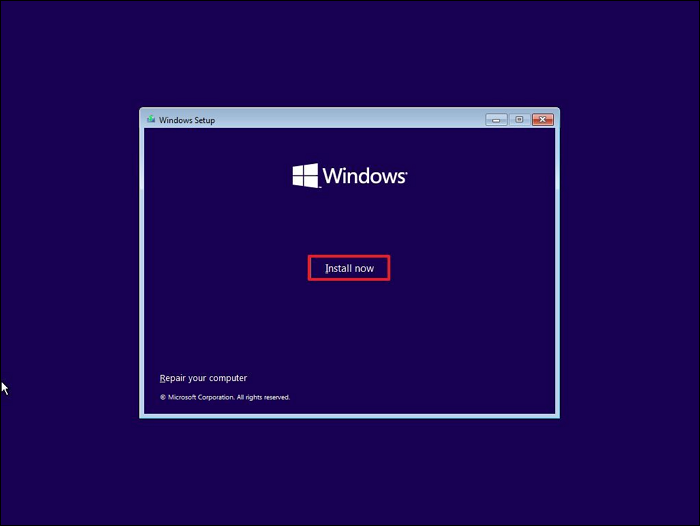
Step 3. Click "Install Now" to start the installation process.
Step 4. Enter the product key or select "I don't have a product key" if you don't have one.
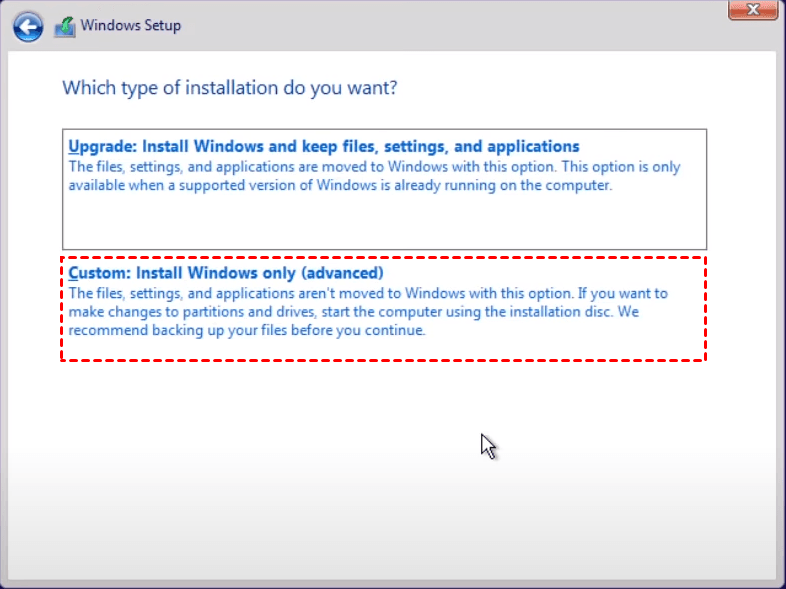
Step 5. Select the installation type: Choose "Install Windows only" since the installation is on the second hard disk.
Step 6. Wait for the Windows installation process to complete.
The process is longer and more complex, but using two hard disks for the same system allows for a direct system migration with Qiling Disk Master.
Why Install Windows 10 on Second Hard Drive
There are many reasons to install Windows 10 operating system on a second hard drive. Some users have shared their needs in the Microsoft community, and the following is a typical case:
Installing Windows 10 on a second hard drive can provide several benefits, such as increased storage capacity, improved system performance, and the ability to run multiple operating systems simultaneously. This setup can also help to prevent data loss in case of a system failure, as the second drive can serve as a backup.
- Dual boot setup: Installing the Windows 10 operating system on a second hard disk allows users to select different operating systems at startup, such as Windows 11 and 10, providing a dual-boot option.
- Change boot drive: If you want to boot from an external drive, you'll need to install the system on a second internal drive. The computer will automatically default to the internal hard disk for booting.
- Solve space shortage problem: When the C drive is full, installing Windows on a second hard disk can free up space on the first hard disk.
- Improve performance: Separating Windows 10 operating system files from other data can better protect data and improve computer performance by allowing the operating system to run more smoothly and efficiently, and reducing the risk of data loss or corruption due to malware or other issues.
- Backup data: Installing Windows 10 on a separate hard disk allows for a clean system restore in case of a system crash or malware attack, making it easier to recover the system.
Installing Windows on a second hard disk can help protect data and improve computer performance by separating the operating system and user data from the rest of the files, allowing for easier backup and maintenance.
Conclusion
You can install Windows 10 on a second hard drive using Qiling Disk Master, which allows you to clone the existing Windows 10 OS without reinstalling it, making the process simple and effective for users of all levels.
If the target system is different from the original one, you can burn a Windows ISO file using installation media, but the process is a bit complicated, so it's recommended to read the instructions in this article in detail.
FAQs About How to Install Windows 10 on Second Hard Drive
Do you have any questions about installing Windows 10 on a second hard drive/SSD? Here we answer all of them for you.
1. Can you install Windows on a second hard drive without USB?
Migrating or burning the OS allows you to install Windows on a second hard drive without using a USB drive. This process also enables you to move all Windows system files, settings, and personal data to the second hard drive.
2. How do I boot Windows from a second SSD?
To boot Windows from a second SSD, ensure there is an operating system installed on the second SSD. Then, enter your computer's BIOS settings and set the second SSD as the primary boot device. This will allow your computer to boot from the second SSD instead of the default primary drive.
Step 1. Reboot your computer and click F2/F12/Del to enter BIOS.
Step 2. Under Boot Options, change the boot order.
Step 3. Save the settings and exit.
3. What happens if I install Windows on two drives?
Installing Windows on both drives will not affect any existing data. If the drives have different operating systems, you can choose which one to boot into, but if they're the same, it might waste some space. You can keep the system on one drive and data on the other.
Related Articles
- [Fixed] Windows Has Detected File System Corruption Error on Windows 10/8/7
- Free Download HDD Regenerator Crack + Serial Key (Safe Alternative)
- Fixes: BitLocker Password & Recovery Key Not Working
- 6 Ways to Reset Forgotten Windows 10 Password 🥇
- How to Use Rufus to Make Bootable USB for Windows 11/10/7
You can easily create a bootable USB drive for Windows 11, Windows 10, or Windows 7 using Rufus, a tool that requires minimal effort. Additionally, Qiling OS2Go is another software similar to Rufus that allows you to make a USB drive portable. - How to Wipe All Data from PC (Windows 7/8/10/Vista/XP)
Before selling, recycling, or donating your computer, take a moment to protect your personal data and maintain data privacy. To securely wipe your PC and prevent any data recovery, follow the steps outlined in this article, which is compatible with Windows 10/8/7/Vista/XP.
Products
Articles & Tutorials
- Data Recovery
- Data Backup
- File Recovery
- File Backup
- System Backup and Restore
- Disk and Partition Clone
- Technical articles
- Mobile articles
- Disk Master Help
- Windows Data Recovery Tutorials
- Windows Secure Delete Tutorials
- Windows Partition Management Tutorials
- Windows File Backup and Restore Tutorials
- Windows System Backup and Restore Tutorials
- Windows Disk Backup and Restore Tutorials
- Windows Clone Tutorials