How to Hide System Reserved Partition in Windows 11/10/8/7 [Step-by-Step Guide]
Many users find the System Reserved partition in Windows File Explorer but don't need to access it very often, leading them to want to hide it. This article provides a detailed guide on how to hide the System Reserved partition.
What Is a System Reserved Partition
The System Reserved partition contains the Boot Manager code, boot files for BitLocker Drive Encryption, and the boot configuration database, as well as recovery environment data in Windows 10, and is usually located before the system partition, typically the C drive, on fresh Windows 10 installs.

The System Reserved partition is not deleted because it contains critical system files, such as the Boot Configuration Data (BCD) store, which is necessary for booting the operating system. Deleting this partition would render the system unbootable.
- The System Reserved partition contains the boot manager, boot configuration data, and startup files for Bitlocker drive encryption, playing a crucial role in the system's boot process and encryption setup.
- Hiding the System Reserved partition can ensure its integrity, and the system can be successfully restored to factory settings after an accident, by protecting it from accidental deletion or modification.
To safely and efficiently hide the System Reserved partition, you have three options. You can use the built-in Disk Management tool in Windows to move the System Reserved partition to the end of the disk, making it less visible. Alternatively, you can use a third-party partition manager software to resize or move the System Reserved partition to a different location on the disk. Finally, you can also use a boot manager software like EasyBCD to hide the System Reserved partition from the boot menu, making it less accessible.
Hide System Reserved Partition Safely and Efficiently - 3 Ways
Here are the three ways to hide a System Reserved partition:
Hide System Reserved Partition via Qiling Disk Master - Easy
Hide System Reserved Partition via Disk Management - Medium
Hide System Reserved Partition via Diskpart - Difficult
To hide a System Reserved partition, Qiling Disk Master is the easiest and most straightforward method that doesn't require extensive computing knowledge. Using this tool, you can easily hide the System Reserved partition, making it less visible and less prone to accidental deletion or modification. This approach is ideal for those who want to simplify their disk management without needing to delve into complex technicalities.
Hide System Reserved Partition via Qiling Disk Master - Easy
Qiling Disk Master is an easy-to-use tool that allows you to hide the System Reserved partition with simple steps, providing clear prompts to guide you throughout the process. It supports various Windows operating systems, including Windows 11/10, Windows 8/7, and Windows XP/Vista, making it a versatile solution for users who want to hide their System Reserved partition.
Option 1 - Hide Partition
- Right-To hide a partition on your computer, click on the partition you want to hide, then select "Hide partition" from the drop-down menu. This will temporarily remove the partition from view, but it will still be accessible from the Disk Management console.
- Then you will wait for moment to hide your partition.
Option 2 - Unhide Partition
- Right-To view and access a partition, click on the partition you want to view and select "Show partition" from the drop-down menu.
- After creating a new partition, you will need to wait for a moment to unhide it, and then you can access it on your Windows 11/10/8/7 system.
Besides hiding the reserved partition, a professional disk partition manager has many other features, such as managing and optimizing disk partitions, resizing partitions, converting between different file systems, and more.
- Resize encrypted partition
- Resize/create/delete partitions
- Move System Reserved partition
- Unhide/hide drive in Windows 10
- Remove the SSD System Reserved partition
Download Qiling Disk Master to help with your issues.
Hide System Reserved Partition via Disk Management - Medium
If you don't want to use a third-party tool, you can use Disk Management to hide the System Reserved partition. Disk Management is a built-in tool in Windows that allows you to extend, shrink, or hide a partition. To hide the System Reserved partition, you can follow the steps in Disk Management to shrink the partition you want to use, then use the unallocated space to hide the System Reserved partition. This method doesn't require any additional software or tools.
Step 1. To open Disk Management, press the Windows key + R, type in diskmgmt.msc, and press Enter. This will open the Disk Management window.
Step 2. Right-click on the target System Reserved partition and choose the "Change drive letter and paths" button.
Step 3. To remove the assigned drive letter, click on "Remove" and confirm with "Yes" in the warning window that appears, as shown in the example below where E drive is used.
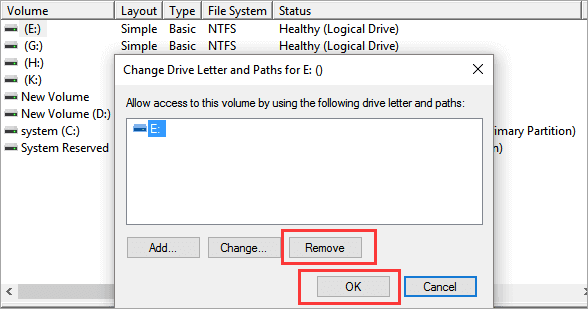
To check if the System Reserved partition has been hidden, you can click open File Explorer and verify if it is visible or not.
Hide System Reserved Partition via Diskpart - Difficult
If you're an experienced user, you can use Diskpart commands to hide the System Reserved partition, but be careful when typing the commands to avoid data loss.
Step 1. Right-click the Windows icon and choose "Run."
Step 2. Type cmd in the run window to launch Command Prompt.
Step 3. Type diskpart and open the Diskpart window.
Step 4. Hit "Enter" each time you type one of the following commands:
- select disk 0
- list partition
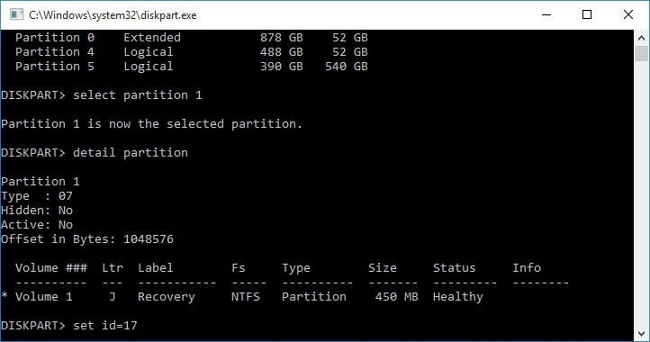
- select partition 1
- detail partition
- set id=17 This command will change the partition type from 07, which indicates an unhidden NTFS partition, to 17, which indicates a hidden NTFS partition.
- detail partition The partition is now 17 and hidden, with other volume details and the partition's label appearing.
Here are some links related to the System Reserved partition. Click them if you are facing similar problems:
Conclusion
To hide the System Reserved Partition, you can use the built-in Disk Management tool, Diskpart commands, or a trusted third-party tool like Qiling Disk Master. With Disk Management, you can hide the partition in a few steps. Alternatively, you can use Diskpart commands to achieve the same result. If you're not familiar with these methods, Qiling Disk Master is a user-friendly option that allows you to hide the System Reserved partition in just three steps, and also provides additional features like deleting, creating, or removing partitions.
Don't hesitate to download it to help. You will enjoy what it brings to you.
Hide System Reserved Partition FAQs
You're looking for a way to hide the System Reserved partition on your computer. This partition typically contains the Boot Configuration Data (BCD) store, which is used to boot your operating system. Hiding this partition can be useful if you want to free up space on your main drive or if you're experiencing issues with the partition.
1. Is it okay to hide the System Reserved drive?
Hiding the System Reserved drive on a Windows computer doesn't delete any data stored on the drive. It can be unhidden when necessary.
2. How do I hide the System Reserved partition in Windows 11?
Follow the steps below to hide the System Reserved partition:
Step 1. Open Disk Management and right-click on the System Reserved partition in the Disk Management window.
Step 2. To change the drive letter and paths, select the "Change drive letter and paths" option and choose "Remove."
Step 3. Click "Yes" when you get a warning message.
3. Should I delete the System Reserved partition?
The System Reserved partition is essential because it stores the boot manager code, boot files for BitLocker drive encryption, and the boot configuration database.
Related Articles
- PS4 Storage Full? Learn How to Get More Storage on PS4
- How to Format BitLocker Drive/USB/SD Card With or Without Password
- [Top 11] Best USB Format Tools | USB Formatter Free Download
- How to Free Up Disk Space on Windows 8 [100% Works]
- Tutorial: Surface Pro 8 SSD Upgrade [Step-by-Step Guide]
If you're running low on space on your Surface Pro 8 and want to upgrade the SSD, this guide can help. To do this, follow the step-by-step process outlined in this article, which will guide you through the process of upgrading the SSD on your device. - How to Fix Surface Won't Turn On [100% Working Solutions🚩]
If your Microsoft Surface won't turn on, try charging it for at least 30 minutes, then press and hold the power button for 30 seconds. If that doesn't work, try booting in safe mode or using the Surface's built-in troubleshooting tools.
Products
Articles & Tutorials
- Data Recovery
- Data Backup
- File Recovery
- File Backup
- System Backup and Restore
- Disk and Partition Clone
- Technical articles
- Mobile articles
- Disk Master Help
- Windows Data Recovery Tutorials
- Windows Secure Delete Tutorials
- Windows Partition Management Tutorials
- Windows File Backup and Restore Tutorials
- Windows System Backup and Restore Tutorials
- Windows Disk Backup and Restore Tutorials
- Windows Clone Tutorials