How to Free Up Disk Space on Windows 8 [100% Works]
Your computer might prompt you to free up disk space on the C drive or disk partition after using it for a while, likely due to insufficient free space.
As your device runs low on free disk space, it will slow down and apps will experience delays in responding to apps and services. This article will guide you in identifying the problem using a free disk space analyzer and provide steps to free up disk space on Windows 8.
What's Taking Up Disk Space on Windows 8
The C drive in Windows stores the operating system, system files, and applications, and filling it up can slow down your PC's performance.
Here are a few possible causes why your Windows 8 disk space might be full: Windows 8 has a tendency to store temporary files in the system drive, which can quickly consume disk space. The Windows 8 Update folder can also be a culprit, as it stores all the updates that have been installed on your system.
- Neglecting large download files, the default downloads folder is usually located on the C drive, taking up valuable storage space.
- Paging files.
- Temporary and hidden files.
- Backup files.
- Installation files for previous Windows.
- Corrupted file system.
- Virus or malware attack, etc.
If you have been troubled by SSD is out of space problem, you can refer to the guideline below to resolve it effectively:
To find what is taking up space on your SSD, start by checking the disk usage in your computer's operating system. On Windows, go to File Explorer, right-click on the SSD drive, and select "Properties.
To identify what's consuming space on your SSD, start by checking the Disk Cleanup tool, which can be accessed through the Start menu. This tool provides you a breakdown of the files and programs taking up space on your drive.
If you want to see what is taking up disk space, we recommend using a professional disk analyzer like Qiling Disk Master Free. It can easily check the space status of the disk and offer users several options.
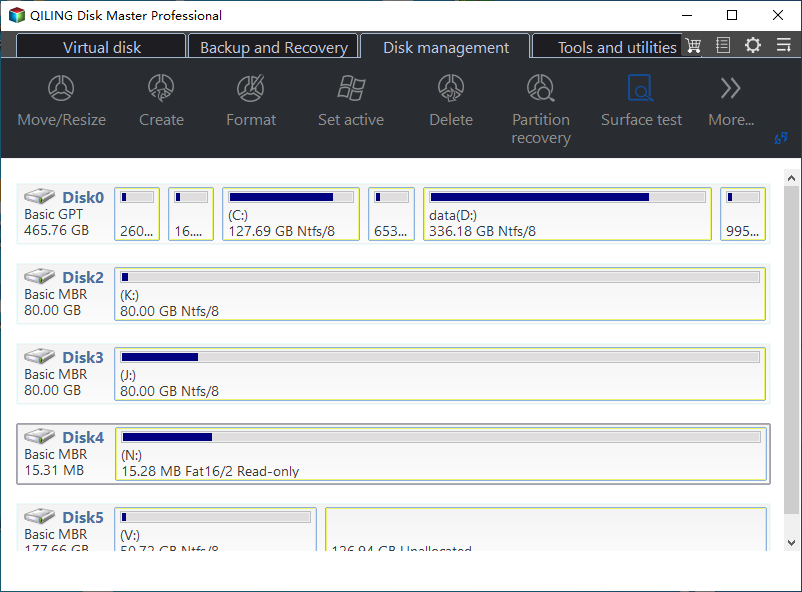
Knowing the possible causes of your disk filling up can help you clean your drive more effectively. So, move on to the next section and learn how to free up space on your drive in Windows.
How to Free Up Disk Space on Windows 8 - 8 Fixes
To clear disk space in Windows 8/10/11 or other versions, try the tried and tested methods below, but first make a backup of your disk files to recover them if you accidentally delete any files.
If your C drive runs out of space, you can effectively extend the drive partition using a third-party app like Qiling Disk Master. The app's "Extend Partition" feature allows you to extend the C drive partition as much as you need.
To expand a disk partition and free up disk space in Windows 8, use the Qiling Disk Master tool and follow these steps: First, download and install the Qiling Disk Master tool from the official website, then launch the tool and select the disk you want to expand from the list of available disks. Next, click on the "Expand" button and specify the amount of space you want to add to the partition.
Step 1. Locate the Target Partition.
To resize a partition in Partition Manager, locate the target partition and select the "Resize/Move" option.

Step 2. Extend the Target Partition.
To add unallocated space to your current partition, drag the partition panel to the right or left, incorporating the unallocated space into your existing partition.

Extra Option: Get Space from Another Drive
If there's not enough unallocated space on your disk, right-click on a big partition with enough free space, select "Resize/Move" to make some space.
To extend the target partition, select the partition you want to extend at the "Allocate space to" column in the Partition Manager. This will allow you to resize the partition to the desired size.
Step 3. Execute Operations to Extend Partition.
To resolve the issue, drag the dots of the target partition into the unallocated space. This will allow the partition to expand into the available space and resolve the issue.
Then Click the "Proceed" to keep all the changes.
Qiling Disk Master allows you to manage your disks or partitions with more robust features, including merging partitions and converting MBR to GPT. Download the app and give it a try today.
2. Delete Unnecessary/Junk Files
Deleting unnecessary and junk files from your disk is the simplest way to free up disk space in Windows 8, as these unwanted files can consume a significant amount of space, leaving little room for your essential files.
To remove unwanted system files, you can use Qiling Disk Master or the built-in Windows tool - Disk Cleanup. You can access Disk Cleanup by searching for it in the Start menu, selecting the drive you want to clean up, and following the prompts to select the types of files to delete.
Step 1. Run Disk Cleanup and select "Clean up system files."
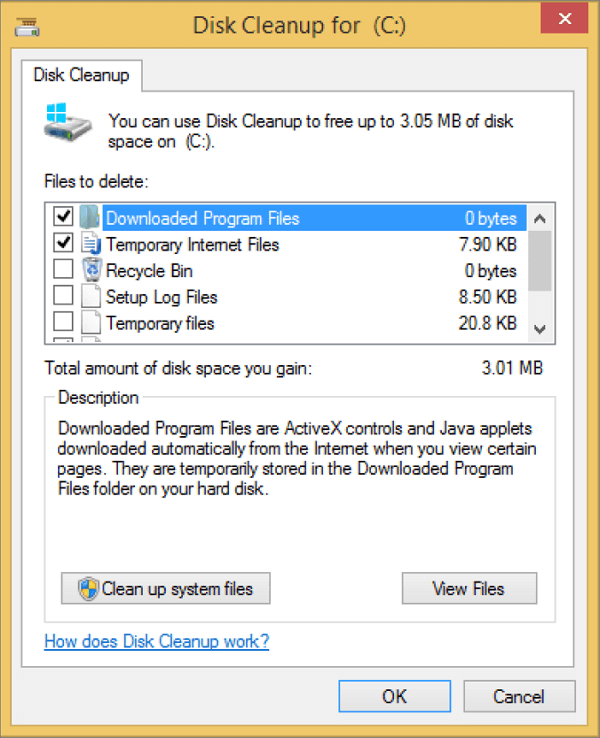
Step 2. To delete unwanted file types, select the types you want to delete and view a brief overview of each file type to confirm your choice.
Step 3. To delete a file, click on the "OK" button after selecting the file you want to delete. This will confirm the deletion and the file should be removed from the system.
3. Clean Temporary Files via Disk Cleanup
Windows temporary files are stored temporarily before being deleted, but they often take up a lot of disk space. Unlike in previous versions, Windows 8 does not automatically delete these files, so users must manually delete them to free up disk space.
To clean temporary files using Disk Cleanup, follow these steps: Open Disk Cleanup, select the drive you want to clean, and click "OK". Check the boxes next to "Temporary files" and "System files" to select them for deletion.
Step 1. Open "Disk Cleanup" and go to "Files to Delete."
Step 2. Select the temporary files, click "OK," and then confirm the deletion by clicking "Yes".
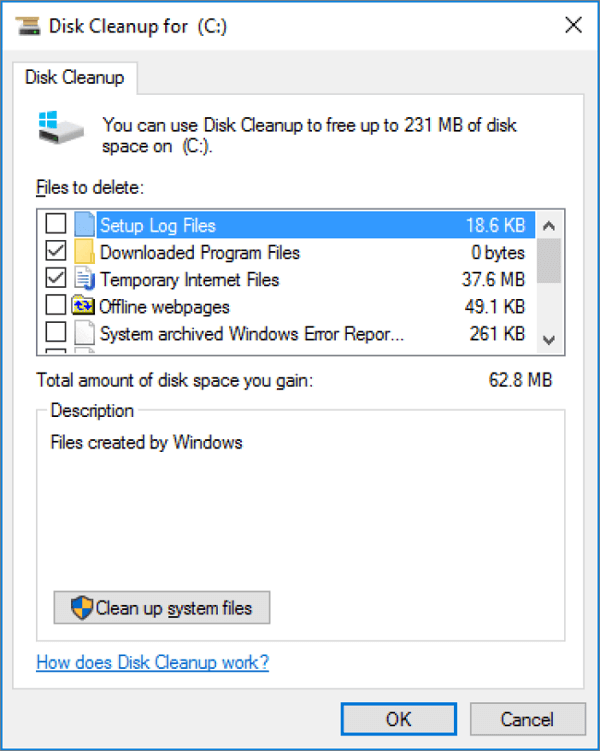
Step 3. The system drive properties dialog box should be closed after making any changes.
Uninstalling unnecessary programs can free up disk space, but removing their shortcuts from the desktop is unnecessary.
To free up disk space in Windows 8, you can follow these steps. First, check which files and folders are taking up the most space on your hard drive.
Step 1. To uninstall a program, open the "Control Panel" and navigate to "Programs" and then select "Programs and Features."
Step 2. Select the program you want to uninstall and select "Uninstall/Change."
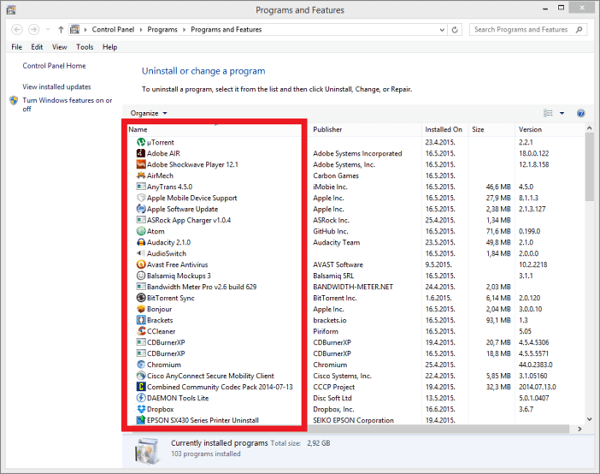
Step 3. Now follow the on-screen directions to uninstall the program.
5. Transfer Large Files to Another Drive
If your computer still indicates insufficient space after deleting temporary and unnecessary files, you may have large files on your drive that are taking up space. To free up disk space, consider moving these large files to another drive on your computer. This can help alleviate the storage issue and give you more space to work with.
You can transfer large installed programs and files from your C drive to another or external hard drive without reinstalling them using the Qiling Disk Master Tech.
The steps are below:
The Qiling Disk Master app offers various features to help free up disk space, including clearing junk files, formatting the hard drive, and assisting in removing viruses or malware that may be causing the issue. It can be downloaded from the official website.
Hibernate, enabled by default in Windows 8, allows the disk to control power and protect the system from power surges. However, the "Hiberfil.sys" file that enables hibernation takes up a significant amount of disk space, potentially slowing down your PC. If you need to free up disk space, it's a good idea to disable hibernation to reclaim that space.
Use the command line to disable Hibernation by following the instructions below:
Step 1. Click "Start" and type "cmd" to open the command prompt. Then, right-click on the "cmd" result and select "Run as administrator" to run it with elevated privileges.
Step 2. Type powercfg.exe/hibernate off and press "Enter."
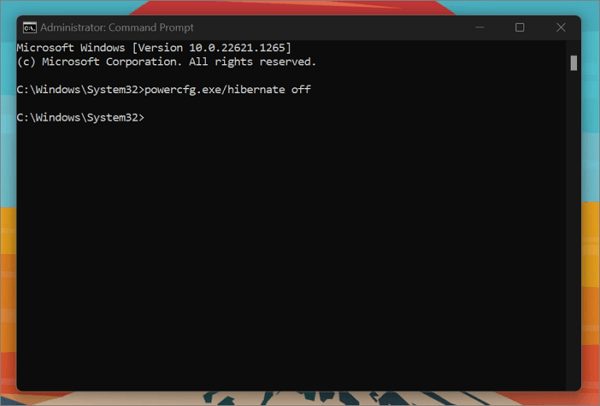
This two-To disable Hibernation, go to Control Panel > Power Options > Choose what the power buttons do. Click on "Change settings that are currently unavailable" and then select "Change plan settings" for the plan you're currently using.
7. Defragment Hard Disk on Windows 8
If you don't regularly defragment your hard drive, your computer may become slow and take a long time to start up, and it may also freeze or run out of disk space.
To defragment a disk, you can use the built-in Disk Fragmenter tool in Windows. Here's how to do it: Open the Disk Fragmenter, select the disk you want to defragment, and then click on the "Defragment" button to start the process. The tool will analyze the disk, move files to contiguous locations, and then display the results.
Step 1. Search for "Defragment and Optimize Drives" using the search button.
Step 2. To change the automatic defragmentation schedule, go to the "Optimize Drives" menu, select your drive, and click "Change Settings".
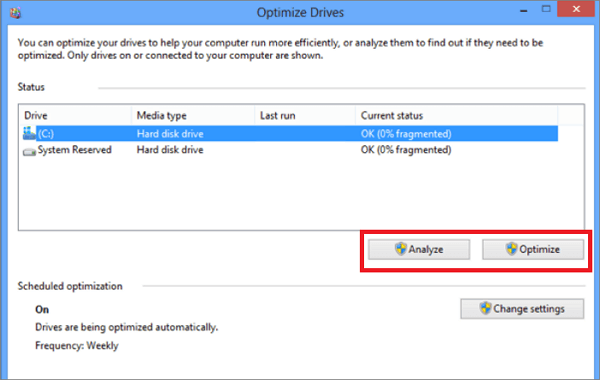
Step 3. If your hard drive isn't set to automatically defragment, you can manually defragment it by selecting the disk and clicking the "Optimize" button.
Defragmenting your computer may take a significant amount of time to complete, as it involves reorganizing and consolidating fragmented data on the hard drive. This process can be time-consuming, especially if the hard drive is heavily fragmented or large in size.
If your hard drive or solid state drive is full and you can't delete any files, you might need to upgrade to a larger model to store all your data without compromising system performance.
Since moving all data to a new HDD or SSD is difficult, you may want to use a specialized tool like Qiling Disk Master, which allows you to clone an SSD or HDD to a larger one in Windows 10/8/7 without losing data.
Using the Qiling Disk Master clone feature allows you to transfer your files to a larger SSD without having to reinstall Windows and your programs, making it a convenient way to upgrade your storage.
To clone your HDD or SSD using the Qiling clone tool, you may need to follow these steps: connect your old drive to the computer, download and install the Qiling clone tool, select the source and target drives, start the cloning process, and wait for it to complete. The tool will create a sector-by-sector copy of your old drive, including all data, settings, and operating system.
Step 1. Select the source disk.
- Click the "Clone" option from the left menu and select either "Clone OS Disk" or "Clone Data Disk" depending on your needs, then click "Next".
- Choose the source disk and click "Next".
Step 2. Select the target disk.
- Select the desired storage device, such as an HDD or SSD, as the destination and proceed with "Next" to continue the process.
Step 3. To view the disk layout and edit the target disk partition size, you can use the `fdisk` command in Linux. This command allows you to manage disk partitions, including viewing the current layout and making changes to the partition size. By running `fdisk` with the device name (e.
To reinstall Windows, insert the Windows installation disk and restart the computer. Open the BIOS settings by pressing the corresponding key (usually F2, F12, or Del) and set the boot order to the installation disk. Save the changes and exit the BIOS. The computer will restart and boot from the installation disk.
If you want to customize your disk layout, you can select "Autofit the disk", "Clone as the source" or "Edit disk layout". The last option is recommended if you want to leave more space for your C drive.
Step 4. Click "Proceed" to start the disk cloning process.
Read Warning message and confirm "Yes" button.
Isn't it amazing how one tool can solve all of your problems? So what are you waiting for? Download it now to increase your Windows 8 disk space and manage your hard drive.
Conclusion
If you're experiencing a slow computer, the simplest solution is to remove all unused and junk files and programs from your hard drive. However, if that doesn't work, a third-party tool can be used to help resolve the issue.
Qiling Disk Master offers a one-stop solution for various disk-related issues, including partitioning, virus removal, disk defragmentation, file transfer to different drives or SSDs, and disk cleanup, all on a single platform.
To enhance system performance and free up disk space on Windows 8/10/2011, consider implementing fixes to optimize the Qiling Disk Master app, which can clean drive partitions and maintain system efficiency, providing an uninterrupted system experience.
Here are some useful contents about free up disk space. Click and read more: 1. Uninstall unused apps 2.
FAQs About Free Up Disk Space on Windows 8
Hopefully, you don't face any longer experience disk storage errors. However, if you still have concerns about how to free up disk space on Windows 8, refer to the FAQs listed below.
1. Does Windows 8.1 have Disk Cleanup?
To run the built-in Disk Cleanup app on your Windows PC, type "disk cleanup" into the taskbar search box, then choose it from the list of results to open.
2. What is taking up all my storage on Windows 8?
Files that may have taken up storage on your Windows 8 computer include temporary files created when running programs or using features, system files that can become corrupted or take up space, program files from installed programs that can be uninstalled, user files like documents and photos that can be deleted, and Windows Update files that can be cleaned up. You can free up storage space by using the Disk Cleanup tool or Windows Update tool to delete temporary and system files, uninstalling unused programs, and deleting unnecessary user files.
- Temporary files
- Backup files
- Installation files.
- Viruses or malware
- Neglected downloads
All these files can become large and take up a lot of space, making it likely that you'll need to delete or format the partition for everything to work without issues.
3. How do I reduce 100 disk usage on Windows 8?
Here are some steps to help you lower disk usage on your Windows 8 computer:
- 1. Check for malware.
- 2. Disable Windows search.
- 3. Disable Superfetch.
- 4. Update device drivers.
- 5. Disable unnecessary startup programs.
- 6. Defragment your hard drive.
Related Articles
- How to Make Unallocated Space Contiguous [Step-by-Step Guide]
- How to Format SSD with OS on It [Reliable Solution] - Qiling
- Download Partition Magic Alternative Software to Resize Partition under Windows 10
- How to Format USB to NTFS & Convert USB to NTFS in Windows 10/11 (All 4 Ways)
- Sony VAIO Boot Menu: Everything You Should Know
This guide will introduce the Sony VAIO boot menu and Sony BIOS key, allowing you to easily boot Sony VAIO from USB drives. - How to Speed Up Computer Performance in Windows 11/10/8/7 [Step-by-Step Guide]
This article provides a guide on how to speed up computer performance in Windows 11/10/8/7, addressing the issue of computers running slow. A professional tool is also introduced to help extend your partition, which is a key solution to resolving computer performance issues.
Products
Articles & Tutorials
- Data Recovery
- Data Backup
- File Recovery
- File Backup
- System Backup and Restore
- Disk and Partition Clone
- Technical articles
- Mobile articles
- Disk Master Help
- Windows Data Recovery Tutorials
- Windows Secure Delete Tutorials
- Windows Partition Management Tutorials
- Windows File Backup and Restore Tutorials
- Windows System Backup and Restore Tutorials
- Windows Disk Backup and Restore Tutorials
- Windows Clone Tutorials