How to Lower Disk Usage in Windows 10 from 100% to...0%
A high disk usage can cause a computer to slow down, become unresponsive, and perform poorly, indicating a potential issue with the hard disk or operating system.
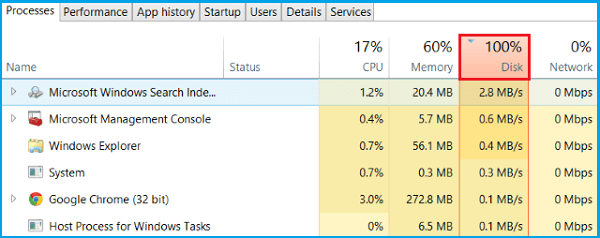
What Is Disk Usage?
Disk usage (DU) is the portion or percentage of computer storage currently in use, contrasting with disk space or capacity, which is the total storage capacity. High disk usage indicates a problem, as it can slow down the machine, and if it hits 100%, the computer will freeze until processes complete their tasks.
How to Lower Disk Usage Effectively (14 Ways)
| Workable Solutions | Step-by-step Troubleshooting |
|---|---|
|
Disable Suspicious Programs |
1. Restart PC...Full steps |
| Advanced Troubleshooting |
7. Check disk for errors...Full steps |
| Other Possible Troubleshooting |
11. Change settings in Google Chrome...Full steps |
If your computer is experiencing a slow response time, check the Task Manager to identify the resource-draining task. Look for Apps or background processes consuming excessive resources, and end them if necessary. If not, try the 10 best ways to reduce disk usage, which can help bring the disk usage back to a normal state, usually 0%, and potentially resolve the 100% disk usage issue.
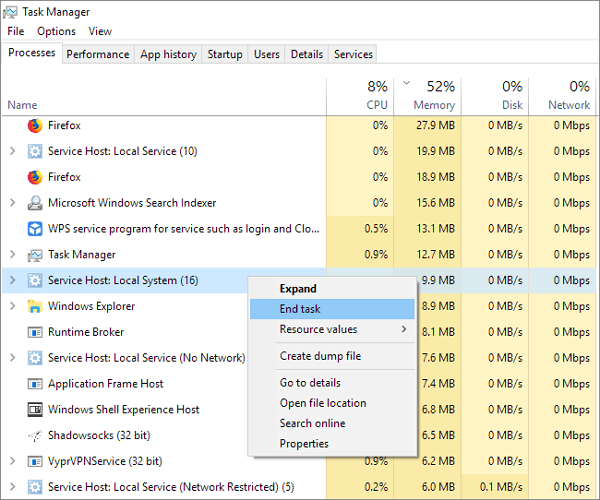
Way 1. Restart Your Computer
If the task manager can't pinpoint which process is causing high disk usage, try restarting your computer as a first step. This can resolve various issues, and using the "Restart" option instead of "Shut down" can help by removing the old Windows state and starting your system with a fresh look.
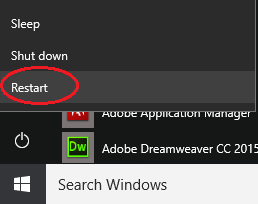
To restart your computer:
- Press the Windows key
- Click on the Power icon
- To restart your computer, click the "Restart" button, which will close all currently running applications, shut down the PC, and then automatically turn it on again.
If your system is fresh and new, seeing 100% disk usage is not a cause for concern. However, if the issue persists, it's worth investigating to resolve the problem.
Way 2. Check for Malware Infection
Malicious software, or malware, can cause significant damage to your computer, including data loss, system performance issues, and resource depletion. Malware is often invisible, requiring the use of professional antivirus software to detect and remove it. To protect your system, it's essential to scan your PC immediately to identify and address any malware threats. You can utilize Windows Defender, a built-in security tool, if you haven't installed a third-party antivirus program.
To run Windows Defender in Windows:
Settings -To access the Windows Defender settings, go to Update & Security, then click on Windows Defender, and finally open Windows Defender to view the full settings page.
Way 3. Disable Your Main Antivirus Program Temporarily
Close your main antivirus software and try to install the Windows updates. Many third-party antivirus programs are set to run continuously, consuming high disk usage. This might be the cause of your high disk usage issue.
If turning off the antivirus software resolves the disk status issue, you may want to contact the vendor to report the problem and ask for a solution that balances security with disk usage. This could involve adjusting settings or using a different version of the software.
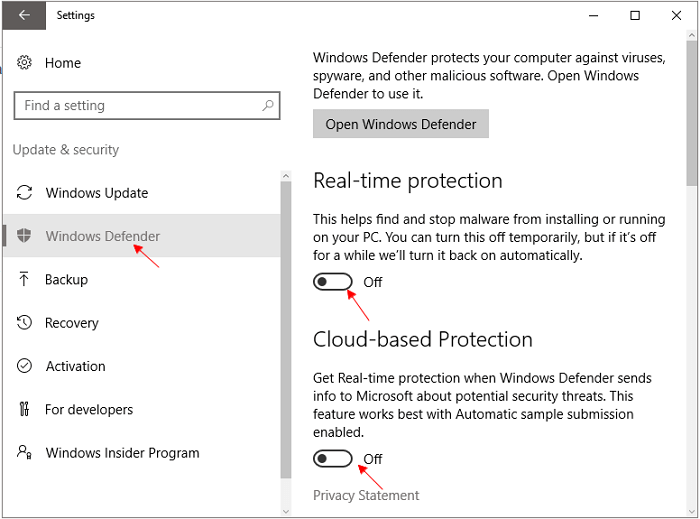
Way 4. Disable Windows Defender Temporarily
Windows Defender, a built-in antivirus program, runs in the background and may conflict with main antivirus software, causing high disk usage.
To disable Windows Defender:
- Click Start and go to Settings
- Choose Update & Security
- To disable Windows Defender, click on the Windows Defender icon in the system tray, then click on the "Virus & threat protection" settings. From there, toggle off the switches for "Virus & threat protection" and "Cloud-delivered protection" to disable real-time protection and cloud-based protection, respectively.
Way 5. Disable Windows Search Temporarily
If the high disk usage problem in Windows 10 is caused by a search loop, you can try disabling the Windows Search function to resolve the issue.
First, use the method to temporarily close the Windows Search to identify the problem:
- To open the Command Prompt on Windows, press the Windows key + R to open the Run dialog box, type "cmd" in the text box, and then press Enter to open the Command Prompt.
- Type the command: net.exe stop "Windows search" and hit Enter
To resolve the issue of high disk usage by Windows Search, you can stop it from running until the next Windows restart using the command "net stop wsearch" and then restart Windows Search using "net start wsearch". If the issue persists, it's likely due to Windows Search and you may want to close it permanently.
To disable Windows Search permanently, you need to do it this way:
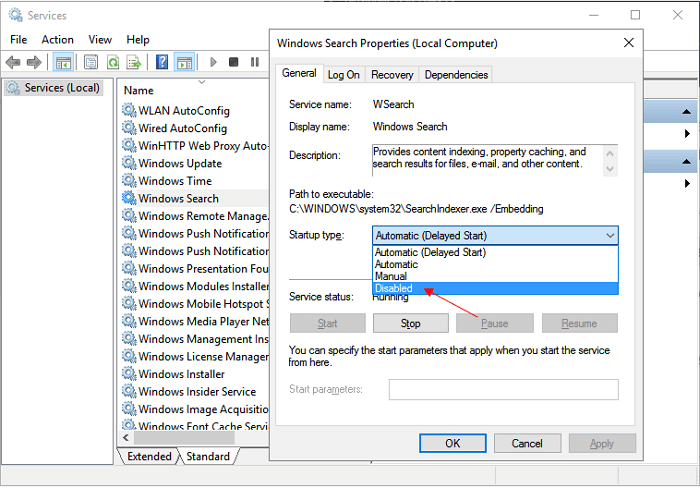
- To open the Services window, press the Windows key + R keys simultaneously to open the Run dialog box, then type "services.msc" and press Enter. This will open the Services window, where you can view and manage the various services running on your computer.
- In the Services window, select the Windows Search entry and double-click it to update its properties.
- To disable the Windows Search service, go to the Services window, find Windows Search in the list, and change its startup type to Disabled by selecting it and clicking on the dropdown menu under Startup type, then select Disabled and click OK to save the changes.
Way 6. Stop the Superfetch Service
Windows Superfetch service is designed to speed up application launch and system response, but it can cause high disk usage issues, similar to Windows search. Disabling the service temporarily may help reduce disk usage.
Here's how to disable Superfetech service in Windows 10:
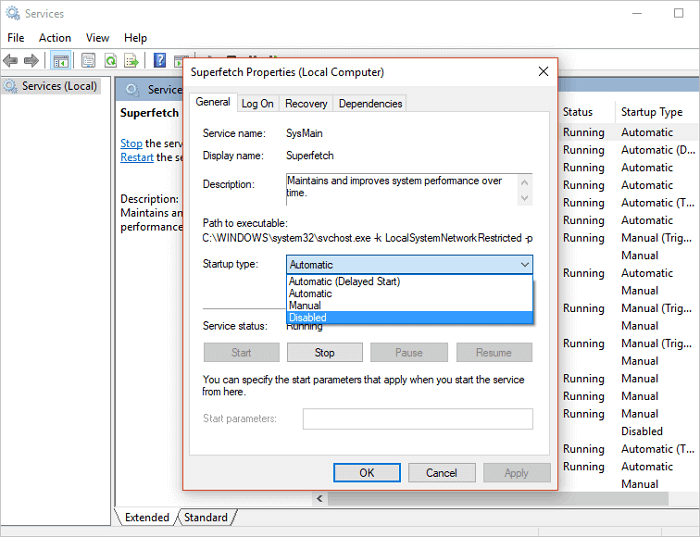
- To open the Services window, press the Windows key + R keys on your keyboard to open the Run dialog box, then type services.msc and press Enter. This will open the Services window, where you can view and manage the various services running on your computer.
- The Services window displays. Find Superfetch in the list
- Right-click Superfetch and then select Properties
- To stop the service, select the Stop button. If you want to prevent the service from starting automatically, choose Disabled in the Startup type dropdown menu.
Way 7. Check Disk for Errors
The high disk usage may indicate a hard disk issue, which can be checked using the Windows CHKDSK utility. This tool can be run via Command Prompt and used to address file system corruption and bad sectors, providing a solution to the problem.
For users unfamiliar with Windows command lines, we recommend downloading a free partition manager, such as Qiling Partition Master Free, which can automatically check for and repair disk errors.
Step 1. Right-click the target partition that has a problem.
Step 2. Choose "Advanced" > "Check File System".
Step 3. To fix the error on the disk, select the "Check File System" option and check the "Fix the error on the disk" box.
Step 4. Click "Proceed" to check errors on your partition.
Way 8. Update Your System
You've been experiencing issues with Windows updates for a while, and your Windows version might be outdated, causing 100% disk usage. Microsoft has been working on a new update to resolve this issue, and it's recommended to try updating your system if other troubleshooting methods haven't worked.
To get the latest Windows update:
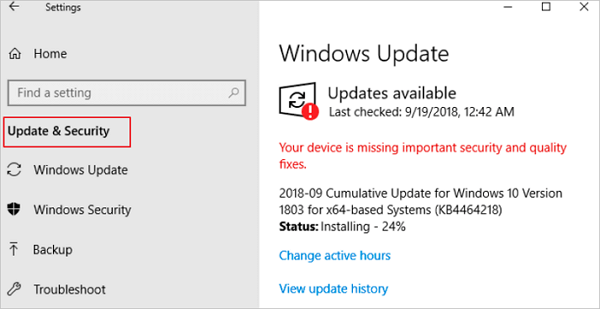
- To update Windows, click on the Start button and then select the Settings option. From the Settings menu, click on "Update & security" and then select the "Windows Update" option.
- If you want to check for updates manually, select Check for updates.
- To set your Windows 10 updates to install automatically, go to Settings > Update & Security > Advanced options, and then under Choose how updates are installed, select Automatic (recommended).
Way 9. Reset Virtual Memory
You may not be familiar with Virtual Memory, but it's worth exploring, especially if you're experiencing a 100% disk usage issue. Essentially, Virtual Memory is a measure of how much of your hard drive or solid state drive is being used by Windows as if it were memory in your computer. If your computer is running poorly and the Disk column in Task Manager is maxed out, resetting Virtual Memory might be the solution. This process can take some time, so be patient and cautious as you work through it.
To change virtual memory size on Windows 10:
- Open Settings > System > About
- Under the Related settings section, click System info
- Click the Advanced system settings from the left pane
- To optimize performance, click the Advanced tab, then under the Performance section, click Settings.
- To adjust the virtual memory settings, go to the Advanced tab in the System Properties window, then click on the "Change" button under the Virtual memory section.
- To adjust the page file size, you need to clear the "Automatically manage paging file size for all drives" option and select the "Custom size" option. This will allow you to set a specific size for the page file on each drive.
- To resize your virtual memory, enter an initial size and maximum size, then click Reset and OK to restart your PC.
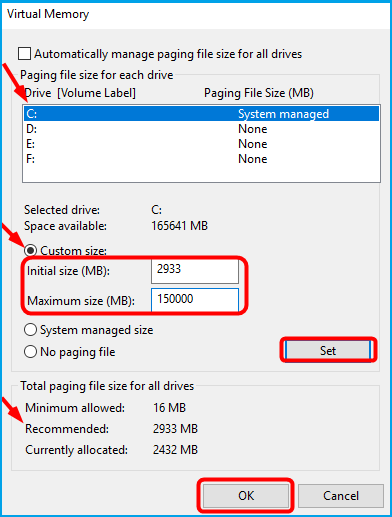
Quick tip: The virtual memory size varies by device, but a common recommendation is to set the initial size to 1.5 times the total available memory and the maximum size to 3 times the available memory, when possible.
Way 10. Perform a Clean Boot
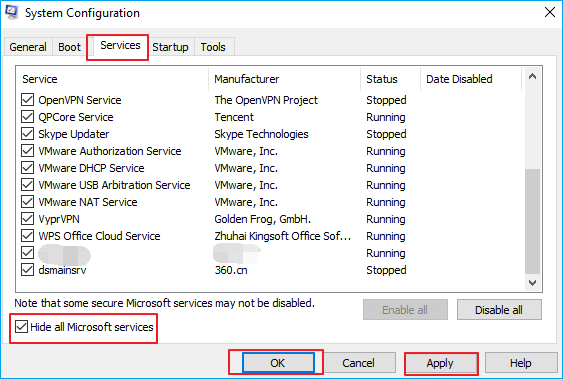
Despite showing 99% or 100% disk usage, there's no indication of any running apps or background processes. Basic troubleshooting steps have been tried, but a clean boot may be the solution. A clean boot starts Windows with a minimal set of drivers and startup programs, allowing you to determine if a background program is causing the issue. This process, similar to resetting virtual memory, requires a few steps to complete from start to finish.
- To open the System Configuration, press the Windows + R keys on your keyboard, then type services.msc in the Run box that appears, and press Enter. This will open the System Configuration window.
- Under the General tab, click Selective startup, uncheck the option Load startup items, and click Apply.
- To disable all Microsoft services, navigate to the Services tab, select the option to Hide all Microsoft services, and then choose Disable all.
- If your computer is experiencing issues, try restarting it. This time, the system will start in a clean boot environment, which means it will load only the essential drivers and services, and you can troubleshoot the problem more easily.
What Else Can You Do to Reduce the 100% Disk Usage in Windows 10/11
Lowering disk usage in Windows 10 can be a complex issue, with no one-size-fits-all solution. Each computer has its unique hard disk problem, which may not resemble the common ones. Instead of relying on the mentioned 10 ways, it's often necessary to experiment with various possible fixes to find the one that works best for your specific situation. By dedicating time to exploring different solutions, you can effectively tackle the high disk usage issue on your Windows 10 computer.
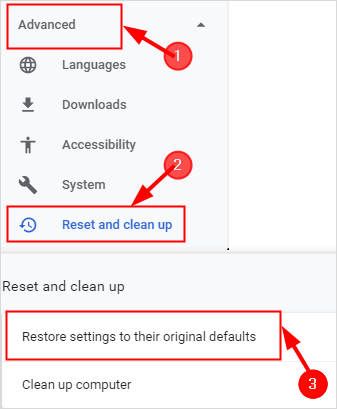
Way 11. Change Settings in Google Chrome
- Open Chrome
- Click Settings > Advanced settings
- Under the Privacy and security section, clear the Use a prediction service to load pages more quickly option.
Way 12. Update your Skype Settings
- To start Skype for Windows 10, select the Start menu from the bottom left of your screen, scroll down to Skype for Windows 10, and click to open it.
- Select the Security tab and click on the Edit option.
- To allow Skype to write to your disk, go to the "Groups or Usernames" section and select "ALL APPLICATION PACKAGES". Then, check the box next to "Write" and select "Allow" to enable Skype's disk writing permissions.
- Press OK.
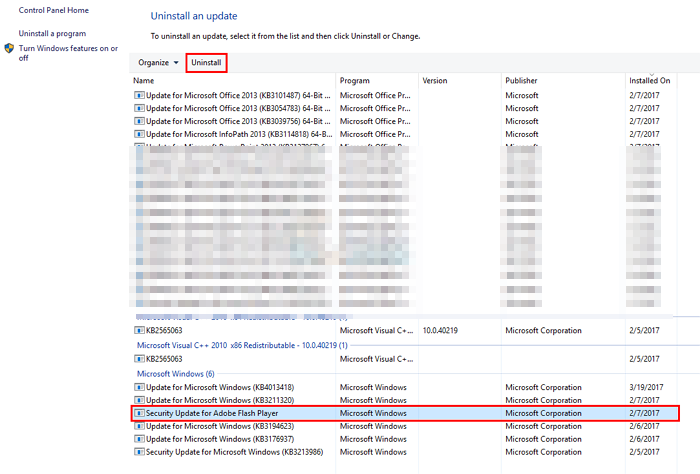
Way 13. Uninstall Flash Player Updates
- Open Settings > Update & Security
- Select Update History
- Select Uninstall Updates
- Scroll down and look for the Adobe Flash Player update
- Select the Adobe Flash Player update and select Uninstall
- Follow any additional on-screen instructions
Way 14. Upgrade Hard Disk in 100% Usage
If all attempts to lower disk usage in Windows 10 fail, it's likely that there's a serious issue with your hard drive. This can cause your computer to slow down, crash, or freeze, and may trigger the 100% disk usage warning. In this case, you'll need to recover data from the failing hard drive and replace it without reinstalling Windows and data.
If the computer can still boot normally but the hard drive becomes inaccessible, it's essential to recover the data as soon as possible.***
To extract data from a problematic hard drive, download Qiling hard drive recovery software on your PC and follow these three steps: first, run the software and select the problematic hard drive; second, choose the file types you want to recover; and third, let the software scan and retrieve your desired files.
Step 1. Launch Deep Data Recovery. Select file types and click "Fast Scan" to start the recovery process.

Note: You can choose different search modes based on where and why the data was lost.
Step 2. Select the drive where you lose your data and click "Scan".

Step 3. When the scan is complete, you can use the "Filter" or "Search" function to locate the lost files. This allows you to quickly find specific files that were found during the scan.

Step 4. Select all the files you want and click "Recover". Then, browse another secure location to save them.
The software can recover data from an unbootable hard drive, and can also be used with bootable media to perform data recovery without the need for an operating system.
You can replace a failing hard drive without reinstalling Windows by using a reliable disk cloning utility that can clone the entire HDD or SSD to a new one, effectively transferring the operating system and all data to the replacement drive.
Qiling Disk Copy, a trusted program by millions of users worldwide, is effective in cloning HDD to SSD, migrating OS to HDD/SSD, upgrading a small HDD to a larger one, or replacing a failing hard drive with a robust one.
To clone an HDD to an SSD using Qiling disk copy software, you can follow the instructions provided in this video guide, which offers a detailed step-by-step tutorial on how to complete the process.
Related Articles
- 2022 Quick Format Recovery: Recover Data/Files from Hard Drive after Quick Format
- 2022 Fix: Discord Not Opening, Stuck or Not Responding on Startup
- How to Fix Windows 10 Error Code 0xc00000e Without Data Loss
- Terraria Load Failed No Backup Found (Terraria Data Recovery)
- Ext3/EXT2 Recovery | How to Recover Linux Partition in Windows
To repair a Linux partition from Windows, you can use Qiling data recovery software, which supports recovering lost, deleted, and formatted data from ext2 or ext3 Linux partitions. You can download the software to recover data from a Linux partition in Windows. - How to Recover Hike Chats, Messages and Images on Android & iPhone
To recover deleted messages, chat history, conversations, pictures, images and old data on Hike messenger, you can download the Qiling Hike recovery tool. This tool can also be used as a Hike chat backup reader to read, open, and restore Hike chat backup files.
Products
Articles & Tutorials
- Data Recovery
- Data Backup
- File Recovery
- File Backup
- System Backup and Restore
- Disk and Partition Clone
- Technical articles
- Mobile articles
- Disk Master Help
- Windows Data Recovery Tutorials
- Windows Secure Delete Tutorials
- Windows Partition Management Tutorials
- Windows File Backup and Restore Tutorials
- Windows System Backup and Restore Tutorials
- Windows Disk Backup and Restore Tutorials
- Windows Clone Tutorials