How to Fix Windows 10 Error Code 0xc00000e Without Data Loss
Windows 11 or Windows 10 error code 0xc00000e occurs during startup, causing panic among computer users, especially tech-savvy individuals, who fear data loss and system crashes.
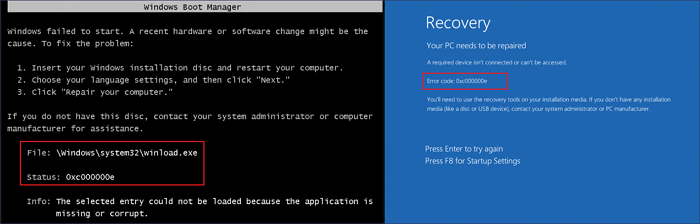
Error code 0xc000000e is often accompanied by a black or blue screen that displays "File: \Windows\system32\winload.exe" or "Your PC needs to be repaired, a repaired device isn't connected or can't be accessed."
What Causes Error Code 0xc00000e
0xc000000e BSOD indicates a hardware issue, such as an undetected SSD or HDD, or a corrupted system file or misconfigured BCD, preventing Windows 10 from booting properly.
This tutorial will guide you through the process of resolving Windows 11/Windows 10 error code 0xc00000e without losing any data.
| Workable Solutions | Step-by-step Troubleshooting |
|---|---|
| Rescue Your Data First | To keep your data safe, restore data from your unbootable computer with data recovery software...Full steps |
| Fix 1. Check Disk Connection | When your computer boots with 0xc000000e error, first check to see if the device connection is loose...Full steps |
| Fix 2. Use Windows 10 Automatic Startup Repair Tool | Use the built-in Windows Automatic Repair tool to fix Windows system errors like 0xc000000e...Full steps |
| Fix 3. Repair Corrupted System Files | Fix the corrupted system files that cause a 0xc00000e error in Windows 10with SFC or DISM tools...Full steps |
| Fix 4. Rebuild BCD, Reset BIOS, Reset Computer | Rebuild the Boot Configuration Data file; perform a BIOS/UEFI configuration reset...Full steps |
First Thing to Do: Rescue Data from Your Computer That Can't Boot
In order to prevent any data loss during the process of fixing the 0xc000000e error, we strongly recommend that you rescue and save your data beforehand.
Deep Data Recovery is a highly effective software that can recover data from complex situations, including crashed or unbootable computers, and restore deleted or permanently lost files from various storage devices.
To recover data from a PC or laptop that won't boot due to error code 0xc00000e, create a bootable device using Deep Data Recovery Bootable Media, which allows you to boot into Deep Data Recovery and restore and export your important files.
Step 1. Create a bootable disk
Prepare an empty USB by copying any important data to another device, as creating a bootable disk will erase its contents. You can use Deep Data Recovery WinPE Edition to create a bootable disk on the USB.
Connect the USB drive to your PC, then launch Deep Data Recovery WinPE Edition. From there, select the USB drive and click "Create" to create a bootable disk.
Step 2. Boot from the bootable USB
Connect a bootable disk to a PC that won't boot, and change the boot sequence in the BIOS settings. This usually works when you restart your computer and press F2 (or a similar key) to enter the BIOS menu.
To boot the PC from a device other than the hard drive, press F10 to save and exit the BIOS settings, allowing you to select a bootable USB disk or CD/DVD drive as the primary boot device.
Step 3. Recover data from a hard drive that won't boot
When booting from a USB drive, you can run Deep Data Recovery from the WinPE bootable disk, allowing you to select the drive to scan and recover lost files.

Click "Scan" to start the scanning process.

After scanning the computer or laptop, you can preview all recoverable files, select the targeted files, and click the "Recover" button to restore your files. It's recommended to save all recovered data to another place to avoid data overwriting.

Once you have completed the data recovery, you can begin to try the following methods to solve the problem.
Fix 1. Check Hard Disk Connection
The BSOD 0xc00000e error is often caused by an undetected hardware device, so it's recommended to shut down the computer and check for loose connections to physical drives such as SSD, HDD, USB drives, external hard drives, pen drives, CDs, or DVDs related to Windows startup.
If the device is not well connected, check the power source and make sure it's properly plugged in. Also, check the USB ports on the device and the computer for any dust or debris that might be causing the issue.
Fix 2. Use Windows 10 Automatic Startup Repair Tool
To fix Windows system errors, such as the 0xc00000e error code, you can use the built-in Windows Automatic Startup Repair tool. Follow these steps: create a bootable installation CD, which can be done by downloading the Windows installation media from Microsoft's website. Once you have the CD, insert it into your computer and restart it. The computer will automatically boot from the CD and launch the Windows Automatic Startup Repair tool.
Step 1. To install Windows, you need to restart your computer from a bootable installation disk, CD, or USB. Simply insert the disk, CD, or USB into your PC and then restart your computer from the device.
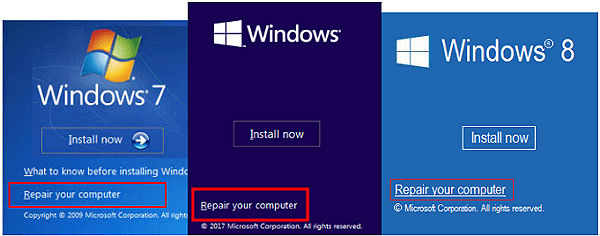
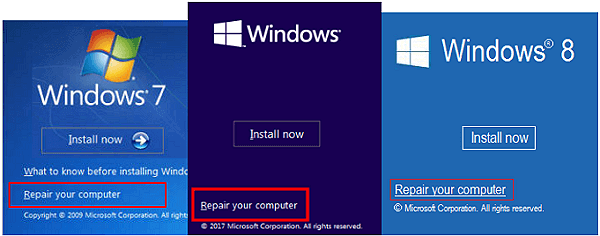
Step 2. When you get to the Install now screen, click "Repair your computer".
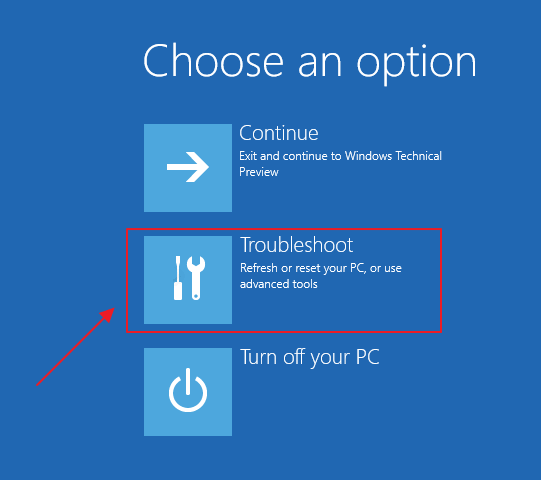
Step 3. Click "Troubleshoot" at Choose an option screen.
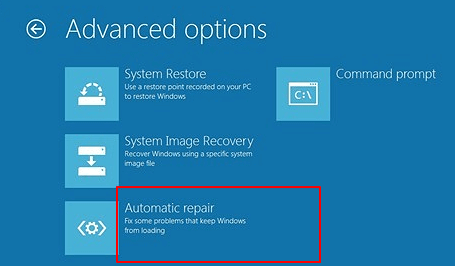
Step 4. Click "Automatic repair" on Advanced options screen.
Step 5. Choose an account at the Automatic Repair screen to start the repair. When the process finishes, restart your computer to see if the 0xc000000e problem still occurs.
Fix 3. Repair Corrupted Files with SFC or DISM Tools
Corrupted system files can cause the Windows 10 boot error code 0xc00000e. To resolve this issue, fixing broken system files is the way to go. You can try running the built-in System File Checker (SFC) tool, which scans and replaces corrupted system files with healthy ones.
Step 1. To boot your computer from a Windows installation disk, CD, DVD, or installation USB, follow these steps: Ensure the computer is turned off. Insert the installation media (CD, DVD, or USB) into the appropriate drive.
Step 2. Click "Repair your computer" on the "Install Now" screen.
Step 3. Click "Troubleshoot" > "Advanced options" > "Command Prompt".
Step 4. On the Command Prompt window, type sfc/scannow and press Enter.
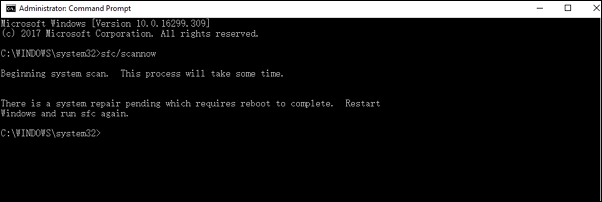
SFC scans and checks if system-protected files are corrupted or changed, and if so, it will repair or replace them with intact files.
If the SFC tool doesn't work, use the DISM command instead, which is more powerful to fix corrupted system files. In Command Prompt, type `DISM /Online /Cleanup-Image /RestoreHealth` and press Enter, then wait for the tool to fix broken files.
Fix 4. Rebuild BCD File to Solve Windows 10 0xc00000e Error
The Boot Configuration Data file (BCD) is a system file that helps Windows boot, but a corrupted BCD file can cause a 0xc00000e error in Windows 10. To fix this, you can boot Windows using a Windows installation CD or a bootable USB drive, which allows you to rebuild the broken BCD file.
Step 1. Connect the Windows installation media/disc to your PC and boot your computer from it.
Step 2. On the sartup window, choose "Repair your computer".
Step 4. Choose "Troubleshoot" > "Advanced Options" > "Command Prompt".
Step 5. In the Command Prompt window, enter the following commands in order. After each command, press the Enter button.
- bootrec /fixboot
- bootrec /scanos
- bootrec /fixmbr
- bootrec /rebuildbcd
- exit
The function of each line of command line is as follows:
- Bootrec.exe is a command-line utility that can be used in the Windows recovery environment to check and fix boot problems.
- bootrec /fixmbrr fixes Master Boot Record corruption issues.
- bootrec /fixboot can write a new boot sector to the system partition.
- The bootrec /scanos command scans all partitions on your hard disk for a Windows installation.
- bootrec /rebuildbcd will scan for compatible disks for Windows OS installation.
If the Windows Update troubleshooter didn't resolve the 0xc000000e error, restart your computer and try running the Windows Update troubleshooter again. If it still doesn't work, try booting your computer in Safe Mode and then running the Windows Update troubleshooter. If it still doesn't work, try resetting Windows Update by deleting the Windows Update cache and then running the Windows Update troubleshooter.
Fix 5. Reset the BIOS/UEFI Configuration
The 0xc00000e error can also occur due to a misconfiguration in the BIOS. To troubleshoot, access the BIOS menu and reset BIOS configuration.
Step 1. To access the BIOS settings, restart your computer and press a specific key (usually F2, Del, F8, F10, F12, or Esc) as it boots up. This will take you to the BIOS settings, where you can make changes to your system's configuration. Just press and hold the key until you see the BIOS menu appear on your screen.
Step 2. To access the BIOS setup options, navigate to the BIOS setup screen using the arrow keys on your keyboard.
Step 3. To reset the BIOS configuration, click the setup defaults option and press Enter. This will restore the BIOS settings to their default values.
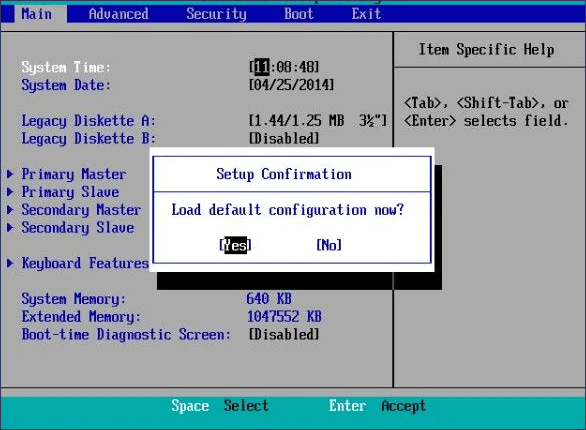
Step 4. Press F10 to save and exit BIOS, and your computer will automatically restart.
Fix 6. Reinstall Windows OS to Fix 0xc00000e Error Code
If none of the methods in this guide work, the last thing you can try to solve Windows 10 error code 0xc00000e is performing a quick Windows reinstallation.
Step 1. To boot your computer from a Windows installation CD or a bootable USB drive, insert the CD or plug in the USB drive, then restart your computer. As the computer is booting, press the key to enter the BIOS settings (this key is usually F2, F12, or Del, and may vary depending on your computer model).
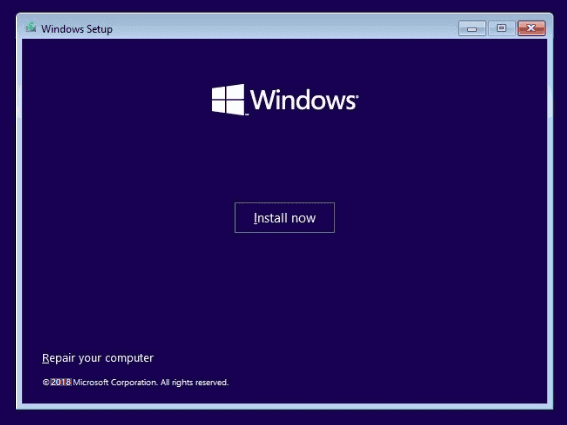
Step 2. Click Install now. Follow the screen guides and select your needed operating system version to install.
Concluding Words
Windows operating systems, including Windows 10 and the new Windows 11, may occasionally experience startup problems. Fortunately, the error code 0xc00000e can often be resolved using the methods listed above.
To keep your data secure, use professional data recovery software to recover your data in case your disk is corrupted or your OS crashes. This ensures that your important files and information are protected and can be easily retrieved.
Related Articles
- How to Repair and Fix USB Flash Drive Not Recognized/Detected
- Memory Card Recovery Software: Recover Data from Memory Card
- How to Copy Linux Directory and Contents
- 2022 TOP| Corrupt File Repair Software Free Download & Online Free
- How to Delete Files Without Sending to Recycle Bin
Are you looking for ways to delete files without them ending up in the recycle bin? Look no further! - How to Delete Photos Permanently from Computer/Recycle Bin
There is a solution for how to delete pictures from computer permanently. Make use of Qiling File Shredder to delete photos permanently from PC.
Products
Articles & Tutorials
- Data Recovery
- Data Backup
- File Recovery
- File Backup
- System Backup and Restore
- Disk and Partition Clone
- Technical articles
- Mobile articles
- Disk Master Help
- Windows Data Recovery Tutorials
- Windows Secure Delete Tutorials
- Windows Partition Management Tutorials
- Windows File Backup and Restore Tutorials
- Windows System Backup and Restore Tutorials
- Windows Disk Backup and Restore Tutorials
- Windows Clone Tutorials