How to Fix Service Host Superfetch High Disk Usage
What is Superfetch? Can I disable the Superfetch service host? And how to disable it? Check the overview first and then see the details.
| Workable Solutions | Step-by-step Troubleshooting |
|---|---|
| What is Superfetch? | Superfetch is part of Windows Vista and onwards. This technology allows Windows OS to manage...Full steps |
| Fix 1. Disable Superfetch | Use three ways to disable Superfetch: Command Prompt, Registry Editor, and Services...Full steps |
| Fix 2. Fix with Troubleshooting | Go to Control Panel, choose View by Category, click System and Security. Click Security and...Full steps |
| Use a free partition manager | You can enhance your PC and system performance and using a free partition manager...Full steps |
The Service Host: Local System process consumes high disk usage, causing PC issues, which is a common problem that can be resolved by troubleshooting and optimizing system resources. This can be done by checking for malware, disabling startup programs, and adjusting system settings to prioritize essential processes. By addressing these underlying causes, users can often resolve the issue and restore normal system performance.

To deal with the high disk usage problem, it's essential to first understand what the Service Host is and Service Host Superfetch. Once you have a better grasp of your issue, you can proceed with fixing it.
What Is the Service Host and Service Host Superfetch
Service Host
Svchost.exe is a generic host process that runs services from dynamic-link libraries (DLLs), allowing for reusable and easily updatable code, but requiring a shell process (svchost.exe) to host these services, which can lead to issues when troubleshooting.
Windows runs multiple services, but to prevent a single service failure from bringing down the entire operating system, they are organized into logical groups and run under separate Service Host processes, each hosting a related group of services. This approach ensures that a failure in one service does not impact the others.
Service Host Superfetch
Superfetch is a Windows technology that helps apps run efficiently by managing random memory, starting with Windows Vista.
It helps third-Windows Superfetch is a feature that optimizes system performance by preloading frequently used apps and critical Windows components into RAM, allowing them to execute common tasks quickly by loading data directly from RAM instead of the hard drive.
Superfetch, similar to drive caching, copies frequently used files to RAM, enabling faster program loading. However, if a system lacks recent hardware, Service Host Superfetch can cause high disk usage, though this isn't always a problem, as it's a normal part of optimizing system performance.
If you're using Windows 10 and noticing that Service Host: Local System is consuming a significant amount of your CPU, disk, or memory resources, you're not alone. Many users are experiencing this issue. Fortunately, it's possible to resolve the problem. Try the solutions below to fix your high disk usage and get your system running smoothly again.
1. Fix Service Hosts Superfetch High Disk Usage via Disabling
To stop SuperFetch, which can cause disk performance issues in Windows 8 and later, you can disable the service.
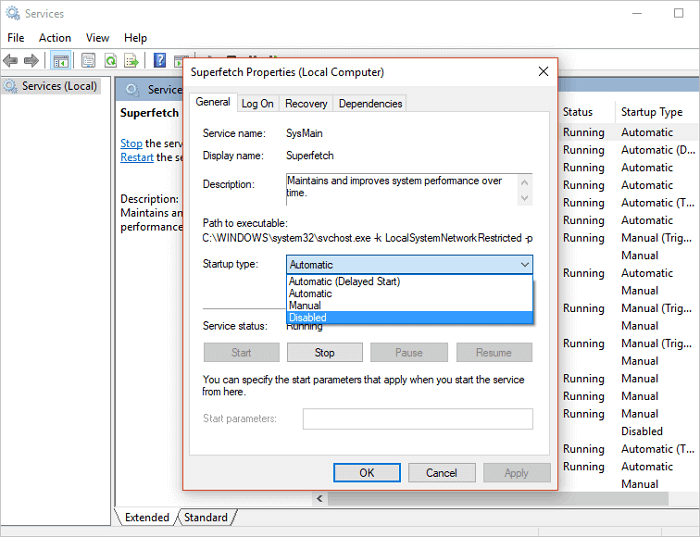
Method 1. Disable Superfetch in Windows Services
Step 1. Press Windows + R, type services.msc into the Run box, and click OK. This will open the Services window where you can view, start, stop, and configure various Windows services.
Step 2. Now find "Superfetch". Right-click it > select "Properties" > click "Stop" on the pop-up windows > click "Disabled" from the 'startup type' drop-down menu.
Method 2. Disable Superfetch with Command Prompt
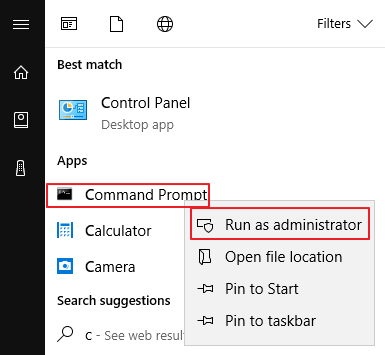
Step 1. To run the Command Prompt as an administrator, click on Start and search for Command Prompt, right-click on it and click "Run as administrator" then click "Yes" to continue.
Step 2. Type net.exe stop Superfetch and press Enter.
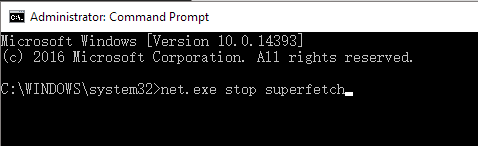
Step 3. If the command above isn't valid, try net.exe stop sysmain instead.
If your computer is taking a long time to start up or perform tasks, wait a few minutes and check if it starts performing better. You can also check your computer's disk usage in Task Manager. Look at the top of the Disk column in the Processes tab. If it's no longer at 100%, the issue is resolved.
Method 3. Disable Superfetch Using Windows Registry
You can also disable the service host from Windows Registry. Follow the steps below to disable service host Superfetch.
Step 1. To access the Registry Editor, press the Windows + R keys or type "Run" in the search box. Then, type "Regedit" into the Open box and press enter.
Step 2. On the Registry Editor window, navigate to HKEY_LOCAL_MACHINE/SYSTEM/CurrentControlSet/Control/Session Manager/MemoryManagement/PrefetchParameters.
Step 3. Click the "Enabled Superfetch" and change its value to 0 to disable SuperFetch. Then click the "OK" button.
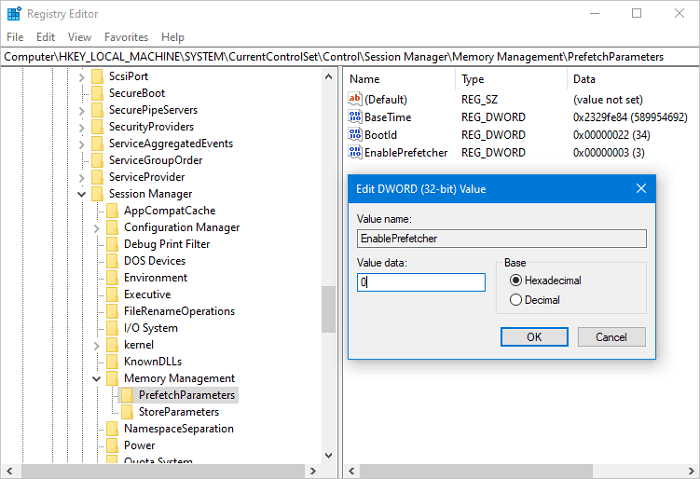
Close the Registry Editor and restart the system to see if the service host Superfetch 100% disk usage in Windows 10 is fixed.
2. Fix Service Host Superfetch High Disk Usage With Troubleshooting
Windows Update is said to be one of the causes of abnormally high CPU or Disk usage, which can be resolved by running the Windows Update troubleshooter to identify and fix any issues.
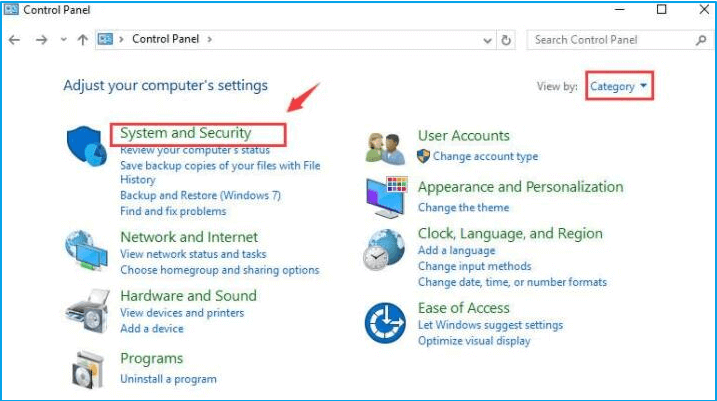
Step 1. Press the Windows logo key on your keyboard and click "Control Panel".
Step 2. View by "Category", click "System and Security".
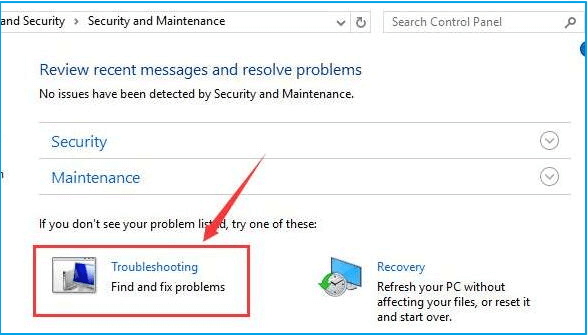
Step 3. Click "Security and Maintenance" > "Troubleshooting".
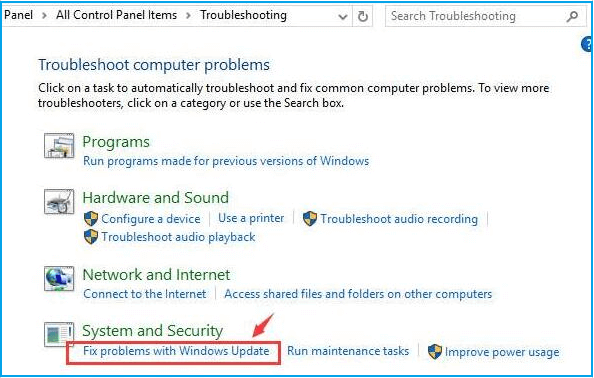
Step 4. Click "Fix problems with Windows Update". Click Next.
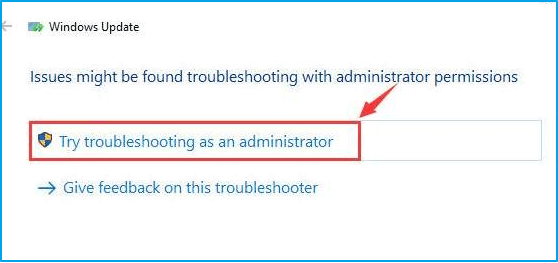
Step 5. Click "Try troubleshooting as an administrator".
Wrap Up
We hope this tutorial has provided you with enough information about service host Superfetch's high disk usage and how to disable it. You can now optimize your computer's performance and bring your disk usage back to normal by using the Services, Command Prompt, Registry Editor, or Windows Troubleshooting method, and you can try any or all of them to solve the problem.
Bonus Tip. How to Optimize Your PC with a Free Partition Manager
To improve your computer's performance, you can disable the Superfetch service and manage your disk using tools like Qiling free partition manager, which allows you to organize and manage your partitions in Windows 10/8/7 with ease.
- Resize/move partition, create/format/delete/clone/merge partition
- To convert a disk from FTA (FAT32) to NTFS, convert the MBR (Master Boot Record) to GPT (GUID Partition Table), and change a logical partition to primary or vice versa, you can use a tool like MiniTool Partition Wizard or Qiling Partition Master. These tools allow you to convert the disk format, partition table, and partition type with a few clicks, ensuring a smooth transition without losing any data.
- Wipe all the data on the hard disk permanently with one click
- Supports 4K alignment on SSDs to maximize PC performance
- Check for errors on selected partitions and fix it
Download a free partition tool to help you manage your disk and partitions without losing any data.
After completing the steps shown in the video, restart your Windows 10. Check the Task Manager to see if the Service Host: Local System is still causing high disk usage.
People also ask
1. Is it safe to disable the service host Superfetch?
Service host Superfetch is a memory management process that can sometimes cause high disk usage, but disabling it won't cause system instability. However, without it, you may experience delays when accessing frequently used applications, as they load slower.
2. How do I disable the Superfetch service host?
To disable the Superfetch service host in Windows 10, you can do so through Services, Command Prompt, or Registry Editor. The steps for each method are outlined in detail in solution 1, which provides a comprehensive guide to disabling Superfetch. Whether you prefer the convenience of Services, the flexibility of Command Prompt, or the precision of Registry Editor, there's a method for you to disable Superfetch and optimize your system's performance.
3. Can I disable Superfetch service Windows 10?
If you're experiencing high disk usage on your Windows 10 computer due to the Service Host: Local System High Disk Usage issue, you can try disabling the Superfetch service to speed up your computer.
4. What is Superfetch, and do I need it?
Superfetch is similar to drive caching, but it copies all commonly used files to RAM, allowing programs to boot faster. However, if your system's hardware is outdated, Superfetch can cause high disk usage, making it less effective.
Related Articles
- How to Create Qiling Partition Master Bootable USB
- Slow Boot Time! SSD Taking Long Time to Boot in Windows 11/10
- Hard Drive Keeps Losing Disk Space
- How to Convert MBR to GPT Without Reinstalling Windows
- Proven Best Disk Formatting Utility| Freeware Download
In this article, we would like to share you with 4 free yet effective disk formatting utilities for Windows 11, 10, 8, 7. You can easily format a hard drive for your own requirements. - How to Fix Disk Management All Options Greyed Out on Windows
How to fix Disk Management all options greyed out problem on Windows 7/8/10/11? You can find solutions from this article.
Products
Articles & Tutorials
- Data Recovery
- Data Backup
- File Recovery
- File Backup
- System Backup and Restore
- Disk and Partition Clone
- Technical articles
- Mobile articles
- Disk Master Help
- Windows Data Recovery Tutorials
- Windows Secure Delete Tutorials
- Windows Partition Management Tutorials
- Windows File Backup and Restore Tutorials
- Windows System Backup and Restore Tutorials
- Windows Disk Backup and Restore Tutorials
- Windows Clone Tutorials