What is Disk Defragmenter Windows 10
| Workable Solutions | Step-by-step Troubleshooting |
|---|---|
| Use Windows Built-in Disk Defragmenter | Step 1. To defragment your disk, open the Start menu and type "defragment". Open Defragment and Optimize Drives...Full steps |
| Use Qiling Partition Master | Step 1: Locate the drive/partition. Select the drive/partition that want to adjust its size and right-click on it to choose...Full steps |
Disk fragmentation can lead to decreased performance and stability issues on your Windows 10 PC. As files are created, deleted, and modified, they can become scattered across the hard drive, causing the disk to work harder to access them. This can slow down your computer and cause it to crash more frequently. To prevent this, it's essential to defragment your disk regularly using the built-in disk defragmenter tool. By running this tool, you can quickly and efficiently reorganize your files and notice a significant improvement in your computer's performance.

What is Disk Defragmentation, and Why is It Important?
A Defragmenter is a built-In Windows 10, the Disk Defragmenter tool helps optimize and improve computer performance by defragmenting the hard disk drive, organizing files for easier access and use. It can be used to defragment the hard drive.
Disk fragmentation can slow down your computer by causing files to be scattered across the disk drive, requiring the operating system to search for data bits in multiple areas. This can be a performance issue because the drive head must move extensively to access all the file fragments. However, running Disk Defragmentation can reorganize the data on your disk, consolidating fragmented files into contiguous blocks and allowing your computer to access them more quickly.
How to Defragment Your Disk in Windows
Over time, as you add and remove files from your disk, it can become fragmented, leading to decreased performance and longer disk access times. To improve disk performance, Windows includes a disk defragmenter tool that can analyze your disk and then defragment it, arranging the files in contiguous blocks. This helps to optimize disk usage and speed up access times.
Use Windows Built-in Disk Defragmenter
Step 1. To defragment your disk, open the Start menu, type "defragment", and open the "Defragment and Optimize Drives" application.
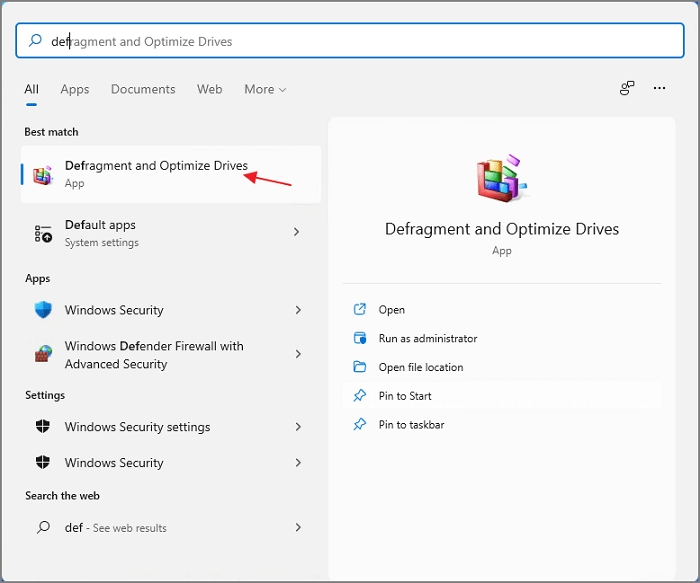
Step 2. Click on "Disk Defragmenter". If your disk is fragmented, you will see a message - "The disk is fragmented". Otherwise, you won't see any message.
Step 3. Click on "Analyze" to see how fragmented the disk is.
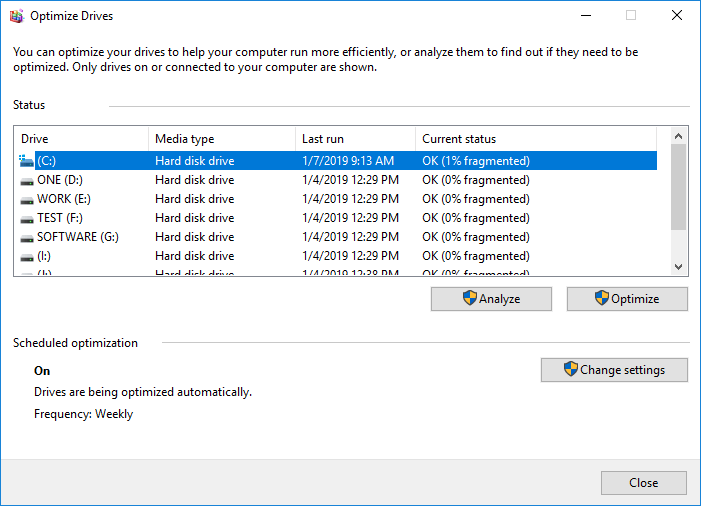
Step 4. If the disk is more than 10% fragmented, it's recommended to defragment it.
Step 5. To defragment your disk, click on the "Defragment" option, which may take a few hours to complete, ideally done when your computer is not in use.
Windows' built-in disk defragmenter is a valuable tool that can help optimize your computer's hard drive for better performance. It consolidates fragmented files and folders on your hard drive, allowing them to be accessed more quickly and speeding up your system's performance. This is especially beneficial if you have many files spread out over the disk. The Disk Defragmenter is included in all versions of Windows and is easy to use, making it a simple and effective way to keep your computer running smoothly.
Better Way to Improve Your Disk Performance
Disk management is a crucial aspect of computing, and users often need a powerful and versatile tool to effectively manage their disks. The Disk Management Suite stands out as one of the most capable and feature-rich options available, offering a range of tools to help users optimize their disk management.
Qiling Partition Master and Its Functions
Qiling Partition Master is a software tool that enables users to manage and manipulate partitions on a hard drive, allowing them to create, delete, resize, format, and move partitions as needed.
Step 1: Locate the drive/partition
To adjust the size of a drive or partition, select the drive/partition you want to modify and click on it to choose the "Resize/Move" option.

Step 2: Resize or move the partition
To shrink a partition, you can simply drag one of its ends to free up unallocated space.

2. To extend the partition, ensure there's unallocated space available. If not, create some by following the previous steps. Then, drag the mouse into the unallocated space to extend the partition.
3. To move a partition position, you need to leave unallocated space next to the target partition. If there isn't any, free up some space first.
To resize/move the target partition, click on it, select "Resize/Move" from the context menu, and then drag the whole partition left or right to adjust its position.
Step 3: Apply changes
At this step, you will see the new disk partition information & diagram.
To save changes, click the "Proceed" button.
Qiling Partition Master offers a range of features, including partition management, disk formatting, and data recovery. It allows users to resize, move, merge, and split partitions, as well as format and delete partitions.
- Backup and restore disks, partitions, volumes, and file systems.
- Resize/move/delete/create partitions.
- Apply a hard disk health check.
- Clone disk partitions on a hard drive.
The software can clone and backup disks, but adding more software and files to a hard drive doesn't necessarily make it slower. Simple tips can improve disk performance.
Regular hard drive defragmentation, disabling unnecessary startup programs and services, using a solid-state drive, and ensuring sufficient memory can all help improve computer performance.
Final Words
A defragmenter is a computer program that reorganizes files on a hard disk to optimize storage and improve performance, freeing up space and making the computer run faster by rearranging files to optimize their layout.
Related Articles
- How to Create and Format exFAT Partitions in Windows 11/10/8/7 (Free Methods)
- Free Download Windows 11 Check Tool for Windows 11 Compatibility Check
- Complete Guide - How to Combine Two SSD Drives
- How to Format Laptop or PC Windows 7 Without CD (Full Guides)
- Solved: Win10 Disk Management Not Loading - 10 Fixes
If Win10 Disk Management is not loading and causing you headaches, ! Our step-by-step guide provides a practical and effective solution to resolve loading or responding problems, ensuring you can access and manage your disk with ease. - FIXED: DISM /Online/Cleanup-Image/Restorehealth Stuck🔥
If DISM /Online/Cleanup-Image/RestoreHealth is stuck, try SFC, restart repair steps, or other recovery methods to fix corrupted Windows system files.
Products
Articles & Tutorials
- Data Recovery
- Data Backup
- File Recovery
- File Backup
- System Backup and Restore
- Disk and Partition Clone
- Technical articles
- Mobile articles
- Disk Master Help
- Windows Data Recovery Tutorials
- Windows Secure Delete Tutorials
- Windows Partition Management Tutorials
- Windows File Backup and Restore Tutorials
- Windows System Backup and Restore Tutorials
- Windows Disk Backup and Restore Tutorials
- Windows Clone Tutorials