Solved: Win10 Disk Management Not Loading - 10 Fixes
For those experiencing issues with Win10 Disk Management loading or responsiveness, Qiling offers a step-by-step guide to resolve the problem. By following these fixes, users can eliminate the inconvenience and ensure seamless disk management on their Windows 10 system.
How to Fix Win10 Disk Management Not Loading
Here, we'll cover ten different solutions with proper step-by-step instructions for your convenience and you need to employ the solution according to your situation to get rid of the Win10 Disk management not loading problem.
- Fix 1. Use Disk Management Alternative
- Fix 2. Restart PC
- Fix 3. Disconnect Unnecessary External Devices
- Fix 4. Fix Disk Management From the Service Window
- Fix 5. Run SFC and DISM
- Fix 6. Check Hardware Running
- Fix 7. Create a New User Account
- Fix 8. Keep Windows Up to Date
- Fix 9. Update Device Driver
- Fix 10. Factory Reset Windows
Fix 1. Use Disk Management Alternative
If Windows 10's disk management tool is not loading or responding, consider using the Qiling Disk Master Professional instead. This powerful tool offers flexibility and various useful features, making it an ideal solution for tasks like extending volumes and formatting partitions that the default tool can't handle.
Qiling Disk Master can perfectly replace Disk Management in several key areas:
- Create/Delete Partitions: Easily delete or remove partitions to free up space as needed.
- Move and Resize: To optimize disk space utilization, partitions can be adjusted in size and location with minimal disruption to the system. This allows for efficient use of available storage, ensuring that data is stored in the most suitable partition for its specific needs.
- Extend/Shrink Partitions: Resize partitions with precision to match evolving storage requirements, ensuring optimal use of available space.
- Format Volumes: Quickly and securely format volumes to prepare them for data storage or other purposes.
- Split/Merge Partitions: To optimize storage management, large partitions can be divided into smaller, more manageable sections, making it easier to organize and maintain. Alternatively, smaller partitions can be combined to create larger, more efficient storage spaces, streamlining the overall storage management process.
Simplify your disk management journey by downloading Qiling Disk Master, a powerful tool that lets you extend volumes, format partitions, and tackle Win10 Disk Management challenges with ease. This user-friendly software offers a range of features to help you master your disk management needs.
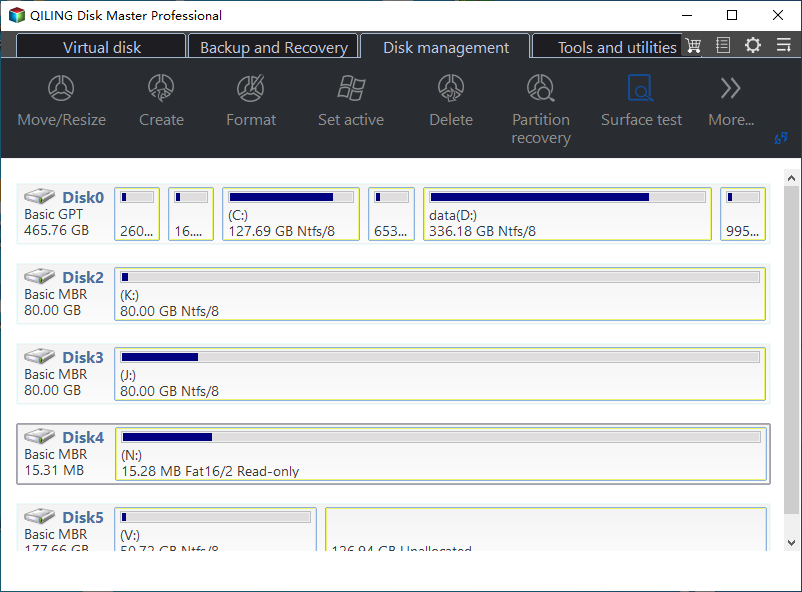
If Disk Management is not responding, empty, or unavailable, don't miss out on this disk manager as a perfect alternative for Windows users.
Fix 2. Restart PC
Try restarting your PC to see if the issue is resolved, as a simple restart can sometimes resolve temporary issues that are preventing Disk Management from loading properly.
Fix 3. Disconnect Unnecessary External Devices
If you're experiencing issues with Disk Management, try unplugging any external devices, including USB drives, and restart your computer. This will help reset the system and potentially resolve any conflicts. If the problem persists, check your USB ports for any signs of damage or overload, and consider using a USB hub to distribute the load.
Step 1. Unplug all non-essential external devices such as external hard drives, USB flash drives, printers, and webcams to prevent any potential interference or conflicts during the upgrade process.
Step 2. Unplug all unnecessary devices from the power source to reduce standby power consumption and prevent overheating. Only keep essential devices connected, like your keyboard, mouse, and monitor.
Step 3. Open Disk Management again and see if it loads properly.
If disconnecting external devices resolves the issue, reconnect them one by one to isolate the faulty device and prevent future conflicts.
Disk Management is a reliable disk manager, but it's not immune to errors. When it's running, some issues may arise, requiring troubleshooting and resolution.
Fix 4. Fix Disk Management From the Service Window
If the Disk Management tool in Windows 10 is not working, loading, or responding, you can try changing the status of the related services from the service window to fix the issue. This can be done by using the Services tool in Windows to efficiently repair the Disk Management tool.
Follow the steps:
Step 1. To access the Services console, press the Windows+R keys to open the Run dialogue box, type services.msc, and press Enter.
Step 2. To access the Remote Access Connection Manager, navigate to the Services window, scroll down to the "Remote Access Connection Manager" and double-click it.
Step 3. To disable startup programs, go to the "General" tab, click the Startup type drop-down menu and select Disabled.
Step 4. Click Apply and then click OK.
Step 5. Find Remote Access Auto Connection Manager in the Services window, similar to the previous step.
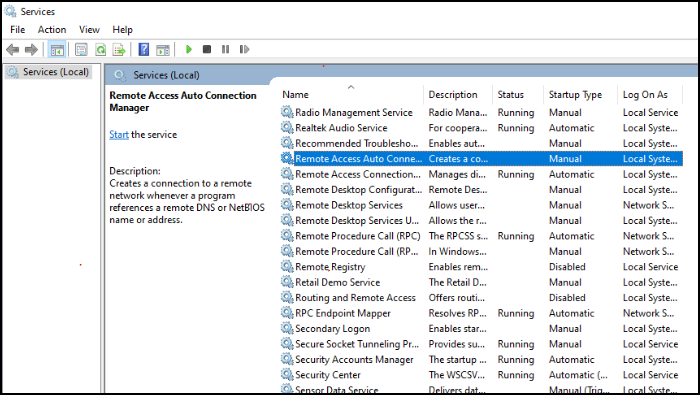
Step 6. In the "General" tab, click the Startup type drop-down menu and select Disabled, then click Apply and OK.
Step 7. Double-click on the Virtual Disk to open it.
Step 8. To adjust the startup type of a service, go to the "General" tab, select either Manual or Automatic from the Startup type drop-down menu, click Apply, and then click OK.
Step 9. To fix the issue, go to Disk Management, right-click on the problematic disk, and select "Online" or "Offline" as needed. If it's offline, right-click and select "Online".
Kindly share this article to let others know about these fixes.
Fix 5. Run SFC and DISM
The "Windows 10 Disk Management not loading" issue may be caused by corrupted or missing system files. To resolve this, running the SFC and DISM utilities to repair these files is recommended. This process involves following a series of steps to ensure the necessary files are restored, which can help resolve the problem and get Disk Management functioning properly again.
Step 1. To run Command Prompt as an administrator, type "cmd" in the Run box and then press Ctrl + Shift + Enter. This will open a Command Prompt window with administrator privileges, allowing you to run administrative tasks and commands.
Step 2. In the Command Prompt, type `sfc /scannow` and press Enter to execute the command. This will initiate a system file check and replace any corrupted system files with a cached copy.
Step 3. Once the scan is completed, restart your Windows PC and open Command Prompt again.
Step 4. Type the commands below one by one and press Enter after each.
- DISM /Online /Cleanup-Image /CheckHealth
- DISM /Online /Cleanup-Image /ScanHealth
- DISM /Online /Cleanup-Image /RestoreHealth
Step 5. After it ends, restart the PC to see if the error is repaired.
Consider sharing this guide with friends and colleagues who may also be struggling with the same issue, as these solutions may provide relief for them.
Fix 6. Check Hardware Running
To troubleshoot Disk Management issues, consider checking for hardware problems, as these can prevent the tool from functioning properly. If you suspect hardware issues, be aware that resolving them requires technical expertise and may result in data loss, so proceed with caution. If you're still experiencing problems, try running the Windows Performance Monitor to identify any system bottlenecks or issues that may be affecting Disk Management.
Step 1. To generate a performance report, press the Win + R shortcut to open the Run dialog box, type "perfmon /report" and press Enter, and a window will collect data for 60 seconds.
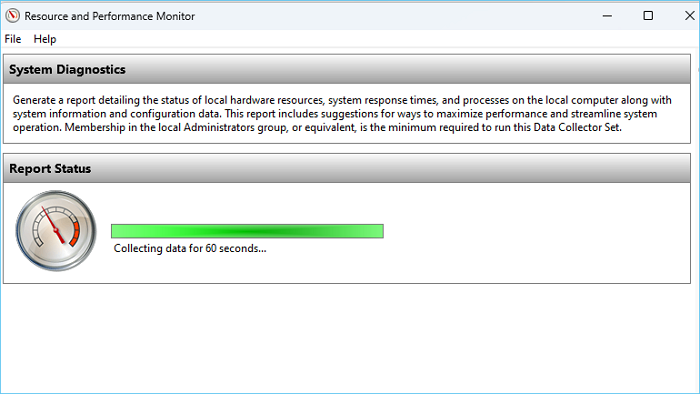
Step 2. The diagnostic results are displayed in various subsections in the Diagnostic Results section, showcasing detailed information.
Additional tools and steps to check hardware:
- 1. To check the status of hardware devices, open the Device Manager by pressing Win + X and selecting "Device Manager" from the menu. Then, examine the list of devices to identify any with warning symbols or error messages, indicating potential issues with the hardware.
- 2. Check the health of your storage devices using built-in tools or third-party software, addressing any issues that are found to prevent data loss and ensure smooth system performance.
- 3. To inspect your RAM, run the Windows Memory Diagnostic tool, which will scan and identify any memory-related problems. This process requires restarting your PC.
Fix 7. Create a New User Account
Creating a new user profile/account and logging in with that account may resolve the "Disk Management not loading in Windows 10" issue in some cases.
Follow the steps:
Step 1. To access the Accounts settings in Windows, press the Windows key + I to open the Settings app, and then select the "Accounts" option from the menu.
Step 2. You can add a new user to your PC by going to the "Family & other users" section, then clicking on "Add someone else to this PC."
Step 3. In the pop-up window, select "I don't have this person's sign-in information."
Step 4. To add a user without a Microsoft account, click on "Add a user without a Microsoft account" and enter a username and password in the subsequent window, then click "Next".
Step 5. To resolve the issue, try switching to a different user account and then switch back to the original account. If the issue persists, try creating a new account, logging in to it, and then switching back to the original account.
Fix 8. Keep Windows Up to Date
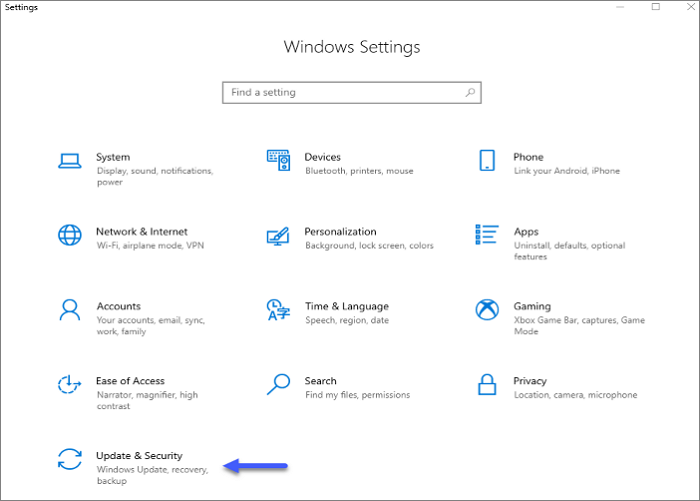
To resolve the issue of "Win10 Disk Management Not Loading/Responding", ensure your Windows system is updated. This involves checking for any pending updates and installing them. You can do this by going to Settings, then Update & Security, and clicking on "Check for updates".
Follow the steps:
Step 1. To open Windows Settings, press the Windows key and the I key at the same time. This will open the Settings window, where you can adjust various system settings.
Step 2. To update Windows, go to Update & Security, then click on Windows Update and select Check for updates.
Step 3. Wait a few moments and let it scan any updates.
Step 4. Once you find any updates, follow the simple on-screen instructions to download and install them.
Fix 9. Update Device Driver
Outdated or incompatible device drivers can sometimes cause Disk Management not opening or loading errors. Updating the disk-related device drivers ensures your system has the latest software to communicate and interact with your storage devices effectively.
Follow the steps:
Step 1. To access the Device Manager, type "Device Manager" in the search box on your computer, and then click the "Device Manager" app in the search results.
Step 2. To view the list of all storage devices connected to your system, click on the greater than sign (>) next to the "Disk drives" section in the Device Manager window. This will expand the section and display all connected storage devices.
Step 3. Right-click on the driver for your primary storage device and select "Update driver."
Step 4. Choose the update method; you'll be presented with two options:
- "Search automatically for updated driver software": This option allows Windows 10/11 to search online for the latest driver.
- "Browse my computer for driver software": This option allows you to manually select a downloaded driver file, which is not recommended unless you have a specific driver from the manufacturer.
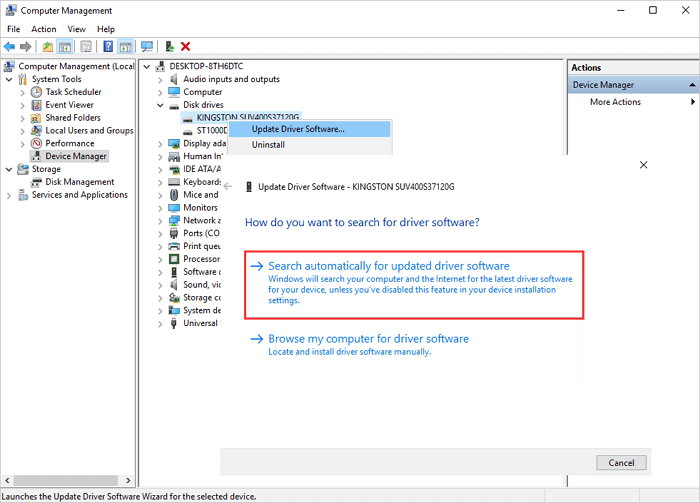
Step 5. Select Search Automatically, let it search online, and update drivers automatically.
Fix 10. Factory Reset Windows
If all other solutions fail, try a factory reset of Windows, but make sure to back up your important data first, as this will delete all personal files, applications, and settings.
To reset Windows, start by creating a backup of your important data to ensure it's safe. Once you've backed up your data, you can proceed with the steps to reset your Windows operating system.
Step 1. Open Windows Settings by pressing the Windows+I buttons.
Step 2. Navigate to Update & Security > Recovery.
Step 3. Click "Get started" under the "Reset this PC" section.
Step 4. Choose the reset option, you'll be presented with two choices:
- Keep my files: This option removes applications and settings while preserving your data.
- Remove everything: This option erases all your personal files, applications, and settings, returning your PC to its factory state.
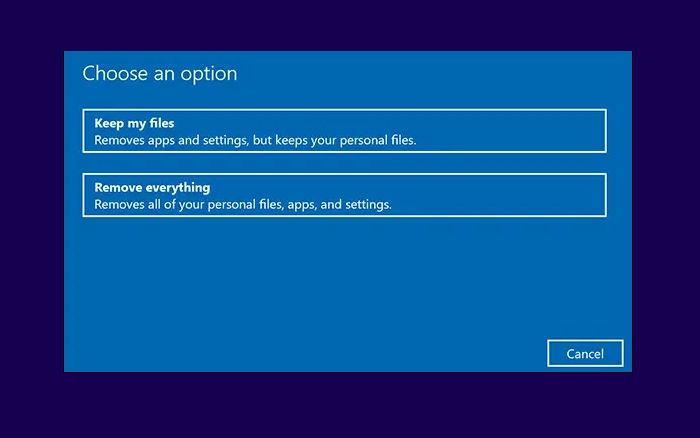
Step 5. Choose the desired reset option based on your conditions, and it's highly recommended to keep your files to avoid permanent data loss.
Step 6. Follow the on-screen prompts and instructions to complete the reset process.
Conclusion
Win10 Disk Management not loading or responding can be a frustrating issue, but identifying the root cause is key to resolving it. The problem may be caused by a temporary bug, a virus or malware infection, application conflicts, corrupted or missing system files, or outdated or incompatible device drivers. To overcome this, consider using a reliable and powerful alternative - Qiling Disk Master.
Disk Management Not Opening/Working FAQs
If Windows Disk Management is not responding, you can try restarting your computer, checking for disk errors, or running the built-in Check Disk utility. If the issue persists, you can also try using a third-party disk management tool or seeking assistance from Microsoft support.
1. Why is my Disk Management empty?
Several reasons can lead to an empty Disk Management window, including corrupted system files, issues with the Logical Disk Manager service, or even hardware problems.
2. Why won't Disk Management load or respond?
Various factors such as conflicting services, outdated drivers, or temporary glitches can prevent Disk Management from loading or responding properly.
3. Why is my hard drive not showing up in Disk Management but showing up in BIOS?
The drive might not be initialized or formatted, have corrupted partition tables, or be experiencing hardware issues.
Related Articles
- Full Guide to Format 4K Sector Hard Drive Partitions in Windows 11/10
- How to Convert exFAT to FAT32 in Windows 11/10/8/7
- Create D Drive from C Drive in 2 Simple Ways
- Download and Use Partition Magic for Windows Server 2016 [Step-by-Step Guide]
For Windows Server 2016 owners, this page highlights the top partition magic server software to effectively apply and manage disk partitions on Server computers. - How to Format a USB for Xbox 360 on PC/Mac/Xbox 360 [Newest Solution]
Formatting a USB for Xbox 360 on Windows, Mac, and Xbox 360 controller requires a specific format. The suitable format for Xbox 360 is FAT32, and you can format a USB using this format on Windows and Mac, but not on the Xbox 360 controller itself, which only allows formatting on the console. - How to Format WD My Passport Windows 10 [4 Easy Ways]
If you have a WD My Passport drive but don't know how to format it using Windows 10, we've can help.
Products
Articles & Tutorials
- Data Recovery
- Data Backup
- File Recovery
- File Backup
- System Backup and Restore
- Disk and Partition Clone
- Technical articles
- Mobile articles
- Disk Master Help
- Windows Data Recovery Tutorials
- Windows Secure Delete Tutorials
- Windows Partition Management Tutorials
- Windows File Backup and Restore Tutorials
- Windows System Backup and Restore Tutorials
- Windows Disk Backup and Restore Tutorials
- Windows Clone Tutorials