Create D Drive from C Drive in 2 Simple Ways
Many newly purchased computers come with a single partition on the hard drive, which can be inconvenient for users who need to install multiple operating systems or store different types of data. To address this, it's often necessary to divide the hard drive into multiple partitions, allowing for separate sections for installing OS or software and storing various data.
Learn how to create a D drive from your C drive in Windows 11/10, troubleshoot potential issues, and understand the benefits of doing so in this article from Qiling.
How to Create D Drive from C Drive
We will offer you two methods to help you create a new drive from the C drive. Continue reading and follow the guide.
Method 1. Use Qiling Disk Master
To partition the C drive and create more partitions easily, a third-party tool like Qiling Disk Master Professional can be used to create a D drive from unallocated space by shrinking the C drive or splitting the C drive directly.
Shrink C Drive and Create D Drive:
To shrink the C drive and create a D drive, first, open the Disk Management console, which can be accessed by right-clicking on the Start button and selecting "Disk Management." Next, select the C drive and right-click on it to select "Shrink Volume.
Step 1: Locate and select target partition to shrink
Go to the Partition Manager section, right-click on the partition you want to shrink, and select "Resize/Move" to proceed.
Step 2: Adjust to shrink partition
To shrink a partition, use your mouse to drag the end of the target partition to the desired size, effectively reducing its allocated space. This action will free up space on the disk, making it available for other uses.
To resize the target partition, you can adjust the partition size box to shrink the target partition. Once done.
Step 3: Execute operation
Click the "Proceed" to keep all changes.
To create a new drive from the unallocated space, you can use the built-in Disk Management tool in Windows. After shrinking the C drive, you can create a new partition from the unallocated space and assign a drive letter to it, effectively creating a new drive, such as D drive.
Step 4. Now, right-click on the unallocated space and select "Create".
Step 5. To create a new partition, you can use the built-in Disk Management tool in Windows. First, open the Disk Management tool by searching for it in the Start menu.
Step 6. Click "Proceed" to finish the process.
The solution to the problem is to use the formula for the area of a rectangle, which is length times width. By multiplying the two dimensions together, you can find the total area of the rectangle. This is a simple and effective way to solve the problem, and it can be applied to a variety of real-world scenarios where you need to calculate the area of a rectangular shape.
Split C Drive to Create D Drive:
The other operation to do with this software is splitting the C drive.
Step 1. Select your targeted partition and click "Split Partition" from the Feature List.
Step 2. Resize the size of the two split partitions.
Step 3. Click Proceed to split partition.
Step 4. After applying the changes, you successfully split the partition into two partitions.
Notes:
- Qiling Disk Master only supports splitting partitions on basic disks, and is unable to split dynamic volumes.
- Only the non-hidden partition can be split.
- The unused space of the operating partitions should be more than 5% of the total partition space.
Qiling Disk Master is a versatile software that not only allows you to create a new partition, but also enables you to clone your disk and partitions, merge disk partitions, reset passwords, and repair boot issues, among other features. Downloading this software can unlock a wide range of possibilities.
Method 2. Use the Built-in Tool Disk Management
If you don't want to download any third-party software, you can use the Microsoft built-in tool, Disk Management, to create a D drive on your device. This tool provides multiple features to manage your disks and partitions, and you can follow a tutorial to create the D drive using this tool.
Step 1. Right-click "Start" and select "Disk Management".
Step 2. Right-click on the C drive and select "Shrink Volume".
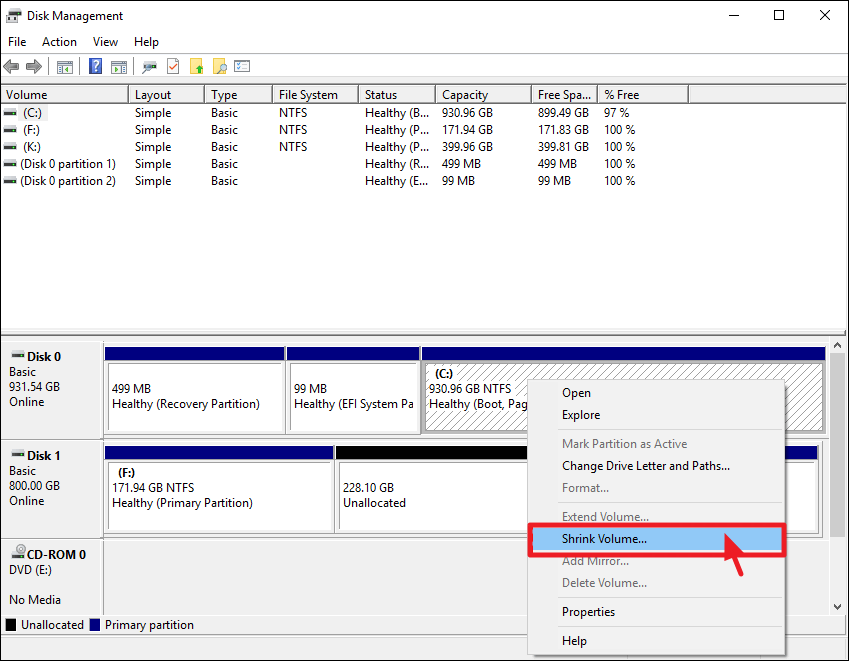
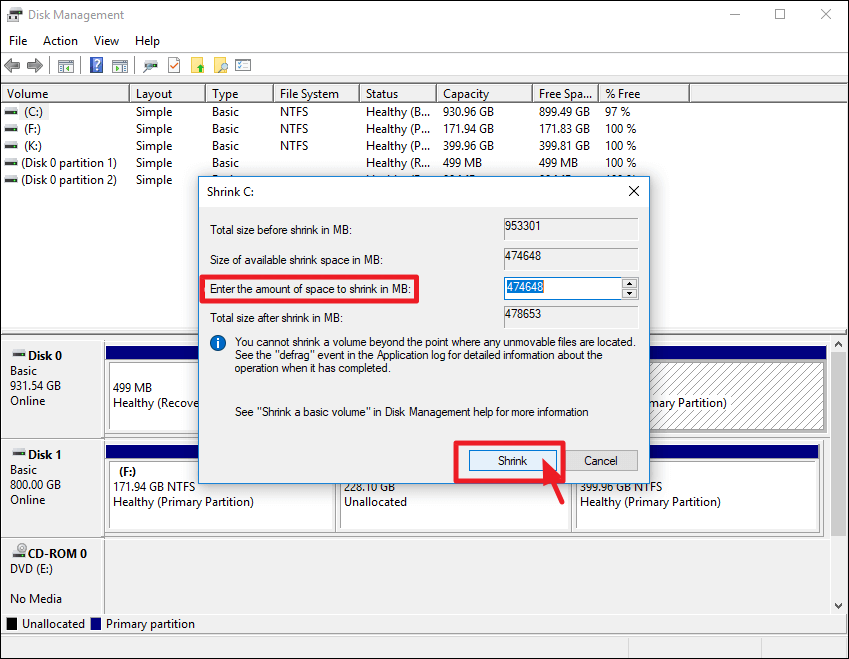
Step 3. To shrink the C drive, enter the amount of space you want to free up in the box, and then click "Shrink" to create unallocated space.
Step 4. Right-click the unallocated space you just created, and select "New Simple Volume".
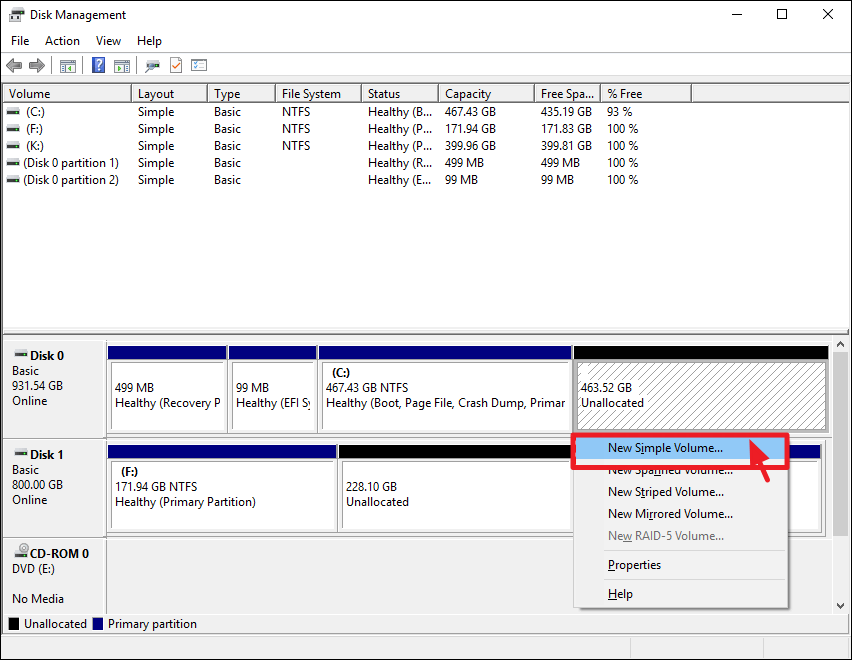
Step 5. Type in the amount of space that you want to allocate for the new volume, and then format it to create a new partition.
If you try to extend the volume on the right with the unallocated space, but only find the option "Extend Volume" greyed out, it's likely because the unallocated space can only be used to extend the adjacent partition on the left side.
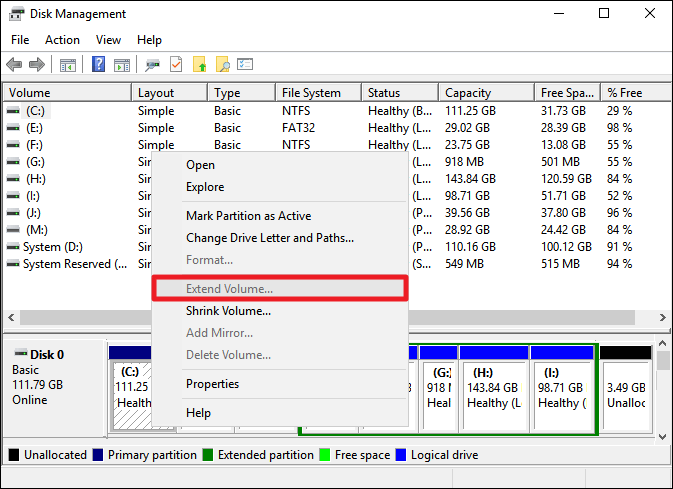
Using Disk Management has many limits that can be bothersome to beginners, such as it always requiring formatting after partitioning a drive. In contrast, professional software like Qiling Disk Master is a better and easier choice for disk and partition management in Windows systems.
If you find any practical information, share it with your friends who are facing the same issue.
Why Can't Shrink C Drive
Here are the main reasons why you can't shrink a partition on a Windows PC:
- Insufficient space on the C drive
This error message indicates that your system doesn't have enough free space on its disk to complete a specific operation, which could be installing a program, updating the system, or performing some other task that requires disk space.
- Many fragments on the C drive
To partition a volume normally, you can defrag the C drive using the Windows built-in disk defragmenter, which can help prevent fragmentation issues caused by too many fragments on the C drive.
- Unmovable files are at the end of the C drive
A disk volume cannot be shrunk beyond the partition where any unmovable files are located, such as the page file, hibernation file, and system volume information folder for system restore.
- File system error
A file system error can make a volume partition invisible or inaccessible. You can check the disk for errors and see if it resolves the issue.
Benefits: Create D Drive from C Drive
Having multiple partitions on your hard drive offers several benefits, including the ability to create a separate D drive from the C drive. This setup can provide advantages such as improved organization, enhanced security, and better performance by isolating specific data and applications from the rest of your system.
- Reasonable classification of data. You can separate the operating system from your personal files.
- Reduce disk fragmentation. Creating a new partition can help minimize drive fragmentation by allowing you to allocate a dedicated space for your files, reducing the likelihood of files being scattered across the drive.
- Avoid data loss. Having your personal data on another drive, such as an external hard drive or cloud storage, can provide a safeguard against data loss in the event of a system failure, ensuring that your important files remain accessible even if your main drive becomes unusable.
- Create a dual boot system. Creating multiple partitions on a computer allows you to run different operating systems on the same machine, effectively turning it into a multi-boot system. This can be useful for testing different operating systems, running legacy software, or simply having separate environments for work and personal use.
Conclusion
If you only have one partition on your drive, you're likely to encounter several issues. To optimize your Windows 11/10 experience, consider partitioning your C drive into two or more partitions. Qiling Disk Master can help you create a D drive from your C drive quickly and safely. You can download it now and take advantage of its features.
FAQs on Create D Drive from C Drive
After creating a D drive from the C drive successfully, you may also be interested in the frequently asked questions and answers below.
1. Can I transfer program files from the C drive to the D drive?
You can transfer program files from the C drive to the D drive, but a simple manual copy won't suffice. Instead, you can use a tool like Qiling Disk Master Tech or the Apps & Features section in Windows Settings to make the transfer process easier.
2. Can we add D drive space to C drive?
You can add space from the D drive to the C drive by using Qiling Disk Master, which has an "Allocate Space" feature that allows you to increase the C drive without deleting the D drive or losing any data. This process won't result in any data loss, making it a safe solution to expand your C drive space.
3. Why is my C drive full?
Here are the main causes that are taking up space in the C drive and making it nearly full:
- Windows operating system, system files, and settings.
- Windows built-The C drive is the primary drive where many programs, downloaded software, and installed applications are stored. This includes operating systems, device drivers, and other system files.
- User data, such as documents, photos, and other personal files, are stored on the desktop or within the C drive of the computer.
Related Articles
- How-to: Create USB Bootable Partition Manager to Manage Partitions Safely
- Fix 'Invalid Partition Table' Error Dell Computers [100% Working]
- How to Format SSD to FAT32 in Windows 10/8/7? Your Quick Guide Is Here
- How to Move Recovery Partition Windows 10 (Easy & Safe)
When trying to extend the system partition via Disk Management, you may encounter a frustrating obstacle: the recovery partition is in the way. - How to Format 64GB SD Card for 3Ds Efficiently
Are you in constant need of more storage space for your games on your Nintendo 3DS? Find out how to format 64GB SD cards for 3DS efficiently in this guide. - How Do You Format a Micro SD Card [Step-by-Step Guide on Each Way]
This article gives detailed guides on how do you format a Micro SD card and introduces a professional format tool to help. It elaborates on why format SD card and how to format an SD card.
Products
Articles & Tutorials
- Data Recovery
- Data Backup
- File Recovery
- File Backup
- System Backup and Restore
- Disk and Partition Clone
- Technical articles
- Mobile articles
- Disk Master Help
- Windows Data Recovery Tutorials
- Windows Secure Delete Tutorials
- Windows Partition Management Tutorials
- Windows File Backup and Restore Tutorials
- Windows System Backup and Restore Tutorials
- Windows Disk Backup and Restore Tutorials
- Windows Clone Tutorials