How to Format 64GB SD Card for 3Ds Efficiently
The Nintendo 3DS gaming console remains a beloved handheld device, delivering limitless entertainment to gamers through its vast array of games and thriving global gaming community. To meet the demand for ample storage capacity, many users opt for larger SD cards, such as the 64GB variant, to expand their gaming experience.
Formatting a 64GB SD card for your 3DS is a crucial step to unlock its full potential. Simply inserting the card won't suffice, and a proper formatting process is necessary to ensure optimal performance and a seamless gaming experience. A guide from Qiling provides a step-by-step process for formatting a 64GB SD card for use with your 3DS.
Can I Format a 64GB SD Card for 3DS
The Nintendo 3DS supports FAT32 formatted SD cards up to 32GB, but some users have successfully used 64GB SD cards, which function well despite the official limitations.
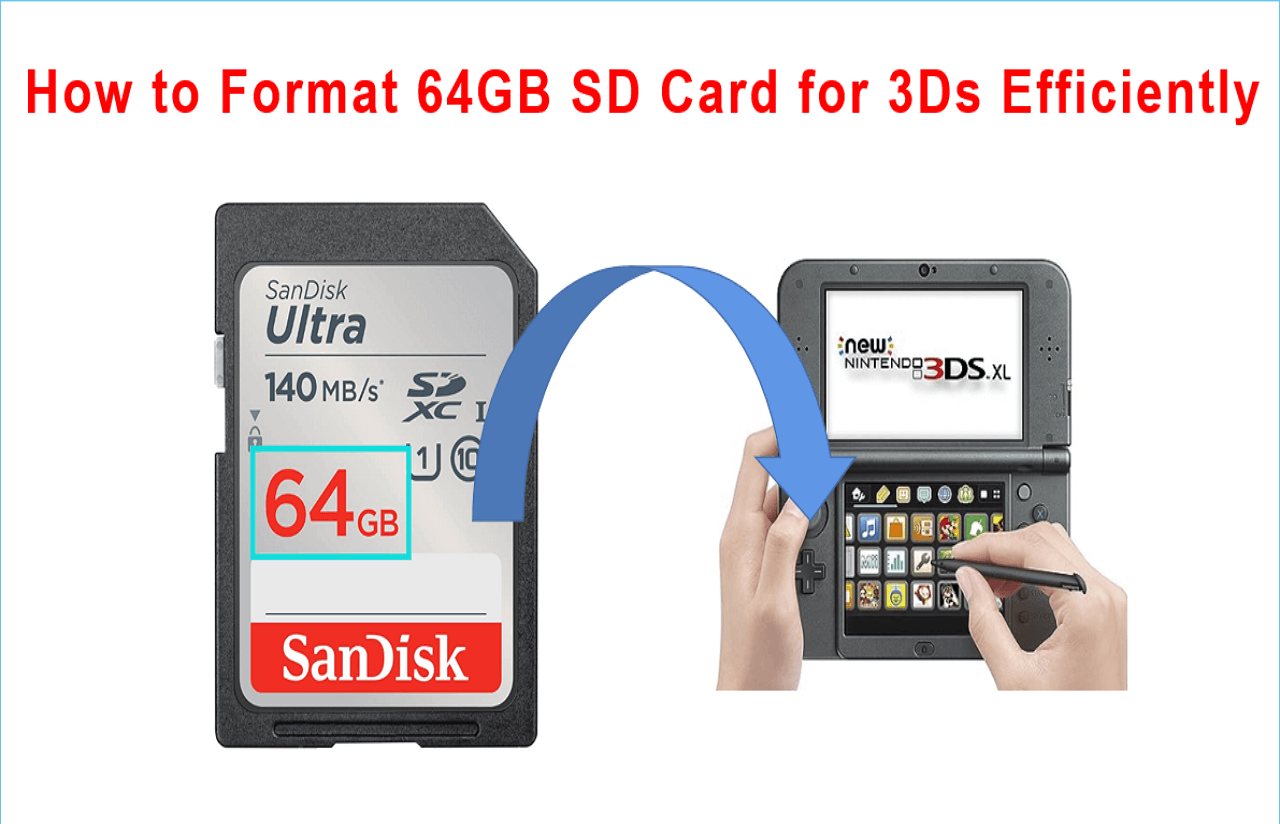
The Nintendo 3DS is a groundbreaking handheld gaming console that captured the hearts of gamers worldwide upon its release. Its unique 3D display, without the need for special glasses, offers unparalleled immersive gaming experiences.
- 64GB SD Card: 64GB microSD cards provide ample storage space for 3DS games, content, and save data, making them a central component for expanding your device's storage.
- A Formatting Tool: You can bypass the size limit of Windows built-in tools by using third-party software like Qiling Disk Master, which allows you to format a 64GB SD card to FAT32, making it compatible with your 3DS console.
- Ensure 3DS is Fully Charged: Before formatting your 3DS, make sure it's fully charged or plugged into a power source to prevent any interruptions or damage during the process.
To efficiently format a 64GB SD card for your 3DS, we'll guide you through the process using Qiling Disk Master. This step-by-step guide will ensure your SD card is perfectly tailored to accommodate your gaming needs, giving you the most out of your device.
What Is the 3Ds SD Card Format?
You can adjust a memory card of any capacity to make it work on a handheld console.
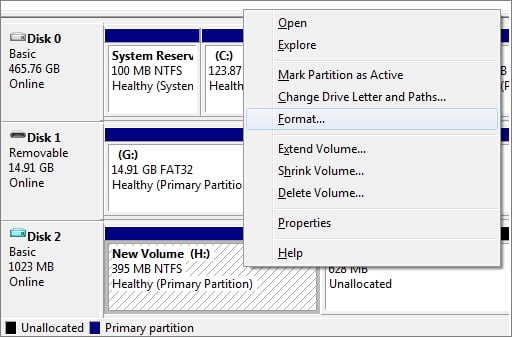
Format 64GB SD Card for 3DS Using Qiling Disk Master
With all the necessary tools prepared, it's time to use Qiling Disk Master to efficiently format your 64GB SD card for your 3DS. This robust and user-friendly software allows you to execute various disk-related operations, such as formatting, resizing, merging, and more, making it a powerful tool for partition management.
Qiling Disk Master is the ultimate solution for formatting SD cards, offering an intuitive interface and comprehensive features. It ensures your SD card is correctly formatted to meet the Nintendo 3DS requirements, and unlike Windows' built-in tools, it breaks the limitation of only formatting SD cards up to 32GB in size to FAT32. This makes it a rescue for where Windows' tools fall short.
Step 1. Launch Qiling Disk Master, right-click the partition on your external hard drive/USB/SD card which you want to format and choose the "Format" option.

Step 2. Assign a new partition label, file system (NTFS, FAT32, EXT2, EXT3, EXT4, exFAT), and cluster size to the selected partition.

Step 3. Click the "Proceed" button to start formatting your external hard drive, USB, or SD card. This will erase all data on the device and prepare it for new data.

Step 4. In the Warning window, click "Yes" to continue.
The software can format your 64GB SD card to FAT32, handle RAW or write-protected SD cards, and provides a versatile solution for formatting needs. It's also worth noting that the cluster size can significantly impact the compatibility of your formatted SD card with the Nintendo 3DS.
Choosing the correct cluster size is essential to prevent potential errors, such as the 64GB SD card not being detected by your 3DS. Based on user experiences and feedback, we recommend selecting the "32KB" cluster size during the formatting process, as this setting has proven to be the most reliable for Nintendo 3DS compatibility.
Key Features of Qiling Disk Master
- Partition Creation and Resizing: Easily create, delete, resize, and move partitions to allocate and manage disk space efficiently.
- Partition Formatting: Format partitions to different file systems, such as NTFS, FAT32, exFAT, etc., to meet specific storage needs.
- Merge and Split Partitions: You can merge two adjacent partitions into one without losing any data, or split one partition into multiple smaller ones to improve organization.
- Disk Conversion: The tool can convert between primary and logical partitions, allowing for more flexible partitioning schemes. It can also switch between MBR (Master Boot Record) and GPT (GUID Partition Table) disk styles, enabling compatibility with different operating systems and firmware.
To unlock the full potential of your 64GB SD card, download Qiling Disk Master from its official website and use it to optimize your Nintendo 3DS gaming experience, allowing for a seamless and elevated handheld gaming adventure.
Conclusion
Choosing a 64GB SD card to expand your Nintendo 3DS storage capacity unlocks a multitude of gaming opportunities, granting access to an extensive library of games, downloadable content, and ample save data, resulting in a significantly enhanced gaming experience, despite the official compatibility limit of 32GB.
Formatting a 64GB SD card for use with a Nintendo 3DS can be a challenge, but Qiling Disk Master makes it possible. This software overcomes the limitations imposed by Windows' built-in formatting tools, allowing you to convert larger SD cards to FAT32 and ensuring seamless compatibility with your 3DS.
Format 64GB SD Card for 3DS FAQs
What is the correct format for a 64GB SD card for a Nintendo 3DS?
1. How can I get my 64GB SD card to work on my 3DS?
To make your 64GB SD card work on a Nintendo 3DS, you'll need to format it to FAT32 using a software like Qiling Disk Master, choosing the '32KB' cluster size for optimal compatibility.
2. Does a 64GB SD card work with the 3DS?
64GB SD cards can work with the Nintendo 3DS after being properly formatted, despite the official documentation stating support up to 32GB, allowing users to store more games and digital content.
3. What format does the SD card need to be for 3DS?
The Nintendo 3DS requires the SD card to be formatted to the FAT32 file system for compatibility. However, Windows' built-in tools may only allow formatting to exFAT for SD cards larger than 32GB, limiting compatibility. Qiling Disk Master can assist in overcoming this limitation, ensuring seamless formatting to FAT32 for larger SD cards.
Related Articles
- How to Split C Drive in Windows 11/10/8/7🔥
- Best Partition Recovery Software for Windows 11 ( Reliable and Easy)
- 3 Easy Ways on How To View Partitions (2023)
- How to Format External Hard Drive to FAT32 on Windows 10? [FAT32 Guide]
- At Least 98GB! Marvel's Spider-Man 2 Storage Space Requirement on PS5
Marvel's Spider-Marvel's Spider-Man 2 was released on PS5 on October 20th, but many players are concerned about its storage space. - Fix MBR2GPT Cannot Find OS Partition Error Like an Expert
Read this article to efficiently fix MBR2GPT cannot find OS partition errors like an expert.
Products
Articles & Tutorials
- Data Recovery
- Data Backup
- File Recovery
- File Backup
- System Backup and Restore
- Disk and Partition Clone
- Technical articles
- Mobile articles
- Disk Master Help
- Windows Data Recovery Tutorials
- Windows Secure Delete Tutorials
- Windows Partition Management Tutorials
- Windows File Backup and Restore Tutorials
- Windows System Backup and Restore Tutorials
- Windows Disk Backup and Restore Tutorials
- Windows Clone Tutorials