How Do You Format a Micro SD Card [Step-by-Step Guide on Each Way]
Key Takeaways
1. To format a Micro SD card, you have three options. You can use the built-in formatting feature on your device, such as a smartphone or camera, to format the card.
2. This article teaches you to format the Micro SD card on a PC, Android, and Camera.
Micro SD cards, commonly found in smartphones, GPS devices, and certain cameras, may eventually need to be formatted if they've been with you for a while, especially if you want to erase them. This article aims to provide a helpful guide for formatting your Micro SD card in the easiest and most comprehensive way possible.
Why Do You Need to Format a New Micro SD Card
Formatting a micro SD card essentially resets and erases all information or files, giving you a blank micro SD card, which can help extend its life and prevent premature damage.
You need to format a micro SD card for various reasons, including to erase all data on the card, to resolve issues with corrupted data, to prepare the card for use in a new device, or to improve performance by clearing up space and reorganizing the card's file system.
- Fix corrupted SD card
- Erase data to get more space
- Change the file system format
Formatting an SD card, including a Micro SD card, erases all files, including internal hidden files, and is the best way to reset and erase the card, making it a necessary step when using a new card.
What Is the Best Way to Format a Micro SD Card
Formatting an SD card can be done in various ways depending on your needs. You can format it using a Windows or Android device, or use your digital camera if that's what you prefer. There are three main methods to format an SD card, which can be learned by reading this article. These methods include using a Windows or Android device, as well as your digital camera, to suit your specific needs.
- Method 1. Format a Micro SD Card Using Qiling Disk Master
- Method 2. Format a Micro SD Card Using Android
- Method 3. Format a Micro SD Card Using Camera
To choose a suitable method for learning, it's helpful to weigh the pros and cons of each approach. A table can be a useful tool for comparing the advantages and disadvantages of different methods, allowing you to select the one that best fits your needs.
| Features | Using Qiling Disk Master | Using Android | Using Camera |
|---|---|---|---|
| Pros |
|
|
|
| Cons |
|
|
|
To format a Micro SD card, simply connect it to a PC, and use Qiling Disk Master Free to easily format it without complicated steps. This tool provides a straightforward solution for formatting your Micro SD card, making it a convenient option for users.
To format a Micro SD card, you can use one of three methods: using the built-in formatting tool on your device, using a computer with a card reader, or using a dedicated SD card formatting software. If you're using a device, you can usually find the formatting option in the Settings app, while on a computer, you can insert the card into a reader and format it using the Disk Management or Disk Utility tool. Alternatively, you can use software like SD Formatter or MiniTool Partition Wizard to format the card. Each method has its own specific steps, which can be found in a detailed guide.
How Do You Format a Micro SD Card - 3 Ways
To format a Micro SD card, there are three ways to do so. The easiest one is to use a free and professional format helper, which can be obtained in the next paragraph. Alternatively, you can also format the card using the built-in formatting options in your computer or device. Finally, if you're using a camera or other device that supports it, you may be able to format the card directly from the device itself.
Method 1. How Do You Format a Micro SD Card - Qiling Disk Master
Qiling Disk Master is a professional format tool that makes it easy to format a Micro SD card with just a few clicks. Its user-friendly interface and simple operation ensure a hassle-free experience.
Step 1. Launch Qiling Disk Master, right-click the partition on your external hard drive/USB/SD card which you want to format and choose the "Format" option.

Step 2. To assign a new partition label, file system, and cluster size to the selected partition, you can use the command line or a GUI tool. In the command line, you can use the `mkfs` command to create a new file system on the selected partition, specifying the desired file system type (e.

Step 3. Click the "Proceed" to start formatting your external hard drive/USB/SD card.
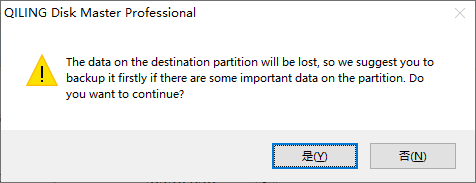
Step 4. In the Warning window, click "Yes" to continue.
Qiling Disk Master has several other features beyond formatting a Micro SD card. It can also clone a disk to another one, which is useful for backing up important data. Additionally, it can create a bootable USB drive from an ISO file, making it easy to install an operating system or other software. Qiling Disk Master can also convert a physical disk to a virtual one, and vice versa, which is helpful for testing or troubleshooting purposes. Furthermore, it can check and fix disk errors, making it a useful tool for maintaining the health of your disks. Overall, Qiling Disk Master is a powerful and versatile tool for managing and manipulating disks.
What Else Can Qiling Disk Master Help?
Although it's a free format tool, it's surprisingly multifunctional, offering a range of specific features.
- Convert FAT32 to NTFS
- Convert MBR to GPT without losing data
- Resize, create, delete, or extend partitions
- Copy OS and data to another HDD or SSD
- Check disk, file system errors, and bad sectors
- Format USB, SD card, and other external hard drives
It will be a great helper for you as long as you download it and have a try. It will not let you down.
Method 2. How Do You Format a Micro SD Card - Android
To format a Micro SD card using an Android device, start by inserting the card into your device's SD card slot. Then, go to the Settings app on your device, select "Storage" or "Memory," and look for the Micro SD card in the list of storage devices.
Step 1. To insert a Micro SD card into your Android device and open "Settings," simply locate the Micro SD card slot on the side or top of your device, insert the card at a 45-degree angle, and gently push it in until it clicks into place. Once the card is securely inserted, open the "Settings" app on your device, which is usually found on the home screen or in the app drawer. From there, you can navigate to the storage section to view the available storage on your device and the Micro SD card.
Step 2. Choose "Device care."
Step 3. Choose "Storage," then tap on the "Advanced" option.
Step 4. Locate your SD card underneath the "Portable storage" section and tap on it.
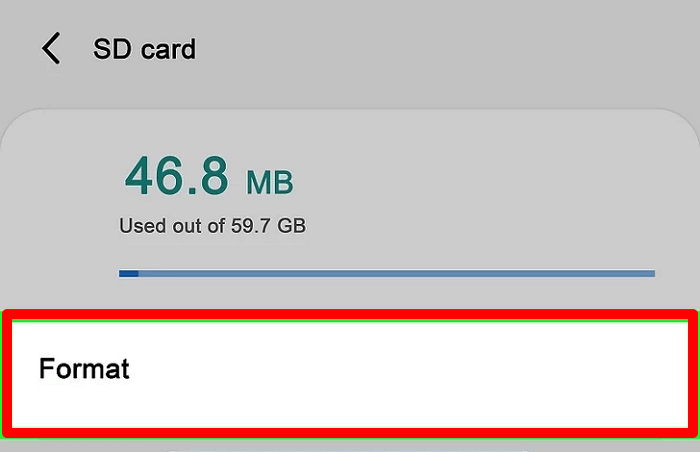
Step 5. Then choose "Format," and then choose "Format SD card."
Formatting your Micro SD card can be done in a few steps. First, insert the card into your device or a card reader. Then, access the settings menu on your device and navigate to the storage or SD card section.
Method 3. How Do You Format a Micro SD Card - Camera
To format a Micro SD card using a camera, follow these steps: locate the Micro SD card slot on your camera, insert the Micro SD card into the slot, navigate to the camera's menu, select the option to format the memory card, confirm the action and wait for the camera to complete the formatting process. This will erase all data on the card, so make sure to transfer any important files to a computer or other storage device before formatting.
- Notice:
- Different brands and versions of Micro SD cards may use different formatting methods. For example, a DSLR camera may use a specific formatting method to prepare the card for use. (Note: I removed the "Here" at the beginning as it's not necessary)
Step 1. Turn off the camera, insert the SD card into the slot, and then turn the camera back on.
Step 2. Choose "Format" across the "Setup" section.
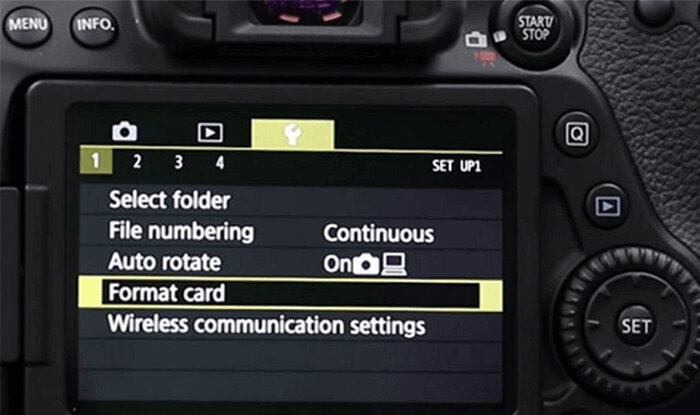
Step 3. Press the "Confirm" option to format the Micro SD card.
If your SD card isn't working in your camera or you're unable to format it, there are resources available to help. You can visit the links provided to troubleshoot the issue.
We've learned three ways to format a Micro SD card, each suitable for different occasions. If you're looking for an easy and simple process, Qiling Disk Master is a great option.
Conclusion
Formatting a Micro SD card regularly helps maintain its performance and data integrity. It's a good habit to get into, and using a user-friendly tool like Qiling Disk Master can help prevent data loss, making the process easy and safe even for non-experts.
FAQs About How Do You Format a Micro SD Card
Do you have any other questions about formatting a Micro SD card? Here, we list three questions related to today's topic. Hope it can help you.
1. How do I format an SD card without a computer?
To format an SD card on an Android phone, go to Settings, select Storage, and choose Format SD card, then confirm the operation.
If you're using a camera, you can format an SD card in the setup menu.
2. Is formatting an SD card the same as deleting?
Erasing deletes all multimedia files on a memory card, but recovery software can restore them. In contrast, formatting erases the directory and fragments of data, making it hard to retrieve previous data if new data overwrites it.
3. How do I format a Sandisk Micro SD card?
You can format a Sandisk Micro SD card on Windows using Qiling Disk Master, or you can format it directly on an Android device or a camera.
Related Articles
- What Is USB Write Protected Formatter and How to Use It? [2024 Guide]
- How to Format Galaxy S5 SD Card [2024 Newest Solutions]
- HP USB Disk Storage Format Tool Review 2024 [Benefits and Drawbacks]
- Troubleshooting: Why Can't I Format My USB Drive as FAT32 [2024 Guide]
- Guide to Migrate OS to SSD for Windows 8.1 with Pictures
This page aims to provide a step-by-step guide for beginners to successfully migrate OS to SSD Windows 8.1, enhancing system performance and speed. - How to Move Recovery Partition Windows 10 (Easy & Safe)
When trying to extend the system partition via Disk Management, you may encounter a frustrating obstacle: the recovery partition is in the way.
Products
Articles & Tutorials
- Data Recovery
- Data Backup
- File Recovery
- File Backup
- System Backup and Restore
- Disk and Partition Clone
- Technical articles
- Mobile articles
- Disk Master Help
- Windows Data Recovery Tutorials
- Windows Secure Delete Tutorials
- Windows Partition Management Tutorials
- Windows File Backup and Restore Tutorials
- Windows System Backup and Restore Tutorials
- Windows Disk Backup and Restore Tutorials
- Windows Clone Tutorials