How to Format Galaxy S5 SD Card [2024 Newest Solutions]
Formatting an SD card for Galaxy S5 is necessary to ensure it works properly with the device. To do this, you'll need to format the SD card using the phone itself. This process will erase all data on the card, so make sure to transfer any important files to a computer or other device before proceeding. To format the SD card, go to Settings > Storage > Internal storage > SD card > Format SD card. Follow the on-screen instructions to complete the formatting process. This will prepare the SD card for use with your Galaxy S5, allowing you to store photos, videos, and other files.
Why Format Galaxy S5 SD Card?
Before we go to the steps, you may be curious about why we should format the S5 SD card. There exist several reasons to format the new or old SD card. Let's check it out.
- To fix the corrupted SD card
- To clear files on SD card for sale
- To change the file system format
- To format a new SD card for usage
- To clean the unnecessary files and gain more storage space
Formatting an SD card for Galaxy is essential to improve its performance and usefulness. Before we dive into the steps to format a Galaxy S5 SD card, there are two important notes to keep in mind. Firstly, formatting will erase all data on the SD card, so make sure to back up any important files. Secondly, if your SD card is corrupted or damaged, formatting it may not restore it to a working state.
1. Formatting an SD card will erase everything on your SD card, so you need to back up any important files or data before doing so. This is because formatting the card will completely wipe all files, folders, and other data stored on it, making them unrecoverable.how to backup SD card before formatting.
2. You need to choose the right file system format The Galaxy S5 uses a microSD card, and it should be formatted as FAT32. This means that when preparing the SD card for use in the Galaxy S5, it should be formatted with the FAT32 file system to ensure compatibility and proper functioning.
How to Format Galaxy S5 SD Card on Windows/Mac/Android
To format an SD card for use with a Galaxy S5, you can use one of three simple methods. On Windows, you can use the built-in Disk Management tool to format the SD card. On a Mac, you can use the Disk Utility app to format the SD card. Alternatively, if you're using an Android device, you can use the built-in file manager or a third-party app to format the SD card.
To format a Samsung Galaxy S5 SD card on Windows using Qiling Disk Master, first download and install the software. Then, insert the SD card into your computer and launch Qiling Disk Master.
Format Galaxy S5 SD Card on Mac – Disk Utility
Format Galaxy S5 SD Card on Android – Settings
- Remember two things:
- 1. If the SD card won't be used for other purposes or is formatted as FAT32, you can use the built-in formatting tool in your device. However, if it will be used for other purposes or is not formatted as FAT32, you'll need to use a Windows or Mac format tool to complete the formatting process.
- 2. To format your Galaxy SD card on a PC, you'll need to prepare an SD card reader, connect it to your Windows or Mac, and proceed with the formatting process.
To format your Galaxy S5 SD card, follow these steps: First, insert the SD card into your computer or phone. Next, on Windows, open File Explorer and right-click on the SD card; on Mac, open Disk Utility and select the SD card; on Android, go to Settings > Storage > SD card. Then, select the option to format the SD card, and confirm that you want to erase all data on the card.
Format Galaxy S5 SD Card on Windows – Qiling Disk Master
To format your Galaxy S5 SD card on Windows, use Qiling Disk Master Free, a free disk management tool compatible with Windows 11/10/8/7. This tool allows you to easily and quickly format your SD card by following the steps, making it a convenient solution for formatting your Galaxy S5 SD card on a Windows device.
Step 1. To format your SD card, locate it and right-click on the partition you wish to format, then select the "Format" option.
Step 2. Set a new partition label and file system (NTFS/FAT32/EXT2/EXT3/EXT4/exFAT) with a specified cluster size to the selected partition.
Step 3. Click the "Proceed" button to start formatting your SD card.
Step 4. Click "Yes" on the pop-up window to continue.
Qiling Disk Master can convert NTFS to FAT32 without data loss, check and fix corrupted file systems, and serve as a helpful tool for managing disks.
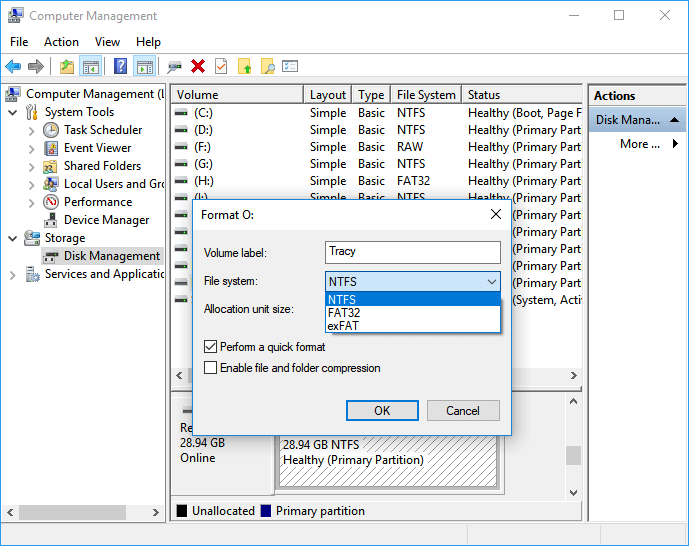
You can also use Diskpart or Disk Management on Windows to format your Galaxy S5 SD card. Alternatively, you can click the link below to learn about other solutions.

To format an SD card on Windows 11, you have four options in 2024. You can use the built-in Disk Management tool, which can be accessed by pressing the Windows key + X and selecting Disk Management. Alternatively, you can use the Command Prompt or PowerShell to format the SD card.
Formatting an SD card in Windows 11 can be done using various methods. To format an SD card, you can use the built-in Disk Management tool, which allows you to delete the existing partition and create a new one.
Format Galaxy S5 SD Card on Mac – Disk Utility
If your computer is a macOS, you can quickly format your Galaxy S5 SD card using the built-in tool, Disk Utility, which is used for managing external and internal devices. You can erase and format the SD card using the following steps.
Step 1. Connect the SD card reader on Mac.
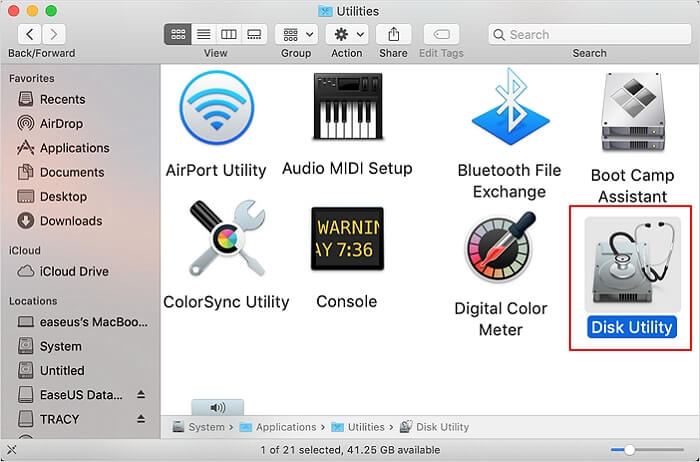
Step 2. Open the Disk Utility app, which can be found in the Utilities folder or by using the Spotlight search by pressing Command+Space.
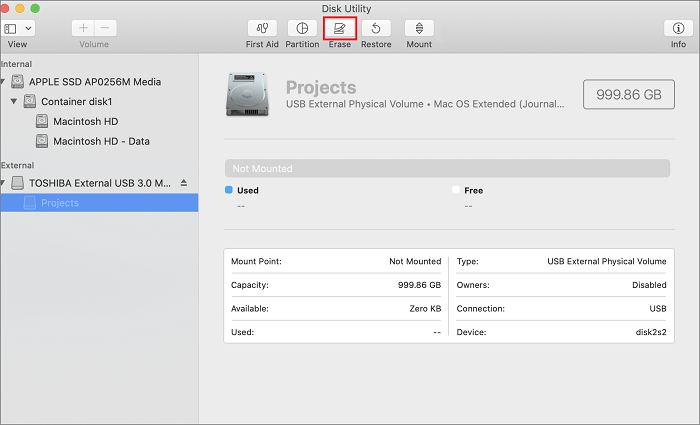
Step 3. To erase the SD card on your Galaxy S5, select the SD card on the left side of the page and click "Erase" at the top of the page.
Step 4. Give a name to the SD card and choose the "FAT32" format.
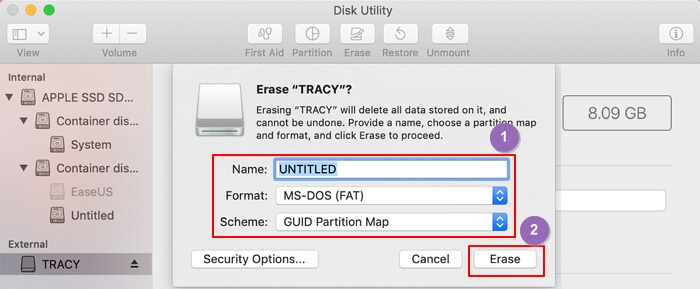
Step 5. To complete the formatting of your Galaxy S5 SD card, click the "Erase" button. This action will securely delete all data on the card, making it ready for new content. Ensure you have backed up any important files before proceeding.
Formatting a Galaxy SD card on a Mac is a straightforward process. You can easily format it using the Disk Utility app, which is a built-in tool on Macs. Alternatively, you can use the terminal command to format the SD card, but be cautious when typing the commands to avoid any errors.
Format Galaxy S5 SD Card on Android – Settings
You can format the Galaxy S5 SD card directly on Android without taking it out, by installing the SD card first and then following a series of steps to finish the formatting process.
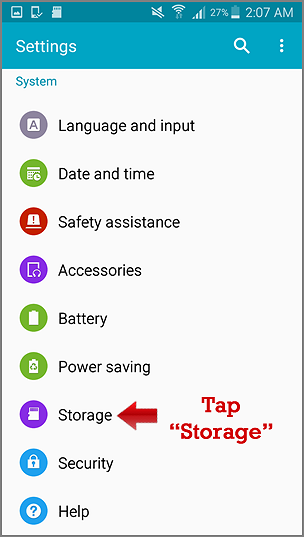
Step 1. Find "Apps" and select "Settings."
Step 2. Find "Storage" on the settings page.
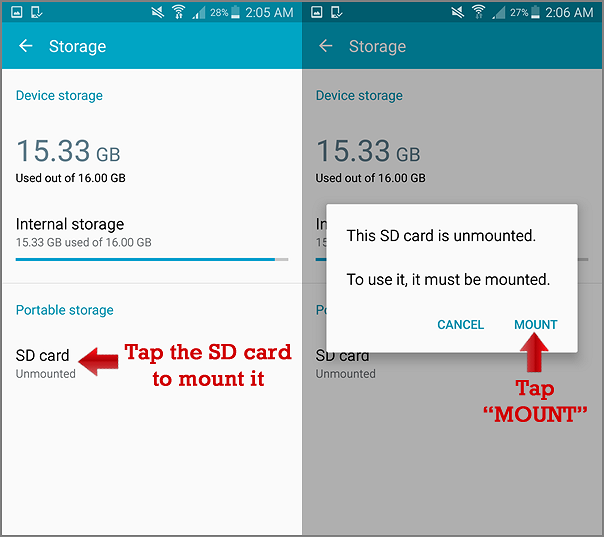
Step 3. To check for an SD card, click the triangle in the window, and then click on the SD card.
Step 4. Mount your SD card and then choose "Format."
The Galaxy S5 SD card can be formatted using three methods: on Windows, Mac, or Android. Each method is easy to use and can be completed quickly, providing a solution to any SD card-related issues. If you encounter other SD card problems, you may find further assistance by clicking on the provided button.
Conclusion
Formatting your Galaxy S5 SD card is a straightforward process that can be done in various ways. On Android, it's easy to format the SD card. However, if your SD card is not formatted to FAT32 or you need to use it for another purpose, you can format it on Windows or Mac using software like Qiling Disk Master for Windows or Disk Utility for Mac. Additionally, this guide addresses some frequently asked questions about formatting Galaxy S5 SD cards.
FAQs of Format Galaxy S5 SD Card
If you also have the following questions or you're interested in these questions, please keep reading.
1. Why can't I format my SD card Samsung?
The SD card may be write-protected, have bad sectors, or be physically damaged, preventing it from being formatted.
2. What format does Samsung use for SD cards?
For most Android SD cards, FAT32 and exFAT are suitable formats, but FAT32 has a 4GB file size limit.
3. How do I get my S5 to recognize my SD card?
If your Galaxy S5 can't recognize your SD card, try turning off the phone and reinserting the SD card, or check for errors and format it on a PC.
Related Articles
- Windows 11 Gets/Adds a Watermark on Unsupported Hardware, How to Remove It
- How to Corrupt A Flash Drive on Purpose
- How to Fix Disk Management Console Is Not Up to Date Error [7 Effictive & Quick Methods]
- Solved: Xbox 360 Hard Drive Not Detected [5 Ways] 💡
- How to Partition A USB Drive Windows 10 [Step-by-Step Guide]
This article shows you how to partition a USB drive Windows 10. You will know three ways to partition a usb, and you can choose the best suitable one to make your USB better used. - How to Partition C Drive [Step-by-Step Guide]
Do you have enough space for the C drive? Or is there too much free space for C drive? In this article, We provide you a comprehensive guide on how to partition C drive in Windows 10. Read on to find out more.
Products
Articles & Tutorials
- Data Recovery
- Data Backup
- File Recovery
- File Backup
- System Backup and Restore
- Disk and Partition Clone
- Technical articles
- Mobile articles
- Disk Master Help
- Windows Data Recovery Tutorials
- Windows Secure Delete Tutorials
- Windows Partition Management Tutorials
- Windows File Backup and Restore Tutorials
- Windows System Backup and Restore Tutorials
- Windows Disk Backup and Restore Tutorials
- Windows Clone Tutorials