Solved: Xbox 360 Hard Drive Not Detected [5 Ways] 💡
Xbox has limited storage, so to preserve all your games, you'll need to use external storage. However, you may encounter issues like Xbox not recognizing storage, which can be frustrating.
The Xbox 360 hard drive not detected error can be caused by a wrong hard drive format, incorrect installation, console errors, or corrupted hard drives, which can be a significant problem if your computer has games and media files. To resolve this issue, you can refer to an article from Qiling that provides a step-by-step guide on how to fix the error.
| 💡Aspects | 🧩Details |
|---|---|
| 🔎Complex Level | Low, step-by-step guide |
| 🚩Fixes | |
| 💻Causes |
|
5 Fixes for Xbox 360 Hard Drive Not Detected Error
If your Xbox 360 is not detecting a hard drive, don't worry! There are five fixes that can help resolve this issue. Check each one individually to troubleshoot the problem and get your Xbox 360 up and running with your hard drive again.
Fix 1. Restart Xbox 360 Console
To fix the Xbox 360 console, try restarting it first. This simple step often resolves minor issues. To restart, press the Xbox button on your controller to turn off the console, then press it again to turn it back on. This basic troubleshooting step can often resolve problems.
Step 1. To turn off your Xbox 360 with a long press of the power button, locate the power button on the front of the console, which is usually marked with a circle containing a line. Press and hold this button for about 5-7 seconds until the console shuts down completely.
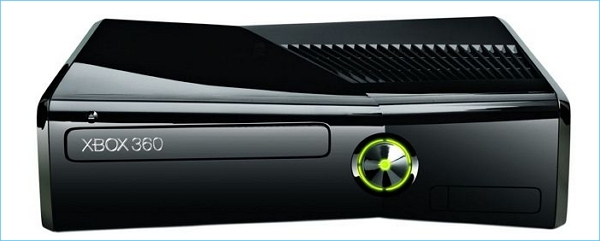
Step 2. Unplug the console power cable, then remove the hard disk.
Step 3. Turn your console on and then off.
Step 4. Reattach the hard drive and restart your console.
📖Extend Reading: Xbox One Not Reading Disc
Fix 2. Format the Xbox 360 Hard Drive
If an Xbox 360 hard disk is formatted as NTFS, the console may not detect it correctly. Format the hard disk to FAT32, which is supported by Xbox 360, to improve compatibility.
If you have essential game data, consider cloning the disk or moving game apps to prevent data loss due to formatting. This precaution ensures that your game progress and other important information are preserved.
Qiling Disk Master is an excellent program that simplifies the process of formatting your Xbox 360 hard drive, offering a quick and easy solution. With its user-friendly design and powerful functionality, it can format hard drives greater than 32GB to FAT32, a feature that many Windows utilities cannot. Downloading Qiling Disk Master today can make formatting your Xbox 360 hard drive straightforward.
Follow these steps to begin formatting your Xbox 360 hard drive with Qiling Disk Master:
Step 1. Run Qiling Disk Master, right-click the hard drive partition you intend to format and choose "Format" to format it.

Step 2. In a new window, specify the partition label, file system, and cluster size for the partition to be formatted.

Step 3. To begin the process of formatting your hard drive, click the "Proceed" button. This will initiate the formatting process, which will erase all data on the selected partition.
Step 4. Then you will see a warning window, click "Yes" in it to continue.
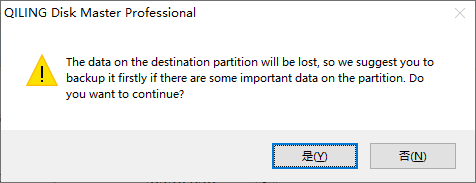
You have finished formatting the Xbox 360 hard drive. Now, place it into the Xbox 360 and see if it can be recognized and detected. This tool can also be used to clone the hard drive, recover data, and even create a backup of the original hard drive.
Key Feature list:
- Options for flexible customization
- Format a USB drive for the Xbox 360
- Format the external hard drive to FAT32
- Effective Xbox 360 hard drive formatting
- Format 64 GB SD card to FAT32
- Supports formatting hard drives bigger than 32GB to FAT32
If you're not a formatting pro, Qiling Disk Master can be a huge help, making the process faster and easier.
Fix 3. Remove and Reinstall Hard Drive on Xbox 360
To resolve the issue, you will need to correctly install your hard drive on Xbox 360 by removing and reinstalling it. This process involves physically taking out the hard drive and then putting it back in, which should eliminate the error.
- Notice:
- When handling your Xbox 360 Hard Drive, avoid touching the hard disk drive bay contacts or the hard disk drive connector with your fingers or any metal object. This is to prevent damage to the drive.
- Connect a hard drive to the original Xbox 360 system:
Step 1. Switch off the console.
Step 2. Attach the hard drive to the hard drive bay, making sure that the screws are securely tightened. This will keep the hard drive in place and prevent it from falling out or getting damaged.
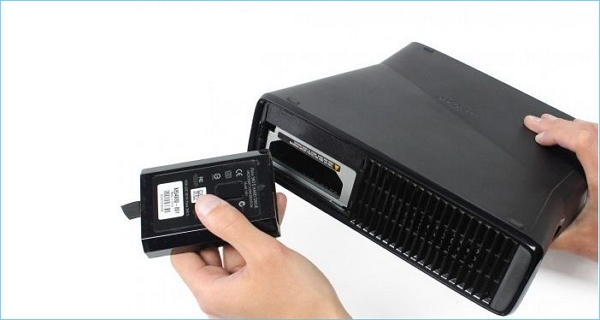
Step 3. Align the drive to the correct position and push the front end of the drive down until it clicks into place.
💡Note: If your console didn't have a hard drive initially, remove the bay cover before installing a hard drive.
- Remove the original Xbox 360 console's hard disk:
Step 1. Switch off the console.
Step 2. To locate the hard drive on the console's top (or left side, depending on how the console is configured), simply look for the device that has a label indicating it's the hard drive. It's usually a rectangular-shaped box with a few cables connected to it.
Step 3. Press the hard drive's release button.
Step 4. Remove the hard drive from the console.
The Xbox 360 is a gaming console that was released in 2005, and not all of its models came with a built-in hard drive.
- Ensure that your console identifies the hard drive:
Ensure your console detects the connected hard drive by following these steps: After connecting the hard drive, go to your console's settings, navigate to the storage section, and look for the newly connected hard drive. If it's not detected, try restarting your console or checking the hard drive's power cord to ensure it's properly powered. If it still doesn't show up, you may need to format the hard drive or check for any physical issues with the drive itself.
Step 1. Navigate to System > System Settings by pressing the Guide button on your controller.
Step 2. Choose either Storage or Memory.
Step 3. Check if the Hard Drive is listed in the storage devices. If not, try disconnecting and reconnecting it to the console to troubleshoot the issue.
Share this article and these fixes to help more Xbox 360 users who are facing the same error.
Fix 4. Try Another Hard Drive
To troubleshoot issues with your Xbox 360, try using a different hard drive to see if the problem was with the previous one. If you need to connect a new hard drive, follow these steps:
Step 1. The hard drive cover release is located on the right side of the console, near the back end.
Step 2. Open the hard drive door while sliding the release towards the front of the console.
Step 3. Insert the hard drive into the slot and firmly press down until you hear a click, then replace the cover.
If the other hard drive works, the first hard drive you were using could be damaged. This could be due to physical damage, electrical issues, or software problems.
Fix 5. Replace the Hard Drive
If your Xbox 360's hard drive is damaged, it won't be detected by the console. To fix this, you can either purchase a new hard drive or have the damaged one repaired. This will allow your Xbox 360 to function properly again.
To order a replacement Xbox 360 hard drive, you can contact the device service and repair department. If your console is still under warranty, you'll need to register it first. The Xbox 360 Troubleshoot page provides a list of fixes, which are relatively easy to try.
Why Does Xbox 360 Not Detect Hard Drive
Here are the reasons why Xbox 360 does not detect a hard drive in a single paragraph:
- If the hard drive's disk format or file system is incompatible with your system, formatting the drive may resolve the issue. This will change the drive's format to one that is compatible with your system.
- Hard drive corruption on an Xbox occurs when the system is unable to complete writing data to a file or when parts of the file become inaccessible, leading to corrupted data. In such cases, the hard drive may need to be replaced or upgraded.
- If there are any console errors, the Xbox 360 may not detect the hard drive. Try restarting the console to resolve the issue.
- Make sure the hard drive is properly connected to the console, as incorrect installation can prevent the Xbox 360 from detecting the hard drive.
So, these are why your Xbox 360 is not detecting the hard drive. Check the following links to get more related details.
Conclusion
If your Xbox 360 can't detect your hard drive, it could be due to a faulty connection, an incompatible or corrupted hard drive, issues with the Xbox firmware, power supply, or other problems.
You can troubleshoot issues by using the solutions in this article. Qiling Disk Master provides step-by-step instructions to guarantee compatibility and best performance for your game console, allowing you to smoothly copy, move, and install games with a formatted hard drive. Additionally, it can help upgrade an Xbox 360 hard drive to an SSD.
FAQs About Xbox 360 Hard Drive Not Detected
Do you have more questions about your Xbox 360 not able to detect your hard drive? Check out the frequently asked questions and their answers given below:
1. How do I fix my hard drive not detected on Xbox 360?
If your hard drive is undetected on Xbox 360, try restarting the console. This is a simple troubleshooting step that might resolve the issue. To restart Xbox 360, press the Xbox button on the controller, then select "Restart Console" from the menu.
Step 1. To access the instructions, press the Xbox button on your controller.
Step 2. To change the power settings on your device, go to Profile, then select System, followed by Settings, General, and finally Power settings.
Step 3. Select Restart now.
2. How do I know if my Xbox 360 hard drive is bad?
If your Xbox 360 is not saving in-game data, it may be due to a bad hard drive, which can be caused by a full or damaged hard drive. To troubleshoot, ensure the hard drive is securely attached and has enough free space for the save. If this doesn't work, you may need to replace the hard drive.
3. Do all hard drives work on Xbox 360?
The Xbox 360 system requires a specific internal hard drive, which is the official Microsoft hard drive, to function properly, unlike the Xbox One which has more compatibility with various hard drives.
Related Articles
- 3 Easiest Ways to Run USB Speed Test in Windows 10 in 2024
- How Do I Use DiskPart to Delete All Partitions in Windows? Your 2024 Guide Is Here
- Sleep vs Hibernate on Windows 10/8/8.1/7 (Complete Guide)
- Get Qiling Disk Master Key (v18.2) in 2024 | No Cracking
- Format FS=NTFS Diskpart Has Encountered an Error
If your Diskpart encounters an error saying "The parameter is incorrect", you may encounter issues with formatting a disk using the Format FS=NTFS command in Diskpart. For detailed solutions, please refer to our article. - Format RAW SD Card/USB Drive in Windows 11/10/8/7
To format a RAW SD card, USB flash drive, pen drive, or RAW partition, you can use a RAW SD card formatter or Qiling Partition Master. This software allows you to easily format the device to FAT32, NTFS, EXT2, or EXT3 in Windows 11/10/8/7.
Products
Articles & Tutorials
- Data Recovery
- Data Backup
- File Recovery
- File Backup
- System Backup and Restore
- Disk and Partition Clone
- Technical articles
- Mobile articles
- Disk Master Help
- Windows Data Recovery Tutorials
- Windows Secure Delete Tutorials
- Windows Partition Management Tutorials
- Windows File Backup and Restore Tutorials
- Windows System Backup and Restore Tutorials
- Windows Disk Backup and Restore Tutorials
- Windows Clone Tutorials