Tutorial: How to Fix Hard Drive Failure on Windows 10
For Windows 10 users, dealing with hard drive failure can be a challenge. However, with the right tools and methods, you can effectively overcome these difficulties. This article provides three comprehensive guides to help you learn how to fix hard drive failure on Windows 10, whether you prefer using specialized software or built-in Windows utilities.
The table shows that hard drive failure on Windows 10 can occur due to various causes, including physical damage, software issues, and hardware malfunctions, with a complexity level ranging from low to high and a duration of several minutes to several hours, and can be fixed through various methods such as disk check, disk cleanup, and system restore.
| 🚩Aspects | 📃Details |
|---|---|
| 🔎Causes | Malware or virus, Insufficient system resources, Outdated hard drive |
| 🧩Symptoms | Common issues with Windows include slow performance, software compatibility problems, the dreaded blue screen of death (BSOD), data loss and file corruption, and frustrating Windows update issues. |
| 🔨Fixes | |
| 🔦Complex Level | Low, step-by-step guide |
The table highlights various reasons for hard drive failure on Windows 10, including physical damage, corrupted system files, outdated or incompatible drivers, overheating, and power surges. Understanding these common causes is crucial before studying the various ways to resolve hard drive failure on Windows 10, as it provides a better idea of the solutions available.
How to Fix Hard Drive Failure Windows 10
Here are three quick fixes for hard drive failure in Windows 10 that you can use.
Guide 1. Fix Hard Drive Failure on Windows 10 via Qiling Disk Master
Qiling Disk Master is a tool that helps resolve hard drive failure issues, allowing users to one-click check file system errors on the hard drive. It is compatible with various Windows versions and has a user-friendly interface, making it accessible to new users.
Download the Qiling Disk Master tool and follow these steps to use it to fix hard drive failure on Windows 10:
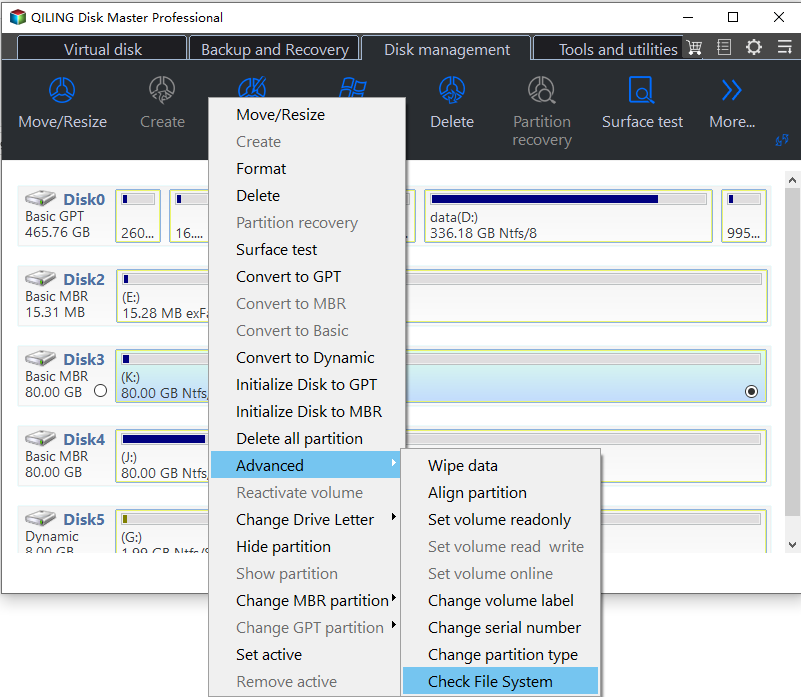
Step 1. Open Qiling Disk Master, locate the disk, right-click the partition, choose "Advanced" > "Check File System".
Step 2. In the Check File System window, select the "Fix the error on the disk" option and click "Proceed".
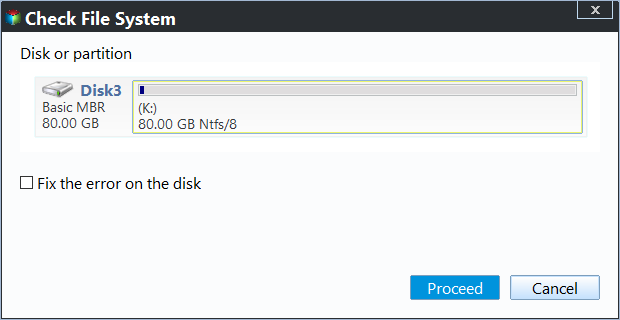
Step 3. The software will start checking your partition file system on your disk. Once completed, click on "Finish".
In addition to checking file system errors on a hard drive, this app offers advanced features such as.
- Fix file system error
- Check bad sectors on the hard drive
- Check (external) hard drive health/speed
- Initialize/partition a hard drive
- Do a disk surface test on the hard drive
- And more features to manage a hard drive
Download Qiling Disk Master to simplify fixing hard drive failure on Windows 10. It offers a user-friendly interface and comprehensive features for efficient disk management.
Guide 2. Fix Hard Drive Failure on Windows 10 via File Explorer
If you prefer using built-in Windows utilities, File Explorer can be a helpful tool for fixing hard drive failure. Follow the steps below to resolve hard drive issues using File Explorer:
Step 1. Press the Windows key + E on your keyboard to open File Explorer.
Step 2. Navigate to "This PC" and locate the drive experiencing failure.
Step 3. Select "Properties" on the drive that has an issue.
Step 4. In the Properties window, navigate to the "Tools" tab, which is an example using the C drive.
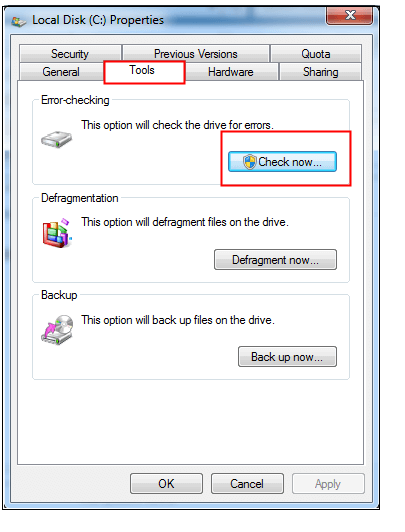
Step 5. Click the "Check" button under the "Error-checking" column.
Windows will scan the drive for issues and attempt to repair them automatically.
To resolve frequent hard disk failure issues on Windows 10, you can try running the built-in Check Disk utility (chkdsk) to identify and fix disk errors, as well as running the System File Checker (sfc) to scan and replace corrupted system files. Additionally, you can check for and install any available Windows updates, which may include fixes for disk-related issues.
You may also like:
Guide 3. Fix Hard Drive Failure on Windows 10 via CHKDSK Commands
Another powerful built-To fix hard drive failure using the chkdsk command in Windows, follow these steps: Run the Command Prompt as an administrator, type "chkdsk" followed by the drive letter of the problematic drive (e.g., "chkdsk c:"), and press Enter.
Step 1. To open the Command Prompt as an administrator, you can follow these steps:
Step 2. Type the command "chkdsk /f c:" in the command prompt, replacing "c" with the actual drive letter of the problematic drive.
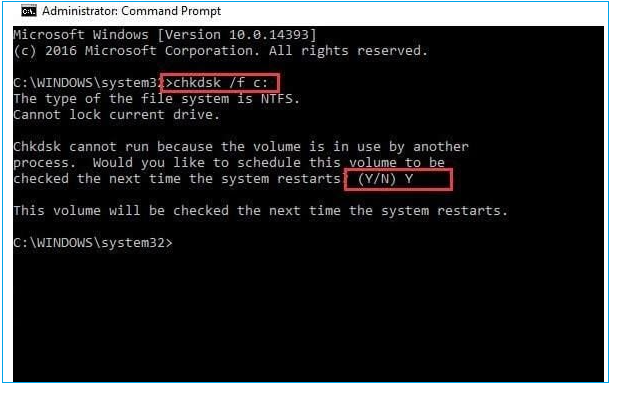
💡If you are using the hard drive, you will be prompted with a message asking if you want to continue, just type Y to proceed.
Step 3. Run the chkdsk command in Command Prompt to scan the drive for errors and repair them. Press Enter to initiate the scan.
Be cautious when using the chkdsk command, as it directly interacts with your hard drive, requiring the correct drive letter and careful following of prompts. This process may encounter issues, such as the chkdsk command not running, the drive being in use, or errors during the scan, which can be resolved by clicking on the provided links.
Can Hard Drive Failure on Windows 10 Be Repaired?
Windows 10 can be fixed if the hard drive fails, as long as the hard drive can be diagnosed and the causes of the failure can be found, allowing for troubleshooting and resolution of issues related to hard disk failure, minimizing the chance of data loss and regaining system functionality.
Causes of Hard Drive Failure:
Hard drive failure can occur due to various reasons, including:
- Overheating
- Power surges
- Software conflicts
- Outdated or incompatible drivers
- Dropping or mishandling a hard drive can cause mechanical failures and result in data loss.
- Software errors like corrupted system files, improper shutdowns, or conflicts between software can contribute to hard drive issues, potentially leading to data loss and system crashes.

A failing hard drive can be identified by several signs, including sudden and frequent crashes, slow performance, and unusual noises, such as grinding, clicking, or whirring sounds. Additionally, the drive may not spin up or spin down properly, or it may not be recognized by the computer.
Knowing how to tell if a hard drive is failing is helpful when your computer pops up errors, warning you of unusual occurrences.
Symptoms of Hard Drive Failure:
Recognizing the symptoms of hard drive failure is crucial for prompt action. Look out for signs such as sudden shutdowns, unusual noises like grinding or clicking sounds, decreased performance, and increased error rates. Additionally, if your computer is taking longer than usual to boot up or is experiencing frequent crashes, it may be a sign that your hard drive is failing.
- Frequent system crashes or freezes.
- Slow and sluggish performance.
- Unusual clicking or grinding noises from the hard drive.
- Inability to boot into the operating system.
- Blue Screen of Death (BSOD) errors.
- Disappearing or corrupted files and folders.
If you're experiencing hard drive failure on Windows 10, you can try the solutions outlined in the three guides we've shared to troubleshoot and potentially resolve the issue. Follow the instructions if you encounter any errors.
Regularly back up your data to prevent loss in case of hard drive failure, and keep copies of important files in a safe place.
Taking immediate action and troubleshooting competently can minimize hard disk failure and restore system functionality. If you find this tutorial helpful, please share it with others.
Conclusion
By following the steps outlined in this article, users can increase their chances of resolving system issues, recovering lost data, and restoring their system's functionality.
If you're experiencing hard drive failure on Windows 10, Qiling Disk Master is a reliable tool to help resolve the issue. This software offers a range of features, including file system error checking, partition management, data recovery, and backup capabilities, making it easier to fix hard drive failure and protect your important data.
Fix Hard Drive Failure on Windows 10 FAQs
Refer to the following FAQs if you are facing any issues.
1. How do I repair my hard drive on Windows 10?
Open Disk Management, select the drive that you want to check and repair, then right-click it and choose Property. On the Tools tab, click Check. This will scan your drive for hard drive errors and repair the hard drive Windows 10 automatically.
2. What causes hard drive failure?
Hard drive failure can be caused by physical damage, software conflicts, overheating, power surges, corrupted system files, and outdated or incompatible drivers.
3. How to repair C drive on Windows 10?
To fix errors on the C drive in Windows 10, use the chkdsk software. Open the command prompt as an administrator, then type 'chkdsk C:' (or the correct drive letter if different) and press enter. The command will scan the drive for errors and automatically repair them.
Related Articles
- 5 Best FAT32 Format Tools Free Download for Windows🔥
- How to Format a Bootable USB Drive in Windows 10
- Best Free Disk Partition Software For Windows [6 Top List]
- Fix 'Not Enough Space on the Disk to Complete This Operation'
- Steam Is Not Recognizing SSD, Here Is What I Can Do
Resolve Steam does not recognize SSD issues with expert tips and solutions, ensuring a smoother gaming experience on your SSD. - Fixes for Windows Stop Code Inaccessible Boot Device 💡
Discover 13 swift and effective solutions to tackle the frustrating 'Inaccessible Boot Device' stop code error, allowing you to regain access to your computer with ease.
Products
Articles & Tutorials
- Data Recovery
- Data Backup
- File Recovery
- File Backup
- System Backup and Restore
- Disk and Partition Clone
- Technical articles
- Mobile articles
- Disk Master Help
- Windows Data Recovery Tutorials
- Windows Secure Delete Tutorials
- Windows Partition Management Tutorials
- Windows File Backup and Restore Tutorials
- Windows System Backup and Restore Tutorials
- Windows Disk Backup and Restore Tutorials
- Windows Clone Tutorials