Fixes for Windows Stop Code Inaccessible Boot Device 💡
| ⚙️Complex Level | Low, Beginners |
| ⏱️Applies to |
|
| ✏️Fixes |
|
Causes of Windows Stop Code Inaccessible Boot Device
The Windows 10/11 stop code "Inaccessible Boot Device" means that Windows lost access to the system's partition during the reboot process, resulting in the error. This can occur due to various reasons such as a faulty hard drive, corrupted system files, or a malfunctioning BIOS.
- Drivers are faulty: Corrupted, outdated, or misconfigured drivers.
- Hardware conflicts: Usually caused by system updates or changes
- Hardware errors: A damaged hard disk.
- Malware and other causes.
Qiling Software's comprehensive guide provides 13 quick fixes to resolve the stop code inaccessible boot device error, covering both basic and advanced troubleshooting methods. By understanding the underlying causes and implementing these effective solutions, you can steer your system away from the clutches of this vexing error.
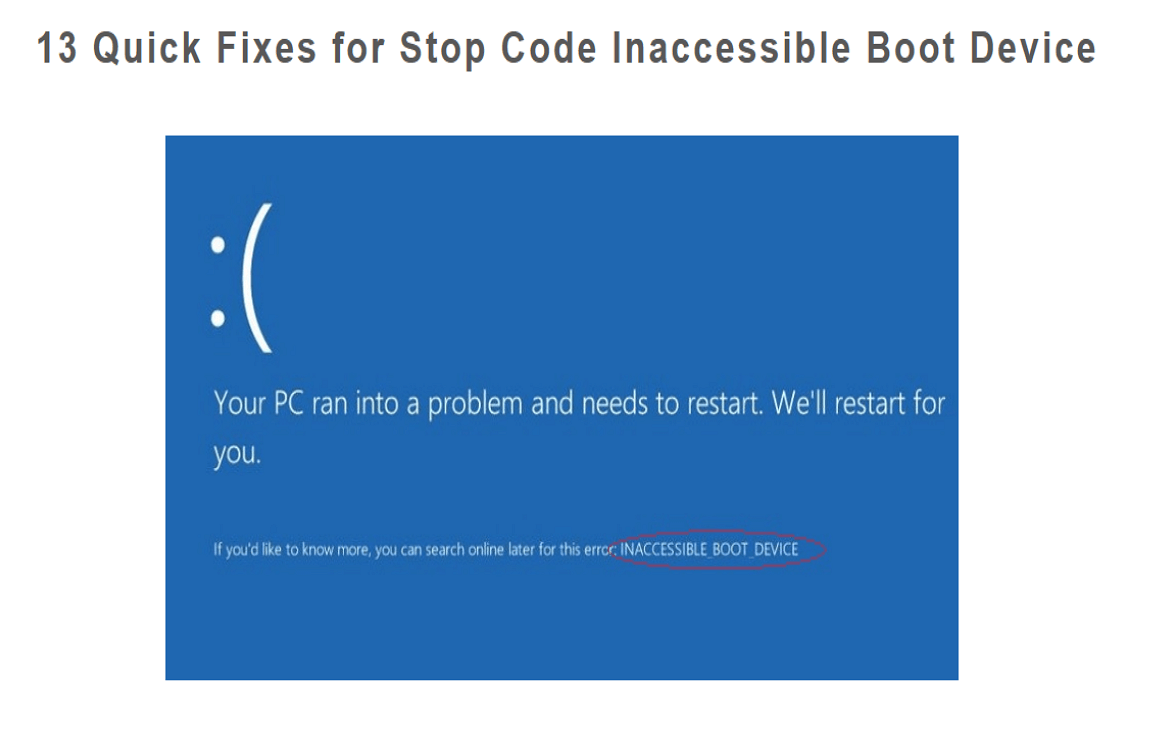
13 Quick Fixes for Windows 10 Stop Code Inaccessible Boot Device
13 efficient solutions to the 'stop code Inaccessible Boot Device' error will be reviewed, tailored to different situations.
13 quick fixes for the 'stop code Inaccessible Boot Device' error are available to assist you in troubleshooting and overcoming this issue.
Fix 1: Uninstall the Recently Installed Packages
To resolve the "Inaccessible Boot Device" error, start by uninstalling the recently installed software or updates that may be causing a conflict with your system's existing configuration. This can often resolve the issue and restore your system's boot functionality. You can do this by following these steps: 1. Open the Control Panel, 2. Click on the "Programs and Features" or "Add or Remove Programs" icon, 3.
Step 1: To start, open the Settings app using the "Win + I" keys and navigate to "Update and Security." From there, go to "Recovery" from the left sidebar, move to "Advanced Startup," and click on "Restart Now."
Step 2: After a short while, a blue screen will appear. Navigate to "Troubleshoot," then select "Advanced Options," and finally, "Command Prompt." Your computer will restart and boot into the Command Prompt application.
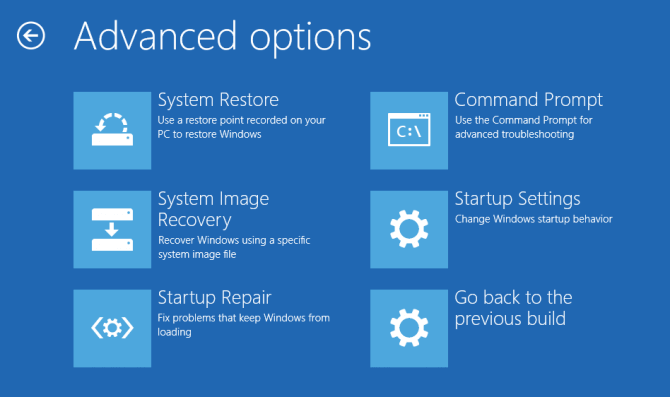
Step 3: To find the most recently installed Windows package, open Command Prompt, run the command "dir c:" to list the drive's contents, and then run the command "Dism /Image:c:\ /Get-Packages" to get a list of installed packages. Look for the package with the most recent date in the list and note its complete name.
Step 4: To remove a package, use the command "dism.exe /image:c:\ /remove-package /[package name]" and replace [package name] with the actual name of the package you want to remove, then reboot your machine.
You May Also Like:
Fix 2: Update Your Drivers
Updating drivers is crucial to resolve the "Inaccessible Boot Device" error, often caused by outdated or incompatible drivers. To fix this, you can update your drivers by following these steps:
Step 1: Press the Windows key and X key on your keyboard simultaneously to open the Power User Menu. Choose Device Manager from the Start menu that appears.
Step 2: To troubleshoot the issue, identify the specific driver that's causing the problem. Typically, the issue is related to the "Standard SATA AHCI Controller" under the "IDE ATA/SATA controllers" section. You can access this by clicking on the driver to expand its details.
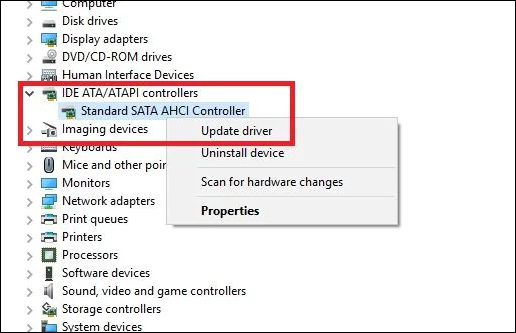
Step 3: Once you have the driver details expanded, proceed by selecting "Update Driver." Opt for the option labeled "Search automatically for drivers." This will enable the system to seek out the most up-to-date driver for your device.
Step 4: Follow the on-screen instructions to update the driver, then reboot your system to ensure the changes take effect and the updated driver functions optimally.
Fix 3: Run the BSOD Troubleshooter
Microsoft has integrated a utility into Windows to address various Blue Screen of Death (BSOD) errors, including the "stop code Inaccessible Boot Device" error, which can be effectively resolved using this utility.
To troubleshoot the Blue Screen of Death (BSOD) issue using the built-in BSOD Troubleshooter, follow these steps:
Step 1: To access your system's settings, click on the "Start" menu and select the gear-shaped "Settings" icon. From there, click on the "Update & Security" option to proceed.
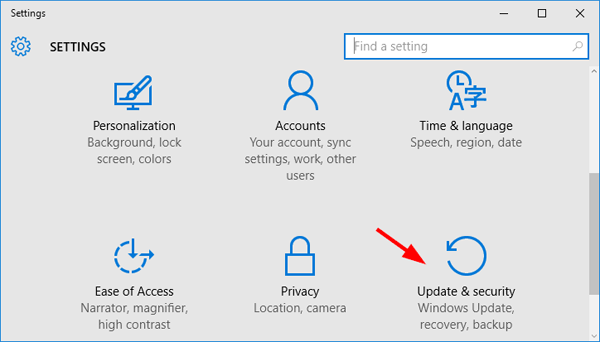
Step 2: To troubleshoot a blue screen issue, navigate to the "Update & Security" section in Windows, then click on the "Troubleshoot" option from the left-hand panel. Within the troubleshooting options, select "Blue Screen" and click on the "Run the troubleshooter" button.
Step 3: Click on the button to start the troubleshooting process. The troubleshooter will analyze the blue screen issue and try to find its cause. Once finished, restart your PC.
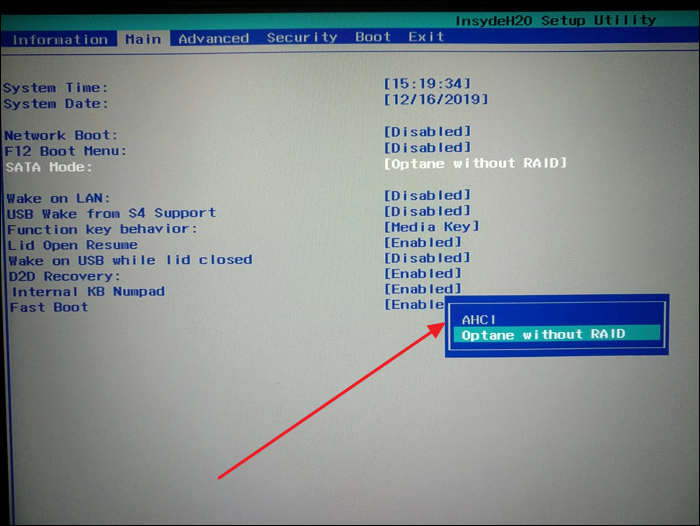
Fix 4: Enable AHCI Mode in BIOS
To enable AHCI mode in your system's BIOS, you'll need to access the BIOS settings, which varies by manufacturer. Typically, you can do this by pressing a key like F2, F12, or Del when your system first boots up. Once in the BIOS, look for the "Advanced" or "Save & Exit" tab, then search for "AHCI" or "SATA Operation" within that section. Selecting AHCI mode and saving the changes should allow your system to communicate with your storage devices correctly, potentially resolving the "Inaccessible Boot Device" error. However, be aware that enabling AHCI mode might require a system restart, and you should ensure that your system and storage devices are compatible with this mode.
Step 1: To access the BIOS settings, reboot your computer and press the specific key for your model, which is usually "Esc," "F2," "F12," "F8," or "Delete." Once you've entered the BIOS interface, navigate to the "Main/Advanced/System Configuration" section.
Step 2: To resolve the issue, go to the "Main/Advanced/System Configuration" tab, change the SATA Mode to AHCI, save the settings, exit the BIOS, and reboot the system.
Fix 5: Run DISM Command
When system files become corrupted or are missing, it can lead to the "Inaccessible Boot Device" error. The Deployment Imaging Service and Management Tool (DISM) can repair and restore system files, helping to resolve the issue. To use DISM, follow the detailed steps:
Step 1: To access the Command Prompt with administrator privileges, type "Command Prompt" in the Windows search bar and click "Run as administrator." Once you have administrator access, type the command and press Enter.
DISM /Online /Cleanup-Image /RestoreHealth
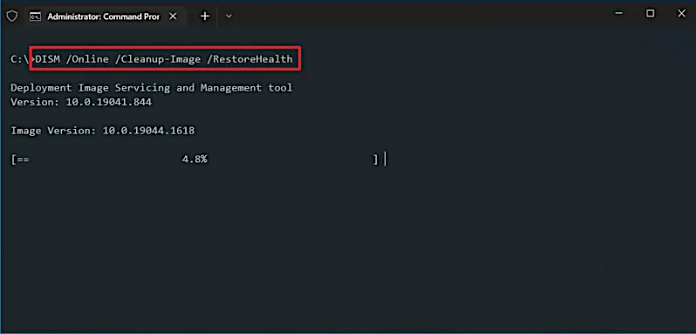
Step 2: The DISM tool will scan your Windows installation for issues and attempt to repair any corrupted files, taking some time to complete the process, so be patient and allow it to finish.
Fix 6: Run the SFC Scan
To troubleshoot the "Inaccessible Boot Device" error, you can run a System File Checker (SFC) scan to identify and repair problematic system files. This scan is designed to ensure the integrity of your Windows system files, which can become corrupted or inconsistent, leading to the error. By running the SFC scan, you can potentially resolve the issue and get your system up and running smoothly again.
Step 1: To fix the Windows 10 update issue, open Command Prompt as an administrator and run the command "sfc /scannow".
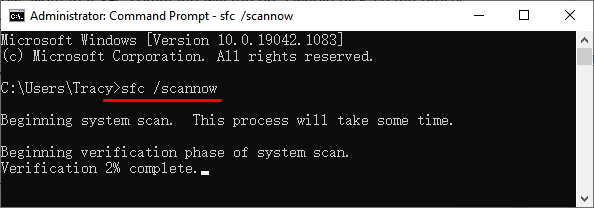
Step 2: Allow the SFC scan to complete, then restart your computer and see if the "Inaccessible Boot Device" error is fixed.
Read Also: SFC scannow There is a system repair pending
Fix 7: Remove "Update Pending" Packages
To remove "update pending" packages and resolve the "Inaccessible Boot Device" error caused by Windows updates, you can follow these steps:
Step 1: To access the Advanced startup procedure, open the Windows menu, select "Settings," go to "Update & Security," then "Recovery," and under "Recovery options," click "Advanced startup." Click "Restart Now" to initiate the process. This will allow you to access the Advanced startup menu.
Step 2: As your system restarts, you'll be presented with various troubleshooting options. Select "Troubleshoot," followed by "Advanced options," and finally, "Command Prompt." Once the Command Prompt window appears, run the following command:
reg load HKLM\temp c:\windows\nystem32\config\noftware\nreg
Step 3: To continue with the process, you need to run the command "reg delete "HKLM\temp\Microsoft\Windows\CurrentVersion\Component Based Servicing\SessionsPending"/v Exclusive\nreg" followed by "reg unload HKLM\temp".
Step 4: Type "dism /image:C:\ /get-packages" in the Command Prompt and press Enter to generate a list of pending updates, noting any entries marked "Install Pending".
Click the buttons below to share this article and let more users know about these fixes.
Step 5: Create a dedicated temporary storage location for pending packages by typing "MKDIR C:\temp\packages" and pressing Enter. This will establish the necessary directory.
Step 6: To move the pending packages to temporary storage, input the command "deism/image:c:\ /remove-package /packagename:[package name] /scratchdir:c:\temp\packages" and press Enter, replacing [package name] with the actual package name from the list you noted earlier.
Fix 8: Disable or Update Any Antivirus Software
If your antivirus software is conflicting with system processes, it may cause the "Inaccessible Boot Device" error. Disabling or updating the antivirus software might resolve the issue.
Balancing security with system stability is crucial, and addressing potential conflicts between antivirus software and your operating system can contribute to a smoother computing experience.
Fix 9: Check the Hard Drive
To troubleshoot the "Inaccessible Boot Device" error, check your hard drive's health and integrity by running a disk check and a disk error check using built-in tools like Check Disk (chkdsk) or a third-party disk utility software. Additionally, inspect the hard drive's physical condition and ensure it's properly seated in the computer. If the issue persists, consider replacing the hard drive with a new one or using a bootable USB drive to access the system.
Step 1: To restart your PC in Advanced Startup mode, go to Windows Update and Security settings, then select Recovery and Advanced Startup. From there, you can access Command Prompt through the Advanced Options in Troubleshoot.
Step 2: To resolve the issue, run the command "bootrec.exe /rebuildbcd" followed by "bootrec.exe /fixmbr" and finally "bootrec.exe /fixboot" in the Command Prompt.
Fix 10: Enter Safe Mode
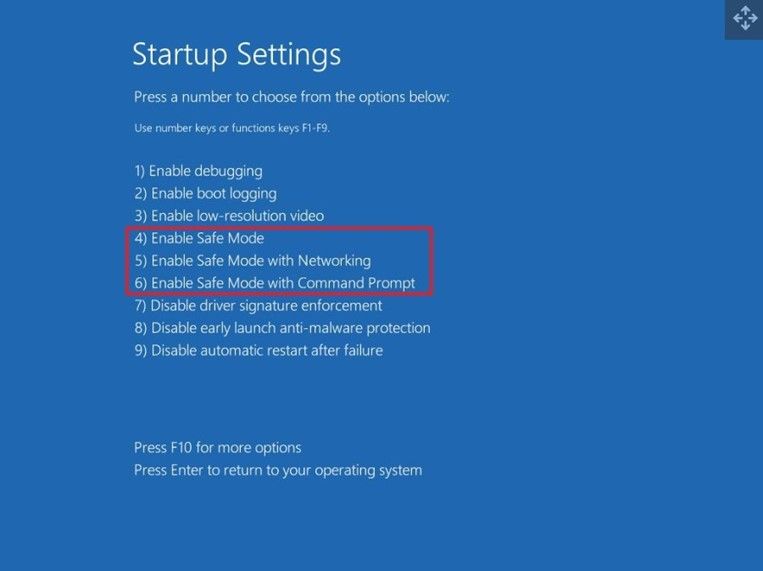
To access Safe Mode, restart your computer and immediately start tapping the F8 key. This will bring up the Advanced Boot Options menu. Select "Safe Mode" from the list, and your system will boot up in the reduced environment. Once in Safe Mode, you can try to identify and resolve the issue causing the "Inaccessible Boot Device" error, such as a problematic driver or corrupted system file, by running system file checks, driver updates, or other troubleshooting steps.
Step 1: To initiate the Automatic Repair feature, start by pressing the "Power" button to turn on your system. Then, press the "Power" button again to turn it off. Repeat this process of turning the system on and off twice more. This sequence of actions will trigger the Automatic Repair feature.
Step 2: Once Automatic Repair is activated, navigate to "Advanced Options" by tapping "Troubleshoot" and then "Advanced Options". From there, select "Startup Settings" and restart.
Step 3: To enter Safe Mode in Windows 10, press the "4" key upon system restart, which will allow you to boot with only essential drivers and functionalities, making it easier to diagnose and potentially resolve issues.
Fix 11: Perform Windows 10 Reset
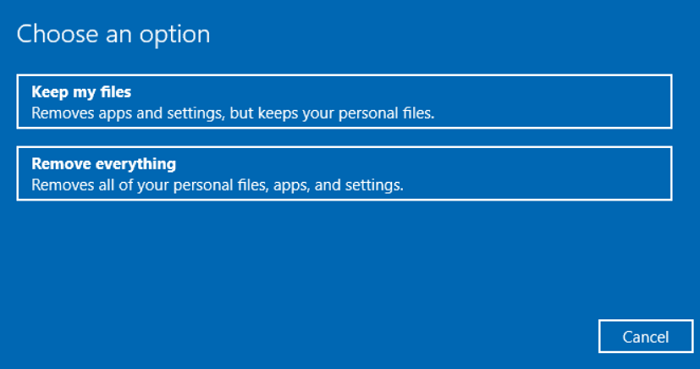
To perform a Windows 10 reset, go to Settings, then Update & Security, and select Recovery. From there, click Restart now under Advanced startup, and then select Troubleshoot > Reset this PC. Choose to keep your personal files and settings, and follow the on-screen instructions to complete the reset. This process will reinstall Windows while preserving your personal files, settings, and apps.
Step 1: To resolve the issue, repeatedly press the Power button to activate the "Automatic Repair" feature, then select "Advanced Options" and choose "Troubleshoot" followed by "Reset This PC".
Step 2: Click "Keep my files" and follow the on-screen instructions to reset your Windows 10 PC.
Fix 12: Check for Faulty Hardware
When dealing with persistent and elusive errors like the "Inaccessible Boot Device," it's possible that faulty hardware components could be the culprit, making it a crucial factor to consider in troubleshooting.
A faulty hardware component can cause the "Inaccessible Boot Device" error, and checking for hardware issues is a crucial step in troubleshooting this problem. This ensures that the system's stability is maintained and functionality is restored.
Fix 13: Reflash BIOS
In rare cases, the "Inaccessible Boot Device" error may be caused by an outdated or corrupted BIOS, and updating it can sometimes resolve the issue, but this should be done with caution to avoid further complications.
Reflashing the BIOS is a significant step that should be taken with caution, requiring precise adherence to the manufacturer's instructions and the use of the correct BIOS update for the specific motherboard model.
Fix Stop Code Inaccessible Boot Device Using Third-party Software
If you're having trouble resolving the "Stop Code Inaccessible Boot Device" error, you can consider using a third-party tool like Qiling Disk Master, which provides a convenient alternative for users who may not be familiar with computing. This tool offers a comprehensive set of features to help diagnose and repair boot-related issues.
Qiling Disk Master has a dedicated boot repair feature that uses an enhanced algorithm to address various boot problems, including the "Inaccessible Boot Device" stop code, based on a comprehensive knowledge base of boot errors.
Qiling Disk Master is a tool that goes beyond just fixing boot issues, it also allows you to rebuild the Master Boot Record (MBR) and fix other related boot errors.
What Causes Stop Code Inaccessible Boot Device Error
The "stop code Inaccessible Boot Device" error is a complex issue that requires understanding its underlying causes. This stop code can be caused by a variety of factors, including issues with the system's boot process, corrupted system files, or problems with the hard drive or SSD, which can disrupt the normal functioning of your system. Understanding the intricacies of this stop code is essential in unraveling its enigma and resolving the issue.
1. Drivers are Faulty
The "Inaccessible Boot Device" error can be triggered by incompatible or outdated drivers, particularly those related to critical system components, which can cause instability in the boot routine.
2. Hardware Conflicts
When hardware components in your computer conflict over resources, it can cause an "Inaccessible Boot Device" error.
3. Hardware Errors
Hardware can be prone to failure over time due to wear and tear, which can cause issues with the boot process. Malfunctioning hard drives, faulty RAM modules, and other hardware problems can raise concerns about the reliability of the system's boot process.
4. Malware and Other Causes
In the ever-In the evolving digital threat landscape, malware can infiltrate even the most secure systems, causing the "Inaccessible Boot Device" error by distorting critical boot files. This can also be caused by disk corruption, software-related issues, and other system problems.
Conclusion
As we conclude our exploration of the "Stop Code Inaccessible Boot Device" error, we've gone through a comprehensive journey to unravel its complexities, providing a diverse array of solutions that span from fundamental checks to advanced troubleshooting, each designed to address specific facets of this enigmatic stop code.
Our comprehensive guide has provided a well-rounded toolkit to tackle the "Inaccessible Boot Device" error, covering traditional and third-party approaches. Whether you're a beginner or experienced, we've offered the means to troubleshoot, diagnose, and rectify this issue, empowering you to overcome the challenge.
Understanding the potential causes of the issue, from faulty drivers to hardware conflicts, has given you the knowledge to identify the root of the problem. With this understanding, you've explored solutions such as BIOS reflash and hardware checks, and have utilized user-friendly software like Qiling Disk Master to troubleshoot the issue.
Stop Code Inaccessible Boot Device FAQs
As we draw our journey to a close, it's natural for questions to arise. To help you navigate the intricacies of the "Inaccessible Boot Device" error further, we've compiled answers to some of the most common queries.
1. How do I fix inaccessible boot device errors in Windows?
You can use the following step to fix Inaccessible Boot Device Error:
Step 1: To access the BIOS settings, reboot your computer and press the BIOS key, which varies by computer model and brand, but is often 'Esc' or one of the function keys.
Step 2: To resolve the issue, navigate to the BIOS settings, go to 'Advanced Features,' and enable 'Set AHCI Mode.' Exit the BIOS settings, restart your system, and verify if the problem has been resolved.
2. What is the cause of Inaccessible Boot Device?
The 'Inaccessible Boot Device' error can be caused by a range of factors, including faulty drivers, hardware conflicts, hardware errors, malware infections, and other software-related issues. This knowledge helps identify the root cause and choose the most suitable solution from the available options.
3. How do I Fix an Inaccessible Boot Device on HP Laptop?
If your HP laptop is experiencing an Inaccessible Boot Device error, you can try the following solution:
Step 1: To fix the issue, initiate the Command Prompt with administrative privileges by accessing the 'Start' menu on your Windows system. Then, execute the command 'sfc /scannow' to scan and replace corrupted system files. This should resolve the problem.
Step 2: The SFC scan will take some time to complete, so let it finish without interrupting. Once it's done, restart your computer.
Related Articles
- How to Restore USB Drive Back to Full Capacity [100% Working]
- How to Clone HDD to 250GB/500GB SSD Without Reinstalling
- How to Convert a Dynamic Disk to Basic Windows Server
- Download Corrupted Memory SD Card Format Software [SD Card Formatter Online]
- How to Remove the Write Protection for HP USB Flash Drive
Did you have a similar situation in that you cannot reformat your USB flash drive, and it tells you it is write-protected?; this guide will tell you how to remove the write protection for HP USB flash drive. - How to Remove Write Protection Is on Error for USB Flash Drive
Have you met a problem with your USB flash drive not working on the computer?. This article will help you remove write protection is enabled error for the USB flash drive to get the USB flash drive working again.
Products
Articles & Tutorials
- Data Recovery
- Data Backup
- File Recovery
- File Backup
- System Backup and Restore
- Disk and Partition Clone
- Technical articles
- Mobile articles
- Disk Master Help
- Windows Data Recovery Tutorials
- Windows Secure Delete Tutorials
- Windows Partition Management Tutorials
- Windows File Backup and Restore Tutorials
- Windows System Backup and Restore Tutorials
- Windows Disk Backup and Restore Tutorials
- Windows Clone Tutorials