Boot Device Not Found Hp Laptop? How to Fix?
When turning on your HP laptop PC, if you see a message saying "Boot device not found," it's likely due to the laptop not detecting the attached hard disk or a corrupted/misconfigured BIOS.
If you're seeing the "No Bootable Device Found" error on your HP laptop, don't panic! This issue can be caused by a variety of factors, and Qiling is here to guide you through the troubleshooting process.
How to Fix the Boot Device Not Found HP Laptop Error
With the six fixes provided, you should be able to resolve the issue of your HP laptop not detecting the hard disk and allowing you to change the boot order within a few seconds. Share this article to help others who are experiencing the same problem.
Fix 1. Run Boot Repair Automatically
If all previous solutions fail, try Qiling Disk Master with its "Boot Repair" feature, which can fix HP laptop boot device errors caused by outdated drivers, boot system file issues, or wrong boot order, making it a great tool for non-pros.
Step 1. To create a bootable USB drive or external drive using Qiling Disk Master, connect the drive to a functioning computer, then open Qiling Disk Master and select the option to create bootable media.
Step 2. Select Qiling Boot Toolkits and other components you need.

Step 3. To create a Windows installation media on a removable device, select the device and click "Proceed" to make an image of the Windows ISO file on it. Alternatively, you can burn the ISO file directly to the storage media.

Step 4. Confirm the warning message and then wait for the creation process to complete.
Step 5. Connect a bootable drive to a faulty computer, reboot by pressing F2/Del to enter BIOS, set the bootable drive as the boot disk, and exit BIOS by pressing F10.
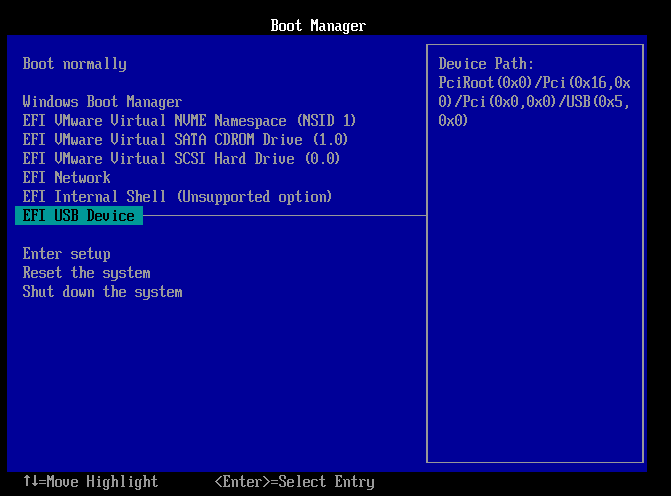
Step 6. The computer will enter WinPE desktop, and from there, open BootRepair, select the system to repair, and click "Repair" to proceed.
Step 7. Wait a moment, and you will receive an alert that the system has been successfully repaired. Click "OK" to complete the boot repair process.
Qiling's team has developed an enhanced algorithm for the "Boot Repair" feature, allowing it to fix any disk-related issues after years of research and development.
The Qiling Disk Master has a user-friendly interface that makes it easy to navigate and resolve any computer issues quickly.
Fix 2. Change HP Laptop Boot Order
If you've recently changed the boot order on your HP laptop and forgot to revert the settings, changing it back should resolve the "Boot device not found?" error.
Here's how to change the boot order:
Step 1. Restart your PC.
Step 2. Press the BIOS key (usually F2, F8, or Del, Esc) to open the BIOS settings menu.
Step 3. Open the "Boot" menu.
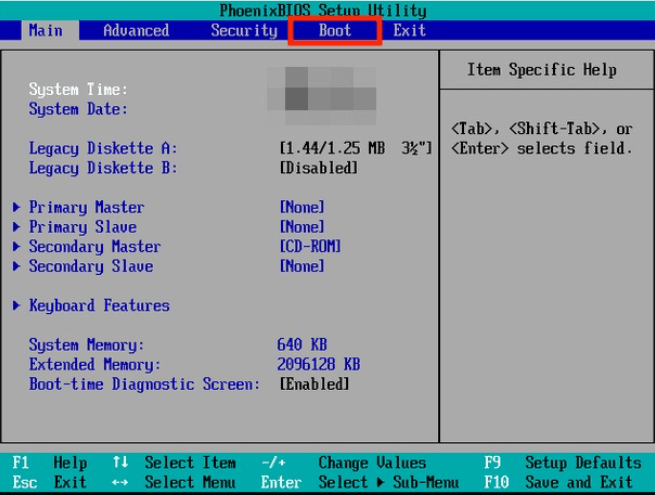
Step 4. Now, change the order of the booting process by selecting the hard disk you want to boot first, and then press "Enter" to save the changes.
Step 5. Save and exit the BIOS window.
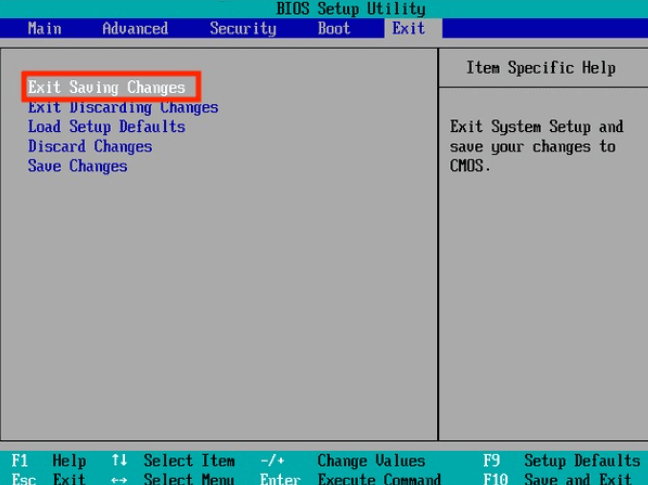
If the error persists, you can try the solution below to resolve it. Otherwise, your HP laptop should no longer display the error.
You May Also Like:
Fix 3. Hard Reset HP Laptop
To perform a hard reset, you need to press and hold the power button and the volume down button at the same time for 10-15 seconds. This will clear the memory and restart your device. If you're still having issues, you may need to try other troubleshooting steps or contact a professional for further assistance.
Step 1. Turn off your laptop.
Step 2. Remove all external devices from your laptop.
Step 3. Remove the battery from the laptop.
Step 4. Press and hold the power button for 15 seconds.
Step 5. Put the battery back in and turn on the computer. The issue should resolve itself now that the battery is reconnected.
There are some other links related to the boot device errors. Click them to learn more:
Fix 4. Restore BIOS Default Settings
The BIOS of your HP laptop could be malfunctioning. By restoring its settings, you can reset the BIOS, which will eliminate the problem.
Here's how to restore the BIOS to its default settings:
Step 1. Restart your computer and open the BIOS by pressing the key that's shown on the screen during the bootup process.
Step 2. Navigate to the "Exit" menu and select "Load Setup Defaults."
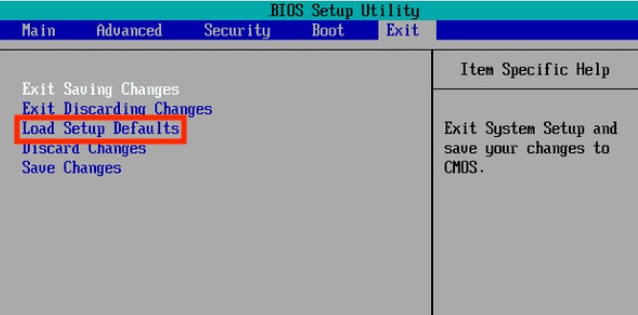
Step 3. Select "Yes."
Step 4. Restart your PC.
Shart these fixes to help more users by clicking the following buttons.
Fix 5. Perform the Hard Drive Symptom Test in HP Laptop/PC
Performing a hard drive symptom test can help determine if the issue lies with the drive itself or not, and can identify potential causes such as overheating, bad sectors, viruses, and other factors that may have led to the corruption.
The hard drive symptom test determines if the issue lies with the hard drive itself or if it's caused by another factor.
Here's how to perform the test:
Step 1. Turn off your laptop.
Step 2. Turn on your HP laptop and keep tapping the "Esc" button continuously.
Step 3. A menu will pop up. Press F2.
Step 4. The "Symptom Tests" under the "HP PC Hardware Diagnostics UEFI" menu should be selected.
Step 5. From the list of options that you see, type the corresponding number that closely resembles your problem.
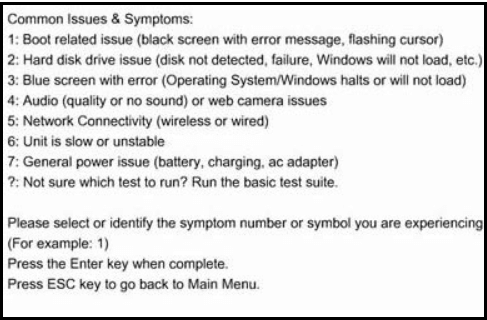
Step 6. HP laptop will perform a thorough test and provide a QR code and a 24-digit code ID. Share this code with HP customer support to get personalized assistance.
HP support has provided fixes to resolve the issue, which can be trusted.
Fix 6. Fix and Rebuild MBR (CMD)
Your HP laptop's Master Boot Record (MBR) contains crucial information that helps the laptop boot successfully. If the MBR is damaged, it can cause the "Hp laptop boot device not found" error. To resolve this issue, you need to repair the MBR.
Here's how to do that:
Step 1. Use a recovery drive and boot up your HP laptop.
Step 2. Choose the language, followed by the "Repair your laptop/desktop" option.
Step 3. Select "Troubleshoot" followed by "Advanced options."
Step 4. Select "Command prompt."
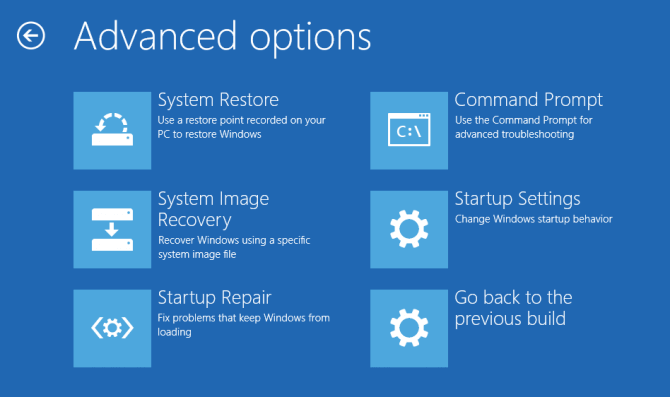
Step 5. Type the command "bootrec /fixboot" followed by "bootrec /scanos" and press Enter. This will attempt to repair the Master Boot Record (MBR) and scan for a valid Windows installation.
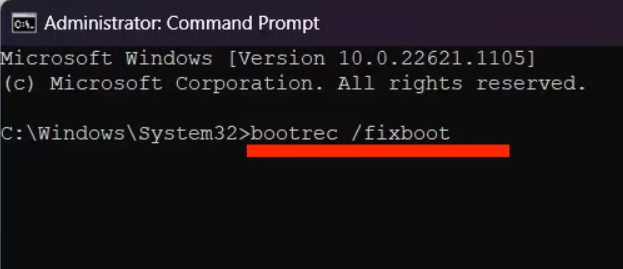
Step 6. After executing the above two commands, type and enter the final command "bootrec /rebuildbcd".
Step 7. Restart your PC.
You can refer to the video from YouTube to get more details:
If you are interested in the same topic in the notebook, click the link below:

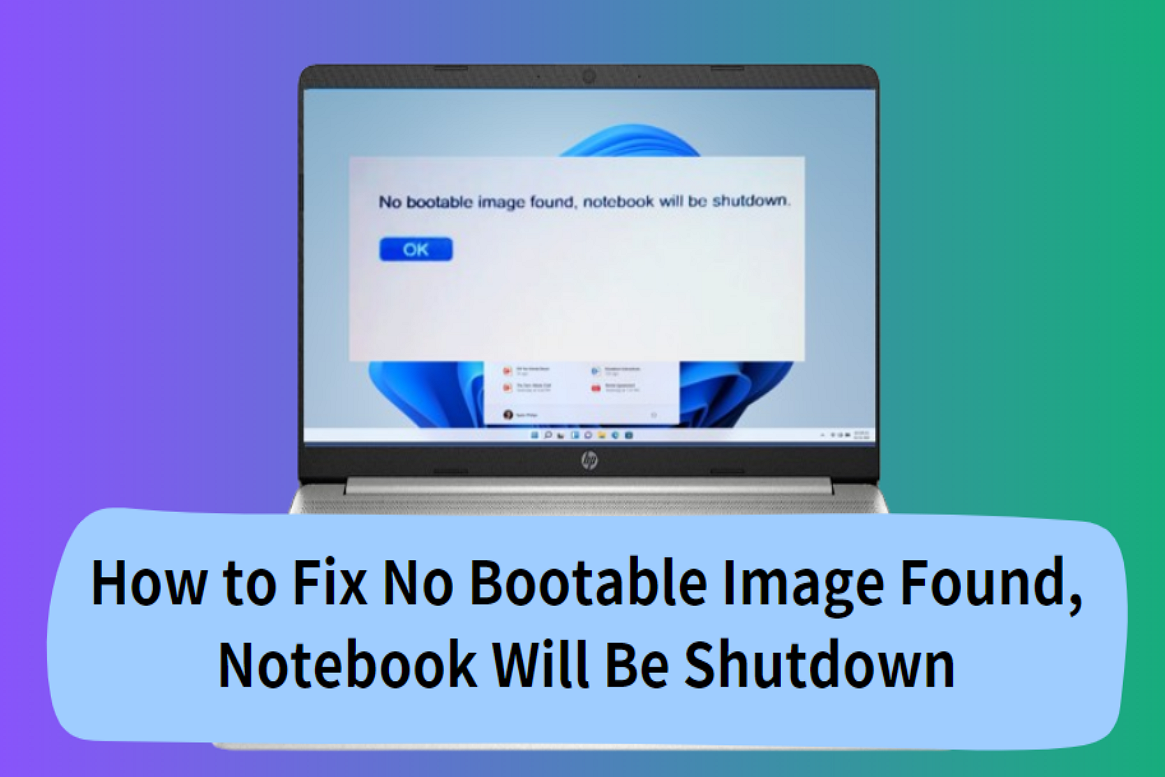
[FIXED]No Bootable Image Found, Notebook Will Be Shutdown
When you receive the error message "No bootable image found, notebook will be shutdown", you're unable to use your computer. Fortunately, Qiling offers 6 effective fixes to resolve this issue, providing both professional technical advice and experimental solutions.
Why Boot Device Not Found HP Laptop
Here are a few possible reasons why you might be seeing "Boot Device Not Found" on your HP laptop:
- The wrong boot order in BIOS: The error occurs when the incorrect drive is chosen as the primary boot device. This can be resolved by selecting the correct boot disk, which should prevent the error from appearing.
- Hard disk connection problem: The hard disk cable might be damaged or not connected correctly, causing the issue. Try replacing or properly reconnecting the cable to see if it resolves the problem.
- Outdated or misconfigured BIOS: Outdated BIOS can lead to issues, such as corruption, and may result in a "boot device not found" error if not configured correctly.
- Corrupted bootable disk: The hard disk could be corrupted or broken, which is why you're seeing the error.
- Damaged system or boot files: The HP laptop has a damaged system/boot files issue, which prevents it from detecting the operating system or any installed programs. A possible solution is to reinstall Windows, which can help restore the system to a functional state.
- Corrupted MBR/boot sector in the BIOS: The Master Boot Record (MBR) of your HP laptop contains crucial data necessary for the laptop to boot successfully, and any damage could cause the "boot device not found" error.
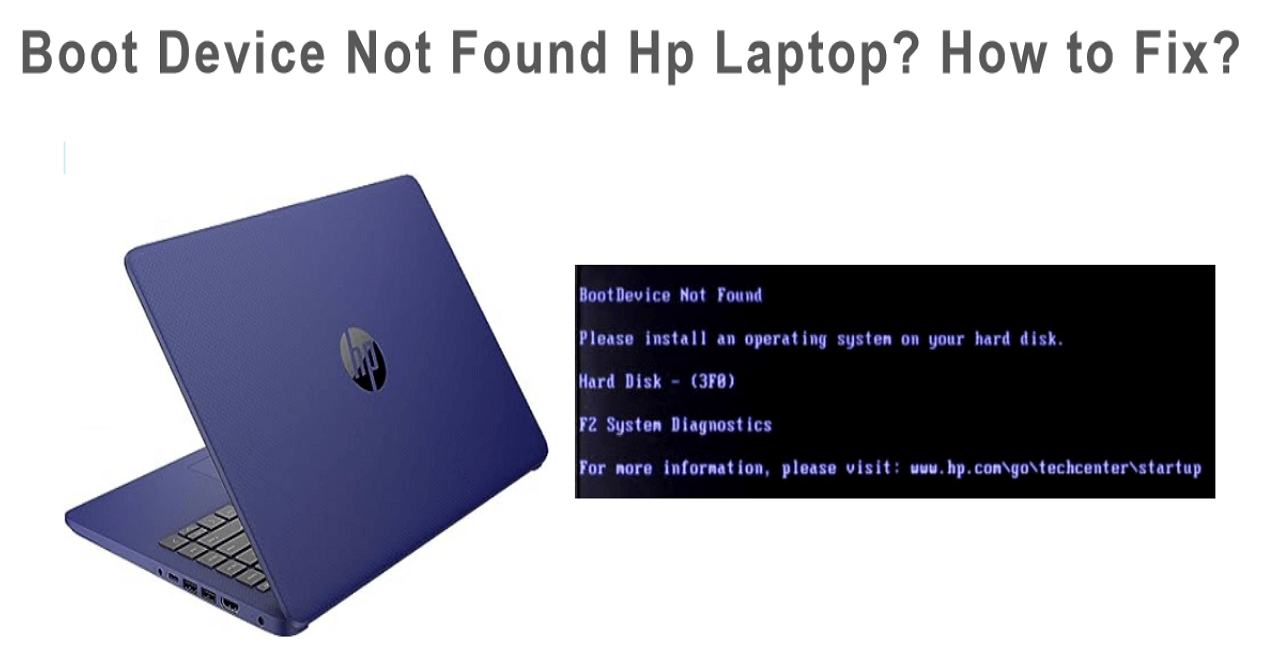
To inform others of the lesser-known causes of the "Boot devices not found on HP laptop issue", share this article with them. This will help them be aware of these potential causes and be ready to respond if they encounter the same error on their PC.
Conclusion
The "Boot device not found" error on HP laptops can be frustrating, but there are solutions available. One guaranteed fix is Qiling Disk Master, which can help resolve the issue.
You can fix the issue without losing any data and it doesn't require a lot of time or energy, making it a convenient solution. If others are experiencing the same issue, you can share this article with them for assistance.
Boot Device Not Found HP Laptop FAQs
The "boot device not found" error on an HP laptop can be caused by a faulty or loose hard drive connection, a corrupted boot sector, or a malfunctioning BIOS. It can also be triggered by incorrect BIOS settings, such as the boot order or boot device being set to an incorrect location.
1. How do you fix a 3F0 error?
Here's how to fix a 3F0 error:
- Turn off your laptop.
- Disconnect the mouse, keyboard, and all the attached accessories.
- Remove the battery from your laptop.
- To shut down your laptop, press and hold the power button for 10-20 seconds. This will force the device to turn off, regardless of its current state.
- Insert the battery and press the power button.
You shouldn't see the 3F0 error anymore.
2. Why does my HP laptop randomly say the boot device is not found?
If your HP laptop is displaying the error 'boot device not found,' it's likely due to a damaged cable connecting the hard drive to the PC. Replacing the cable with a new one may resolve the issue.
3. What to do when an HP laptop says the boot device is not found?
To resolve the HP error where the boot device is not found, try the following steps. Firstly, enter the BIOS settings by pressing the F2 key, then set the boot order to prioritize the correct boot device.
- Change HP Laptop Boot Order
- Hard Reset HP Laptop
- Restore BIOS Default Settings
- Perform the Hard Drive Symptom Test in HP PC
- Fix and Rebuild MBR (CMD)
To fix the error that's appearing on your HP laptop, you can use Qiling Disk Master's 'Boot Repair' feature or any of the above solutions.
Related Articles
- How to Format PS4 Hard Drive on PC in Windows [Your Full Guide Here]
- [Fixed] Dell Recovery Partition Missing on Windows
- How to Format 2TB Hard Drive to FAT32? Here Is A Quick Guide - Qiling
- High-Level Format VS Low-Level Format, What's the Difference and How to Use [Full Guide]
- 4 Ways to Fix PNY 128 GB Flash Drive Write Protected
PNY 128 GB flash drive write protection is a common issue that can be frustrating for many computer users. Fortunately, there are four effective ways to resolve this problem, which will be discussed in this article to help you regain access to your write-protected flash drive. - Best PNY USB Flash Drive Format Tool Free Download👍
If you're looking for a PNY USB flash drive format tool, you'll find four reliable free format tools in this post. Follow the detailed guide to format your PNY USB flash drive.
Products
Articles & Tutorials
- Data Recovery
- Data Backup
- File Recovery
- File Backup
- System Backup and Restore
- Disk and Partition Clone
- Technical articles
- Mobile articles
- Disk Master Help
- Windows Data Recovery Tutorials
- Windows Secure Delete Tutorials
- Windows Partition Management Tutorials
- Windows File Backup and Restore Tutorials
- Windows System Backup and Restore Tutorials
- Windows Disk Backup and Restore Tutorials
- Windows Clone Tutorials