[FIXED]No Bootable Image Found, Notebook Will Be Shutdown
Key Takeaways:
- This error usually occurs when your notebook cannot find a bootable operating system during startup, causing an automatic shutdown.
- Causes of the issue can include corrupt system files, incorrect BIOS settings, or damaged hard drives.
- The methods outlined in this guide involve tweaking various settings and utilizing a specialized repair tool called Qiling Disk Master.
Understanding the "No Bootable Image Found, Notebook Will Be Shutdown" error is the first step towards resolving it. By identifying the causes, such as corrupted OS, incorrect BIOS settings, or hardware failures, and applying the methods discussed, such as BIOS verification and hard drive inspection, you can navigate the troubleshooting process more effectively on Windows 10/11.
One Click to Fix No Bootable Image Found Error
Choosing the Boot Repair feature in Qiling Disk Master Professional is a strategic decision due to its advanced algorithms. This tool specializes in solving a wide range of boot-related issues, including boot errors, blue screens, and black screens, making it a reliable option to fix the error.
This advanced technology provides a comprehensive repair process that targets the root causes of boot failures, restoring system functionality and fixing all kinds of boot errors.
Step 1. After connecting the external drive/USB to your computer, start Qiling Disk Master and navigate to "Tools and utilities", then click "Create bootable media".

Step 2. Insert a USB drive or CD/DVD and click "Proceed" to continue the process, or alternatively, burn the Windows ISO file onto the chosen storage media.

Step 3. Connect a bootable drive to a new computer, reboot it by pressing F2/Del, enter the BIOS, set the bootable drive as the boot disk, and exit the BIOS by pressing F10.
Step 4. Boot the computer again and enter the WinPE interface. Then, open Qiling Disk Master and click "Fix Boot" under the "Tools" option.

Step 5: Select the system you want to repair and click "Proceed".

Step 6. Wait a moment, and you will receive an alert that the system has been successfully repaired.
Its feature-Qiling Disk Master is a powerful tool that offers rich functionality, making it an ideal solution for users who want to solve their boot problems without delving into the complexities of manual troubleshooting. With its user-friendly interface, it can save you time and energy, improving your performance and making it a great choice for those who want a hassle-free experience.
How to Fix No Bootable Image Found, Notebook Will Be Shutdown
Here are 5 efficient methods:
- #1. Change Boot Options in BIOS/UEFI
- #2. Reset BIOS to Default Settings
- #3. Reinstall the Windows OS
- #4. Reinstall the Hard Drive
- #5. Replace the Hard Drive
To resolve the error, users should follow the provided solutions to address and fix the issue, ultimately restoring their system to proper functionality. If you find this guide helpful in solving the error, consider sharing it with others who may be experiencing the same problem.
Way 1. Change Boot Options in BIOS/UEFI
If you encounter boot-related issues, check the BIOS settings and make necessary changes in the Boot options. The BIOS configuration is responsible for loading the root disk and running the operating system on your computer. If you get an error message saying "No bootable image found. The notebook will be shut down," you can try adjusting the BIOS settings to resolve the issue.
Step 1: To access the BIOS configuration, restart your computer and immediately press the BIOS key, which is usually F2, F12, or Del, depending on your device, to enter the BIOS settings.
Note* Search the internet using your computer's model number to find the correct BIOS key.
Step 2: To disable Secure Boot, navigate to the "System Setup" option and proceed to toggle the switch or select the option to disable it.
Step 3: To access the Boot Maintenance Manager, navigate to the "Boot Maintenance Manager" and then select "Advanced Boot Options."
Step 4: To enter the BIOS settings, choose the "Boot Mode" option and select "Legacy" from the list.
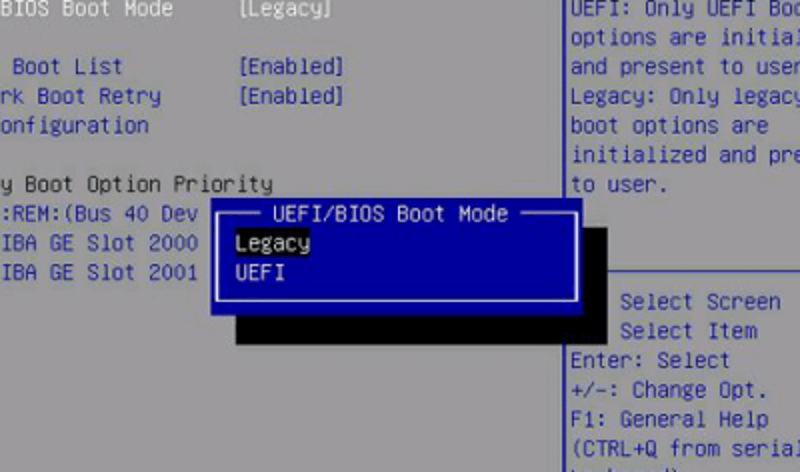
Step 5: Press "F4" or manually select "Save & Exit" to save the changes.
If your computer shows the OS not found error, you can try restarting the system and checking if the error persists or has been resolved. If it still occurs, follow the practical guide to fix it, which involves restarting the system and detecting the first boot drive to start your computer. This may resolve the issue.
Way 2. Reset BIOS to Default Settings
If changing the Boot configuration doesn't work, you must reset BIOS settings to default. Sometimes, just resetting your BIOS settings back to default, especially if you've been dealing with the "no bootable image found notebook will be shut down" error, can resolve the issue. This can be done by accessing the BIOS settings and selecting the "Reset to Default" option. By doing so, you can restore the BIOS settings to their original state, which may resolve the problem.
Step 1: Access the BIOS/UEFI settings mentioned in the previous method.
Step 2: Navigate the "Load setup defaults" option to access further options.
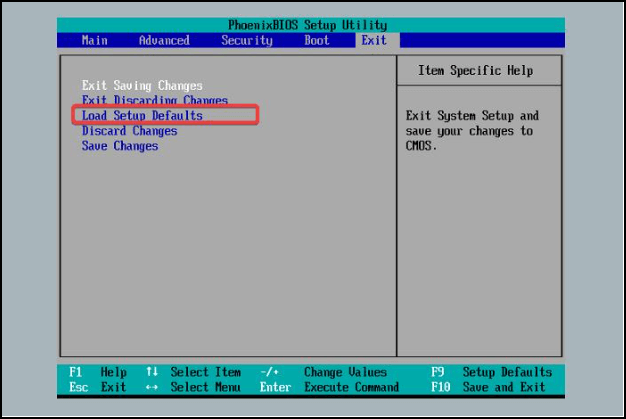
Step 3: Press the "ESC" button and select "Apply Changes."
Step 4: Exit the BIOS screen. Your system will be restarted automatically.
If you're experiencing issues with your operating system, check if the problem is resolved, or consider reinstalling the operating system. This can help to resolve any underlying problems and get your system running smoothly again.
Way 3. Reinstall the Windows OS
Reinstalling Windows OS can be intimidating, especially when faced with errors like "No Bootable Image Found, Notebook Will Be Shutdown." However, the Qiling Disk Master simplifies this process, making it accessible and manageable for users of all technical levels.
This tool helps create bootable media for efficient Windows OS reinstallation, offering a user-friendly interface and features beyond partition management, such as OS migration and system cloning.
Way 4. Reinstall the Hard Drive
If a notebook displays the message "no bootable image found" and continues to shut down, it may be due to a hardware issue with the hard drive, which could be caused by incorrect installation or other problems, and reinstalling the hard drive may be necessary to identify the root cause of the issue.
To remove and reinstall the hard drive, follow these steps: Remove the hard drive from the computer, then locate the screw holes on the hard drive and the computer's hard drive bay. Align the screw holes and screw the hard drive back into place, ensuring it is securely fastened. Finally, reconnect any cables and power up the computer to test the hard drive.
Note* Before reinstalling, note that the exact steps may vary depending on your notebook's model.
Step 1: Remove all the cables and turn off the system.
Step 2: Hold the laptop upside down and remove the lid.
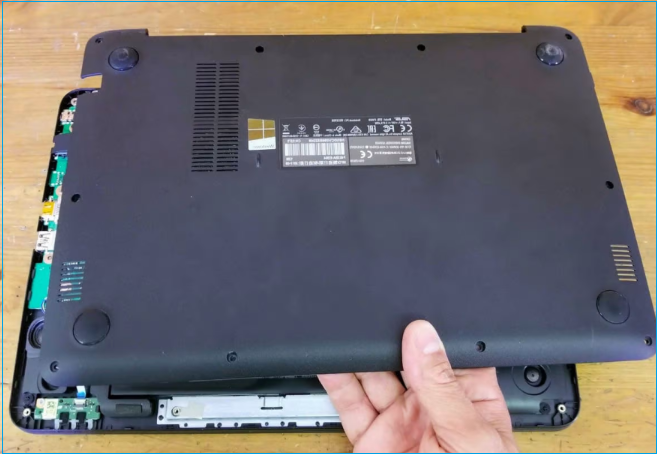
Step 3: Remove the battery and press the power button for 30 seconds to discharge any residual power.
Step 4: Gently take out the drive and reconnect it. Ensure that the drive is plugged in tightly to the drive socket.
Step 5: Insert the battery, screw the base panel, and turn on your system.
If the system fails to boot up, it may indicate that the drive is defective, and replacing it could be the solution to resolve this issue.
Way 5. Replace the Hard Drive
If reinstalling your operating system and adjusting the disk settings didn't resolve the "no bootable image found notebook will be shut down" error, your system disk is likely damaged. You can address this by running a disk check and repair, or if the damage is severe, you may need to replace the system disk or seek professional assistance.
If a disk is not working, try removing it and connecting it to another computer. If it still doesn't work, it may be damaged and need to be replaced.
If you're using the external disk, make sure to transfer its contents to a new disk using the cloning feature in Qiling Disk Master, especially if you want to keep your data safe. This will clone all partitions, files, and data from the old disk to the new one with just a few clicks.

How to Clone A Hard Drive on Windows 11/10
To clone a hard drive on Windows 11, download a fast and easy hard drive cloning software such as Qiling Disk Master, which can help you clone HDD, SSD, or other external devices like memory cards and USB flash drives.
What Is No Bootable Image Found, Notebook Will Be Shutdown
The "no bootable image found notebook will be shut down" error message indicates that the notebook's BIOS cannot find a bootable operating system on any connected drives during startup.
I was working on my laptop, but it started making strange sounds, like a short circuit, so I shut it down and turned it back on, but now it won't boot and I keep getting the error "No bootable image found, notebook will be shutdown."
The "Bootable image not found" error can occur due to incorrect boot options, system file corruption, misconfigured BIOS settings, or physical damage to the hard drive, among other reasons.
The system will automatically shut down if it cannot find a bootable OS, preventing further damage. To resolve the boot device not found HP error, follow the guide in this paper and share it with others.
Final Words
Guiding the "No bootable image found, notebook will shut down" error can be made easier with the right knowledge and tools, especially Qiling Disk Master. With this guide, resolving this issue can be more straightforward, and having reliable tools ready can help navigate unexpected turns.
FAQs About No Bootable Image Found, Notebook Will Be Shutdown
If you're encountering the "No Bootable Image Found, Notebook Will Be Shutdown" error, don't panic! We've can help with some common questions and answers to help you diagnose the issue.
1. What does no bootable image found notebook will be shutdown mean?
Your notebook fails to find a bootable device, which may be caused by issues with your hard drive, BIOS settings, or operating system.
2. How do I shutdown a no bootable device?
If you encounter a "No Bootable Image Found" message, you may need to shut down your device. To do this, press and hold the power button until your notebook powers off completely.
3. What happens when your laptop says no bootable device?
When your laptop displays the "No Bootable Device" notification, it means the system can't normally locate the operating system to boot up the computer. This issue can arise due to various reasons, including a corrupted operating system, a faulty hard drive, or BIOS errors.
Related Articles
- Create D Drive from C Drive in 2 Simple Ways
- How to Format External Hard Drive to FAT32 on Windows 10? [FAT32 Guide]
- How to Boot ASUS Laptop from USB [Quick & Efficient Way]
- How to Easily Add Unallocated Space to D Drive in Windows 10/8/7?
How to add unallocated space to D drive when there is not enough space? Here, 2 ways will be provided to extend D drive easily, including Disk Management and Qiling Disk Master. In addition, it will offer a step-by-step guide. - Sloved: System Partition Is Not Allowed to Be Formatted
How to solve format C system partition is not allowed to be formatted in Windows 7/8/10? Here shows you how to format system partition step by step. - Find The Best Alternative to MBR2GPT Disk Conversion Tool
What's the best alternative to MBR2GPT disk conversion tool? Here, a more powerful and easier third-party disk management utility will be introduced to replace MBR2GPT and make you free from those annoying errors like MBR2GPT missing in Windows 10 v1703 and defects.
Products
Articles & Tutorials
- Data Recovery
- Data Backup
- File Recovery
- File Backup
- System Backup and Restore
- Disk and Partition Clone
- Technical articles
- Mobile articles
- Disk Master Help
- Windows Data Recovery Tutorials
- Windows Secure Delete Tutorials
- Windows Partition Management Tutorials
- Windows File Backup and Restore Tutorials
- Windows System Backup and Restore Tutorials
- Windows Disk Backup and Restore Tutorials
- Windows Clone Tutorials