How to Boot ASUS Laptop from USB [Quick & Efficient Way]
This article provides a detailed solution on how to boot Windows from USB or install an operating system on an ASUS laptop by burning the Windows system to USB and booting the laptop from it.
View the Necessary Requirement to Boot ASUS Laptop from USB:
| ⏱️ Duration | 3-7 minutes |
| ⛏️Preparation |
✔️16GB USB ✔️Windows ISO files ✔️ISO Burner - Qiling Disk Master |
| 👣Key Steps: |
1️⃣Make USB bootable...Full steps 2️⃣Set USB as a bootable device...Full steps |
| 🧑💻Suitable Users | ASUS users and beginners |
Boot ASUS Laptop from USB is not a difficult task. You need to make your USB bootable. Next, we will explain exactly how to boot ASUS laptops from USB. Continue reading.
How to Boot ASUS Laptop from USB
Here are the complete steps from preparing the USB to setting the USB as the boot drive:
Step 1. Prepare A USB
Prepare a USB drive with at least 16GB capacity, formatted as FAT32.
- Right-click and select the Windows icon to open Disk Management.
- Select the target USB drive and format it as FAT32.
Step 2. Download Windows ISO File
Programs as large as the Windows operating system are usually provided as ISO files, but you can only boot from USB on an ASUS laptop if you have Windows OS prepared on USB.
Download the ISO file: https://www.microsoft.com/en-us/software-download
Step 3. Make a Bootable USB
To make ASUS boot from USB, follow these steps: First, insert the USB drive into the computer. Then, create a bootable USB drive using a tool like Rufus or a similar software. Next, restart the computer and enter the BIOS settings by pressing the corresponding key (usually F2, F12, or Del). In the BIOS settings, navigate to the boot order and set the USB drive as the first boot device.
Situation 1. Boot from USB on ASUS for Running Windows Systems
To make a USB drive bootable, you can use a tool like Rufus or Etcher, which can create a bootable USB drive from an ISO file or a live operating system. Alternatively, you can also use the built-in Disk Management tool in Windows or the Terminal in macOS to create a bootable USB drive. If you just want to run the OS from USB without installing it, you can also use a tool like UNetbootin or MultibootUSB to create a bootable USB drive that can run a live operating system.
- 1️⃣Burn to USB using a Windows ISO file
- 2️⃣Clone WindowsOS to an external drive
- 3️⃣Create a bootable USB using Professional tools
In that case, the problem of running an operating system from a USB drive is not overly complex. However, to better understand the situation, let's consider a second scenario where the complexity is higher. This would involve running a virtual machine from the USB drive, which would require additional software and configuration.
Situation 2. Boot from USB on ASUS for Fixing System Crash
If you're experiencing Windows system crash errors, you can resolve the issue by reinstalling Windows.
If you want to boot from an ASUS laptop to install Windows, try using Qiling Disk Master, a professional tool that allows you to burn Windows ISO files and install Windows with a simple and clean interface.
The software offers a convenient solution to create bootable ISOs, providing a simpler alternative to Windows' built-in creation tool. It also enables users to burn the ISO to DVD, CD, or USB and make it bootable.
Situation 3. Boot From USB on ASUS to Fix Boot Errors
If you're experiencing boot issues, such as a boot drive not showing up in BIOS or the computer rebooting from a bugcheck, you'll need to boot from a USB drive and use a tool like Qiling Disk Master to fix the problem. This tool can also create a bootable USB drive that allows you to access the Win-PE interface and repair issues like MBR problems.
Read More: How to Create Qiling Disk Master Bootable USB
Step 4. Select the Boot Device
After making the USB bootable, you can boot Windows on your laptop. ASUS offers two ways to change the boot device: ASUS' BIOS and the ASUS laptop boot menu. However, ASUS offers a quicker way - changing the boot media directly from the ASUS boot menu, which allows you to select the boot media without having to access the BIOS.
- Press the boot menu key (Esc or F8 key) repeatedly while booting until the logo screen appears.
- Select USB as the boot drive and press enter.
- Notice:
- The BIOS and boot menu keys for ASUS laptops can differ depending on the model, but the delete or F2 key is often used to access the BIOS, and the Esc or F8 key is used to access the boot menu.
After completing the above steps, you can boot Windows from USB normally on your ASUS laptop. If your device is still not bootable from USB, there are additional fixes available.
Further Reading:
Fix Unable to Boot From USB on ASUS Laptop
If you're unable to detect USB in the boot menu or view bootable USB in the BIOS, you may need to disable some security features. Additionally, an outdated BIOS or driver issue could also be the culprit. Possible fixes include:
Fix 1. Disable Security Features
Step 1. Enter the BIOS settings before the computer logo appears by pressing the appropriate key during boot-up. This key varies by computer model, but common keys include F1, F2, F12, Del, or Esc.
Step 2. Press F7 to access the advanced menu mode.
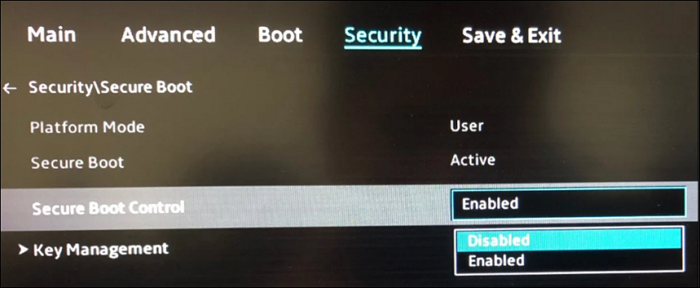
Step 3. Under Security, select Secure Boot Control.
Step 4. Select Disable in the drop-down menu.
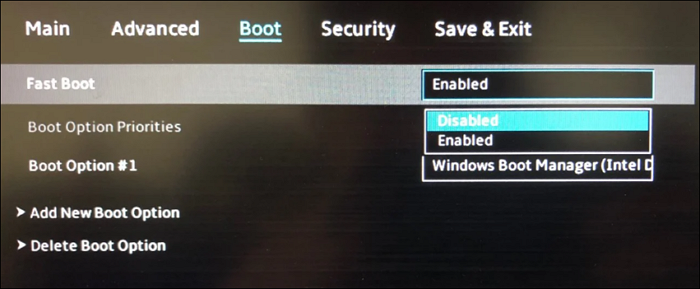
Step 5. Under the Boot menu, disable Fast Boot.
Step 6. Change CSM Support to Enabled in the Boot option.
Step 7. Save and exit.
Step 8. To access the BIOS settings, you need to reboot your computer and immediately start pressing and holding the F8 key. This will take you to a boot menu where you can select USB as the boot device.
Fix 2. Update BIOS
Step 1. Download the BIOS update from the manufacturer's website.
Step 2. To enter the BIOS, restart your computer and press the key to access the BIOS settings, usually F2, F12, or Del. Once you're in the BIOS, navigate to the "Tool" menu and select "ASUS EZ Flash Utility".
Step 3. To update your device, press and hold the Enter key, then select "Find the file" to download the update from a storage device.
Step 4. Press Enter to start the update.
If you're using an EFI/UEFI PC and the above methods don't work, you can try changing the settings on your PC. To do this, you'll need to enter the UEFI settings by pressing a key such as F2, F12, or Del during boot-up.
If you're experiencing issues with your phone's camera, don't worry - it's a common problem! First, try restarting your phone, as this can resolve many issues.
Conclusion
To boot an ASUS laptop from USB, it's essential to have a Windows operating system on the USB and for the USB to be a bootable drive.
Fortunately, this article provides a quick and easy solution to burn a Windows ISO to USB using Qiling Disk Master, a free ISO burner that can easily complete the task with just a few simple steps. This software also allows you to use the Windows ISO image burned on the USB to repair your PC, making it a convenient tool to have.
FAQs About How to Boot ASUS Laptop from USB
To boot an ASUS laptop from a USB drive, you can follow these steps: insert the USB drive into a USB port, enter the BIOS settings by pressing the corresponding key (usually F2, F12, or Del), navigate to the Boot tab, select the USB drive as the first boot device, and save the changes. This will allow your ASUS laptop to boot from the USB drive. Additionally, if you're experiencing issues, you can try resetting the BIOS settings to their default values or checking the USB drive for any errors.
1. What is the ASUS boot menu key?
The ASUS boot menu key is different for various computer models, with the Vivobook series using the Esc and F8 keys, while all other series use the Esc key.
2. Can I boot Windows 10 from USB on ASUS laptop?
To boot Windows 10 on an ASUS computer from a USB drive, first, download the Windows 10 ISO file. Next, use a professional tool to create a bootable USB drive from the ISO file. After that, restart your ASUS computer and repeatedly press the boot menu key (usually F2, F12, or Del) to set the USB drive as the boot device. This will allow you to install Windows 10 from the USB drive.
3. Why ASUS laptop won't boot from USB?
The USB drive may not be listed as a boot option in BIOS, which could be due to settings or outdated BIOS. Disabling fast and secure boot or updating the BIOS might resolve the issue.
Related Articles
- What Should You Do When Low Disk Space But Nothing to Delete [Full Guide]
- How to Fix MSI Laptop Black Screen Efficiently [Tutorial]
- How to Run Disk Performance Test on Windows [Step-by-Step Guide]
- How to Format USB Flash Drive to FAT32 (Applies to 32GB/64GB/128GB...)
- 2 Ways to Partition C Drive in Windows 7 Without Formatting
If you want to partition the C drive on your Windows 7 PC without formatting but don't know how then you should read this article. We show you two easy ways to do that. Keep reading to learn more! - Top 3 Best Partition Resizer Portable Review: Pros and Cons
If you're looking for the best portable partition resizer, this guide can help. This article introduces three portable resize tools and compares them from multiple aspects, providing you with a comprehensive guide to make an informed decision.
Products
Articles & Tutorials
- Data Recovery
- Data Backup
- File Recovery
- File Backup
- System Backup and Restore
- Disk and Partition Clone
- Technical articles
- Mobile articles
- Disk Master Help
- Windows Data Recovery Tutorials
- Windows Secure Delete Tutorials
- Windows Partition Management Tutorials
- Windows File Backup and Restore Tutorials
- Windows System Backup and Restore Tutorials
- Windows Disk Backup and Restore Tutorials
- Windows Clone Tutorials