How to Boot from USB on HP Laptop on Windows 11/10 [Step-by-Step Guide]
HP laptops are widely used by individuals and businesses, but when it's time to reinstall a Windows operating system due to crashes or upgrades, a problem arises. Since newer HP notebooks no longer come with a CD/DVD ROM, users are left without a way to boot from a disc, making the process more complicated.
HP laptop users have only one option to boot their computer, which is through USB. For more detailed information on booting Windows from USB on HP laptop, you can refer to Qiling.
To boot from a USB drive on an HP laptop, you'll need to enter the BIOS settings and change the boot order to prioritize the USB drive. This can usually be done by pressing the F2 key during startup, then navigating to the "Boot" tab and selecting the USB drive as the primary boot device.
| ⏱️Duration | 5-7minutes |
| 💻System | Windows 11/10 |
| ⛏️ Tools |
✔️USB ✔️Windows ISO files ✔️HP laptop or desktop |
| 🖌️ Process |
1️⃣Create a bootable USB 2️⃣Boot from USB |
| 🔍Required Software | USB creators - Qiling Disk Master |
To boot from a USB drive on an HP laptop, you will first need to create a bootable USB drive. This can be done using a tool like Rufus on a Windows computer or Etcher on a Mac.
How to Boot Windows 10 from USB Flash Drive
To install Windows or run the same OS on different devices, you can create a bootable USB drive to boot Windows 10. This involves following a guide to set up the USB flash drive to run the Windows operating system.
Preparations to Boot From USB on HP Laptop
To boot your HP laptop from a USB drive and install Windows, you'll need to prepare your PC by creating a bootable USB drive with the Windows installation media, setting your laptop to boot from USB in the BIOS settings, and disabling Secure Boot. You can create the bootable USB drive using a tool like Rufus or the Windows USB/DVD Download Tool, and then save the changes to your BIOS settings.
1️⃣ Download the ISO file for Windows: https://www.microsoft.com/en-us/software-download
To prepare, ensure you have at least 16GB of free space on the USB drive and format it as FAT32.
3️⃣Make a Bootable USB Drive
Here are a few methods to make a bootable USB:
- If you just want to run the operating system on your HP laptop and work on it, you can use the Windows installation tool or third-party tools to make a bootable USB, with or without an ISO file, as described in the article "How to Create Bootable USB".
- If you're experiencing system crashes or boot errors, I recommend using Qiling Disk Master to create a bootable USB drive from an ISO file to install Windows or access a Win-PE environment. This can help resolve the issues.
Qiling Disk Master is a tool designed for HP to create Windows bootable USB drives, providing the functionality of Burn ISO and simplifying the process of creating bootable USB drives using built-in tools, enabling the USB to boot Windows installation files or Windows PC's system.
The tool provides simple and easy-to-use methods, allowing even novice users to operate it with ease. To create a bootable Windows USB using ISO files, you can follow the straightforward process.
Step 1. Launch Qiling Disk Master and go to the Tools section, then click "Create Bootable Media".

Step 2. Select the the target USB as destination.

Step 3. Click "Proceed" to execute the operation.
Besides burning ISO to USB on Windows, Qiling Disk Master also offers many powerful features. If you are interested, you can check them out by clicking on the following button:
Windows also offers some other free ISO burners, including a built-in tool called Windows To Go that can be used to burn USB in Windows 8/8.1 Enterprise, Windows 10 Education/Enterprise/Pro.
Further reading: To burn an ISO to a USB on Windows 10 and install Windows 11 on an HP laptop, follow these steps: First, download the Windows 11 ISO file from Microsoft's official website. Next, download and install a USB burning software such as Rufus or PowerISO.
Once you have burned the ISO file to a USB drive, you can use the burned USB on your HP laptop to boot your computer. After burning the ISO file, you can proceed with the next steps to learn how to get HP to boot from the USB drive.
Read Also:

The Sony VAIO Boot Menu is a utility that allows users to select the boot device from a list of available options. To get Sony VAIO to boot from a USB drive, you need to access the Boot Menu, which can usually be done by pressing a specific key during the boot process. The key to press varies depending on the VAIO model, but common keys include F1, F2, F3, F4, F5, F6, F7, F8, F9, or F10. Once in the Boot Menu, select the USB drive as the boot device, and save your changes.
This guide will introduce the Sony VAIO boot menu and Sony BIOS key, allowing you to easily boot Sony VAIO from USB drives, including Sony laptops.
How to Boot From USB on HP Laptop
To boot from a USB drive on an HP laptop, you have two options. The first method involves entering the BIOS settings by pressing the F2 key when the laptop is first powered on, and then selecting the USB drive as the boot device.
Guide 1. Boot From USB via Boot Menu Key
Guide 2. Boot From USB via BIOS
To boot Windows from a USB on an HP laptop, you can follow these steps. First, ensure your HP laptop is set to boot from a USB drive by entering the BIOS settings (usually by pressing F2, F10, or Esc during startup).
Guide 1. Boot From USB via Boot Menu Key
To boot Windows from a USB drive, you need to set the USB drive as the first boot device in the BIOS setup. For HP users, you can access the HP boot menu using specific keys, and then follow the steps to boot from the USB drive.
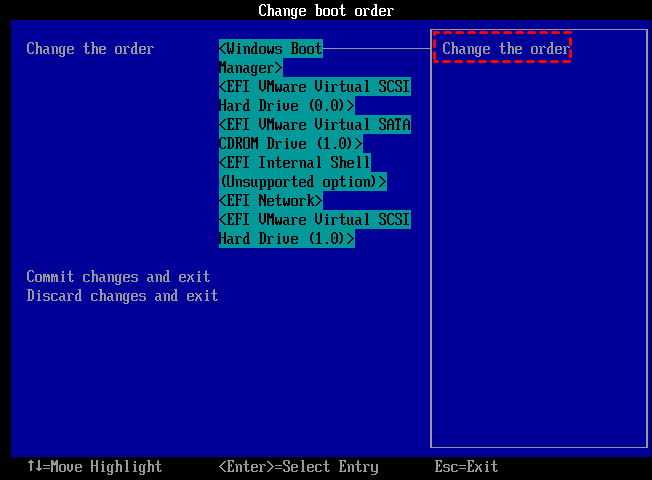
Step 1. Restart your computer and press the F9 or Esc key to enter the boot menu.
Step 2. Press F9 to access the BIOS boot options.
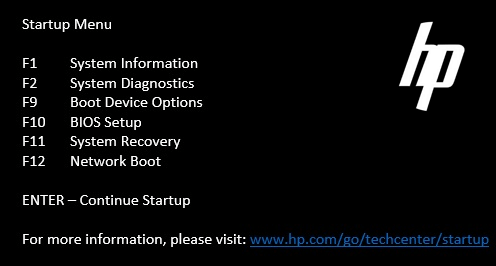
Step 3. Move the bootable USB to the first option and make the change.
Guide 2. Boot From USB via BIOS
HP notebooks come with a BIOS key, which is the ESC key. When you turn on your computer, it will display "Press ESC to access BIOS" at the bottom left corner.
Step 1. Turn the computer back on and press the BIOS key (F10) repeatedly until you see the BIOS setup screen.
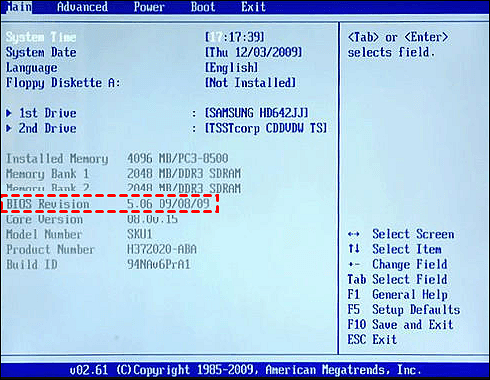
Step 2. Use the arrow keys on the keyboard to navigate to the "Boot" option from the Main menu, and then select the USB drive as the boot device.
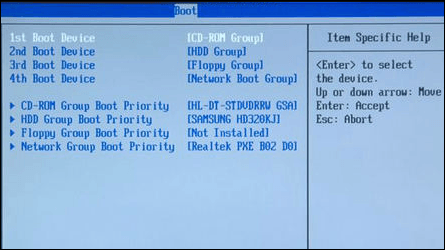
Step 3. Save the changes and restart the HP computer.
To boot from a USB drive on an HP laptop running Windows, follow these steps: Ensure the USB drive is bootable and contains the Windows installation media. Insert the USB drive into the HP laptop and enter the BIOS settings by pressing the F2 key.
Bonus Tip: Fix Unable to Boot HP Laptop from Bootable USB
Burning Windows ISO files to USB with Qiling Disk Master and then booting from USB on an HP laptop can be straightforward, but sometimes the USB boot option may not be visible in the BIOS. This issue can be resolved with some additional tips, which are discussed in this section.
Reasons for bootable USB not showing up in BIOS:
- Disk connection problems
- Driver problems
- Boot order error
- BIOS obsolescence
You can find the corresponding solution according to the possible causes.
Fixes to solve HP USB not showing in BIOS:
Fix 1. Disconnect and Reconnect the USB
If you're experiencing issues with your USB connection, try disconnecting and reconnecting the device to resolve the problem.
Fix 2. Change USB 3.0 Configuration
Most BIOS systems include USB 2.0 drivers, but USB 3.0 drivers are only available once the OS has been loaded. If the problem is with both USB 2.0 and 3.0, you need to configure USB 3.0 to automatically enable or be enabled by the OS, allowing it to function properly.
Step 1. To enable USB 3.0 mode, navigate to System Configuration > BIOS/Platform Configuration (RBSU) > System Options > USB Options > USB 3.0 Mode and press Enter in the System Utilities panel.
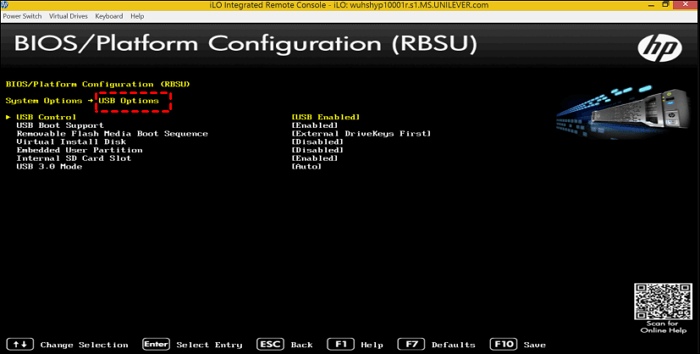
Step 2. Press Enter after selecting the Auto USB 3.0 Mode option.
Fix 3. Configure Boot Sequence
Windows 10 may experience some out-of-order conditions under UEFI or Legacy BIOS. To resolve this, disable the Fastboot and Secure Boot features.
Step 1. Use the HP boot menu and press and hold F10.
Step 2. In Boot Options, make sure that Fast Boot and Secure Boot are turned off or unchecked.
Step 3. Under Boot Mode, select USB as the first boot option.

Fix 4. Update BIOS
The HP laptop may not be able to boot from a USB drive due to an outdated BIOS, which can be resolved by updating the BIOS, and a detailed guide is available on how to do so.
Detailed Reading: To update BIOS Windows 10, you'll need to enter your laptop's UEFI settings, navigate to the 'Save and Exit' tab, and select the option to update the BIOS from a USB drive. To get a Toshiba laptop to boot from USB, you'll need to create a bootable USB drive with the Toshiba BIOS update tool, then enter the UEFI settings and select the USB drive as the boot device.
Conclusion
To boot your HP laptop from USB, first use Qiling Disk Master to burn a Windows ISO file to USB and create a bootable USB drive. Knowing the HP boot menu and BIOS keys will also help you run the HP boot from USB. If the bootable USB doesn't show up in the BIOS, this guide provides some quick fixes to troubleshoot the issue.
There will be some other topics related to this topic next. Read on to learn more about them.
How to Boot from USB on HP Laptop FAQs
This part offers some frequently asked and related questions about how to boot from USB on HP laptop. Hope it can be helpful to you.
1. Which key is to boot from USB HP?
The HP boot menu offers several choices, including F9 for modifying the BIOS boot order and F10 for booting from a USB device in the BIOS settings.
2. Why is the HP laptop not booting from USB on Windows 10?
HP laptops may not boot from USB due to various reasons, including USB connection issues, incorrect UEFI/EFI settings, problems with the USB file system, or BIOS setup problems.
3. How to fix the HP boot USB not showing?
To resolve the HP USB not showing error, you can try the following: check if the USB drive is properly connected to the computer, ensure the USB drive is not damaged, restart the computer, update the HP printer drivers, and if the issue persists, try using a different USB port or reinstalling the HP printer software. If none of these steps resolve the issue, you can contact HP support for further assistance.
- Update BIOS
- Change BIOS settings
- Change the USB configuration
- Re-create the USB boot disk using professional tools
Related Articles
- How to Format Hard Drive in Windows 7? [Detailed Tips]
- Top 5 NVMe SSD Benchmark Software [2023 New Ranking]
- How to Fix 'SD Card Is Blank or Has Unsupported File System' [100% Working Solutions]
- 3 Ways to Combine or Merge Partitions in Windows Server 2022/2019/2016
- How to Rebuild BCD | All You Should Know 🔥
If the configuration file is corrupted or missing, you must rebuild BCD to repair the unbootable problem. - How to Repartition a Hard Drive on Windows 10/11 [Step-by-Step]
Learn how to repartition your computer's hard drive with this comprehensive guide.
Products
Articles & Tutorials
- Data Recovery
- Data Backup
- File Recovery
- File Backup
- System Backup and Restore
- Disk and Partition Clone
- Technical articles
- Mobile articles
- Disk Master Help
- Windows Data Recovery Tutorials
- Windows Secure Delete Tutorials
- Windows Partition Management Tutorials
- Windows File Backup and Restore Tutorials
- Windows System Backup and Restore Tutorials
- Windows Disk Backup and Restore Tutorials
- Windows Clone Tutorials