What Is an ISO File, Full Explained in Detail 2023
This page provides information on ISO files, including what they are, how to create, mount, burn, and extract them.
An ISO file, short for ISO 9660, is a type of file that contains a complete copy of a CD or DVD's contents. It is a compressed file that includes all the files, folders, and data from the original disc, making it a self-contained package.
ISO files are commonly used for backing up and distributing software, operating systems, and other digital content.
What Is an ISO File
An ISO file is a single file that is an exact copy of an entire optical disc, such as a CD, DVD, or Blu-ray Disc, containing a large data set.
- File format: iso9660, UDF (ISO/IEC 13346) file system
- System supported: Windows, macOS, Linux
- Functions:
- If you don't have physical copies of an optical disk, you can replicate or copy the original by storing it as an ISO file. This allows you to transfer a game, such as from an old disk to your laptop, when physical disks are not available.
- Uploading large programs or the operating system (OS) onto an ISO file allows for easy downloading, mounting, or burning onto an optical disk, making it a great container for these types of files.
- Features:
- The package contains up to 8 subdirectories, and this limit can be increased using tools.
- The maximum file name is 32 characters
- The general file size does not exceed 650M, and can be adjusted according to the size of the CD or DVD.
To use an ISO file, you can burn it to a CD or DVD. You can also mount it as a virtual drive on your computer. This allows you to access the files and programs contained within the ISO file without having to burn it to a physical disc.
How to Use an ISO File - Create/Burn/Mount/Extract an ISO File
An ISO file can bring great convenience if you know how to use it. In this part, you can learn four guides on how to burn, create, or extract an ISO file.
Guide 1. How to Create an ISO File
Creating an ISO file of a physical disk is a great way to digitally backup your data, allowing you to easily access and restore it whenever needed.
To do this, you can follow the steps below to create an ISO file of the disk, which will save a copy of the disk's contents and provide a reliable backup of your data. This process can be completed using various software tools and methods, making it a convenient and effective way to safeguard your digital information.
Step 1.Download the media creation tool from the Windows 10 download page by clicking Download tool now, then launch the program.
Step 2. Pick Create installation media (USB flash drive, DVD, or ISO) for another PC > Next from the tool's menu.
Step 3. After selecting the Windows edition, architecture, and language that you need, choose Next.
Step 4. Choose the ISO file you want to create > Next. Windows will build an ISO file for you.
Guide 2. How to Burn an ISO Image To Disc
You can burn an ISO file to a disc on Windows 11/10/8/7 without any additional software. Simply double-click or double-tap the ISO file and follow the on-screen instructions.
Alternatively, if you're a beginner, you can click the link to get the top five ISO burners for Windows 10 in 2023.
Guide 3. How to Extract an ISO Image
To extract the contents of an ISO file to your PC without mounting it or burning it to a CD, you can use a third-party application like 7-Zip, which is free, open-source, and powerful.
Simply right-click on the ISO file, select "7-Zip" > "Extract to" > "Extract files", and choose a location on your PC to save the extracted files. This allows you to access the files inside the ISO without having to mount the ISO or burn it to a CD.
Step 1.7-Zip can be downloaded and installed from the official website. Once installed, double-clicking the ISO image will open it in 7-Zip, allowing users to browse its contents.
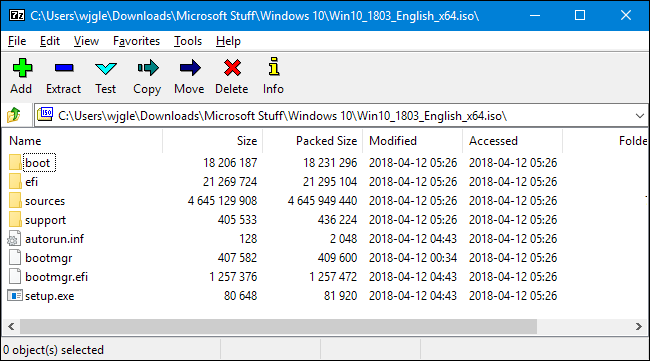
Step 2. You can copy files from an ISO image to a regular folder by simply dragging and dropping the target files from the ISO image to the desired folder.
Guide 4. How to Mount ISO File
File Explorer is a built-in tool in Windows that can mount ISO files, allowing you to access their contents without burning them to a physical disc. Here are the steps to mount an ISO file:
Step 1. To open File Explorer, first, click on the Start button located at the bottom left corner of the screen. Then, click on the File Explorer icon. Look in the folder where the ISO image file is located.
Step 2. After discovering the folder, click directly on the ISO file.
Step 3. Next, select "Mount" in the context menu.
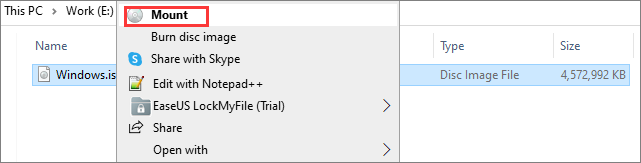
Step 4. From the panel on the left, choose a virtual drive.
Conclusion
ISO images are often used to distribute and transfer large programs or operating systems over the internet, as they can contain all the program's files in a single, neat file.
We've learned what an ISO file means and how to create, burn, extract, and mount these files, making it easier to manage and share software and OS installations.
Related Articles
- What Is Minimum Processor State? Everything You Need to Know
- What Is RAM? Random Access Memory [Full Explanation]
- What Is Windows Registry and How to Use It [Update 2023]
- RAM vs. Hard Drive: The Key Differences You Need to Know
- Samsung 990 Pro vs 980 Pro: Which SSD to Choose?
If you're considering upgrading to a Samsung SSD, you're probably wondering whether to opt for the latest 990 Pro or the previous model 980 Pro. This review compares the two in terms of specs, read and write speeds, costs, and other factors to help you make an informed decision. - Samsung 990 Pro vs WD Black SN850X: How to Choose?
Compare Samsung 990 Pro and WD Black SN850X SSDs by speed, gaming performance, reliability, and upgrade value.
Products
Articles & Tutorials
- Data Recovery
- Data Backup
- File Recovery
- File Backup
- System Backup and Restore
- Disk and Partition Clone
- Technical articles
- Mobile articles
- Disk Master Help
- Windows Data Recovery Tutorials
- Windows Secure Delete Tutorials
- Windows Partition Management Tutorials
- Windows File Backup and Restore Tutorials
- Windows System Backup and Restore Tutorials
- Windows Disk Backup and Restore Tutorials
- Windows Clone Tutorials