How to Rebuild BCD in Windows
BCD, short for Boot Configuration Data, is a firmware-independent database for boot-time configuration data that contains critical information that can tell the Windows boot loader where to look for boot information. Any corruption or loss of a BCD file will result in startup errors and unbootable problems. For instance, a user experienced an issue where their Windows 10 system couldn't boot, and the problem was caused by a corrupted BCD file.
If you're experiencing a boot BCD error in Windows 10 or Windows 11, you may need to rebuild the Boot Configuration Data (BCD) to resolve the issue. Qiling offers three methods to help you rebuild BCD and fix the error, making it easier to get your system up and running again.
How to Rebuild BCD in Windows 10&11- 3 Ways
Here are the three solutions to the problem of not being able to find a specific document:
- Fix 1. Repair BCD with Qiling Disk Master
- Fix 2. Apply Startup Repair
- Fix 3. Rebuild BCD via Bootrec.exe Tool
"Need to rescue your unbootable device? Don't panic!
Fix 1. Repair BCD with Qiling Disk Master
To fix unbootable problems and rebuild BCD, you can use Qiling Disk Master Professional, a tool that helps manage disks and provides various features like repairing startup errors, fixing boot failures, and rebuilding MBR, making it a user-friendly solution for beginners.
With the help of its "Boot Repair" feature, you can fix the BCD files and manage BCD and UEFI settings.
Follow the tutorial below to repair the unbootable problem:
Step 1. Connect a USB drive or external drive to a functioning computer, then open Qiling Disk Master (RE) and click "Create Bootable Media" to proceed.
Step 2. Select Qiling Boot Toolkits and other components you need. Then, click "Next."

Step 3. Select your movable device and click "Go" to create an image on your USB drive/external drive, or burn the Windows ISO file to the storage media.

Step 4. The system will display a warning message, "The user is not a member of the group." Confirm this message and wait for the creation process to complete.
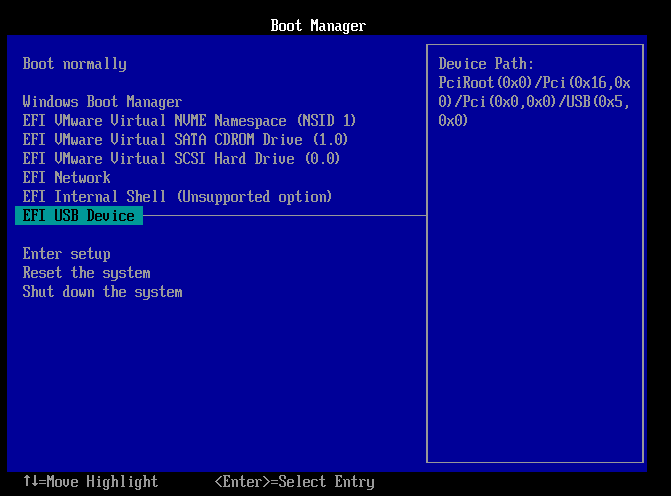
Step 5. Connect the bootable drive to the faulty computer, reboot it by pressing F2/Del to enter the BIOS, set the WinPE bootable drive as the boot disk, and exit the BIOS by pressing F10.
Step 6. The computer will enter WinPE desktop, where you can open BootRepair, select the system you want to repair, and click "Proceed" to begin the repair process.

Step 7. Wait a moment, and you will receive an alert that the system has been successfully repaired.
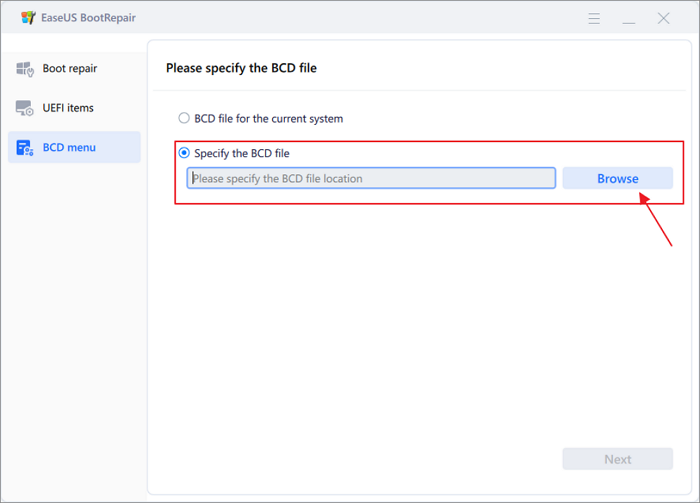
After repairing the BCD error, reboot your computer to see if the issue is resolved. If it still persists, you can use the "Boot Repair" tool's "BCD menu" feature to explicitly specify the location of the BCD file, which may help the system locate it correctly.
Other Powerful Features of Qiling Disk Master
- To resolve boot issues, check the file system by identifying and repairing errors that may be hindering the boot process. This step is crucial in ensuring the system's file structure is intact and can load the necessary files and programs for a successful boot.
- Rebuild the Master Boot Record (MBR) to resolve boot issues.
- Partition Recovery is a process that helps safely recover lost or deleted partitions, allowing users to retrieve valuable data that was previously inaccessible. This process involves sophisticated algorithms and techniques to scan and rebuild the partition table, making the lost partition visible and accessible again.
- To troubleshoot a boot issue, check the disk's health by running a Disk Surface Test to rule out any problems with the disk itself. This test can help identify any issues that might be preventing the system from booting properly.
Download and install this trouble-solver from the button below:
Fix 2. Apply Startup Repair
A BCD error can also occur if the operating system is corrupted. In this case, you can use the Windows computer repair option to repair your operating system, which may resolve the unbootable BCD error issue.
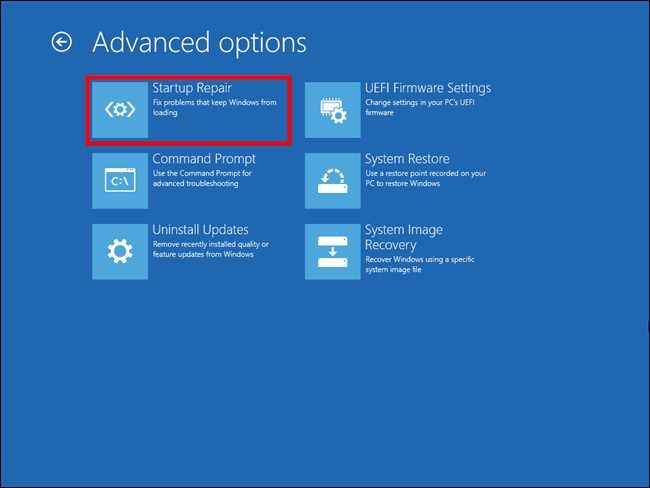
Step 1. Click the "Repair Your Computer" option to launch the Windows Recovery Environment, then select the "Advanced Options" under the "Troubleshoot" menu.
Step 2. Choose "Startup Repair" to initiate the repair process, and when it's finished, Windows will restart on its own.
Fix 3. Rebuild BCD via Bootrec.exe Tool
When the BCD is corrupted, you cannot boot from the hard drive. In this case, you can use Bootrec.exe command lines to rebuild BCD in the Command Prompt. Here is what you need to do:
Step 1. Navigate to "Troubleshoot" > "Advanced options" > "Command Prompt."
Step 2. Write the CMD shown below and hit "Enter" for each:
- Bcdedit /export C:\BCD_Backup
- ren c:\boot\bcd bcd.old
- Bootrec /rebuildbcd
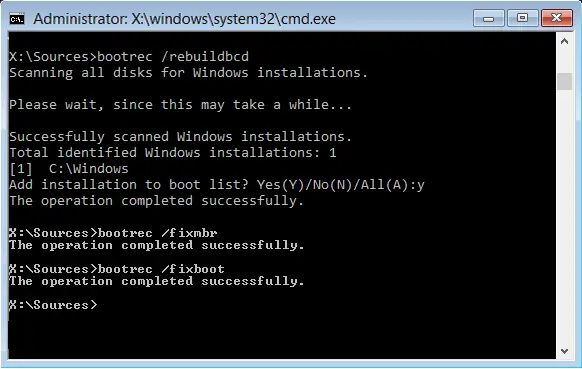
Step 3. Type exit to quit the process and restart your computer.
What Will Cause Boot BCD Errors?
If the Windows boot configuration data (BCD) is lost, corrupted, or incorrectly configured, the system will not boot. This can result in various boot BCD errors, such as those we've rounded up.
- The error "The boot configuration data store could not be opened. Access is denied" typically indicates that the system is trying to access the Boot Configuration Data (BCD) store, which is responsible for boot-related settings, but it's being blocked by a security restriction. This could be due to a permissions issue or a problem with the system's boot configuration.
- The error message "The boot configuration data store could not be opened; the system cannot find the file specified" typically indicates that the system is unable to access the boot configuration data, which is usually stored in a file called BCD (Boot Configuration Data) or BOOTMGR (Boot Manager). This file is essential for the system to boot up properly.
Then, what may cause the boot BCD errors?
- Corrupted or missing BCD file: The BCD (Boot Configuration Data) file is a crucial component that enables the operating system to boot. If it becomes corrupted or deleted, it can result in a BCD error, preventing the system from starting up properly.
- Incorrect BIOS settings: If the BIOS settings are not configured correctly, it can lead to a BCD error, often caused by changes to the BIOS settings or a faulty BIOS update.
- Malware or virus infections: Malware or viruses can corrupt the BCD file, leading to a BCD error.
- Hard drive failure: Problems with the hard drive, such as bad sectors or physical damage, can prevent the system from accessing the BCD file properly.
- Incorrect disk partitioning: If the disk partitions are not set up correctly, it can interfere with the BCD file and cause a BCD error.
Refer to the following article and learn further information about the BCD error:

The Boot Configuration Data Store Could Not Be Opened
To fix the error "boot configuration data store could not be opened," users can try six potential solutions. Firstly, they can try running the System File Checker (SFC) tool to scan and replace corrupted system files. Alternatively, users can run the DISM tool to repair any issues with the Windows image.
Conclusion
this article provides step-To rebuild the Boot Configuration Data (BCD), follow these simple steps: first, ensure your system is running in Safe Mode, then download and install a reliable software like Qiling Disk Master, which offers comprehensive tools for repairing various startup errors and unbootable issues. Next, launch the software and follow its intuitive interface to scan and identify the BCD errors. Once the errors are detected, the software will guide you through the process of repairing or rebuilding the BCD, ensuring a smooth and successful recovery. With Qiling Disk Master, you'll have a trusted ally in resolving BCD errors and other startup-related issues, making it an indispensable tool for any Windows user.
FAQ on How to Rebuild BCD
If you still have questions about rebuilding BCD, you can find answers in the frequently asked questions section.
1. Why does Windows boot BCD error 0xc00000f occur?
The problem occurs when there is corruption in the Boot Configuration Data (BCD) or when there is no reference to DEVICE/OSDEVICE in the BCD, or when winload.exe or \boot\BCD is missing from the system disk.
2. Where can I find the BCD file?
The MBR system disk contains the active partition, which holds the BCD registry file in the \Boot\Bcd directory. In contrast, the EFI-based operating system has its BCD file in the EFI system partition.
3. Can I manually edit the BCD file?
To manually edit the BCD file, follow these simplified steps: open the Command Prompt as an administrator, type "bcdedit /enum" to list the current boot options, identify the problematic entry, and then use "bcdedit /delete" to remove it, or "bcdedit /set" to modify its settings, such as the timeout value. This process allows you to troubleshoot and resolve issues with the Boot Configuration Data file.
- Click "Start" > "Properties" > "Advanced System Settings."
- In the "Advanced" section, select "Startup and Recovery," then click "Settings."
- To edit other startup settings, open the Default Operating System list and click "OK."
Related Articles
- How to Delete EFI Partition in Windows 11| What Is EFI Partition Windows 11
- How to Format SD Card on Windows 11? Here Are 4 Ways for You in 2024
- HP USB Disk Storage Format Tool Portable Free Download 🔎
The HP USB Format Tool Portable is a utility that allows users to format USB drives, and this article provides information on the tool, including how to download it for free. - Tutorial: Install a New Hard Drive on Windows 11 Safely
Upgrading your Windows 11/10 PC with a new hard drive can significantly expand your storage capacity, but it's essential to do so safely to avoid losing data or compromising system stability. By doing so, you can enjoy the benefits of increased storage without any issues. - The Pros and Cons of Partitioning Hard Drive | Why Partition A Hard Drive
Partitioning a hard drive is a basic concept for many beginners, but what are the pros and cons of doing so. - Qiling Partition Master 6.0 Crack 2022 | Get Qiling Partition Master Crack License Key
Learn safe ways to get Qiling Partition Master, manage partitions, and avoid risks from cracked installers or license key downloads.
Products
Articles & Tutorials
- Data Recovery
- Data Backup
- File Recovery
- File Backup
- System Backup and Restore
- Disk and Partition Clone
- Technical articles
- Mobile articles
- Disk Master Help
- Windows Data Recovery Tutorials
- Windows Secure Delete Tutorials
- Windows Partition Management Tutorials
- Windows File Backup and Restore Tutorials
- Windows System Backup and Restore Tutorials
- Windows Disk Backup and Restore Tutorials
- Windows Clone Tutorials