The Boot Configuration Data Store Could Not Be Opened [6 Ways]
The "The Boot Configuration Data Store Could Not Be Opened" error is a common issue that occurs when trying to execute "bcdedit.exe" due to corrupted or misconfigured BCD files, which can prevent the system from booting. This error can also manifest as problems with booting the system.
- Being unable to access or change the BCD data.
- Challenging dual-booting or altering system settings.
- System instability.
BCD files are essential for the proper booting of an operating system, and any issues with their execution can lead to problems, resulting in error messages such as "Operating System Not Found," "Bootmgr is Missing," and "Windows Boot Manager is Missing."
- "The boot configuration data store could not be opened; the system cannot find the file specified."
- The error "The boot configuration data store could not be opened; the requested system device cannot be found" typically indicates a problem with the boot process, specifically with the boot configuration data store. This store contains essential information for the system to boot properly, and if it can't be opened, the system may not be able to find the necessary device to continue the boot process. This could be due to a hardware issue, a corrupted boot configuration, or a problem with the system's firmware.
- The error message "The boot configuration data store could not be opened. Access is denied" typically occurs when the system is unable to access the Boot Configuration Data (BCD) store, which is used to configure the boot process. This can happen due to a permissions issue, where the system does not have the necessary rights to read or write to the BCD store, often due to corrupted or incorrect registry settings. To resolve this, you can try running the System File Checker tool (SFC) to scan and replace any corrupted system files, or manually editing the registry to correct any BCD-related settings.
If you've encountered the error "Boot Configuration Data store that could not be opened," this guide can help. This article will guide you through the steps to resolve this issue, so keep reading to learn how to fix it.
How to Fix Boot Configuration Data Store Could Not Be Opened
The table provides a brief overview of the methods to be implemented, including their efficiency and difficulty level. It outlines the various approaches that can be taken, allowing for a clear understanding of the options available.
| Solutions | Efficiency | Difficulty |
| Run the Command Prompt | 👍High - Efficient for resolving BCD issues once administrative privileges are granted. | ⭐Low - Basic administrative tasks. |
| Use the Boot Repair Tool | 👍High - Effectively handles various BCD issues, including missing or inaccessible files. | ⭐Low - User-friendly, no advanced technical skills required. |
| Change the Boot Mode | Moderate - The fix resolves issues related to boot settings alignment and conflicts between UEFI and Legacy/CSM modes, ensuring a stable and smooth boot process. | Moderate - Involves accessing BIOS/UEFI settings, which may vary by manufacturer. |
| Change the Partition Style | 👍High - The solution solves compatibility problems and ensures proper recognition of the BCD store. | Moderate - Utilizes a tool like Qiling Disk Master and is beginner-friendly. |
| Specify BCD File | Moderate - This feature enables the definition of a precise location for a BCD file, ensuring that the system can access it correctly. | ⭐Easy - User-friendly tool used to access BCD files correctly. |
| Rebuild BCD | 👍High - Manually rebuild the BCD in cases where other methods fail. | Moderate - The process of using Windows Recovery Environment (WinRE) and executing advanced commands in Command Prompt involves using the built-in WinRE feature of Windows to access a command-line interface, and then executing specific commands to troubleshoot and resolve issues. This can include running system files checks, disk checks, and other diagnostic tools to identify and fix problems. |
To fix the boot configuration, follow these steps: for the Windows boot configuration, go to the Advanced Start-up settings by pressing F8 while booting, then select the "Safe Mode" or "Safe Mode with Networking" option and try to install the drivers; for the Linux boot configuration, try booting in recovery mode by pressing the "Esc" or "F2" key during boot-up, then select the "Recovery Mode" option and attempt to install the drivers; for the macOS boot configuration, restart your Mac and immediately hold down the "Command + R" keys to enter Recovery Mode, then select the "Reinstall macOS" option and follow the on-screen instructions. You can also share this guide with friends who are searching for similar solutions.
Method 1. Run the Command Prompt as Administrator
The command-To resolve the "Boot Configuration Data Store Could Not Be Opened" issue, you can use the command line tool "bcdedit" which requires administrator privileges to manage the BCD. To elevate your privileges in Command Prompt, you can run "bcdedit.exe" with administrator permissions, allowing you to fix the problem.
Step 1. Right-click the Start button.
Step 2. Select "Command Prompt (Admin)."
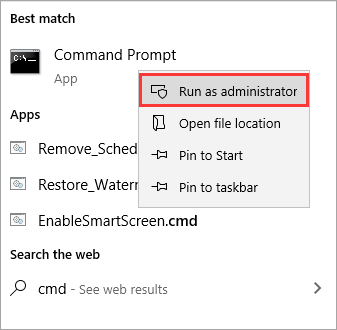
Step 3. Retry the 'bcdedit.exe' command to check if the problem persists.
Method 2. Use the Boot Repair Tool
A boot repair tool can resolve several BCD-related problems, including missing or unreachable boot BCD files, and software like Qiling Disk Master has a "Boot Repair" function that can deal with BCD exception issues.
You can download Qiling Disk Master and quickly fix the "The boot configuration data store could not be opened" problem, both easily and quickly.
Step 1. To create bootable media using Qiling Disk Master, connect the external drive/USB to your computer and launch Qiling Disk Master. Then, navigate to the "Bootable Media" section and click on "Create bootable media" to proceed with the process.

Step 2. Insert a USB drive or CD/DVD, and click on "Create" to start the installation process. Alternatively, you can burn the Windows ISO file to the storage media.

Step 3. Connect a bootable drive to the new computer, reboot by pressing F2/Del, set the WinPE bootable drive as the boot disk, and exit by pressing F10.
Step 4. Boot the computer again and enter the WinPE interface. From there, open Qiling Disk Master and select "Boot Repair" under the "Toolkit" option.

Step 5: Select the system you want to repair and click "Repair."

Step 6. Wait a moment, and you will receive an alert that the system has been successfully repaired.
⭐Contact US
Our team is available to provide personalized support and answer any questions you may have about the process, offering tailored guidance and assistance to ensure a smooth and successful experience.
Qiling experts offer 1-on-1 manual services 24/7 to fix Windows boot errors, BSOD, and computer boot loops. They provide free evaluation, diagnose, and resolve system boot failures, Windows stop codes, and OS lagging issues with their decades of experience.
- 1. To fix a BSOD error due to Windows update or other reasons, try the following steps in order: restart your computer, check for and install any pending Windows updates, run the System File Checker (SFC) tool to scan and replace corrupted system files, run the DISM tool to repair the Windows image, and if the issue persists, create a System Restore point to revert back to a previous working state, and if all else fails, perform a clean installation of Windows. If you're experiencing BSOD errors due to a specific Windows update, you can also try uninstalling the problematic update.
- 2. To resolve Windows boot errors like "no bootable device found" or BCD file corruption, you can try booting from a Windows installation media, such as a USB drive or CD/DVD, and running the built-in System File Checker (SFC) and Check Disk (chkdsk) tools to scan and repair corrupted system files. If the issue persists, you can attempt to rebuild the BCD using the Command Prompt or use a third-party tool like EasyBCD to recreate the boot configuration.
- 3. 0X000_error codes on Windows system or OS boot loop issues can be fixed by running the System File Checker (SFC) and DISM tools, checking for corrupted system files, and running a full system scan. Additionally, checking the Event Viewer for errors and disabling any recently installed software or drivers may also resolve the issue.
Other errors that Qiling Disk Master can fix:
Method 3. Change the Boot Mode
Switching the boot mode might be helpful when receiving the "Boot Configuration Data Store Could Not Be Opened" issue, as it can realign the system's boot settings and eliminate potential conflicts.
Step 1. Restart your computer.
Step 2. To access the BIOS/UEFI settings, press a specific key during the boot process, such as F2, F12, Del, or Esc, to enter the settings menu.
Step 3. Find the "Boot" or "Boot Options" section.
Step 4. Switch between UEFI and Legacy/CSM boot mode.
Step 5. Save changes and exit BIOS/UEFI.
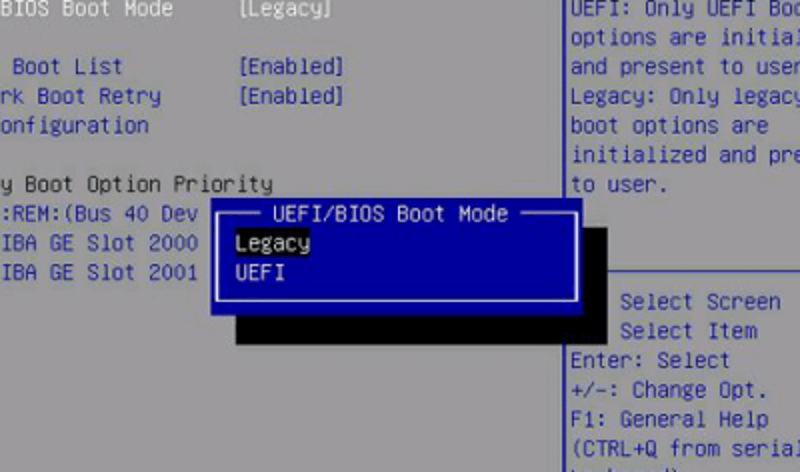
Step 6. Let your computer boot into Windows.
Step 7. Reattempt the 'bcdedit.exe' command.
Method 4. Change the Partition Style
Converting from MBR to GPT or vice versa can resolve compatibility issues and ensure boot configuration data is recognized, and the Qiling Disk Master tool simplifies this process.
The MBR and GPT partition styles can be switched using Qiling Disk Master, allowing for an effortless transition between these two partition methods, making it a significant tool in fixing partition-related issues.
Here's how to go about it:
Step 1. Download and launch Qiling Disk Master on your computer.
Step 2. In the Disk Management tab, right-click the target MBR disk and select "Convert MBR to GPT" to convert it.
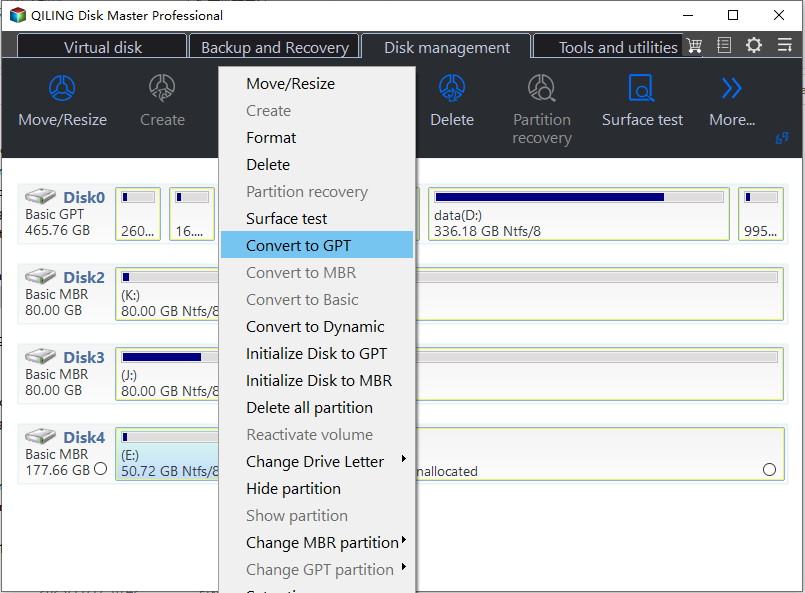
Step 3. Waiting for whil to finish the conversion.
Changing the partition style using Qiling Disk Master can be a helpful solution. After using this tool to modify the partition style, check if the issue has been resolved. This method often proves to be effective, so it's worth trying if you haven't already. Simply download Qiling Disk Master from your browser and see how easily it can address your problem.
Method 5. Specify BCD File
This allows you to explicitly define the location of the BCD (Boot Configuration Data) file, ensuring the system can locate it correctly, thereby resolving the "The boot configuration data store could not be opened; the system cannot find the file specified" error.
Using the Qiling Disk Master, a comprehensive Windows boot repair tool, you can complete the process effectively. The BCD menu in Qiling Disk Master allows you to designate where the BCD file is located.
Method 6. Rebuild BCD
If the previous methods to fix the "bcdedit: The boot configuration data store could not be opened" issue don't work, you can manually rebuild the BCD using the Windows Recovery Environment (WinRE) and the Windows 10 installation disc.
To handle BCD-related problems successfully, you can follow these steps: Identify the issue, whether it's a technical problem or a misunderstanding of the concept, and address it promptly. Ensure that all parties involved are on the same page and that the communication is clear and concise.
Step 1. Start your PC from the Windows 10 installation disc by inserting it.
Step 2. After starting the Windows setup, select "Next" and then choose "Repair your computer" from the menu. Next, select "Troubleshoot" and then "Command Prompt".
Step 3. In the elevated Command Prompt window, enter the following commands one by one and press Enter after each:
- bootrec /fixmbr
- bootrec /fixboot
- bootrec /scanos
- bootrec /rebuildbcd
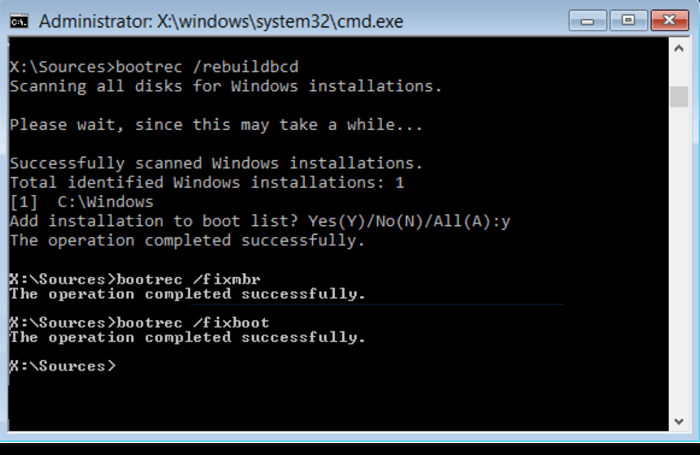
Step 4. After the process finishes, restart your computer and check if the error has been resolved.
If you found this article useful in resolving your issue, consider sharing it with friends who might benefit from these solutions.
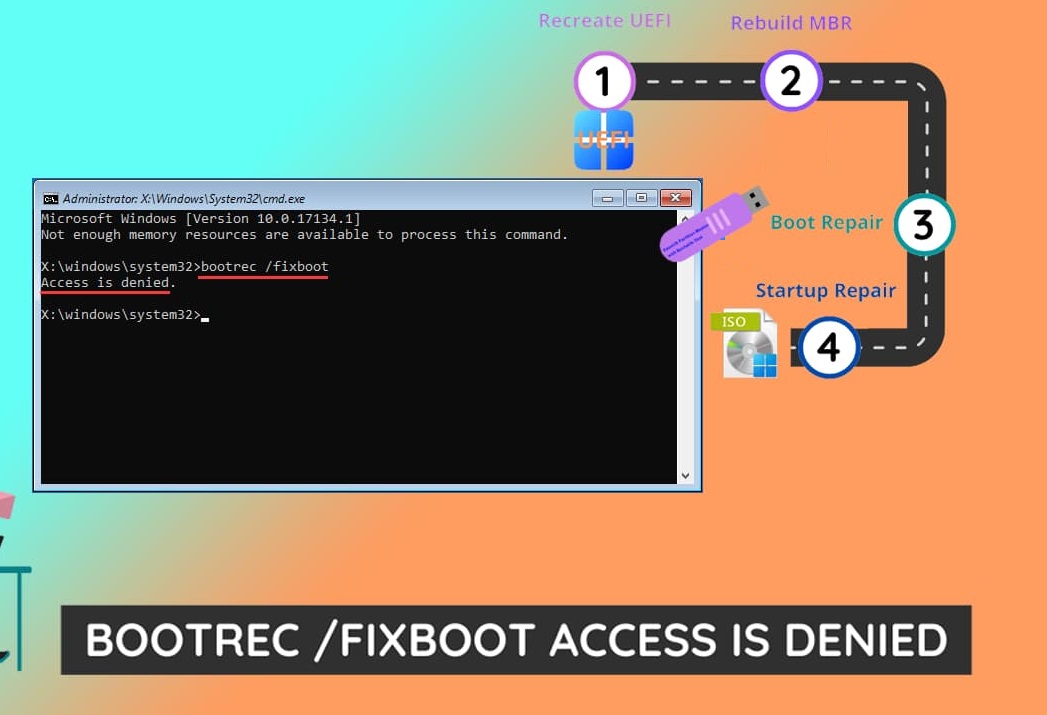
Sharing knowledge can make troubleshooting easier for everyone. If you encounter the bootrec /fixboot error, don't worry - there's a helpful tutorial article available to guide you through the process.

Getting Bootrec /Fixboot Access Is Denied Error? Roundup Solutions
When you encounter the 'bootrec /fixboot Access is denied' error message in Windows 10/8/7, don't worry - this article provides can help. It provides all possible solutions to fix the issue, helping you resolve the problem and get your system up and running smoothly again.
What Is Boot Configuration Data
In Windows operating systems, Boot Configuration Data (BCD) is a vital system component that maintains crucial configuration parameters for the bootloader, playing a key role in the boot process by instructing the machine on how to boot and load the operating system.
Several boot-When the Battery Control Device (BCD) is damaged or has problems, several related issues might arise, including faulty battery charging, inconsistent voltage regulation, and potential electrical shocks or fires due to malfunctioning electrical pathways. Additionally, a malfunctioning BCD can lead to reduced battery lifespan, decreased system performance, and increased risk of electrical component failure.
- It failed to open the boot configuration data storage.
- lt states, "Boot BCD is missing or corrupt."
- Error: "The requested system device cannot be found.
- "When attempting to access BCD, access is denied."
Now that you know what BCD is and the issues it might create, continue reading to see why you could get the error message "The BootConfiguration Data Store Could Not Be Opened." If you like this tutorial, you can share it with others by clicking the social buttons below.
Why The Boot Configuration Data Store Could Not Be Opened
To understand the context of the error, take a look at a real example from the Microsoft community forum. This provides you a better idea of what's going on and how to resolve the issue.
This case is a perfect example of the problem many Windows users encounter.
So, continue reading to discover the underlying variables in the "Access is denied" problem.
- Lack of Command Prompt Window Privileges. To resolve the issue, you need to run the command prompt as an administrator, which grants you the necessary administrative rights to access BCDedit. This will prevent the "Access is denied" error from appearing.
- Missing Startup Configuration Data File. If the startup configuration data file is missing or damaged, Windows will encounter an issue as it cannot retrieve the essential boot data.
- Boot Partition Type and Disk Partition Table Inconsistency. When the boot partition type (MBR or GPT) and the disk's partition table are incompatible, it can cause issues with accessing the Boot Configuration Data (BCD), potentially leading to errors.
Conclusion
The "Boot Configuration Data Store Could Not Be Opened" error is a frustrating issue for Windows users, often causing the boot process to fail and resulting in other problems.
After examining other approaches, the Qiling Disk Master Tool is a highly effective and simple solution to fix the BCD-related problem, making it the best option for a quick fix due to its Boot Repair tool that speeds up the processing.
FAQs About The Boot Configuration Data Store Could Not Be Opened
The Boot Configuration Data Store Could Not Be Opened error occurs when the system fails to access the Boot Configuration Data (BCD) store, which is a database that stores boot configuration information for Windows operating systems. This error can be caused by a variety of factors, including corrupted system files, incorrect boot order, or hardware issues. To resolve the issue, users can try booting in Safe Mode, checking the Event Viewer for errors, running a System File Checker, or using a bootable USB drive to access the BCD store. Additionally, users can try resetting the BCD store or using a third-party tool to repair the BCD.
1. How to fix BCD errors in Windows 10?
Fixing the BCD error in Windows 10 is a relatively straightforward process. Simply follow the steps below, and you'll be able to resolve the issue in no time.
Step 1. Launch the Command Prompt as administrator.
Step 2. Run the command 'bcdedit.exe' to check for BCD errors and apply any necessary fixes.
2. How can the requested system device not be found?
You can fix the requested system device cannot be found error using the process below:
Step 1. Access BIOS/UEFI settings.
Step 2. Verify and adjust the boot device or partition settings to ensure the system device is recognized, which may involve checking the BIOS settings or adjusting the partition table to ensure the correct drive is being used for booting.
3. How do you repair BCD from the command prompt?
Repairing the Boot Configuration Data (BCD) from the command prompt is a quick and effective solution. By following the instructions, you can easily repair the BCD and resolve any issues with your system's boot process.
Step 1. To boot into Windows Recovery Environment (WinRE) using a Windows installation media, insert the installation media (such as a USB drive or CD/DVD) into your computer. Restart your computer and press the key to access the boot menu (usually F2, F12, or Del, depending on your computer's BIOS settings).
Step 2. To repair the Boot Configuration Data (BCD) in the Command Prompt, execute the 'bootrec /fixmbr', 'bootrec /fixboot', 'bootrec /scanos', and 'bootrec /rebuildbcd' commands, which will help fix the Master Boot Record, fix the boot sector, scan for Windows installations, and rebuild the BCD respectively.
Related Articles
- [Fixed] Dell Recovery Partition Missing on Windows
- How to Format A USB Drive That Doesn't Show Up
- How to Restore or Format SD Card to Full Capacity
- Best 3 DBAN Alternatives to Wipe Hard Drive - 2024 New
If you're looking for a better alternative to DBAN disk eraser, consider Qiling Disk Master. This tool offers a secure way to erase hard drives, SSDs, SD cards, and USB drives, providing a reliable alternative to DBAN. - Password Reset Disk Windows 7: How to Create and Use
To create a password reset disk for Windows 7, insert a blank CD or DVD into the computer's CD/DVD drive and follow the instructions in the “Create a password reset disk” wizard that appears. - How to Perform Xbox 360 Hard Drive Format [Easy Guide]
Discover the easiest ways to perform Xbox 360 hard drive format with our convenient and straightforward tutorial. Follow the step-by-step instructions carefully to ensure a smooth process, taking all crucial steps to become an expert in formatting your Xbox 360 hard drive.
Products
Articles & Tutorials
- Data Recovery
- Data Backup
- File Recovery
- File Backup
- System Backup and Restore
- Disk and Partition Clone
- Technical articles
- Mobile articles
- Disk Master Help
- Windows Data Recovery Tutorials
- Windows Secure Delete Tutorials
- Windows Partition Management Tutorials
- Windows File Backup and Restore Tutorials
- Windows System Backup and Restore Tutorials
- Windows Disk Backup and Restore Tutorials
- Windows Clone Tutorials