Fixed: The System Cannot Find Any Bootable Devices| 7 Ways
The booting sequence is a critical process that initiates the operating system and readies a computer for user interaction. However, facing the "The system cannot find any bootable devices" error can be distressing for users, but this error can be resolved effectively by troubleshooting and resolving issues with the boot order, checking for loose connections, and running a diagnostic test to identify and fix any hardware problems.
View the Necessary Information to Fix System Cannot Find Any Bootable Devices:
| ⏲️Duration | 3-6minutes of reading |
| 🚩Goal | To fix the "no bootable devices could be found" error on Windows 10/11, try booting in Safe Mode, checking the BIOS settings, and ensuring the boot order is set to the correct device. If the issue persists, try booting from a USB drive or CD/DVD, and if that doesn't work, try reinstalling the UEFI firmware or BIOS. |
| 🧑💻Causes |
Improper BIOS/UEFI settings Corrupted boot files |
| ⭐Solution |
Why "The System Cannot Find Any Bootable Devices" Happens
The computer OS cannot locate a valid boot device during startup, resulting in an error message. This issue can occur in notebooks and may display the message "no bootable image found, notebook will be shut down." The causes of this error can be varied, but some common reasons include faulty hardware, corrupted system files, incorrect BIOS settings, and failing hard drives. To resolve this issue, users can try booting from a USB drive, checking the BIOS settings, running a system file check, or replacing the faulty hardware. It's essential to identify and address the root cause to prevent further system crashes.
- Improper BIOS/UEFI settings
- Faulty or disconnected hard drive/SSD
- Corrupted boot files
- A misconfigured boot order in the BIOS/UEFI settings
A Reddit user shared their distressing experience with this error:
Addressing the underlying causes of a computer's malfunction can restore its functionality and provide a seamless computing experience. Solutions to resolve the error and bring the system back to life will be provided in the next section.

How to Fix BIOS Recognizes SSD But Won't Boot
If your BIOS recognizes your SSD but won't boot, don't panic! This issue can be frustrating, but there are effective fixes and solutions to resolve it.
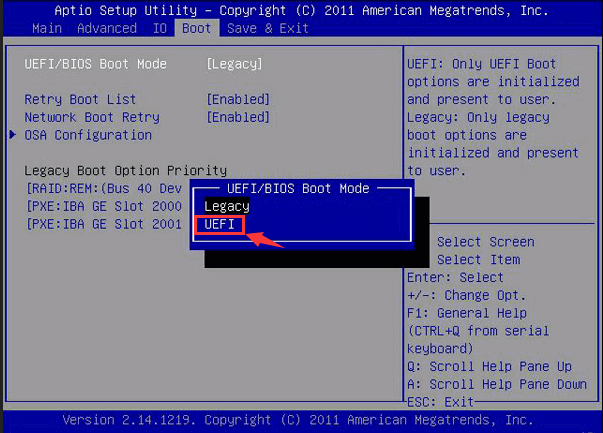
How to Fix "The System Cannot Find Any Bootable Device"
To resolve the "The system cannot find and bootable device" error, you can try booting in safe mode, checking the BIOS settings, running a disk check, and ensuring the boot order is set to the correct device. Additionally, you can try reinstalling the operating system, running a System File Checker, and using a bootable USB or CD to repair the system.
Solution 1: Quick Fixes to Check Your Connection
Here are the quick checks:
- Check Connections: Verify that the connection between the boot drive and the motherboard is secure, as a loose connection can prevent the system from detecting the boot device.
- Check Motherboard and CPU Slots: Verify that the motherboard and CPU slots are not disabled, especially after hardware changes, to ensure proper functionality.
- Verify Storage Devices: To properly detect all installed storage devices, access the Storage or Disk Information section in your motherboard settings. This will allow you to view a comprehensive list of all storage devices, including internal hard drives, solid-state drives, and other external storage devices connected to your system.
If these are okay, keep checking below for more options. If other users are also experiencing these difficulties, click the button below to share and help others.
Solution 2: Modify BIOS Settings
The BIOS is a critical component of your computer's startup process, and adjusting specific configurations can significantly impact the system's ability to recognize and boot from the correct devices. Tweaking the BIOS settings can make a significant difference, and this solution will explore three essential guides to help with this process, including adjusting the boot order, enabling the correct boot device, and configuring other settings as needed.
2️⃣Turn on Compatibility Support Module (CSM)
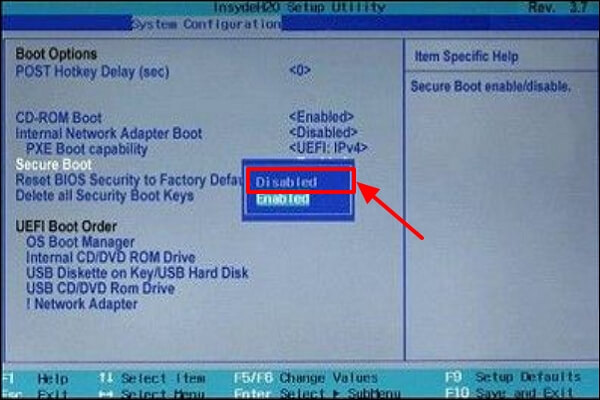
To resolve boot issues related to Secure Boot, you can disable it in the BIOS/UEFI settings by following these three steps. This can help your system recognize bootable devices more effectively.
- To access the BIOS/UEFI settings, you'll need to press a specific key during your computer's startup process. This key is usually F2, F10, or Delete, and the exact key may vary depending on your computer's manufacturer.
- Depending on your motherboard, navigate to the "Security" or "Boot" section.
- Find the "Secure Boot" option and disable it.
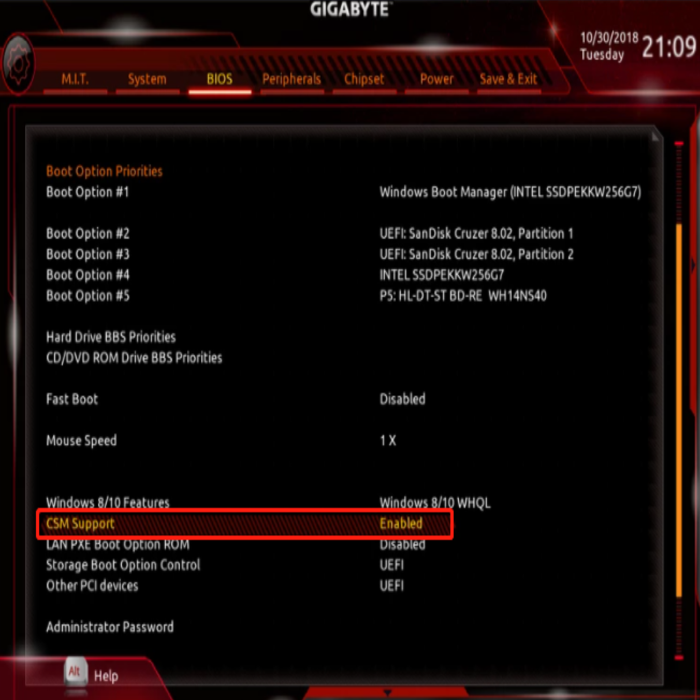
Enabling the Compatibility Support Module (CSM) can help resolve boot device detection problems, especially on legacy systems. Access BIOS settings, enable CSM, and then restart the computer to check whether the system can boot normally.
- Access BIOS/UEFI settings.
- Locate the "Boot" or "Advanced" section.
- Enable "CSM Support" to allow legacy booting.
Altering the boot order in BIOS/UEFI can ensure that the correct bootable device is first recognized during system startup. You can adjust the boot order and resolve the booting issue in three steps:
- Access BIOS/UEFI settings.
- Visit the "Boot" section.
- To adjust the boot order, you would typically enter the BIOS settings by pressing a specific key (like F2, F12, or Del) as the system boots up. In the BIOS settings, navigate to the Boot Order or Boot Priority section, which is usually found under Advanced or Boot options. From there, you can reorder the devices to place the bootable device (such as a hard drive, solid-state drive, or USB drive) as the priority, allowing the system to boot from it first. Once you've made the changes, save the settings and exit the BIOS to test the new boot order.
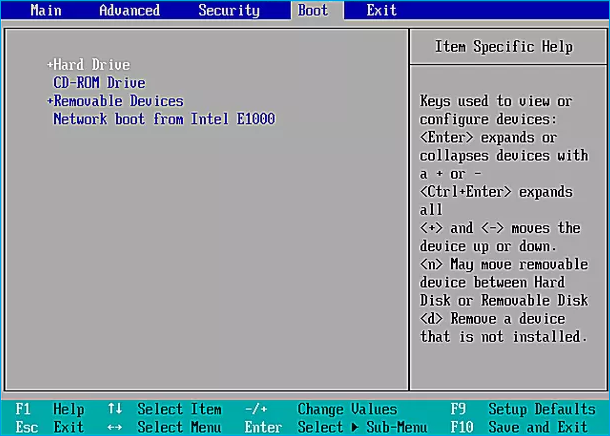
Changing the startup order can help resolve some startup-related issues, making it a crucial step in booting your computer from a bootable USB. For more detailed information, click the button below.
Solution 3: Set the System Partition As the Active Partition
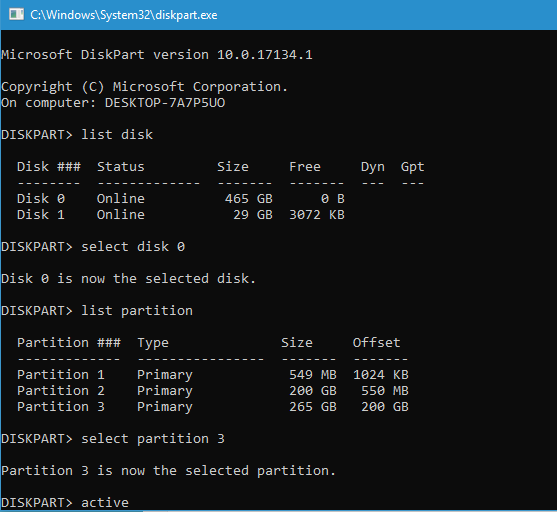
To designate the system partition as the active partition, you can use the Windows installation media to enter the Windows recovery environment. From there, you can access the command prompt and type the command "diskpart" to open the Diskpart utility. Then, type "list disk" to list all the disks connected to your system, and select the disk that contains the system partition by typing "select disk X", where X is the number of the disk.
Step 1. Repeatedly shut down and restart your computer, and when you see the Windows logo, go to the recovery screen.
Step 2. Go to the Command Prompt screen through the advanced options.
Step 3. Enter the following commands in sequence and set the system partition as the active partition:
- diskpart
- list disk
- select disk 0 0 is the number of the disk locating the target partition, meaning the partition you're trying to access or manipulate is located on the first disk (usually the primary hard drive) of your system. This information is often used in commands or instructions related to disk management, partitioning, or file system operations.
- list partition
- select partition 3 (3 represents the number of the system partition)
- active
Solution 4: Repair the Boot Sector
The boot sector contains vital booting information, and if it becomes corrupted, it can trigger the "The system cannot find any bootable devices" error. The Qiling Disk Master can help resolve this issue.
Qiling Disk Master's "Rebuild MBR" feature allows for a more detailed fix of MBR issues by creating Windows bootable disks, making the process simpler and reducing the risk of incorrect operations.
Before repairing the MBR, run Qiling Disk Master on another good computer and create a bootable disk to ensure the process is done correctly and safely.
Step 1. Create a WinPE bootable disk
- Launch Qiling Disk Master, click on the "Tools" tab, and select "Create bootable media" from the options available.

Step 2. Boot Qiling Disk Master Bootable USB
- Connect the bootable USB or CD/DVD to your PC.
- To access the BIOS screen, press F2 or Del when restarting your computer. Once in the BIOS, set your computer to boot from the "Removable Devices" or "CD-ROM Drive". After doing so, Qiling Disk Master will automatically run.
Step 3. Rebuild MBR
- Rigth-click the disk and choose "Rebuild MBR".

- Select the disk and the type of MBR. Then, click "Proceed".

- The message "MBR has been successfully rebuilt on Disk X" indicates that the Master Boot Record (MBR) of the disk with the label "X" has been successfully rebuilt or restored to its original state. This is usually done after a disk has been corrupted or damaged, and the process involves rewriting the MBR with a new, clean copy.
Solution 5: Changing the Partition Style
Changing the partition style of your disk can resolve boot-related issues. You can switch to MBR if you're using an older Windows system, or use GPT if you're in UEFI mode. Alternatively, after creating a bootable USB with Qiling Disk Master, you can change the partition style using the tool, which can also help you format your hard drive from BIOS in Windows 10.
Here is the full guide to changing the partition style from BIOS to UEFI:
Step 1. Connect an empty USB flash drive or CD/DVD disc to a healthy computer, launch Qiling Disk Master, go to the "Tools" tab and select "Create bootable media".
Step 2. Choose the USB or CD/DVD and click "Proceed" to start creating the bootable media.

Step 3. To start the process, connect a USB drive with a bootable operating system to your computer. Then, restart your PC while ensuring it boots from the USB drive.
To access the BIOS settings and set the computer to boot from a USB drive or CD/DVD, press the F2 or Del key to enter the BIOS setup. From there, navigate to the boot order settings and select "Removable Devices" or "CD-ROM Drive" as the primary boot device. Once you've made the changes, press F10 to save and exit the BIOS setup, and the computer will restart and boot from the chosen media.
Step 4. Once your PC enters Qiling Disk Master, right-click the target MBR disk you intend to convert to GPT.
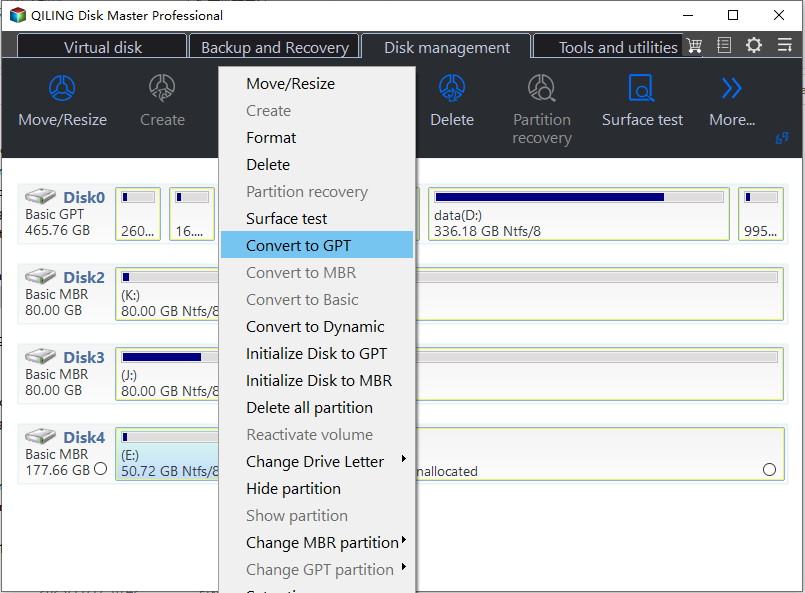
Step 5. And click "Convert to GPT" to start the conversion.
Solution 6: Use the Boot Repair Tool
Qiling Disk Master is a powerful tool with a "Boot Repair" feature that can easily fix various boot problems, including no bootable devices found on Dell/Acer or other boot errors, thanks to its rigorous research and development.
To resolve boot errors, you can use a powerful tool that can be downloaded for free. This tool offers useful solutions to help you troubleshoot and fix boot-related issues.
Step 1. To create a bootable media, connect the external drive/USB to your computer, launch Qiling Disk Master, navigate to the "Tools and utilities" tab page, and click on "Create bootable media".
Step 2. To install Windows, select a suitable storage medium such as a USB drive or CD/DVD, and then click "Proceed". Alternatively, you can burn the Windows ISO file onto the chosen storage medium.
Step 3. Connect a bootable drive to a new computer, reboot by pressing F2/Del, set the drive as the boot disk, and exit the BIOS by pressing F10.
Step 4. Boot the computer again and enter the WinPE interface. Then, open Qiling Disk Master, click "Tools" and select "Fix Boot".

Step 5: Select the system you want to repair and click "Proceed".

Step 6. The system has been successfully repaired. You can now access the website.
Solution 7: Fresh Installation of Windows
Installing a fresh Windows operating system can be the most reliable solution in some cases, providing a clean start and eliminating persistent boot issues.
To resolve the "The system cannot find any bootable devices" error, try booting in safe mode, check the BIOS settings, and run a System File Checker (SFC) scan. If the issue persists, use a Windows installation media to repair or reinstall Windows, or try booting from a USB drive. If none of these solutions work, you may need to seek assistance from a qualified professional to avoid data loss or further complications.
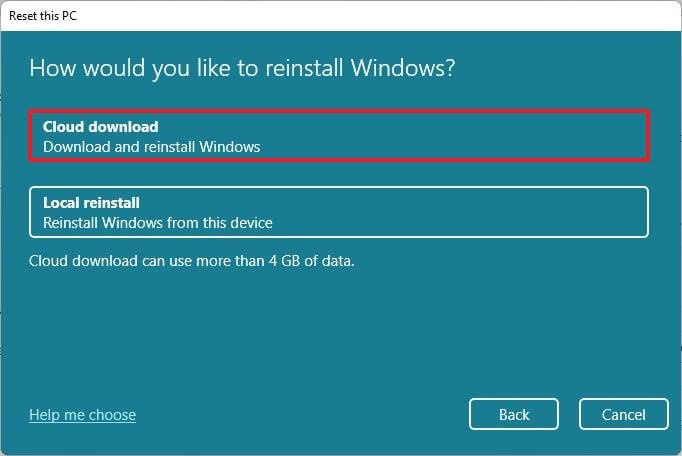
How to Reinstall Windows 11 Without Losing Data
You can reinstall Windows 11 without losing data or affecting your license, and we've outlined four ways to do so. Despite the reinstallation, your data and license will remain intact, ensuring a seamless transition.
Conclusion
The "The system cannot find any bootable devices" error can be frustrating, but its causes and solutions are relatively straightforward. The issue often arises from loose connections or incorrect BIOS settings, such as Secure Boot being enabled or the boot order being set incorrectly, so it's worth checking these and making any necessary adjustments. By taking these simple steps, you may be able to resolve the problem and get your computer up and running again.
Qiling Disk Master's "Boot Repair" feature offers comprehensive solutions to troubleshoot and resolve booting issues without reinstalling Windows. Utilizing these efficient methods allows you to regain control over your computer's startup and overcome booting challenges. For complex tasks, it's recommended to seek professional help. However, for a seamless experience, you can turn to Qiling Disk Master for its effective solutions.
FAQs About The System Cannot Find Any Bootable Devices
If you're still unsure about the error "The system cannot find any bootable devices," we've compiled some frequently asked questions and answers to help clarify things. Is the error message appearing on a Windows computer?
1. Why my Asus laptop was unable to find bootable devices?
The error could be due to improper BIOS settings, a faulty or disconnected hard drive, corrupted boot files, or misconfigured boot order. Check these aspects and follow the solutions provided in the article to resolve the issue.
2. How can the "no bootable device found" error be fixed?
The error "No bootable device found" occurs when Windows cannot locate a drive to boot the system. This issue can be caused by various reasons and can be resolved by trying several options.
- Perform a hard reset
- Reset the hard disk
- Restore BIOS default settings
- Check for bad sectors
- Rebuild the MBR
3. How to enable the bootable device in BIOS?
To access BIOS/UEFI settings, press the F2, F10, or Delete key during startup. Navigate to the "Boot" or "Security" section, find the bootable device, and enable it or set it as the first boot priority, depending on your motherboard.
If you're experiencing booting issues, refer to the article for a detailed guide and solutions to resolve the problem effectively.
Related Articles
- Slow Boot Time! SSD Taking Long Time to Boot in Windows 11/10
- Defaultuser0 Password? Fix It Now! [5 Efficient Ways🔥]
- How to Install M.2 SSD [Beginner's Guide⭐]
- How to Fix SD Card Saying Full When Empty in Windows 11/10/8/7
- Kingston Format Utility Format Fail 4/8/16/32/64/128 GB
If you're experiencing issues with the Kingston format utility failing to format your 4/16/32/64/128 GB Kingston DTSE9, Kingston Traveler G4, or Kingston DT50 USB pen drive, you may be encountering a problem with write protection or a Windows formatting issue. - Solved 2022: Unable to Recover Your PC. The System is Too Small
When an error message appears saying “Unable to recover your PC. The system is too small”. Fortunately, there are 4 potential solutions to this issue that can be found on this page.
Products
Articles & Tutorials
- Data Recovery
- Data Backup
- File Recovery
- File Backup
- System Backup and Restore
- Disk and Partition Clone
- Technical articles
- Mobile articles
- Disk Master Help
- Windows Data Recovery Tutorials
- Windows Secure Delete Tutorials
- Windows Partition Management Tutorials
- Windows File Backup and Restore Tutorials
- Windows System Backup and Restore Tutorials
- Windows Disk Backup and Restore Tutorials
- Windows Clone Tutorials