How to Boot from External SSD on Windows 10/11
External SSDs have better performance than HDDs, and the average boot time for SSDs is 10-13 seconds, compared to 30-40 seconds for HDDs, making them a popular choice for booting Windows. Many users have successfully booted their computers from external SSDs, but it requires a compatible computer and a few specific settings, such as enabling USB boot and setting the SSD as the first boot device. However, some computers may not support booting from external SSDs, so it's essential to check the specifications before attempting to boot from one.
Yes, it is possible to boot Windows 10 or 11 from an external SSD, which can be a more reliable option than using a Windows To Go SD card. This method allows you to run Windows on an external drive without affecting the host computer's primary operating system, making it a good option for those who need Windows for a specific purpose without wanting to dual-boot.
Qiling will guide you through the feasibility of booting Windows from an external SSD and provide a detailed solution.
View the Necessary Information to Boot from External SSD
| ⚙️Complex Level | Low, Beginners |
| ⏱️Duration | 4-8 minutes |
| 💻Applies to | Set External SSD as a boot drive |
| ✏️Stages |
To start, prepare the external SSD by formatting it and making sure it's recognized by your computer. This typically involves plugging it into your PC, opening the disk management tool, and initializing the drive. Once it's set up, you can start using it as a storage device. |
Is It Possible to Boot from External SSD?
You can boot from an external SSD, which can be helpful if the OS on the internal drive is corrupted, and there are additional benefits to booting Windows from an external SSD, including improved performance and convenience.
- External SSD is more durable: The SSD has several advantages over a traditional hard drive. It has no moving parts, which means it can withstand more physical stress and is less prone to mechanical failure. Additionally, SSDs generate less heat and noise, making them more energy efficient and contributing to longer battery life for laptops.
- External SSDs offer faster speeds: SSDs can load and transfer files and applications much faster than traditional hard drives, also reducing the time it takes to boot up your computer.
This article provides a detailed solution for booting Windows from an external SSD, offering a step-by-step guide on how to achieve this.
You May Also Interested In:
How to Boot from External SSD
To boot an SSD from an external drive, there are three stages to follow. First, you'll need to prepare your system for booting from an external drive, which involves setting up your computer to recognize the external SSD as a bootable device. Next, you'll need to create a bootable external SSD, which involves formatting the drive and installing a bootable operating system or bootloader. Finally, you'll need to configure your system to boot from the external SSD, which may involve adjusting your BIOS settings or using a specific software tool.
Stage 1: Prepare the External SSD and Put It Into Your PC
1. Connect the external SSD to your computer using a compatible interface (USB or Thunderbolt).
2. Initialize and format the new SSD to NTFS file system.
- To open Disk Management, press and hold the Windows icon, and select and open Disk Management.
- Right-To format an external SSD, click on it to select it, then click on it again to open its context menu, and finally select "Format" from the menu.
- To optimize your file system, choose the one that suits your needs, and then adjust the cluster size to your desired preference.
3. Make sure the SSD has enough space for partitioning
Ensure the external SSD has enough space to accommodate your Windows 11/10 operating system by making sure its capacity is greater than or equal to the capacity used by the system partition.
Stage 2: Install OS on External SSD
Installing an operating system on an SSD can be done in two ways: using a Windows ISO file or cloning the existing Windows operating system. Regardless of the method chosen, the Qiling Disk Master is a useful tool to have for this process.
This tool offers a range of features to simplify the process of installing an operating system, including migrating your Windows OS to a new external SSD with ease and speed. It provides a safe and fast solution for installing an operating system, making it a convenient option for those who need to set up a new OS.
Step 1. Select the source disk.
- To clone a disk, click the "Clone" option from the left menu, select the appropriate disk type (either "Clone OS Disk" or "Clone Data Disk"), and then click "Next" to proceed with the cloning process.
- Choose the source disk and click "Next".
Step 2. Select the target disk.
- Select the desired HDD or SSD as the destination and click "Next" to proceed.
- Read Warning message and confirm "Yes" button.
Step 3. View the disk layout and edit the target disk partition size.
To prepare for the installation of a new operating system, the user should first ensure that the target disk is empty and free of any operating system. This can be done by booting from a Windows installation media and selecting the "Repair Your Computer" option, then clicking "Troubleshoot," followed by "Reset this PC." Then, click "Continue" when the program warns it will wipe out all data on the target disk. If the target disk contains valuable data, it is essential to back up that data in advance to avoid any potential loss.
You can customize your disk layout by selecting "Autofit the disk", "Clone as the source", or "Edit disk layout", with the last option being recommended if you want to leave more space for the C drive.
Step 4. Click "Start" to start the disk cloning process.
Qiling Disk Master is a powerful tool that supports all external and internal devices, allowing for the installation of Windows 10 from a USB drive, and also provides information on how to boot Windows from an SD card.

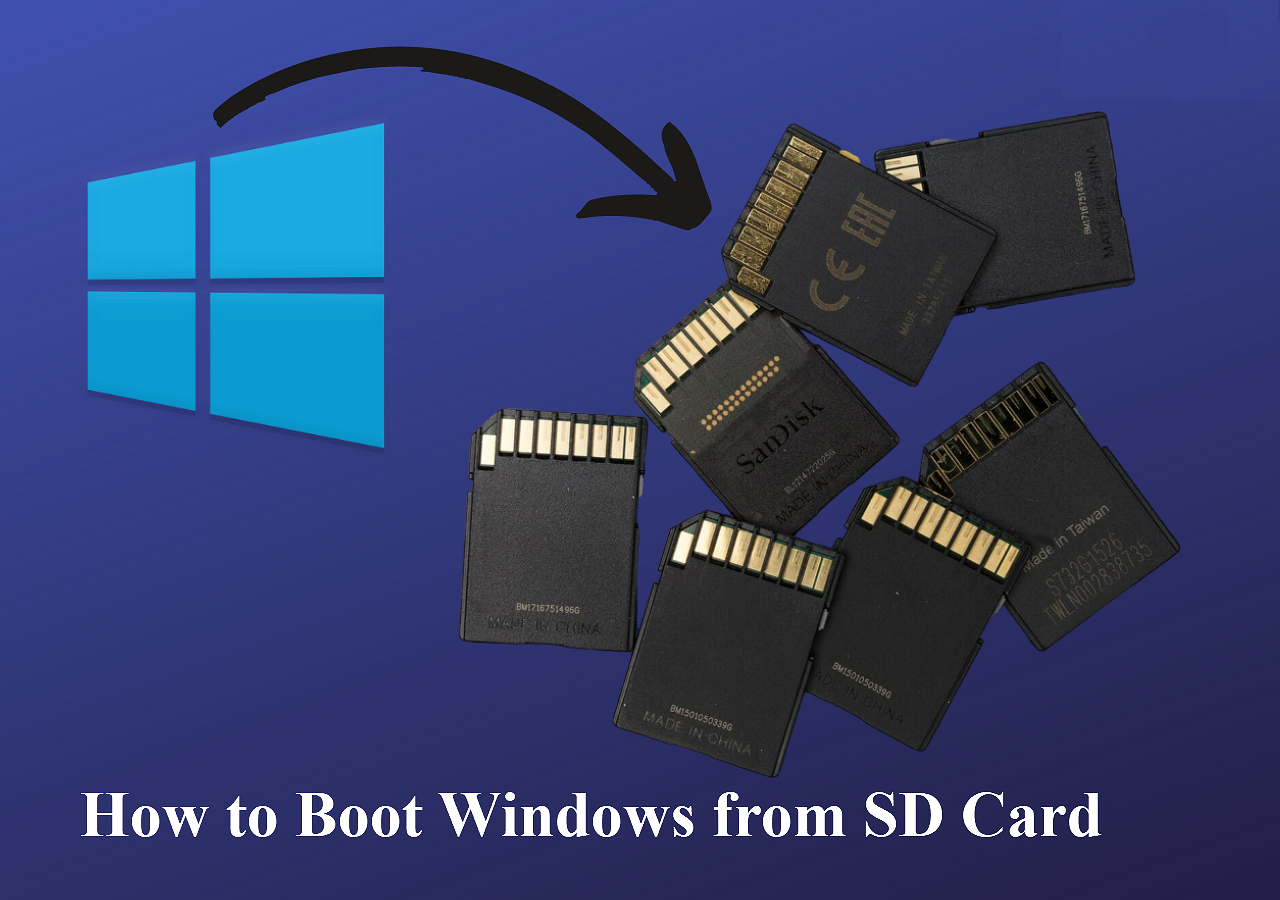
How to Boot Windows from SD Card [Full Guide]
To boot Windows from an SD card, you'll need to create a bootable SD card, which involves formatting the card and installing a bootable operating system, such as Windows, onto it. This process typically requires a computer with a working operating system, a blank SD card, and a USB drive with a bootable Windows installation media. You'll also need to configure the BIOS or UEFI settings to prioritize the SD card as the primary boot device.
To set up the external SSD, first, connect it to the computer using a USB cable. Next, turn on the computer and enter the BIOS settings. Then, navigate to the boot order settings and set the external SSD as the primary boot device.
Stage 3: Set up the external SSD as a boot drive in BIOS
When you make an external SSD bootable, you'll also need to change the boot order in the BIOS to prioritize the external SSD. This way, when you start your computer, it will automatically check if the external SSD is available. If it is, you can successfully boot Windows from the external SSD.
To set up an external SSD as a bootable drive on Windows, first, connect the external SSD to your computer via a USB port. Then, open the Disk Management tool by searching for it in the Start menu or typing "diskmgmt.
Step 1. To reboot your computer and enter the BIOS setup, press the corresponding key for your system, which is usually F2, F12, or Del. This will take you to the BIOS setup screen where you can make changes to the boot order, configure other settings, and save your changes.
Step 2. To change the boot order in the boot options, locate the target external SSD under the Boot Priority tab and move it to the top.

Step 3. Save the changes and exit.
After setting the external SSD as a bootable drive, you can use the new SSD as your system operating disk.
Conclusion
Yes, it is possible to boot from an external SSD, and this can be achieved in three stages. Using a tool like Qiling Disk Master, you can clone your Windows system to an external SSD, making it possible to boot from the external drive. This process can be completed easily and efficiently, allowing you to set up an external SSD as your primary boot drive.
If you enjoyed this article about booting Windows from an external SSD, be sure to share it with others who may benefit from this helpful information!
FAQs About Booting from External SSD
If you're having trouble booting from an external SSD or setting it as your primary drive, you might find the answers you're looking for in our FAQ section. Our FAQ section provides detailed information and troubleshooting steps for common issues related to booting from external SSDs and setting them as primary drives.
1. How can I boot from SSD instead of HDD in BIOS?
To set the external SSD as the boot drive, follow these steps:
Step 1. Press and hold F2/F12/Del to enter the BIOS.
Step 2. You can change the boot order by going into the BIOS settings and moving the SSD to the top of the boot order list. This will allow the system to boot from the SSD first, and then if it fails, it will try to boot from the other drives.
Step 3. Save the changes and reboot the PC.
2. Why can't I set an external SSD as a boot drive?
A boot mode error can prevent an external SSD from being set as the boot drive. If the SSD is a GPT disk, enabling EFI/UEFI boot mode in BIOS settings or converting it to an MBR disk may resolve the issue. This is necessary for the SSD to boot properly.
3. Why does BIOS not recognize SSD boot?
If the BIOS doesn't detect or recognize the SSD, it might be due to a damaged or incorrectly connected cable, or the SATA cable being disconnected, so double-check that it's securely connected.
4. How to boot Mac from an external SSD?
Follow these steps to boot from an external SSD on Mac:
Step 1. To connect the external SSD to your Mac, first erase the external SSD using Disk Utilities, then reformat it to prepare it for use.
Step 2. Install macOS to the external SSD.
Step 3. Reboot the Mac and hold down the Option key until Boot Options appears.
Step 4. Set the "Allow booting from external media or removable media" option under Utilities.
Related Articles
- How to Fix Windows 10 Won't Boot After Update 2016 [Effective]
- Steam Deck Speed Test, Everything You Should Know
- How to Optimize Windows 11 for Gaming [6 Effective Ways🧰]
- Best PNY USB Flash Drive Format Tool Free Download👍
- 4TB Hard Drive Only Shows 2TB Windows 11/10, Why and How to Restore the Full Capacity
If your 4TB hard drive only shows 2TB or less capacity in Windows 11/10/8/7, this guide will help you understand why it's happening and how to fix it. - How to Access Linux EXT4 Partition and Data on Windows 11/10/8/7 in 2026
If you're using dual-booting Windows and Linux, you may need to access files on your Linux EXT4 partition from Windows. However, Windows can't read Linux EXT4/EXT3/EXT2 partitions directly.
Products
Articles & Tutorials
- Data Recovery
- Data Backup
- File Recovery
- File Backup
- System Backup and Restore
- Disk and Partition Clone
- Technical articles
- Mobile articles
- Disk Master Help
- Windows Data Recovery Tutorials
- Windows Secure Delete Tutorials
- Windows Partition Management Tutorials
- Windows File Backup and Restore Tutorials
- Windows System Backup and Restore Tutorials
- Windows Disk Backup and Restore Tutorials
- Windows Clone Tutorials