Password Reset Disk Windows 7: How to Create and Use
Forgetting Windows 7 passwords is still a common issue, so it's a good idea to create a password reset disk in advance to regain access to Windows 7 if you forget your password. You don't need technical expertise, just a USB disk or external hard drive to store the reset files. This article explains how to create a password-bootable disk and use it to reset your Windows 7 password.
| Tools | Difficulty | Features |
|---|---|---|
| Qiling Disk Master |
|
|
| Windows Password Reset Disk Feature |
|
|
Make Windows 7 Password Reset USB - Qiling Disk Master
Qiling Disk Master Professional is a tool that helps create a Windows password reset USB, streamlining the process and protecting data and the operating system. It allows creating a password reset disk for a locked computer on another computer, and makes it easy to remove passwords without complicated procedures or data loss worries.
Step 1. To create a bootable USB disk, insert the target USB disk into the computer, download and run Qiling Disk Master, then click on "Tools" and select "Create bootable media".

Step 2. Select the correct USB flash drive or external mobile hard disk, click "Proceed" again, and wait patiently. After the password reset USB flash drive is created, click "Finish."

Step 3. Insert the password reset USB into the locked PC and restart it. You will be prompted to change the boot drive to boot from the USB, and once completed, the system will automatically boot from the USB.

Step 4. After restarting, find Qiling Disk Master again and go to "Password Reset". Click on the target account and check "Reset" to reset the passwords of all accounts on the PC.

Step 6. When you receive this prompt, click "Yes" to continue. Your password will be erased.

With this tool, unlocking a locked Windows 7 computer is easier. It can also help create bootable media and reset a forgotten Windows password when you cannot sign in.
- Reset Windows 7 password with USB
- Reset Windows 11 password with USB
- Reset Windows 10 password with USB
- Create password reset tools on Windows
- Create a password reset disk for another computer
With the help of this tool, you can easily bypass the Windows password and access your computer without any hassle. It's a great solution if you're locked out of your PC and need to get back in quickly.
Use Create a Password Reset Disk Feature on Windows 7
Windows comes with a feature that allows you to create a Windows 7 password reset disk, but this approach has two limitations:
- Notice:
- 1. You can only create a password reset disk for the computer you are currently using.
- 2. To regain access to your computer, you need to choose Qiling Disk Master even if you've forgotten your password and are locked out.
Here are the steps on how to create it:
Step 1: Insert a certified USB flash drive into your Windows 7 computer.
Step 2: To reset your password, type "Password reset" in the search box and select "Create password reset disk".
Step 3: When the Forgot Password Wizard window appears, click Next.
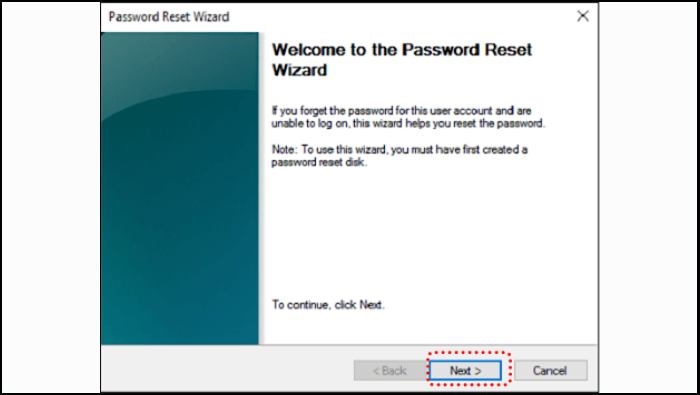
Step 4: Choose the target USB flash drive and click Next.
Step 5: After the Forgot Password Wizard finishes creating the reset disk, click Next and then click Finish.
To create a Windows 7 password reset disk or USB, start by inserting a blank CD or DVD into your computer or a USB drive with at least 128 MB of free space. Then, click on the Start button, type in "password reset" in the search bar, and select the "Create a password reset disk" option.
After creation, save it properly. Don't forget where you put it. When you forget your Windows 7 password, you can take it out and reset your Windows 7 password using the following steps:
Reset Windows 7 Password Using a Password Reset Disk
- Insert the USB flash drive storing the Windows 7 boot files. After entering the wrong password, you'll see a "Reset password" option — click it.
- The Password Reset Wizard window will appear. Click "Next."
- Go to the drop-down menu, choose the password reset USB, and click "Next."
- Create a new password for your account, and provide a hint to help you remember it. Click the "Next" button, followed by "Finish" to complete the process.
- Then, log in with your new password.
Many people, even experienced users, opt to use a Windows 7 installation USB to reset their password. For those interested in this method, more information can be found in Method 3 of the provided link.

How to Reset Windows 7 Password with USB Drive
If you're locked out of your Windows 7 PC, don't panic! You can easily reset your password using a USB drive, without needing to call for professional help. Our step-by-step tutorial will guide you through the process, helping you regain control of your computer with ease.
You can also reset your Windows password via CMD, and a more detailed guide on Qiling Disk Master can be found in this video.
Conclusion
Windows 7 Password Reset USB is a tool that helps reset a forgotten password on a Windows 7 computer. To create a password reset disk, you can use the built-in tool in Windows 7, or use a third-party software like Qiling Disk Master to simplify the process. The built-in tool can be accessed by going to Control Panel > User Accounts > Manage your passwords, and following the prompts to create a password reset disk. Alternatively, you can use a password reset USB drive created by Qiling Disk Master to reset your password without needing to boot into Windows 7. Simply insert the USB drive, follow the on-screen instructions, and you'll be able to reset your password and regain access to your computer.
You May Also Like:
Password Reset Disk Windows 7 FAQs
To create a Windows 7 password reset USB, you'll need a blank USB drive and a Windows 7 installation CD or a Windows 7 recovery disk. You can use the built-in tool in Windows 7, called "System Recovery Options," to create a password reset USB. Alternatively, you can use a third-party tool like Ophcrack or Hiren's BootCD, which can create a password reset USB that can be used to reset your Windows 7 password.
1. How can I create a password reset disk on Windows 7?
To complete these steps, you will need a removable media, such as a USB flash drive.
- Create a password for your current account.
- To reset your Windows password, click on the "Control Panel" icon, then select "User Accounts", and finally click on "Create a password reset disk".
- Click Next.
- Select your USB drive. Click Next.
- Input the current user account password. Then choose Next.
- Wait a few seconds until the creation progress is completed. Then click Next.
- When the creation is finished, a file named userkey.psw will appear on the USB drive.
2. How do I log into Windows 7 if I forgot my password?
To access your Windows 7 PC again, create a password reset disk in advance. This disk will allow you to reset your password and regain access to your PC. To create the disk, go to User Accounts in Control Panel, click on "Create a password reset disk," and follow the prompts to complete the process.
- First, insert the USB flash drive with the reset disk.
- If you enter the wrong password, you will see a "Reset password" option — click it.
- After clicking "Next," the Password Reset Wizard interface will appear.
- Click the drop-down menu, select the password reset disk, and click "Next."
- Enter your new password and a hint, then click "Next" and "Finish" to complete the password reset process.
- Finally, log in with the new password.
3. How do you reset a Windows 7 password without a USB?
If you've forgotten your Windows 7 password and don't have a USB flash drive handy, you can try using the built-in Administrator account to reset your password. To do this, restart your computer and press the F8 key repeatedly as it boots up.
Step 1. To restart your computer, start by turning it off completely. Press the power button until it shuts down. Wait for a few seconds, then press the power button again to turn it back on.
Step 2. Turn on your computer, and when it asks if you want to initiate startup repair or start Windows normally, select Start Startup Repair (recommended).
Step 3. Startup Repair will start. Click Cancel to refuse to restore your computer.
Step 3. The startup repair tool will diagnose your computer and then allow you to view the issue details.
Step 4. At the end of the column, click the last link to read Microsoft's offline privacy statement.
Step 5. In the Notepad window, click the File menu and select Open.
Step 6. In the new dialog box, change the Files of type option to All Files. Browse C:\windows\system32\sethc.exe. and rename this file as a backup file like "sethc-copy."
Step 7. In the same folder, rename cmd.exe to sethc.exe.
Step 8. Then, close all dialog boxes and let the computer restart.
Step 9. When you see the Windows login screen again, press the Shift key five times to open the Command Prompt window.
Step 10. To reset your Windows 7 password, you can use the built-in Administrator account to create a new password for your user account, or use a password reset tool like Ophcrack or Hiren's BootCD. If you're using a local account, you can try booting into Safe Mode and then accessing the built-in Administrator account to reset your password.
Net User Username new_password
Step 11. To reset your Windows 7 password, you'll need to boot from a Windows 7 installation disc or a USB drive with the installation media. Insert the disc or plug in the USB drive, and restart your computer.
Related Articles
- System Clone VS System Migration, What's the Differences and How to Use?
- 4 Tools to Low Level Format Disk in Windows 11
- How to Convert Dynamic Disk to Basic in Windows [2024 Updated]
- How to Format External Hard Drive for PS3 [2024 Full Guide]
If you're looking to format an external hard drive for use with your PS3, you're likely wondering about the best file system to choose and the proper steps to take. - How to Open Command Prompt in Windows 11
To open Command Prompt in Windows 11, you can search for “cmd” in the Start menu, or type “cmd” in the Windows search bar, and press Enter. Alternatively, you can also press the Windows key + R to open the Run dialog box, type “cmd” and press Enter. - How to Download Partition Assistant for Server with License Key to Manage Disks [2022 New]
Use partition assistant software for Windows Server to resize, extend, format, and manage server disks safely.
Products
Articles & Tutorials
- Data Recovery
- Data Backup
- File Recovery
- File Backup
- System Backup and Restore
- Disk and Partition Clone
- Technical articles
- Mobile articles
- Disk Master Help
- Windows Data Recovery Tutorials
- Windows Secure Delete Tutorials
- Windows Partition Management Tutorials
- Windows File Backup and Restore Tutorials
- Windows System Backup and Restore Tutorials
- Windows Disk Backup and Restore Tutorials
- Windows Clone Tutorials