How to Format External Hard Drive for PS3 [2024 Full Guide]
The PS3 is still used to play old PS3 games and has a Blu-ray player, but if an external hard drive isn't recognized, it just needs to be formatted.
To format your external hard drive for PS3, follow these steps: First, ensure your external hard drive is compatible with PS3 by checking the specifications. Next, connect the external hard drive to your PS3 and navigate to Settings > System Settings > Format External HD. Select the external hard drive from the list and confirm the format.
| ⏱️Duration | 2-5 minutes |
| 🖥️Supported System | Windows, macOS, PS3 |
| 🧑💻Suitable users | A detailed guide for all users, including beginners |
| ✍️Methods |
✔️Format External Hard Drive for PS3 on Windows |
How to Format an External Hard Drive for PS3
Formatting your external hard drive for the PS3 is a straightforward process, whether you're using a Windows or Mac computer. You can follow the steps to format your external hard drive for use with your PS3, or if you don't have access to a computer, we also have a method for formatting the drive without one. Just continue reading for the instructions.
Guide 1. Format External Hard Drive for PS3 on Windows
Formatting an external hard drive to the FAT32 file system on Windows can be done in three different ways, and we'll start with the easiest method. You can choose the one that suits your preference.
Method 1: Format External Hard Drive for PS3 using Qiling Disk Master
- Duration: 2-3 minutes
- Operation Difficulty: Easy with four steps
- Suitable Users: For all users, including beginners and experienced
Qiling Disk Master Free is a powerful tool that allows users to easily and efficiently format their external drives to be compatible with the PS3, saving time and energy.
Step 1. Launch Qiling Disk Master, right-click the partition on your external hard drive/USB/SD card which you want to format and choose the "Format" option.

Step 2. Assign a new partition label, file system (NTFS, FAT32, EXT2, EXT3, EXT4, exFAT), and cluster size to the selected partition.

Step 3. Click the "Proceed" button to start formatting your external hard drive/USB/SD card.

Step 4. In the Warning window, click "Yes" to continue.
Other related format features with Qiling Disk Master:
Method 2: Format External Hard Drive for PS3 via Disk Management
- Duration: 2-5 minutes
- Operation Difficulty: medium with eight steps
- Suitable Users: For people who are familiar with computer operation
Disk Management is a native Windows program that allows you to create, delete, or format partitions on internal or external drives. You can use it to format an external hard drive for use with a PS3, although it may not be as user-friendly as other disk management tools like Qiling Disk Master. Despite its limitations, it gets the job done most of the time.
To format your external hard drive using Disk Management for PS3, follow these steps:
Step 1. Connect your external hard drive to your Windows PC.
Step 2. To open the Disk Management console, press the "Win+R" button on your keyboard to open the Run dialog box, then type "diskmgmt.msc" and press "Enter".
Step 3. To access your external hard disk, open Disk Management, find your external hard disk in the list, and select it.
Step 4. To format your external hard drive, right-click on the partition of the drive and select the "Format" option from the menu. This will erase all data on the drive and prepare it for new data to be written.
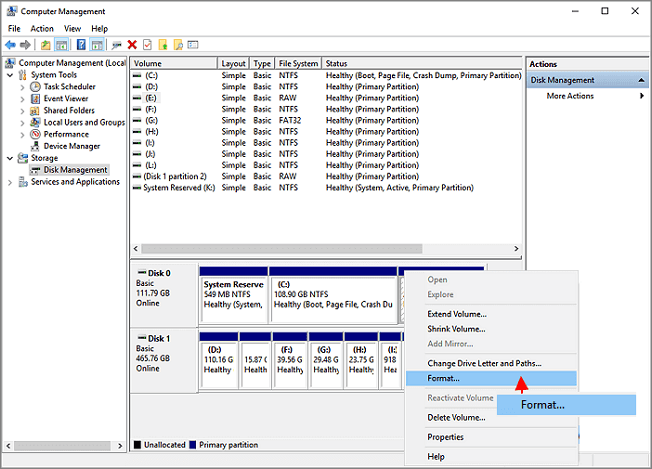
Step 5. Select "FAT32" as the desired file system in the format dialog box.
Step 6. In the "Volume label" section, name your hard drive.
Step 7. Ensure that the "Perform a quick format" option is checked.
Step 8. Click "OK" to initiate the formatting process.
Method 3: Format External Hard Drive for PS3 via CMD
- Duration: more than 5 minutes
- Operation Difficulty: Difficult with commands
- Suitable Users: For experienced users
The Command Prompt is a powerful tool on Windows computers that allows users to perform various tasks, including changing settings and configuring hard drives.
Here's how to format your external hard drive using the command prompt for PS3:
Step 1. Connect your Windows computer to your external hard drive.
Step 2. Press the "Start" button on your keyboard, search for and open "Command Prompt", and select "Run as administrator" to open it with administrator privileges.
Step 3. Type the following commands and press "Enter":
- diskpart
- list disk
- select disk X
- list partition
- select partition x
- format fs=fat32
Other functions of Diskpart:
Guide 2. Format External Hard Drive for PS3 on Mac
To format an external hard drive for use with a PS3, you can use the Disk Utility on a Mac. This utility serves as the equivalent of Windows' Disk Management, allowing you to format your external hard drive for use with the PS3.
To format your external hard drive for a PS3 using the Disk Utility, start by plugging the drive into your computer and opening the Disk Utility program. Select the external drive from the list on the left, click the "Erase" tab, and choose the "Quick Erase" option.
Step 1. Connect your Mac to your external hard drive.
Step 2. Open "Spotlight" and search and open "Disk Utility."
Step 3. Once you're in Disk Utility, select your external hard drive on the left sidebar.
Step 4. Tap the "Erase" button in the Disk Utility window.
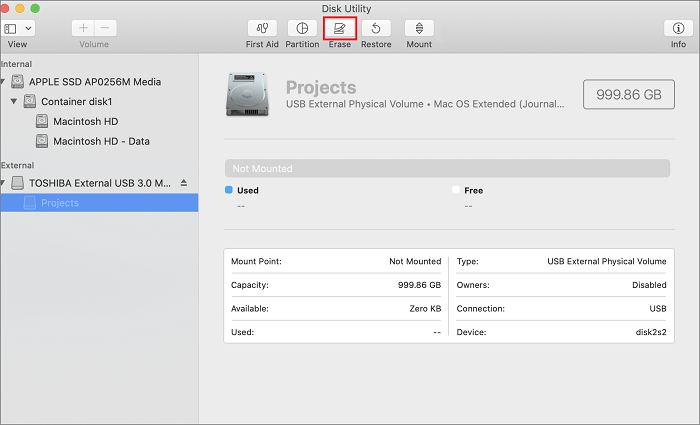
Step 5. To ensure the PS3 can read the USB drive, select the "MS-DOS (FAT)" format from the dropdown menu. This is because the PS3 supports this format.
Step 6. Give your external hard drive a name.
Step 7. Double-check the settings, and when you're ready, press "Erase."
Step 8. Once the formatting is complete, eject your external hard drive from your Mac.
The external hard drive is now formatted and ready to be used with your PS3.
Guide 3. Format External Hard Drive for PS3 Without A Computer
If you don't have a computer, you can still format your external hard drive for PS3 using the "Format Utility" option in the settings menu. This allows you to format the drive directly on the PS3, eliminating the need for a computer. The "Format Utility" serves as a simplified version of disk management and utility tools, making it possible to format the drive without a computer.
To format your external hard drive using the Format Utility settings option on your PS3, go to Settings > Format Utility, select the external drive, and choose the desired format. Make sure to select the correct format for your drive, such as FAT32 or NTFS, and follow the on-screen instructions to complete the formatting process.
Step 1. Power on your PS3 console.
Step 2. To connect an external hard drive to your PS3, simply insert the drive into one of the available USB ports on the console. This will allow you to expand your storage capacity and potentially increase your game library.
Step 3. From the PS3 home menu, navigate to "Settings" and select "System Settings".
Step 4. Within the "System Settings," find and choose "Format Utility."
Step 5. In the "Format Utility" menu, select "Format External Hard Disk."
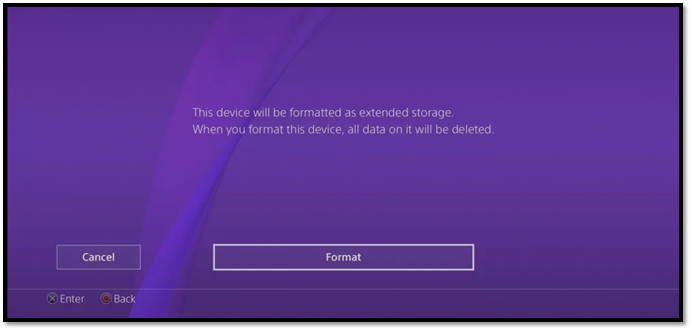
Step 6. To start formatting, please confirm your selection and follow the on-screen instructions that will guide you through the process.
Step 7. Once you've finished formatting your external hard drive, it's ready to be used with your PS3.
With these steps, you can format your external hard drive for the PS3 without a computer.
What Is The Best PS3 Hard Drive Format?
To backup your PS3 data on an external drive, you'll need to format the external drive to the correct file system format, which will help prevent errors and ensure a successful backup. This will ensure that all of your PS3 data is safe in case the internal drive crashes or dies. By formatting the external drive, you can avoid errors and ensure a smooth backup process. This will also ensure that all of your PS3 data is safe and secure.
To use an external hard drive with your PS3, you need to format it to a file system that the PS3 supports, such as FAT32 or exFAT, since it doesn't support NTFS. This is necessary to ensure that the PS3 can read the external hard drive.
Among FAT32 and exFAT file systems, the best file system to format an external hard drive is FAT32, which is the standard format provided by SONY.
If this article helped you learn how to format your external hard drive successfully, share it with your friends and family to help them!
Conclusion
This tutorial provides a full guide to formatting external hard drives for PS3, offering solutions for both Windows and Mac users, as well as the PS3 console itself.
- For Windows users: Qiling Disk Master is a tool that makes formatting external hard drives for PS3 easy to complete.
- For Mac users: Try Disk Utility to format PS3 drive safely.
- For users without a PC: How do you format a PS3 drive with the setting menu?
Download the tool you need and enjoy the format conveniences!
FAQs About Format External Hard Drive for PS3
To format an external hard drive for the PS3, you'll need to use the PS3's built-in formatting tool. First, connect the external hard drive to the PS3 using a USB cable. Next, go to the PS3's settings menu and select "System Settings.
1. Why does the PS3 external hard drive not show up?
The external hard drive may not be formatted to the correct file system or the computer may not be able to read it. Try disconnecting and reconnecting it to see if it's working properly. If not, try formatting it to get it working again.
2. What is the best PS3 format tool?
The best tool to format an external drive for the PS3 is Qiling Disk Master, which is feature-rich and can change file systems without formatting the external drive.
3. Does PS3 recognize NTFS or exFAT, or FAT32?
The PS3 console can't read NTFS file systems, but it can recognize exFAT and FAT32. While exFAT sometimes works, FAT32 is generally the most reliable option for the PS3.
Related Articles
- How to Format C Drive in Windows 11/10? [4 Efficient Ways]
- More Windows Guides: How Long Does a Windows Update Take? 🔥
- [Solved] Preparing to Delete Takes Forever Windows 11/10, Windows 11/10/8/7 is Slow to Delete Files
- I Need to Format a Hard Drive to Work With Windows, Help
What should I do to use my Mac-formatted hard drive on Windows? The answer is to format a hard drive to work with Windows. This page will provide a safe way to help you format the hard drive. - Top 9 Tips | How to Fix Steam Disk Write Error in Windows 10/8/7
If you receive the message “an error occurred while updating a game - disk read error” when using Steam. You'll find nine tried and tested fixes to resolve the issue, and Steam will not stop downloading files during the process. - 4 Easy Solutions to Fix 'Unable to Extend C Drive' in Windows 11
Are you Unable to Extend C Drive in Windows 11 and looking to fix your problem? Consider yourself lucky! Here, we have four excellent solutions that can help you do so. Read more.
Products
Articles & Tutorials
- Data Recovery
- Data Backup
- File Recovery
- File Backup
- System Backup and Restore
- Disk and Partition Clone
- Technical articles
- Mobile articles
- Disk Master Help
- Windows Data Recovery Tutorials
- Windows Secure Delete Tutorials
- Windows Partition Management Tutorials
- Windows File Backup and Restore Tutorials
- Windows System Backup and Restore Tutorials
- Windows Disk Backup and Restore Tutorials
- Windows Clone Tutorials