How to Format WD My Passport Windows 10 [4 Easy Ways]
WD offers affordable SSDs, including the Passport lineup with large storage options at a budget-friendly price.
If you have a WD My Passport drive that's not performing properly or you want to change the file system, you can format it. This guide will walk you through the process.
How Do I Format WD My Passport on Windows 10?
You can try four different methods to format your WD My Passport SSD: Qiling Disk Master, WD's own program, Windows File Explorer, or Command Prompt. These options are popular among users for formatting drives and disks.
The following chart shows which tools are both simple to use and effective:
| 🆚Comparison | 🏅Qiling Disk Master | 🥇WD Quick Formatter | 🥈File Explorer | 🥉Command Prompt |
|---|---|---|---|---|
| ✍️Difficulty | Easy with three steps | A little complex, with 6 steps | A little complex, with 6 steps | Complicated with 11 steps |
| 💡Pros | It can format a WD My Passport drive in a few seconds, taking care of all disk needs. | Can easily format the My Passport hard disk | Don't need to download other programs. | Display all the information about your drive |
| 🎈Cons | None | It Lacks several features for other disk-related issues. | Some file systems are greyed out | The user interface can seem daunting for many. |
| 🧑💻Suitable Users | For all people, including beginners. | For people who are familiar with PC. | For people who are familiar with PC. | Difficult Expert PC users. |
The easiest way to format a hard disk is by using a third-party tool, such as Qiling Disk Master, which doesn't require professional knowledge or skills. Alternatively, you can follow the step-by-step instructions for each method separately.
Format WD My Passport Windows 10 via Qiling Disk Master
Qiling Disk Master is a popular choice for formatting WD hard drives, allowing users to format their drives to various formats such as NTFS, FAT32, exFAT, EXT2/3/4, and more.
You can convert your file system from one type to another, such as from one type to exFAT, without formatting your WD My Passport, and it also has an easy-to-use interface to quickly format your drive.
Review from LifeWire<: What we like: 1. Very user-friendly, even for inexperienced computer users. 2. Lets you preview changes before applying them. 3. Includes lots of useful operations.
Step 1. Launch Qiling Disk Master, right-click the partition on your external hard drive/USB/SD card which you want to format and choose the "Format" option.

Step 2. Assign a new partition label, file system (such as NTFS, FAT32, EXT2, EXT3, EXT4, or exFAT), and cluster size to the chosen partition.

Step 3. Click the "Proceed" to start formatting your external hard drive/USB/SD card.
Step 4. In the Warning window, click "Yes" to continue.
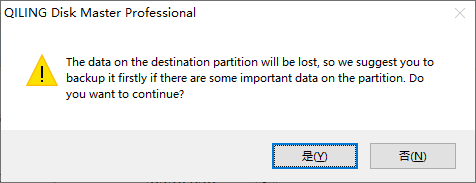
Qiling Disk Master is a powerful tool for managing your hard drive, offering a range of features including disk cloning, backup, and recovery, as well as disk partitioning and formatting, and even disk wiping and erasing. It also supports various file systems and can be used to create bootable media. With its user-friendly interface, Qiling Disk Master makes it easy to perform complex disk-related tasks with just a few clicks.
- Format WD My Passport for Mac
- Fix SD card write protected but not locked
- Convert FAT32 to NTFS or vice versa
- Format an external hard drive that is not visible
Download it and you can enjoy the benefits this versatile tool brings to you.
Format WD My Passport Windows 10 via WD Quick Formatter
The WD Quick Formatter is an official tool from WD that allows you to format your WD hard disks and SSDs, including My Passport drives, with complete confidence and security.
Here is how to use WD Quick Formatter and format your WD My Passport:
Step 1. Download and install WD Quick Formatter: https://support-en.wd.com/app/answers/detailweb/a_id/16241/~/how-to-format-an-external-drive-using-wd-quick-formatter
Step 2. Launch the WD Quick Formatter.
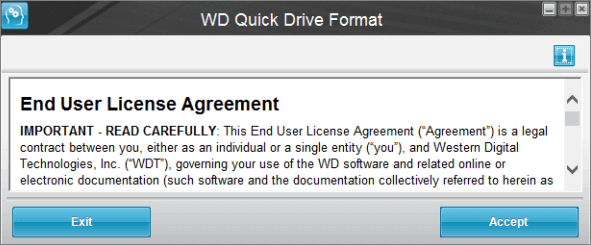
Step 3. Accept the End User License Agreement by clicking on "Accept."
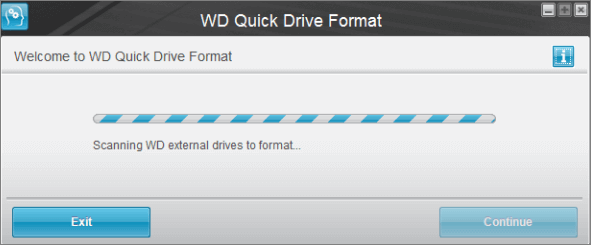
Step 4. The WD Quick Formatter will scan for your My Passport, allowing you to format the drive and prepare it for use with your computer.
Step 5. Select your drive and click on "Format Drive."
Step 6. Once the formatting of your drive has been completed, click on "Exit."
Format WD My Passport Windows 10 via File Explorer
To format your WD My Passport with Windows File Explorer, right-click on the drive, select "Format" and choose the file system you prefer, such as NTFS or exFAT, without needing to open Disk Management.
If you don't know how to format a hard drive using File Explorer, here's how to do that:
Step 1. Connect your WD My Passport to your Windows 10 PC.
Step 2. Open "This PC."
Step 3. Right-click on the drive and select "Format."
Step 4. To format your My Passport, select "File System" from the drop-down menu and choose the desired file system.
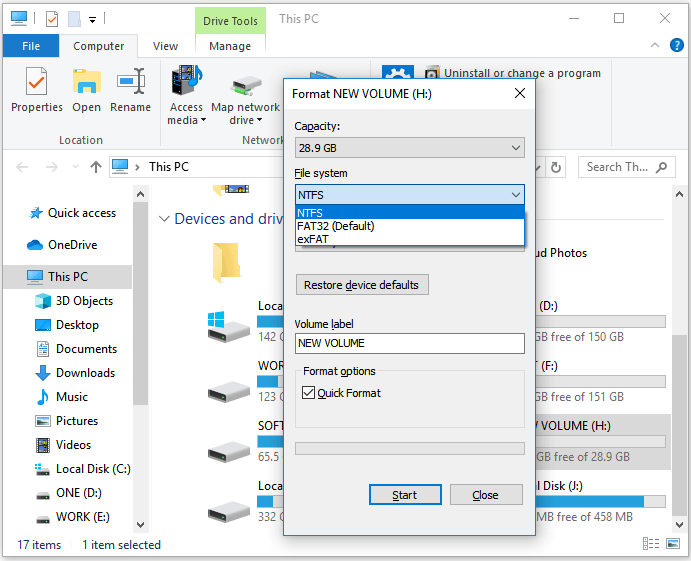
Step 5. Click on "OK" to begin formatting.
Step 6. Once you've finished formatting, you're good to go. Just allow some time for the process to complete. After that, you'll be ready to start using the formatted content.
Format WD My Passport Windows 10 via CMD
The command prompt has been a part of Windows since 1987, and is used for troubleshooting PC issues, formatting drives, and modifying Windows settings.
If using the command prompt is more your style to format your WD My Passport drive instead of File Explorer, Here's how to do that:
Step 1. Connect your My Passport to your PC.
Step 2. Use your keyboard's "Start" button to type "Command Prompt."
Step 3. Click on "Run as administrator."
Step 4. Type and enter the "diskpart" command.
Step 5. Now, type and enter "list disk."
Step 6. Enter the command "select disk X" (Replace X with the volume number of your My Passport) and press enter.
Step 7. Enter the command "format fs=ntfs quick" to format your WD My Passport to an NTFS file system, or "format fs=exFAT quick" to format it to an exFAT file system. If you want to format it to NTFS, enter the command format fs=ntfs quick. If you want to format it to exFAT, enter the command format fs=exFAT quick. To format your WD My Passport to an NTFS file system, enter the command format fs=ntfs quick.
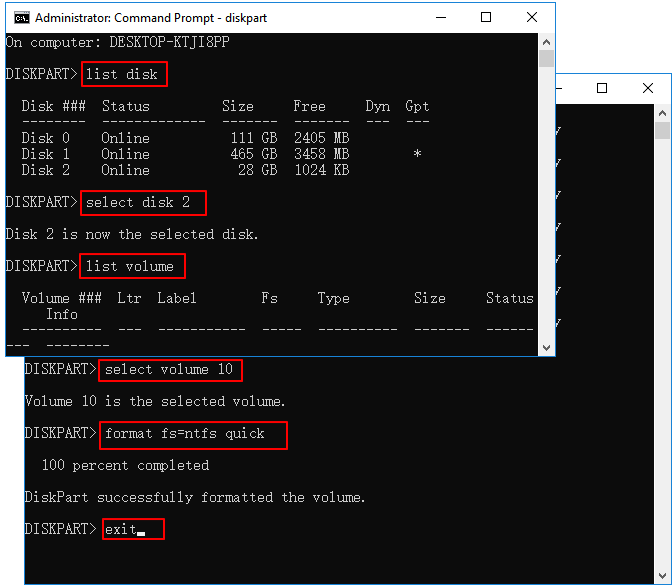
Step 8. Press the "Enter" key and allow some time for your drive to finish formatting to your chosen file system. The formatting process may take a few minutes, depending on the size of your drive and the speed of your computer.
Step 9. Type and enter "Exit" to exit out of the command prompt.
You can use Diskpart to manage your devices by executing various operations, such as creating, deleting, and formatting partitions, as well as assigning drive letters and converting disks between different formats. This can help you better organize and utilize your storage space.
Conclusion
If you want to format your WD My Passport drive on Windows 10, there are four solutions available. For a hassle-free and instant formatting experience, Qiling Disk Master is a recommended option. Alternatively, you can use WD's Quick Formatter or format the drive using File Explorer and the command prompt.
We hope this article provides provided the answers you needed and successfully guided you through formatting your My Passport drive. If so, please consider sharing this article with others who own a My Passport to help them format their drives as well.
FAQs About Format WD My Passport Windows 10
Do you have any other questions about formatting your WD My Passport Windows 10? Here, we answer a few questions about it.
1. How do I format WD Passport for Mac?
To format your WD My Passport on a Mac, you can use either WD Quick Formatter or Disk Utility. To use Disk Utility, follow these steps below.
Step 1. Open "Disk Utility."
Step 2. In the top-left corner of the window, click on "View" and then choose "Show All Devices".
Step 3. Select your WD Passport and click on "Erase."
Step 4. Give your drive a name and select the file system to which you want to format your WD My Passport, such as NTFS or exFAT.
Step 5. Click "Erase" to begin formatting.
2. Why am I unable to format my WD Passport?
You're unable to format your WD My Passport for several reasons. The most common causes include a faulty drive, corrupted file system, or incorrect formatting settings.
- The drive may be corrupted or write-protected.
- You have a file open.
- The drive is not being recognized by the computer because it's corrupted or not properly connected to the PC.
3. How can I wipe a WD external hard drive?
To wipe an external WD hard drive, you'll need to connect it to your computer and then use a disk wiping software, such as DBAN (Darik's Boot and Nuke) or a built-in feature like Disk Cleanup in Windows, to delete all data on the drive. You can also use the WD Drive Utilities software provided by Western Digital to securely erase data on the drive.
Step 1. Download and install WD Quick Formatter.
Step 2. Accept the End User License Agreement.
Step 3. Let the WD Quick Formatter scan for your My Passport drive.
Step 4. To format a drive, select the drive you want to format and click on the "Format" option once it detects the drive.
Related Articles
- Why Can't I Format My SD Card on My Camera? Answered and Fixed
- How to Partition External Hard Drive in Windows 11/10/8/7
- How Can I Check M.2 SSD Temperature Like an Expert in Windows 11/10
- How to Copy Hidden Partition to Another Drive/USB with Success
- Guide on Seagate External Hard Drive Transfer Speed
A Seagate external hard drive's suitability for uses necessitating swiffer data transfers, such as video editing and gaming, can be gauged by knowing the drive's transfer rate. Let's follow this guide and learn how to run Seagate external hard drive transfer speed efficiently. - How to Fix Seagate External Hard Drive Write Protected
Learn to fix the frustrating issue of 'Seagate external hard drive write protected' on Windows systems. Five effective solutions can help you access your Seagate external hard drive.
Products
Articles & Tutorials
- Data Recovery
- Data Backup
- File Recovery
- File Backup
- System Backup and Restore
- Disk and Partition Clone
- Technical articles
- Mobile articles
- Disk Master Help
- Windows Data Recovery Tutorials
- Windows Secure Delete Tutorials
- Windows Partition Management Tutorials
- Windows File Backup and Restore Tutorials
- Windows System Backup and Restore Tutorials
- Windows Disk Backup and Restore Tutorials
- Windows Clone Tutorials