Guide on Seagate External Hard Drive Transfer Speed
The time it takes to move files to and from a Seagate external hard drive is directly proportional to its transfer speed, making faster speeds a significant time saver for large file transfers. This is especially important for tasks like video editing and gaming that require quick data transfers.
Being aware of the Seagate external hard drive's transfer rate can help customers identify potential issues with their setup that can be resolved by upgrading components, such as a slow or outdated interface. A detailed discussion on Seagate external hard drive transfer speed is necessary to understand the limitations and potential problems that may arise.
| ⏱️Duration: | 3-5 minutes of reading |
| 🎯Goal: | Seagate external hard drives can transfer data at speeds of up to 5 Gbps (gigabits per second) using USB 3.0, and up to 20 Gbps using USB 3. |
| ✅Preparation: | Connect the Seagate external hard drive to your PC using its original USB connection cable. |
| 🧰Tools: |
|
How to Check My Seagate External Hard Drive Transfer Speed?
Here are efficient methods that help to check Seagate's external hard drive transfer speed, which can be done using two reliable tools. These tools enable you to check and test your Seagate external hard drive transfer speed.
Qiling Disk Speed Test Software:
- ✔️Free to use, for beginners
- ✔️Export and save the test report
- ✔️Fast to test disk read/write speed, health, and S. M. A. R. T data
- ✔️Provides features for optimizing disk performance
- ✔️Compatible with all Windows systems
CMD:
- ✔️Free to use
- ✔️Doesn't require software installation
- ✔️Accessible for all Windows users
- ❌Bit complex for beginners
When choosing a tool, consider your personal preferences and needs. I recommend selecting a tool that you enjoy using and that meets your requirements. Whether it's a specific feature, user interface, or compatibility, make sure it aligns with your goals and workflow.
- If you want to test the Seagate external hard drive efficiently, you can use a hard disk speed test software to help you do so. This utility will allow you to test the drive in a professional and easy manner, giving you a clear picture of its performance.
- To check disk read and write speed using CMD, open Command Prompt as an administrator and type `wmic diskdrive get name,removable,serialnumber, status, size, free` and press Enter. This provides you a list of your disk drives along with their size, free space, and status.
#1. Test Seagate External Hard Drive Transfer Speed with Disk Speed Test Software
- 🚩Complexity: Easy
- ⏱️Duration: 3-5 minutes
- ✔️Tools: Seagate external hard drive, USB connection cable, Windows PC, Qiling Disk Master
- 👩🏼💻Who to Use It: Windows beginners, professionals, Seagate device resellers, etc.
Qiling Disk Master is a software tool that helps users manage their hard drive partitions, allowing them to create, delete, resize, move, and merge partitions without losing data, and also measures hard drive performance and data transfer speed.
The DiskMark feature in Qiling Disk Master allows users to measure the transfer speed of their Seagate external hard drives, providing valuable insights for managing data, such as which files to transfer and when. This information enables users to make informed decisions about their data, helping them to optimize their data management.
Guide Steps to Test Seagate External Hard Drive Transfer Speed
Step 1. To activate the "Surface test" feature in Qiling Disk Master, launch the program and click the download button under the "Disk management" tab page. This will initiate the surface test.

Step 2. Choose the target drive, test data, and block size.

Step 3. Once everything is configured, click "Proceed" to begin the disk test. The test will display the Sequential read/write speed, I/O, and Delay data.
Qiling Disk Master, with its DiskMark feature, is a helpful tool for Seagate external hard drive users. It not only allows users to measure transfer speed, but also enables them to manage partitions and optimize their storage capacity. If you've found this utility useful or it has helped you determine the actual transfer speed in your Seagate external hard drive, consider sharing this method with others online to help them benefit from it as well.
#2. Test Seagate External Hard Drive Transfer Speed via CMD
- 🚩Complexity: Medium
- ⏱️Duration: 5-8 minutes
- ✔️Tools: Seagate external hard drive, USB connection cable, and a Windows PC are the necessary components to use a CMD command.
- 👩🏼💻Who to Use It: advanced Windows users, professionals
You can quickly check a Windows drive's performance without installing extra software by using the command prompt. While some apps may provide more detailed information, this method can give you a basic idea of whether your hard drive is slowing down your computer.
Step 1. To access the command prompt, press the Windows + S keys, type "cmd" in the search bar, and right-click on the Command Prompt result to open it with administrative privileges.
Step 2. To run the Windows Assessment Tool (WAT) on your Seagate external hard drive, open the Command Prompt, type the command "winsat disk -drive c" (replace "c" with the actual drive letter of your Seagate external hard drive), and press Enter. This will initiate the assessment process, which may take a few minutes to complete. The tool will then display the results, providing information about the drive's performance and other relevant details.
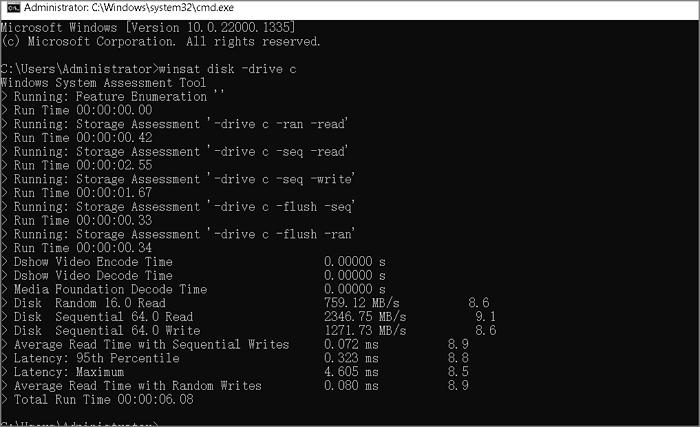
The image allows users to view and check disk transfer speeds through various metrics such as Disk Random Read, Disk Sequential Read, and Disk Sequential Write, as well as Average Read Time with Sequential Writes.
How Fast Should a Seagate External Hard Drive Be?
After getting the actual transfer speed data of your Seagate external hard drive, compare it to the average Seagate external disk speed to determine if optimization or improvement is needed.
Seagate external hard drives have varying transfer speeds depending on the model and technology used, with some models reaching speeds of up to 5Gbps and others up to 10Gbps.
Based on the interface, the maximum theoretical transfer speeds for some popular Seagate external hard drives are: 5 Gbps for USB 2.0, 480 Mbps for USB 1.
| Model | Interface | Max Transfer Speed |
| Seagate Backup Plus Slim | USB 3.0 | Up to 120 MB/s |
| Seagate Backup Plus Portable | USB 3.0 | Up to 120 MB/s |
| Seagate Expansion Desktop | USB 3.0 | Up to 160 MB/s |
| Seagate Backup Plus Hub | USB 3.0 | Up to 160 MB/s |
| Seagate Backup Plus Fast | USB 3.0 | Up to 220 MB/s |
| Seagate Fast SSD | USB 3.0 | Up to 540 MB/s |
| Seagate Backup Plus Ultra Touch | USB 3.0 | Up to 120 MB/s |
| Seagate One Touch SSD | USB 3.0 | Up to 400 MB/s |
| Seagate Backup Plus Flex | USB 3.0 | Up to 160 MB/s |
| Seagate One Touch HDD | USB 3.0 | Up to 140 MB/s |
Seagate external hard drives typically have transfer speeds ranging from 100 MB/s to 150 MB/s for USB 3.0 or Thunderbolt connections, but some models can reach speeds of up to 250 MB/s or more.
For Your Information:
1️⃣ The advertised maximum transfer speeds for USB 3.0 and USB 4 are 5 Gbps and 40 Gbps, respectively.
2️⃣ If your Seagate external disk's transfer speed is lower than expected, try updating its firmware, checking for disk errors, and ensuring it's properly connected to your computer. Additionally, consider using a USB 3.0 port, as it provides faster transfer speeds than USB 2.
Factors That Affect Seagate External Hard Drive Transfer Speed and Tips to Improve
Here are some factors that affect Seagate external hard drive's transfer speed and some tips to improve it: Using a high-quality cable and avoiding extension cords or other accessories that may degrade the signal is recommended to get the best performance. Additionally, factors such as the drive's speed, interface type, and the computer's processing power can also impact transfer speed. To improve transfer speed, consider upgrading to a faster drive or interface, such as USB 3.
| Factors Slows Down Seagate External Disk | Tips to Improve Seagate External Hard Disk Transfer Speed |
|
✔️Insufficient space Seagate external hard drives with limited storage space can potentially slow down transfer speeds. ✔️File size The file size of a Seagate external hard drive can impact its transfer speed, affecting how quickly data is transferred between the drive and a computer. ✔️Interface type A Seagate external hard drive's interface type can significantly impact its transfer speed, with USB 3.0 and Thunderbolt 3 being the fastest options. ✔️Virus or malware Virus and malware can impact the transfer speed of a Seagate external hard drive, potentially slowing it down. ✔️Drive Type The type of device connected to a Seagate external hard drive can affect its transfer speed, with some devices being more compatible and faster than others. |
|
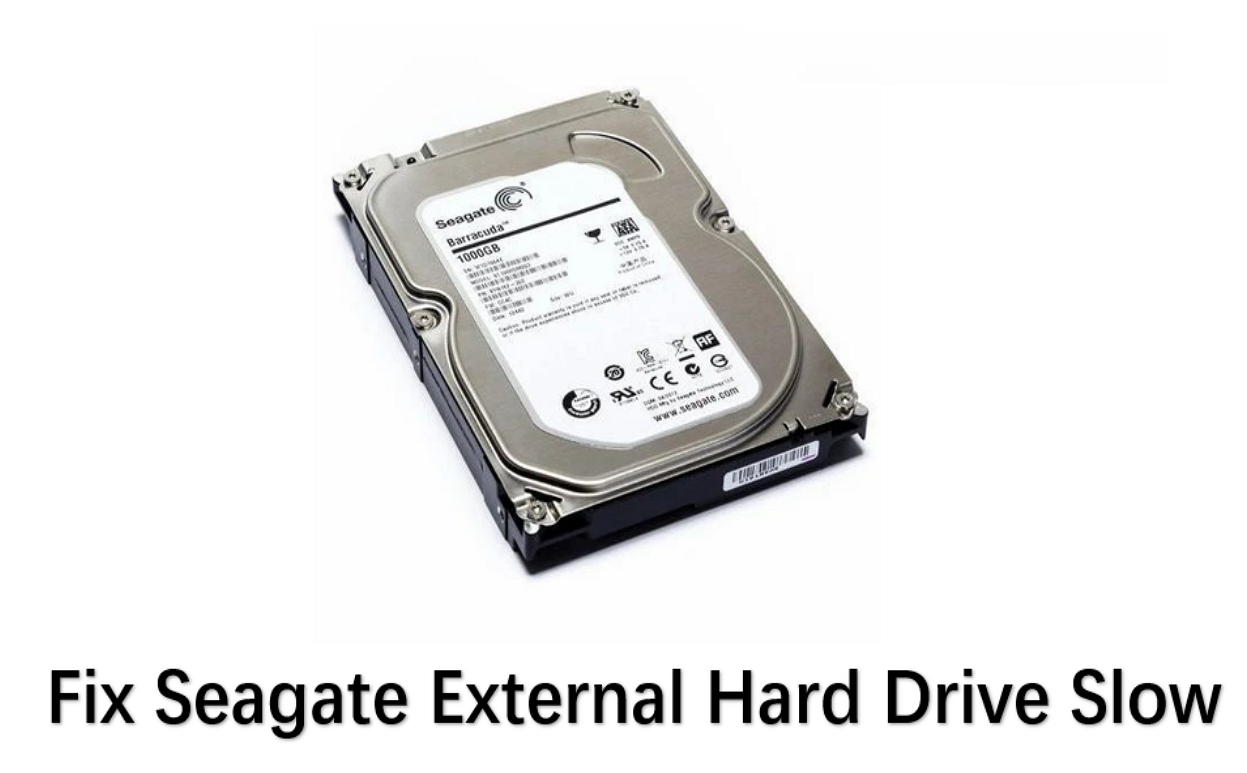
[Fixed] Seagate External Hard Drive Slow on Windows 11/10
Slow response or transfer speed of external hard drives can be improved without replacing the drive, offering a cost-effective solution.
Conclusion
The article discusses how to test the transfer speed of a Seagate external hard drive, with Qiling Disk Master being a more efficient and reliable solution for this purpose.
Qiling Disk Master offers features to improve and optimize disk performance, including changing cluster size and 4k alignment. It also allows users to manage partitions on Seagate external hard drives, creating separate areas for different data types and facilitating file transfers between them.
FAQs Of Seagate External Hard Drive Transfer Speed Test
Read these answers to avoid confusion.
1. What is the transfer speed of a Seagate 2TB HDD?
Seagate 2TB HDDs can transfer data at speeds of up to 5 Gbps, but actual speeds may vary depending on the computer's hardware, cables, and file type.
2. What is the average speed of Seagate external hard drives?
- External hard drives typically have transfer speeds between 100-150 MB/s, primarily due to their USB 3.0 and Thunderbolt interfaces.
- Most Seagate external hard drives have transfer speeds ranging from 100 to 120 MB/s, with the Seagate Backup Plus Slim and Portable being notable exceptions with advertised transfer speeds of up to 120 MB/s.
The actual transfer speed of an external hard drive can vary greatly, depending on several factors, including the computer's hardware and software configuration, file size and type, and the quality of the cable used.
3. Why is my Seagate external hard drive so slow?
A Seagate external hard drive may run slow due to various reasons such as insufficient power, file fragmentation, outdated or corrupt drivers, malware, interface limitations, or mechanical issues, making it essential to identify and address the root cause to improve performance.
4. How do I improve my external SSD transfer speed?
To improve the transfer speed of an external SSD, consider using a USB 3.0 or 3.1 port, a high-quality cable, and update drivers. Additionally, use a suitable file system, avoid multitasking, disable antivirus software during transfer, and enable TRIM to maintain the SSD's performance. This combination of strategies can help optimize transfer speeds.
Related Articles
- Best Free Hard Drive Erase Software
- Create D Drive from C Drive in 2 Simple Ways
- Best Partition Recovery Software for Windows 11 ( Reliable and Easy)
- How to Burn Windows 11 ISO to USB - 2 Efficient Ways
- Partition Manager Tutorials
You can find all you needed solutions to manage hard drive space in Windows. Qiling Partition Master is reliable partition manager that help you to resize and manage disk space. - Partition Manager Tutorials
You can find all you needed solutions to manage hard drive space in Windows. Qiling Partition Master is reliable partition manager that help you to resize and manage disk space.
Products
Articles & Tutorials
- Data Recovery
- Data Backup
- File Recovery
- File Backup
- System Backup and Restore
- Disk and Partition Clone
- Technical articles
- Mobile articles
- Disk Master Help
- Windows Data Recovery Tutorials
- Windows Secure Delete Tutorials
- Windows Partition Management Tutorials
- Windows File Backup and Restore Tutorials
- Windows System Backup and Restore Tutorials
- Windows Disk Backup and Restore Tutorials
- Windows Clone Tutorials