How to Burn Windows 11 ISO to USB - 2 Efficient Ways
Overview of Burning Windows 11 ISO to USB:
| ⚙️Complex Level | Low, Beginners |
| ⏱️Duration | 5-10 minutes |
| 🚩Tools |
Qiling Disk Master Windows Media Creation Tool |
| 💻Applies to | Burn Windows 11/10/8/7 ISO to USB |
| ✏️Ways |
To burn a Windows 11 ISO to a USB drive using Qiling Disk Master, first, download the Qiling Disk Master software from the official website. Then, insert a USB drive with at least 8GB of free space, as Windows 11 requires a minimum of 4GB of free space plus the size of the ISO. To burn a Windows 11 ISO to a USB drive using the Media Creation Tool, follow these steps: download the Media Creation Tool from Microsoft's website, run the tool and select the "Create a bootable media" option, choose the USB drive as the destination, select the language, edition, and architecture of Windows 11, and finally, click on "Next" to start the burning process. The tool will then download the necessary files and burn the ISO to the USB drive, which can then be used to install Windows 11 on a computer. |
An ISO file is a digital copy of an optical disc, such as a CD or DVD, containing an operating system like Windows 11.
If you're running a small office or working in a computer workshop, having a handy copy of Windows 11 can be a lifesaver. You can download a copy of the Windows 11 ISO file directly to a USB drive, which can save you time and hassle when you need to install it quickly. Alternatively, you can also download a copy of Windows 11 to your USB drive for any other reason.
- 💡Make sure you have a USB drive with a minimum storage space of 8GB and that it is formatted to FAT32.
- 💡To download the Windows 11 ISO file, go to the official Microsoft website and click on the "Download" button. You can also use the Media Creation Tool to create a bootable USB drive or download the ISO file directly. Once you've downloaded the file, you can use it to install Windows 11 on your PC.
https://www.microsoft.com/en-us/software-download/windows11
If you're having trouble downloading the Windows 11 ISO file, you can try visiting the official Microsoft website and following the instructions to download it from there. Alternatively, you can also check the Microsoft Support website for any known issues or workarounds related to downloading the ISO file.
The best way to burn a Windows 11 ISO file to a USB is by using Qiling Disk Master, but we'll cover everything you need to know about this process.
Burn Windows 11 ISO to USB Using Qiling Disk Master
Qiling Disk Master is a fantastic tool that takes care of all your disk needs, and it can easily burn Windows 11 ISO files on your USB drive without errors, with an easy-to-use interface suitable for all ages.
Step 1. Launch Qiling Disk Master and go to the Bootable Media section, then click "Burn ISO".

Step 2.Select the target USB as the destination and click "Proceed" to execute the operation.

This tool can also work on Windows 10, Windows 8, and Windows 7. See the following articles and learn more.
Here are some other key features of Qiling Disk Master:
- Burn ISO to USB and CD/DVD
- Format USB to FAT32
- Convert USB from NTFS to FAT32
- Boot Windows 11/10 to a USB
- Create bootable USB
To burn Windows 11 ISO files to a USB drive, download and install a USB burning tool on your PC, which can help you create a bootable USB drive from the ISO file and manage your USB drive effectively.
Burn Windows 11 ISO to USB Using Media Creation Tool
The Media Creation Tool allows you to create Windows 11 installation media on a USB drive or CD/DVD. If you don't have Windows 11, you can download it from the Microsoft website.
Check out our step-by-step create a bootable Windows 11 USB using Microsoft's Media Creation Tool, follow these steps: First, download the Media Creation Tool from Microsoft's official website. Next, run the tool and select the language, edition, and architecture of Windows 11 you want to install.
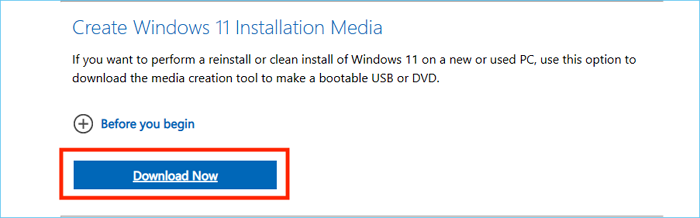
Step 1. To download the Windows 11 ISO, go to the Microsoft website.
Step 2. Under the "Create Windows 11 Installation Media" section, select "Download Now."
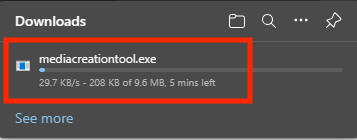
Step 3. The file will download under the file name "MediaCreationToolW11.exe." Wait for the download to complete.
Click here to learn more details about Media Creation Tool if you are interested.
Step 4. Open the file once it has been downloaded.
🚩Also Read: Install Windows 11 From ISO
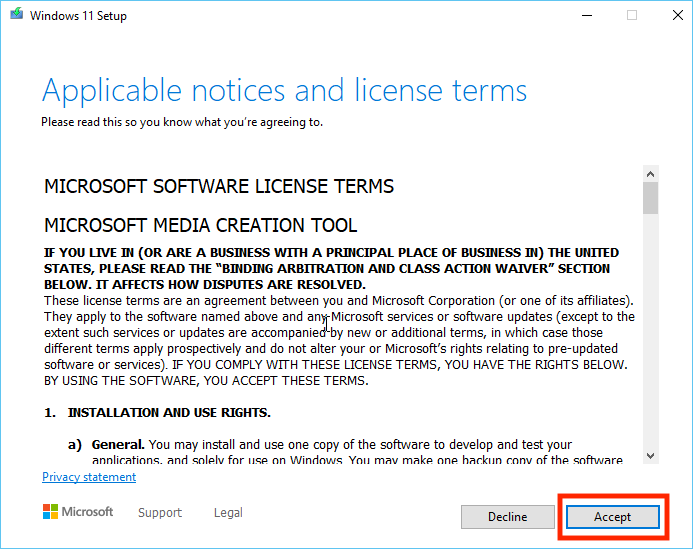
Step 5. Accept the license and terms agreement by clicking on "Accept."
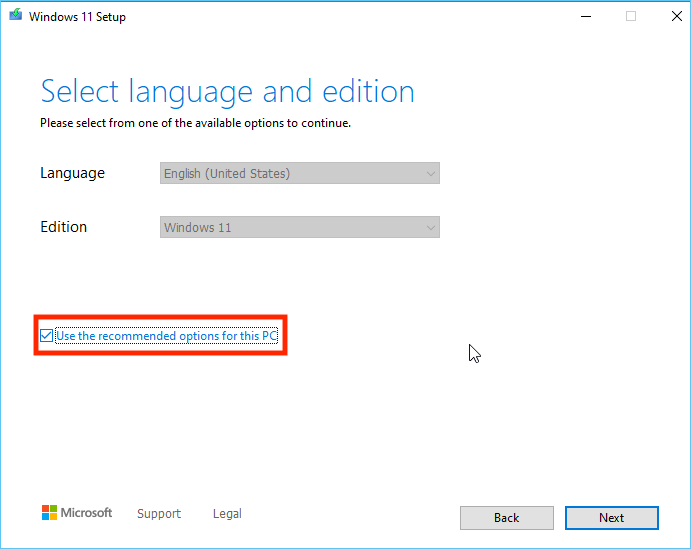
Step 6. Select your preferred language.
Step 7. Tick the "Use the recommended options for this PC" checkbox.
Step 8. Select the USB flash drive as the media to use and click on "Next" in the "Choose which media to use" window.
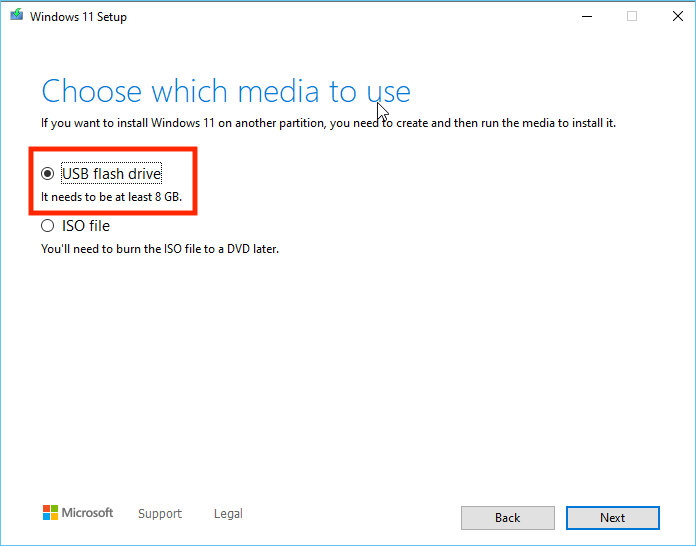
Step 9. Select your USB flash drive in the "Select a USB flash drive" section and click "Next".
Step 10. Once the process is finished, click on "Finish."
That's it! However, Qiling Disk Master is our favorite option to burn Windows 11 on USB because it takes only a few clicks and less time. And you can share this article to let more users know about this method.
Conclusion
Windows 11 is more advanced and feature-rich than Windows 10, with new features and design changes, but also removed some user-favorite features.
Windows 11 is a stable operating system that is also compatible with third-party apps, despite some initial concerns. If you have computers that meet the minimum requirements, you can install Windows 11 by burning the ISO to a USB and then plugging it into the computers you want to install it on.
Qiling Disk Master is a reliable tool for burning Windows 11 to a USB drive, offering a user-friendly interface that makes the process seamless and efficient.
Burn Windows 11 ISO to USB FAQs
Do you have any other questions about burning the Windows 11 ISO to a USB drive? Here, we answer everything about it.
1. How to burn Windows 11 to a USB via Rufus?
Here's how to burn Windows 11 to a USB using Rufus: To burn Windows 11 to a USB, download the Windows 11 ISO file from the Microsoft website and save it to your computer. Next, download and install Rufus, a free tool that helps create bootable USB drives.
Step 1. Download and install Rufus.
Step 2. To select your USB drive, click on the 'Device' section and choose your USB drive from the drop-down menu.
Step 3. Select 'Disk or ISO image' by clicking the drop-down menu under the 'Boot selection' section.
Step 4. To download the file, click on the down-arrow button on the right side and select the 'Download' option, then click the 'Download' button.
Step 5. Select 'Windows 11' and click on 'Continue.'
Step 6. To choose Windows 11, click on the '22H2 or 21H2' option under the 'Release' section and click on 'Continue.'
Step 7. To install Windows 11, go to the 'Edition' section and select 'Windows 11 Home/Pro/Edu', then choose your language and the architecture of Windows.
Step 8. Click on the 'Download' button.
Step 9. To configure the Windows 11 installation, select the 'Standard Windows 11 Installation' option from the 'Image option' setting.
Step 10. Select 'Start.'
Step 11. Uncheck the box that says 'Remove requirement for 4GB+ RAM, Secure Boot, and TPM 2.0' and then click on 'OK.'
2. How to create a bootable USB on Windows 11?
To create a bootable USB for Windows 11, use the Media Creation Tool to download the Windows 11 ISO file on your PC, then prepare a USB larger than 8GB and format it as FAT32. Follow the on-screen prompts in the Media Creation Tool to create a bootable USB.
3. How to download Windows 11 ISO file?
Here's how to download the Windows 11 ISO file:
Step 1. Download the Windows 11 ISO file from this Microsoft website.
Step 2. Click the drop-down under 'Download Windows 11 Disk Image (ISO) for x64 devices' and select 'Windows 11 multi-edition ISO x64 devices'.
Step 3. Select 'Download Now.'
Step 4. To select your product language, click on the drop-down menu under 'Select product language', choose your preferred language, and then click on 'Confirm'.
Step 5. Under 'Download - Windows 11 English,' click on '64-bit Download.'
That's it! Your download will begin now!
Related Articles
- How to Perform Xbox One SSD Upgrade [Full Guide]
- Extend Volume with Disk Management Tutorial with Pictures
You can extend a volume on your hard drive using disk management, but it's not always the best solution. If the volume is out of space, it's likely because the partition is not large enough, and simply extending it may not solve the problem. - How to Fix Disk Management Console Is Not Up to Date Error [7 Effictive & Quick Methods]
The Disk Management console is not updating error can be frustrating, but it can be resolved with seven fixes. These solutions include running the built-in Windows Update tool, checking for updates in the Control Panel, and restarting the system. - How to Format Hard Drive from BIOS in Windows [2024 How-to Tutorial]
If you're looking for a comprehensive guide on how to format a hard drive from BIOS on a Windows computer, you're in luck. We've got three reliable methods with step-by-step tutorials to help you successfully format your hard drive from BIOS. - Surface Pro Stuck on Windows Logo - Reasons & Fixes
If your Surface Pro is stuck on the Windows logo, you can try restarting it in safe mode, checking for corrupted system files, running a System Restore, or performing a System Reset. - Best System Clone Service for Windows and Windows Server Users [Your Best Practice]
Are you looking for a reliable and practical system clone service provider to assist you in efficiently cloning operating systems on Windows computers to new drives or new computers with ease? Follow and find the best system clone service here on your own.
Products
Articles & Tutorials
- Data Recovery
- Data Backup
- File Recovery
- File Backup
- System Backup and Restore
- Disk and Partition Clone
- Technical articles
- Mobile articles
- Disk Master Help
- Windows Data Recovery Tutorials
- Windows Secure Delete Tutorials
- Windows Partition Management Tutorials
- Windows File Backup and Restore Tutorials
- Windows System Backup and Restore Tutorials
- Windows Disk Backup and Restore Tutorials
- Windows Clone Tutorials