Extend Volume with Disk Management Tutorial with Pictures
If you're running low on storage space, you can extend a partition using Windows' built-in Disk Management tool. This article will guide you through the process, which is a straightforward way to add more space to a nearly full partition. Alternatively, there is another method that might be preferable. Keep reading to learn more.
How to Extend Volume with Disk Management
The Disk Management utility, provided by Microsoft, is a built-in tool that allows Windows users to manage their disks and partitions, enabling them to create volumes, initialize disks, extend and shrink volumes, and optimize storage space to enhance system performance.
Below are the steps with pictures for you to extend volume with Disk Management in 2 different cases.
- Notice:
- Disk Management can only extend a volume with adjacent free or unallocated space behind that volume, and not into free space located in front of it. This is a limitation of the Disk Management tool, and it's not possible to extend a volume in that way.
In the case where there is adjacent free or unallocated space behind the target volume, the data can be copied directly into the unallocated space, allowing for a contiguous copy of the volume. This approach eliminates the need for intermediate storage and minimizes the risk of data corruption during the copying process.
Step 1. Press "Windows + R" to open the Run dialog box.
Step 2. Input diskmgmt.msc and hit "Enter".
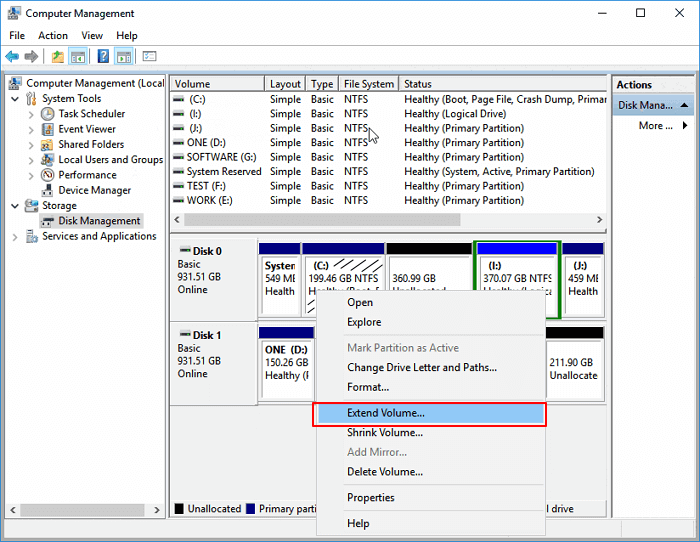
Step 3. Right-click on your target partition and select "Extend Volume".
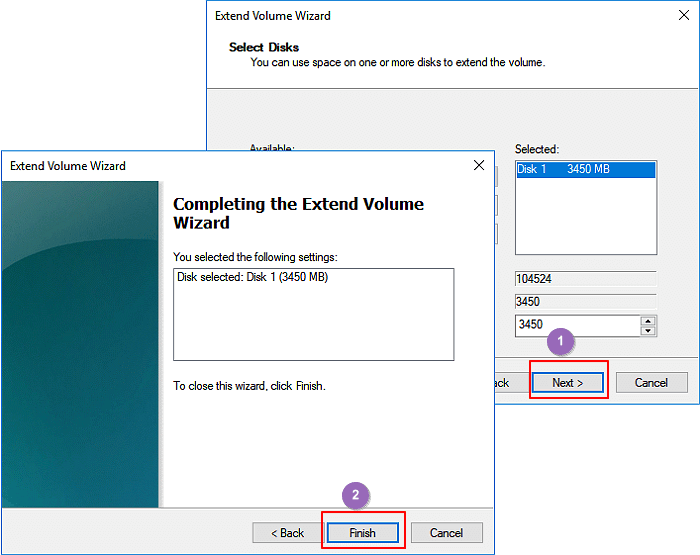
Step 4. To resize your target partition, hit "Next" and then enter the size of the unallocated space to add to your target partition.
Step 5. Hit "Next" and "Finish" to complete.
#Case 2. There's no appropriate free or unallocated space on your drive, so you need to shrink a volume first.
Step 1. Press the "Windows + R" keys on your keyboard to open the Run dialog box.
Step 2. Input diskmgmt.msc and hit "Enter".
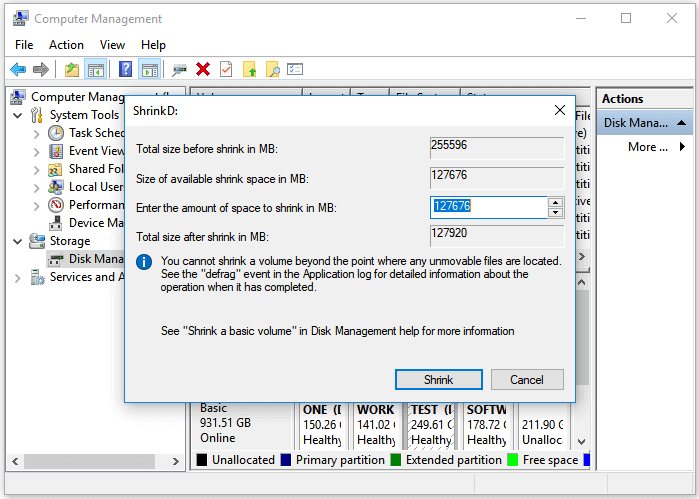
Step 3. Right-click your target partition and choose "Shrink Volume".
Step 4. To shrink a partition in Windows, go to Disk Management, select the partition you want to shrink, right click on it, and choose "Shrink" from the menu. In the resulting window, type in the amount of space you want to shrink for that partition and hit "Shrink".
To free up space on your drive, you can delete a partition to create an unallocated space. This will allow you to allocate the unallocated space for another partition. You can refer to case 1 to allocate the unallocated space for another partition now.
Some users may find the "Extend Volume" option greyed out, typically due to a lack of adjacent free or unallocated space behind the volume or if the partition is in a non-expandable format like FAT. For more information, you can refer to a related article.
If the "Extend Volume" option is greyed out in Windows, it's likely because the volume you're trying to extend is already set to its maximum size or is not a contiguous block of free space. To fix this, you can try using the built-in Disk Management tool to shrink a different volume and then extend the one you need. Alternatively, you can use a third-party partition manager like Qiling Partition Master to resize partitions and extend the volume.
When you find "Extend Volume" greyed out in Disk Management, don't worry. There are effective ways to fix the issue and extend your target partition volume. For more details, see Extend Volume Greyed Out? Fix Can't Extend Volume in Windows.
Easier Way: Extend Volume with Qiling Disk Master
If you're struggling with the limitations of Disk Management, consider using a more powerful third-party software like Qiling Disk Master Professional.
Compared to Disk Management, Qiling Partition Master has a more user-friendly interface and offers more practical features. One notable feature is the "Resize & Move" option, which allows users to extend partitions using nonadjacent unallocated space, making it a more efficient tool for volume extension.
Step 1. Locate the Target Partition.
To resize a partition, go to Partition Manager, locate the target partition and select "Resize/Move".

Step 2. Extend the Target Partition.
To add unallocated space to your current partition, you can drag the partition panel to the right or left, depending on the desired direction, to incorporate the unallocated space into your current partition.

Extra Option: Get Space from Another Drive
If there's not enough unallocated space on your disk, you can allocate space from a larger partition with available space by right-clicking on it and selecting "Allocate space".
To extend the target partition, select the partition you want to extend at the "Allocate space to" column in the Disk Management console. This will open a new window where you can specify the amount of space to allocate to the selected partition.
Step 3. Execute Operations to Extend Partition.
Drag the dots of the target partition into the unallocated space.
Then Click the "Proceed" button to keep all the changes.
Read also:
Why Do You Need to Extend Partitions
Extending partitions is often necessary due to various reasons. Typically, as a database grows and more data is added, the existing partitions may become too small to accommodate the increased volume, leading to performance issues and potential data loss.
- Get more storage space for the target partition.
- Extending the system partition can enhance your PC's performance.
- Make full use of unallocated space.
- Better management of your personal files and data.
- Troubleshoot low disk space error.
If you find this article helpful and practical, consider sharing it with your friends who might also benefit from the tutorial on extending partitions.
Conclusion
If you want to extend a partition for more storage space, you can start with Disk Management, a tool that allows you to extend volume, but it has limitations.
Fortunately, there are tools like Qiling Disk Master that can help you partition a hard drive easily and safely. You can download this software to enjoy its useful functions.
FAQs on Extend Volume with Disk Management
If you have more questions related to "Extend volume with Disk Management", check the following FAQs to find your answers.
1. How to extend C drive with Disk Management?
To extend the C drive using Disk Management, follow these steps:
- Press "Windows + R" to open the Run dialog.
- Input diskmgmt.msc and hit "Enter" to run Disk Management.
- Right-click on your C drive and hit "Extend Volume".
- Enter the size you want to extend for the C drive and click "Next" to proceed with the resizing process.
- Hit "Finish" to complete.
2. Why can't I extend volume in Disk Management?
The reason you can't extend a volume in Disk Management is that there's no adjacent unallocated space or free space behind the partition you want to extend, or the volume is formatted as FAT or another format partition that Windows can't extend.
3. How to extend C drive by CMD?
To extend the C drive using CMD, launch Command Prompt as an administrator, search for "cmd" in the Start menu, right-click on the result, and select "Run as administrator". Input the "
- Press the "Windows + X" keys on your keyboard to open the Power User menu, then select "Command Prompt (Admin)" from the menu to run the Command Prompt with administrative privileges.
- Input the following commands and press "Enter" each time:
diskpart
list volume
select volume x (x is your C drive number)
extend size =number To extend the C drive, you'll need to allocate a specific amount of disk space from another drive, such as the D drive. For example, if you want to add 10 MB to the C drive, you would need to have at least 10 MB of free space available on the D drive.
Related Articles
- How to Clone OEM Partition in Windows [2024 Full Guide]
- Guide on Converting MBR to UEFI [Safe Guide for Beginners]
- Best Diskpart Alternatives for Windows 11, 10, 8, 7 (New Guide 2024)
- Windows 10 Won't Boot? 8 Ways to Fix Your PC
- How Much Disk Space Does Windows 10 Take [Full Explanation]
Windows 10 takes up a significant amount of space on your computer, even if you haven't installed any applications. The operating system itself is a major contributor to this space consumption, and understanding how much space it takes up is essential. - How Much GB is Fortnite on Laptop/PC | Get More Storage
Fortnite has entered Season 1 of Chapter 5, introducing new maps, weapons, and items, but also requiring more storage space on your HDD/SSD. If you're unsure how much space Fortnite takes up on your laptop or PC, this article will provide the answer and offer tips to help resolve any storage issues.
Products
Articles & Tutorials
- Data Recovery
- Data Backup
- File Recovery
- File Backup
- System Backup and Restore
- Disk and Partition Clone
- Technical articles
- Mobile articles
- Disk Master Help
- Windows Data Recovery Tutorials
- Windows Secure Delete Tutorials
- Windows Partition Management Tutorials
- Windows File Backup and Restore Tutorials
- Windows System Backup and Restore Tutorials
- Windows Disk Backup and Restore Tutorials
- Windows Clone Tutorials