How to Clone OEM Partition in Windows [2024 Full Guide]
Cloning the OEM partition is a bit tricky, but it's doable. The OEM partition is a small, hidden partition on a Windows system that contains the original operating system installation files. If you try to clone the entire hard drive, including the OEM partition, you might end up with a system that doesn't work properly or even refuses to boot.
this guide is a helpful resource for those who need to clone OEM partitions. It breaks down the process into manageable steps, addressing any confusion that may arise. To begin, it's essential to understand what an OEM partition is - a specific partition on a computer's hard drive that contains information unique to the manufacturer. the guide aims to guide readers through the cloning process, providing clarity and confidence in tackling this technical task.
What Is OEM Partition
The OEM partition, also known as the recovery partition, contains system recovery programs, factory recovery data, and diagnostic tools. It allows users to perform system recovery or restore factory settings if their system crashes or disk becomes corrupted.
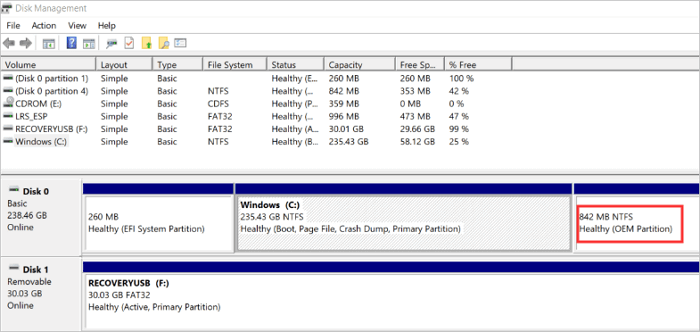
Cloning and copying the OEM partition can be a challenge due to the varying settings among manufacturers. While HP OEM partition can be accessed by pressing F9, Dell OEM partition requires F12. Additionally, OEM partitions may be displayed with a drive number or set as hidden, making it difficult to clone and copy. However, the next step will provide the answer to this question, so read on.
Is It Possible to Clone OEM Partition
Yes, it is possible to clone OEM partition.
The OEM partition is crucial for restoring Windows OS to its original state in case of a system crash, so it's essential to clone it to an external hard drive or somewhere else as a backup to avoid computer failure or accidentally deleting it. For users who clone the system drive to an SSD or do a fresh install on SSD, the OEM partition will not be included, so it's also necessary to clone the OEM partition to the SSD to provide absolute protection for your computer.
It is possible to clone OEM partitions, but Windows built-in tools and computer manufacturers do not provide tools for this. A professional cloning tool, such as Qiling Disk Master, is needed to clone OEM partitions and OEM recovery partitions efficiently.
This tool is compatible with all Windows systems, including Windows 11/10/8/7 and XP/Vista, and has a user-friendly interface, making it accessible to novices. It can also clone OEM recovery partitions.
How to Clone OEM Partition
Qiling Disk Master supports disk cloning, system cloning, and partition cloning. You can clone OEM and recovery partitions to SSD without losing data using the "Partition Clone" feature in just a few steps. After downloading the software, follow the steps to clone the OEM partition.
Step 1. Select "Clone" from the left menu, then click "Clone Partition" and "Next".
Step 2. Select the source partition and click "Next".
Step 3. Choose your the target partition and click "Next "to continue.
- If you clone a partition to an existing partition, you should transfer or back up your data first to prevent it from being overwritten.
- Check warning message and confirm "Yes".
Step 4. Click Start and wait for the clone to complete.
You can find a video tutorial that explains how to clone a partition or system reserved partition.
In the cloning process, you can also edit the partition size of the Windows OEM partition, and Qiling Disk Master is a powerful tool that meets all your needs related to disk partitioning, allowing you to resize, merge, split, format, and back up disks and partitions.
- Clone only used space
- Clone external hard drive to internal
- Format write-protected USB flash drive
- Convert MBR to GPT without data loss
Download Qiling Disk Master to better manage your computer and maintain better performance.
Conclusion
In this article, we've learned about OEM partitions and cloning possibilities. Cloning OEM partitions and recovery partitions is not a difficult task, and Qiling Disk Master is an intelligent tool that can help with disk, system, and partition cloning, offering convenience through its all-in-one disk management capabilities.
FAQs About How to Clone OEM Partition
Here are some of the most typical queries regarding the cloning of OEM partitions. If you have more questions, please check the following answers.
1. How to clone OEM recovery partition?
To clone the OEM recovery partition, you can use the "Clone Partition" feature of Qiling Disk Master. First, select the source drive and the target drive in the software.
Step 1. Select "Clone" and choose "Partition Clone" and "Next."
Step 2. Choose the source and target partition and click "Next."
Step 3. Click "Yes" to confirm the warning message.
Step 4. Click "Start" and wait to clone the OEM recovery partition.
2. What does OEM partition mean?
The factory default recovery sector, also known as the OEM partition, can be used to recover a computer system without an OS installation disk, making it a useful alternative for those with limited experience reinstalling the OS.
3. Can I clone the drive with partitions?
Qiling Disk Master can copy a drive's complete contents or specific partitions, which can be faster than imaging the source drive and restoring it to the destination drive, especially when upgrading to a larger drive.
Related Articles
- Don't Miss Best FAT32 Formatter: Free FAT32 Format Tools Recommend
- How to Make a Password Reset Disk for Another Computer 🔥
- High-Level Format VS Low-Level Format, What's the Difference and How to Use [Full Guide]
- Solution: How to Securely Wipe Free Space on SSD
- How to Clone Windows to Another Drive [Newest Solution]
this guide will help you figure out why you clone windows to another drive. And you will also get a step-by-step guide to clone windows to another drive. - How Do I Clone Windows to New Computer/PC? Your Checklist in 2024 [New]
Do you want to change your computer and wonder if there is an easy way to move all apps and OS to the new system? Read this article to discover how to clone Windows to a new computer in a few simple steps.
Products
Articles & Tutorials
- Data Recovery
- Data Backup
- File Recovery
- File Backup
- System Backup and Restore
- Disk and Partition Clone
- Technical articles
- Mobile articles
- Disk Master Help
- Windows Data Recovery Tutorials
- Windows Secure Delete Tutorials
- Windows Partition Management Tutorials
- Windows File Backup and Restore Tutorials
- Windows System Backup and Restore Tutorials
- Windows Disk Backup and Restore Tutorials
- Windows Clone Tutorials