How Do I Clone Windows to New Computer/PC? Your Checklist in 2024 [New]
In this article, you'll learn:
- Clone Windows to New Computer Checklist in 2024
- Remove the target disk from the new computer and connect it to the source computer. This will allow you to access the target disk from the source computer.
- #2. Download Reliable OS Cloning Software
- #3. Clone Windows to New Computer
- Set the new computer to boot from the target disk with the cloned Windows installation by going into the BIOS settings, selecting the correct boot order, and saving the changes. This will allow the new computer to recognize and load the cloned Windows installation from the target disk.
In this ever-In the rapidly evolving tech world, devices like computers or laptops have a short lifespan, becoming outdated within a few years. Upgrading to the latest system can be cumbersome, especially when transferring all data to the new computer. This article will explore the process of cloning Windows to the new computer, making the transition smoother.
Copying Windows to the new PC is a great way to transfer all your applications to the new system. To clone Windows to a new computer, follow the complete process.
Clone Windows to New Computer Checklist in 2024
The process of copying Windows to a new PC is not as complex as it seems. With the right guidance and a few minutes, you can easily complete it. We've broken it down into 4 simple parts to make it easier:
- 1. To remove the target disk from the new computer and connect it to the source PC, follow these steps: 1) Shut down the new computer to prevent any data from being written to the disk. 2) Disconnect the target disk from the new computer.
- 2. Download Reliable OS Cloning Software.
- 3. Clone Windows to New Computer.
- 4. Set New Computer to Boot from Target Disk with Cloned Windows.
To avoid data loss, back up any important files on the device you plan to use for cloning Windows. This will ensure that your data is safe and won't be overwritten during the cloning process.
Can I Clone Windows to New Computer?
Cloning Windows to a new computer is possible with the help of Windows cloning software, allowing for a seamless transfer of the operating system and all installed applications and data. This process can save time and effort compared to reinstalling Windows and reinstalling programs and settings from scratch. It also preserves the existing configuration and settings, making it a convenient option for those looking to upgrade their computer hardware without losing their customized Windows experience.
Benefits of Cloning Windows to New Computer:
- Duplicate Windows: If you already have a Windows installed on your new system, cloning the old Windows will allow you to run two separate Windows instances on your new system, effectively allowing you to divide your tasks between two different operating systems.
- No Windows Reinstall: Cloning your old Windows onto a new system allows you to use the same operating system across multiple devices, eliminating the need to purchase and install separate Windows on each device. This approach can save time and resources, and ensure a consistent user experience.
- Data Preservation: Cloning the Windows process allows you to transfer your programs and data to a new system, ensuring that none of your essential data is lost when changing computers.
- Faster and Time Saving: Cloning Windows is a faster process to set up the new system, saving you time as you no longer have to do any system configurations, since you don't need to reinstall the new operating system or any program.
#1. Remove Target Disk from New Computer and Connect It to the Source PC
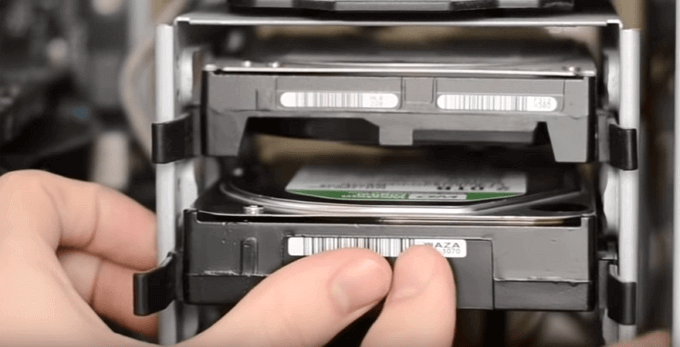
To copy Windows to the new computer, you'll need to disconnect your targeted disk from the new computer and connect it to the old computer. This will allow you to access the Windows installation files. You'll then need to have your system manuals and a screwdriver handy to complete the process, which involves using the installation files to transfer the operating system to the new computer.
Step 1: To prepare your new computer for upgrade or maintenance, start by turning it off and unplugging the power cable. Press and hold the power button for 5 seconds to discharge any residual electricity. Next, use a screwdriver to remove the screws that hold the system together, allowing you to access the internal components.
Step 2: To open and extract the targeted drive, follow the system's manual. Once extracted, remove the old system and replace it with the new one, ensuring all cables are properly connected. Move the old system to a designated area for safe disposal.
Step 3: To replace the old system with the targeted disk, use a compatible screwdriver to open the old system and attach the new disk. Once the disk is securely plugged in, reassemble the computer and reboot it.
To initialize the new disk, connect the targeted disk to the old computer, then go to Disk Management, right-click on the disk, and select "Initialize Disk". Make sure to select the same partition style as the Windows drive. This will prepare the disk for use in Windows.
Step 1: On your old computer, press the "Win + X" key to bring up the Power User menu, then select "Disk Management". Right-click the targeted disk and select "Initialize" to start the process.
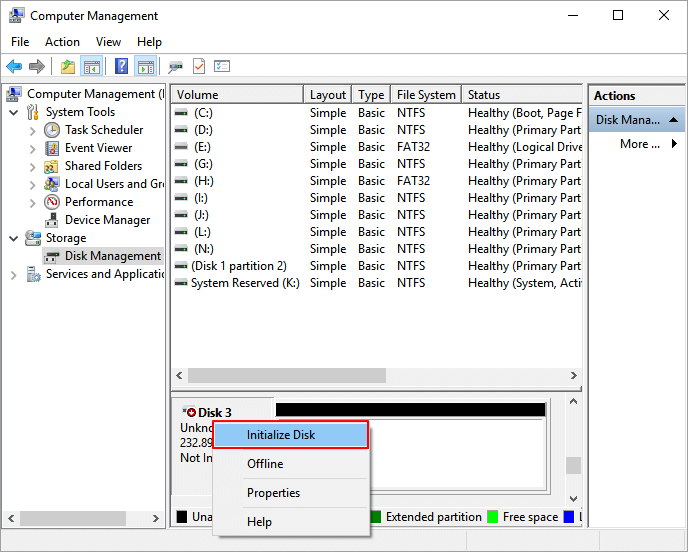
Step 2: If the disk is offline, select "Online" first. Then, during the initialization process, choose the same partition style as the Windows drive and complete the procedure.
Step 3: Allocate a new volume to your targeted disk by right-clicking it and selecting "New Simple Volume."

#2. Download Reliable OS Cloning Software
A reliable and safe OS cloning software is essential to clone Windows to a new computer. After testing various cloning software available online, we recommend using Qiling Disk Master to clone Windows, as it has shown an excellent ability to clone the OS and all configurations to the new computer. This tool can be downloaded for free to explore its features.
Qiling Disk Master is a comprehensive solution for hard drive issues, capable of resolving problems such as corrupted file systems, damaged Master Boot Records (MBR), and recovering deleted partitions. It offers a complete solution for various hard drive-related issues.
| Pros | Cons |
|---|---|
|
|
#3. Clone Windows to New Computer
To copy Windows to a new PC using Qiling Disk Master, follow these simple and quick steps. First, you will need to create a bootable Qiling Disk Master USB drive, which can be done by downloading the software, creating a bootable USB drive, and then running the software from the USB drive. Next, you will need to connect the USB drive to the old PC, boot the old PC from the USB drive, and then select the option to copy the Windows installation to the new PC.
To clone both system and boot volumes onto a new disk, you need to repeat the process twice, especially if they are on separate partitions. This ensures that all necessary data, including the operating system, is successfully transferred to the new disk.
Step 1. Select "Tools and utilities" tab page. Click "Clone Partition".
Step 2. Select the source partition and click "Next".
Step 3. Choose your the target partition and click "Next "to continue.
- If you're cloning a partition to an existing partition, make sure to transfer or back up your data first, to avoid it being overwritten during the cloning process.
- Check warning message and confirm "Yes".
Step 4. Click "Proceed" and wait for the clone to complete.
#4. Set New Computer to Boot from Target Disk with Cloned Windows
To clone Windows OS on a targeted disk, you'll need to install it back into your computer after cloning. Once installed, set it as the boot drive. This process involves following specific steps, which include installing the OS, setting the boot drive, and configuring the system to recognize the new disk as the primary boot drive. The detailed steps for this process are not provided in the given text.
Step 1: Open your system using a screwdriver and plug in the targeted disk where you removed it. Reassemble your system and turn it on to process further.
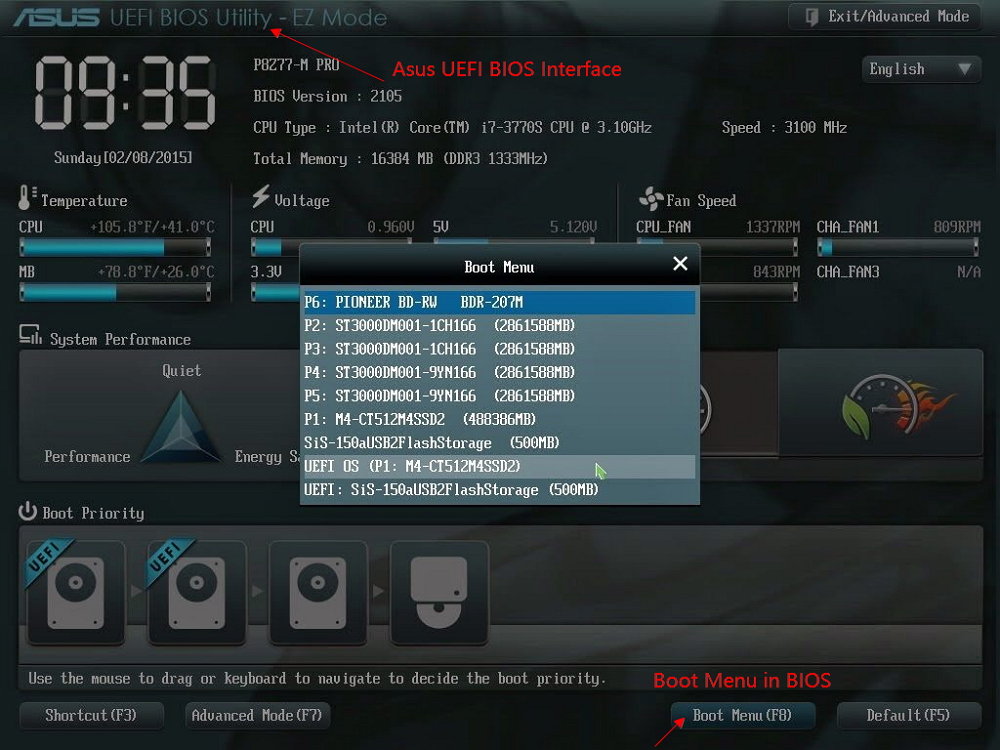
Step 2: After restarting the computer, use the BIOS key (usually F2, F8, F11, or DEL) to access the BIOS settings. From there, navigate to the "Boot" settings using the arrow keys.
Step 3: To prioritize your boot device, go to the "Boot Device Priority" option, set your targeted disk as the top priority using the "+" or "-" keys, and then press F10 to reboot your computer.
Final Verdict
Cloning Windows to a new computer is a quick and efficient process that preserves data and system settings, making it easier than setting it up from scratch, and Qiling Disk Master is a suitable tool for this process.
FAQs About Clone Windows to New Computer
If you still have any questions, we have answered most frequently asked questions about cloning Windows to a new computer below.
1. Can I clone Windows 10 to another computer?
Windows 10 can be cloned to another computer using a proper OS cloning tool like Qiling Disk Master, allowing for a quick transfer of the operating system to a new device.
2. How to clone the laptop to a new laptop?
To clone your laptop data to the new laptop, you'll need a disk that can hold all your data. Next, attach the new laptop's disk to the old laptop, use cloning software to copy all drives, and then reinstall the disk on the new laptop.
3. Can I clone my Windows operating system to a new SSD?
Cloning the Windows operating system from a hard disk drive (HDD) to a solid state drive (SSD) is possible using reliable cloning software like Qiling Disk Master. This tool enables you to easily transfer Windows from the old hard disk to the new SSD, making the process straightforward and efficient.
Related Articles
- How to Format Hard Drive Windows Server
- How to Tell If a Hard Drive Is Failing or Not [Step-by-Step Guide]
- Best Free GParted Windows Alternative Tool
- How to Fix PC Won't Boot After Installing M2 SSD - Full Guide
- [Fixed] Dell Recovery Partition Missing on Windows
If you're experiencing a missing Dell recovery partition, it could be due to accidental deletion or not being assigned a drive letter. To recover it, you can follow a tutorial that guides you through the process, helping you restore the partition and regain access to your system's recovery tools. - How to Fix Dell Stuck on Dell Logo in 7 Ways | Step-by-Step
If your Dell laptop is stuck on the Dell logo, try the following: create a bootable USB drive, boot into Advanced Recovery, and run the built-in diagnostics or system restore to resolve the issue. If that doesn't work, try booting into Safe Mode or using a third-party software to fix the problem.
Products
Articles & Tutorials
- Data Recovery
- Data Backup
- File Recovery
- File Backup
- System Backup and Restore
- Disk and Partition Clone
- Technical articles
- Mobile articles
- Disk Master Help
- Windows Data Recovery Tutorials
- Windows Secure Delete Tutorials
- Windows Partition Management Tutorials
- Windows File Backup and Restore Tutorials
- Windows System Backup and Restore Tutorials
- Windows Disk Backup and Restore Tutorials
- Windows Clone Tutorials