How to Fix Dell Stuck on Dell Logo in 7 Ways | Step-by-Step
Key Takeaways:
- If your Dell computer is stuck on the Dell logo screen, it's possible that there's a hardware issue, such as loose cables, that's causing the problem.
- If the computer doesn't respond even though the power light is on, try a hard reset, which involves unplugging the power cord, waiting a few seconds, and plugging it back in. This can sometimes resolve the issue.
- Make sure your computer's software and BIOS are up to date, as this can prevent problems when starting your computer later on.
Dell laptops are known for their durability and good performance, making them a reliable choice for frequent use. However, when you encounter a situation where your Dell laptop gets stuck on the logo screen, it can be difficult and raise concerns about device failure. This issue can be a source of worry, especially if you're not sure what's causing it or how to resolve it.
Due to Dell's complexity, many users often face issues, but it doesn't mean the laptop failed, other serious problems deserve attention. Troubleshooting and causes are covered by Qiling Software.
How to Fix Dell Stuck on Dell Logo?
If your laptop is stuck on the Dell Logo screen, don't worry, it's a common issue with several possible causes. Depending on the reason, the solution varies, but here are some practical troubleshooting steps to help resolve the problem.
- #1. Use the Boot Repair Tool
- #2. Clean Boot Troubleshooting
- #3. Run ePSA Pre-boot System Assessment
- #4. Check BIOS Settings
- #5. Check Hard Drive Errors
- #6. Rollback or Update the Driver
- #7. Reinstall Windows
Let's dig into further details to execute these solutions safely without any discrepancies! You can also share this tutorial to help someone in need!
To access safe mode, you'll need to create a bootable recovery media, go to the Advanced Boot Options screen, and select Safe Mode from the options. This will allow you to troubleshoot and resolve issues without loading normal Windows drivers.
#1. Use the Boot Repair Tool
If you're experiencing system boot or hardware errors, blue screen of death system failure, or similar issues, you might need to boot repair your Dell. However, this process can be tricky, especially for computer novices, and may even put your system at risk if not done correctly. A safer alternative is to use a third-party tool that is efficient and easily fixes the issue.
Qiling Disk Master is the best-tested boot repair tool that provides an easy interface for fixing hard disk and system boot errors, making it accessible even for beginners. It can efficiently resolve issues such as system failure, blue screen, black screen, and more.
Step 1. After connecting the external drive/USB to your computer, start Qiling Disk Master and go to "Tools and utilities" where you can click "Create bootable media".

Step 2. Insert a blank USB drive or CD/DVD and click "Proceed". Alternatively, you can burn the Windows ISO file to the storage media.

Step 3. Connect a bootable drive to a new computer, reboot by pressing F2/Del, set the drive as the boot disk, and exit the BIOS by pressing F10.
Step 4. To resolve the issue, boot the computer again and access the WinPE interface. From there, open Qiling Disk Master and select the "Fix Boot" option under "Tools and utilities".

Step 5: Select the system you want to repair and click "Proceed".

Step 6. The system has been successfully repaired. Click "OK" to complete the boot repair process.
A reliable Windows boot repair tool, it can also easily fix various errors, including those related to Windows boot issues.
#2. Clean Boot Troubleshooting
Software or driver conflicts can be the reason for the issue. Clean boot troubleshooting loads your Dell with a limited set of programs and processes, which helps identify the root cause.
Step 1. Press the Windows key, type "msconfig" in the search bar, and then press Enter.
Step 2. In the System Configuration window, navigate to the Services tab, and select the box that says Hide all Microsoft services to avoid disabling vital services.
Step 3. To prevent all non-Microsoft services from starting at boot, click the "Disable all" button.
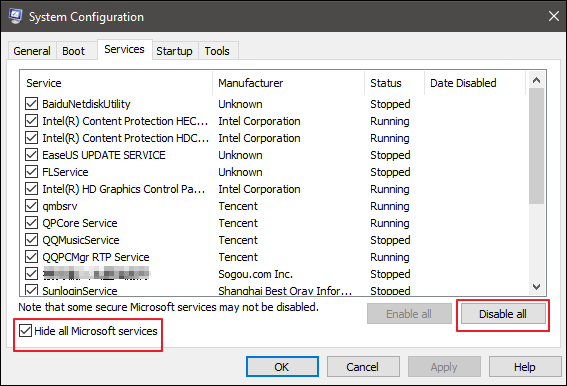
Step 4. Click on "Open Task Manager" on the "Startup" tab, select each startup item and click "Disable" to disable all startup items.
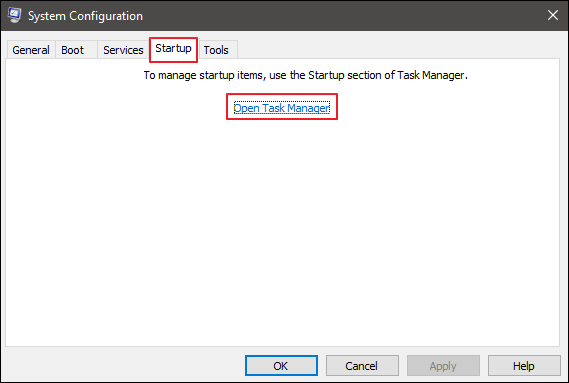
Step 5. In the System Configuration window, click "OK" after quitting Task Manager. Then, restart your Dell computer to see if the issue is resolved.
If the Dell Inspiron 15 is stuck on the Dell logo, it's likely due to a software or program issue. To troubleshoot, enable each service one by one, allowing it to function properly before moving on to the next. If enabling a service and saving changes doesn't resolve the issue, that service is likely the culprit. Resolving the issue with that service should fix the problem and allow the laptop to boot properly.
#3. Run ePSA Pre-boot System Assessment
If you're experiencing the error, it's not just a software issue, but also possible hardware-related problems. To troubleshoot, try running a pre-boot assessment to help identify the root cause of the problem. This can help you determine if the issue is with your Dell's hardware and guide you towards a solution.
Step 1. Turn off your Dell laptop, restart it, and right away press the F12 key until the Boot Menu appears.
Step 2. Select Diagnostics with the arrow keys, then enter.
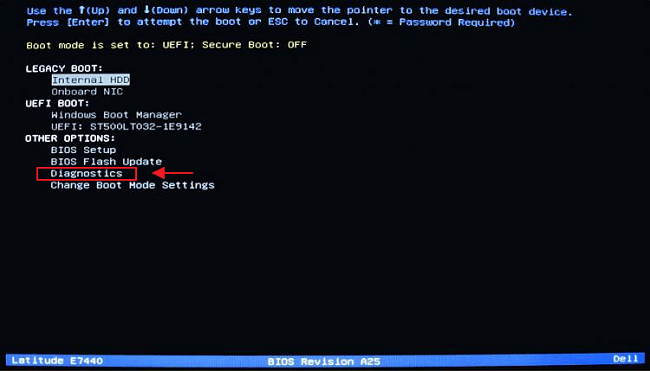
Step 3. The test will be finished when you follow the on-screen instructions.
ePSA (Electronic Power Steering Assist) is a system that helps with power steering in vehicles. If the ePSA system fails, it may display error codes or messages that can be used for further troubleshooting.
#4. Check BIOS Settings
The Dell stuck-On the logo screen often happens due to misconfigured hardware, incorrect boot order, or tweaking other advanced options. This can be resolved by resetting BIOS settings to ensure a correct boot sequence.
Step 1. To access the BIOS setup on your Dell computer, simply restart the device and immediately press the F2 key. This will allow you to enter the BIOS settings, where you can make any necessary adjustments or changes.
Step 2. To reset your PC's settings to their default values, navigate to the Load Defaults or Reset to Default Settings option in your PC's settings. Select this option to restore your PC's settings to their original factory settings.

Step 3. To resolve the Dell logo issue, confirm the reset, save changes, and exit the BIOS. Reboot your PC and check if the issue is resolved.
The BIOS settings can be tweaked to resolve the issue, but this method is not recommended for those who have not yet tweaked BIOS as it can cause system failures if not executed properly. Instead, the following solutions can be used to troubleshoot the issue effectively.
Further Reading: Boot Drive Not Showing up in BIOS
#5. Check Hard Drive Errors
When unsure about running ePSA or its reliability, a trustworthy method to check hard drive errors is using Qiling Disk Master. This tool allows you to create a bootable USB drive to test and resolve hard drive errors on your PC, making it the easiest, most convenient, and best option.
Here are the steps to check the hard drive issue and resolve it: Check if the hard drive is recognized by the computer, run a diagnostic test on the hard drive, check for physical damage, update the hard drive drivers, and if none of the above steps resolve the issue, consider replacing the hard drive.
Guide 1. Create A Bootable USB
Guide 2. Fix Hard Drive Errors
#6. Rollback or Update the Driver
Recently installed drivers can also cause issues, and it's best to roll back the driver or replace it with a version compatible with the current version of the OS.
Step 1. Right-click on Start, and select Device Manager.
Step 2. Locate the device for which the driver was recently updated.
Step 3. Right-click on the device and select properties.
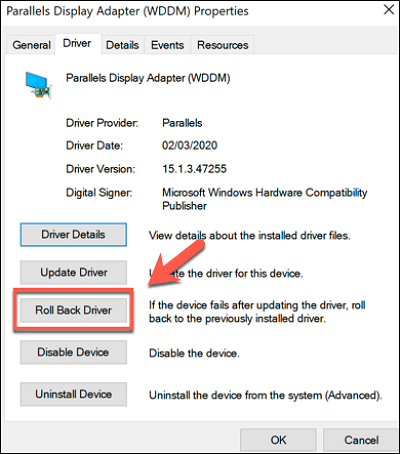
Step 4. Click on the Roll-back driver button.
If you're experiencing a problem with your computer, try restarting it to see if that resolves the issue. Simply shut down the PC, wait a few seconds, and then turn it back on. This can often resolve issues with software or hardware, and it's a simple troubleshooting step that can help get your computer up and running again.
To update the driver, you can either download the latest version from the OEM's website and manually update it through the device manager, or you can use an automatic driver update tool.
#7. Reinstall Windows
If all else fails, your Windows OS system might be corrupted, and the only solution is to reinstall Windows, which will erase all your data. To avoid this, it's crucial to create a backup. However, this should only be done if you're familiar with the reinstallation process, as it can lead to system failure if not done correctly.
Step 1. Create a Bootable USB Drive and plug it into your Dell laptop.
Step 2. To boot into your computer from a USB drive or external storage, you need to enter the BIOS or UEFI settings, which is typically done by pressing a specific key (such as F2, F12, or Del) as your computer starts up. Once in the BIOS or UEFI settings, navigate to the "Boot" or "Boot Order" section and change the first boot device order to USB or external storage.
Step 3. Restart the laptop, and it will boot from the USB.
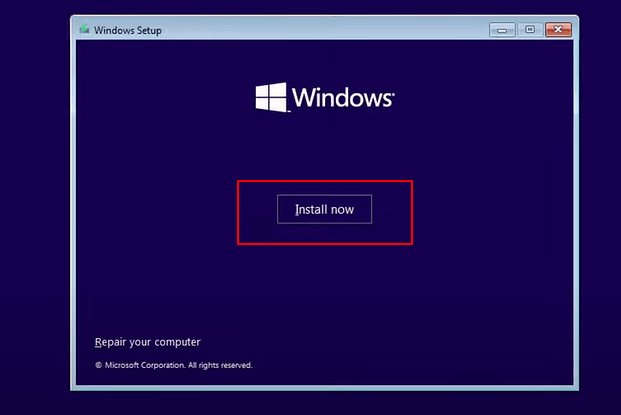
Step 4. The Windows installation wizard will appear, allowing you to begin the installation process.
Why is Dell Stuck on the Dell Logo?
Many users have reported that their Dell laptops get stuck on the logo screen, failing to boot up properly despite multiple reboots. This issue is often caused by hardware problems, which can also result in slower performance.
- Hard Disk or SSD Failure: A Dell system check or boot repair tool can help resolve boot issues caused by a failing hard drive or SSD.
- Operating System Corruption: If your Windows OS installation becomes corrupt, it can lead to startup problems.
- Outdated or Incompatible Drivers: When outdated or incompatible drivers are present on your system, it can cause startup issues, making it difficult to boot up your computer.
- Incorrect BIOS/UEFI Settings: A misconfigured BIOS or UEFI setting can cause a Dell laptop to get stuck on the logo screen during boot, preventing it from loading the operating system.
- Computer Overheating: Continued usage or improper fan functioning of your Dell laptop overheats the laptop—consequently, the hardware components malfunction, including your hard drive, which causes boot errors.
Troubleshooting the error can be risky for technical novices, but effective tools like Qiling Disk Master can help. The issue is often linked to hard drive problems, which cause boot issues, leading to the error. Fortunately, with user-friendly tools like Qiling Disk Master, you can easily repair your device and get back to normal operations.
To prevent Dell from getting stuck on the logo screen, the system monitors your hard drive and daily PC performance, allowing you to fix any issues beforehand.
Conclusion
A Dell laptop getting stuck on the logo screen due to hardware and boot errors can usually be resolved by attempting boot repair or reinstalling Windows.
To simplify things despite the cause, use Qiling Disk Master - one of the best Windows boot repair tools. We have used it, and its advanced features eliminate risks associated with boot and hard drive/SSD error fixes.
FAQs About Dell Stuck on Dell Logo
If your Dell laptop or desktop is stuck on the logo screen, don't worry, you're not alone - this is a common issue. To troubleshoot the problem, we've identified the key concerns and provided solutions to address them.
1. How do I get past the Dell logo screen?
To bypass the Dell logo screen, you can try advanced recovery and troubleshooting methods, such as reinstalling Windows, restoring the system, or installing the correct driver, to resolve the issue.
2. Why is my laptop showing the Dell logo and then a black screen?
If your Dell laptop displays the logo but then goes to a black screen, it may be due to hardware issues such as malfunctioning RAM, hard drive problems, or a faulty graphics card, disrupting the boot process.
3. Why won't my Dell desktop turn on even though the power light is on?
To resolve common issues, it's crucial to troubleshoot hardware components, verify all connections, and potentially replace the power supply, as malfunctioning power supplies, hardware problems, or motherboard failures can cause a range of problems.
Related Articles
- How to Fix Windows 11 Update Stuck at 100% | Full Guide🚩
- How to Convert GPT to MBR Without Operating System
- Don't Miss Best FAT32 Formatter: Free FAT32 Format Tools Recommend
- Fix: Boot Configuration Data File Doesn't Contain Valid Information for an Operating System
- How to Format SD Card for Dash Cam on Windows/Mac/Dash Cam? [2024 Lasted Ways]
Do you know how to format an SD card for a Dash Cam? this guide will offer several ways to format SD cards for Dash Cam on Windows, Mac, and Dash Cam itself. - How Do I Format SD Card for Galaxy S7/S5? 2024 Step-by-Step Tutorial
Got a Samsung Galaxy S5 or S7? Click here to learn how to format SD card galaxy s7/s5 quickly and easily.
Products
Articles & Tutorials
- Data Recovery
- Data Backup
- File Recovery
- File Backup
- System Backup and Restore
- Disk and Partition Clone
- Technical articles
- Mobile articles
- Disk Master Help
- Windows Data Recovery Tutorials
- Windows Secure Delete Tutorials
- Windows Partition Management Tutorials
- Windows File Backup and Restore Tutorials
- Windows System Backup and Restore Tutorials
- Windows Disk Backup and Restore Tutorials
- Windows Clone Tutorials