How to Format an SD Card for Dash Cam on Windows, Mac, or Dash Cam
Formatting the SD card for the Dash Cam regularly is essential to maintain the car recorder and protect the car owner's rights. If the Dash Cam doesn't recognize the SD card or keeps prompting to format the SD card, it's likely due to a corrupted or outdated SD card. Fortunately, formatting the SD card is a relatively simple process that can be done on various systems, including Windows, Mac, and Android devices.
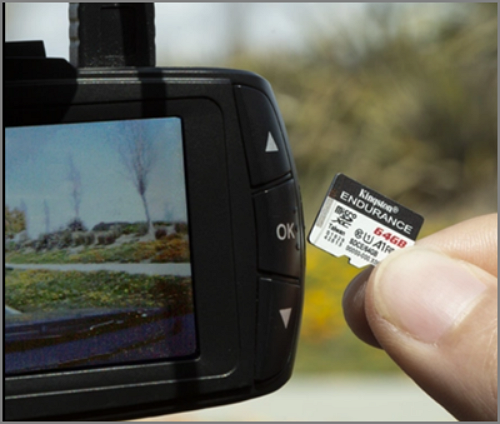
How Do I Format SD Card for Dash Cam? 3 Ways
To get the best performance out of your Dash Cam, it's recommended to format it every 2-3 weeks or monthly to clear out old files and make space for new recordings.
Formatting an SD card for a Dash Cam can be done in various ways, including using Windows, Mac, or the Dash Cam itself, each requiring different tools.
To format the SD card for a dash cam using Qiling Disk Master, first, download and install the Qiling Disk Master software on your computer. Next, insert the SD card into the computer's card reader or connect it to the computer via an adapter. Open the Qiling Disk Master software and select the SD card from the list of available drives.
To format an SD card for a dash cam using Disk Utility, start by opening the Disk Utility app on your Mac. Select the SD card from the list of available storage devices and click on the "Erase" button. Choose "Quick Erase" and select the format as "MS-DOS (FAT)" or "ExFAT" depending on the requirements of your dash cam.
To format an SD card for a dash cam using the screen menu, select the "Format" or "SD Card" option from the main menu. The dash cam will then display a warning message, and you'll need to confirm that you want to format the SD card. This process will erase all data on the card, so be sure to back up any important files before proceeding.
When your dash cam won't start up or is frozen, you'll need to format the SD card, which can be done on either Windows or Mac. This process is relatively straightforward and can be completed using various methods, with the easiest approach being the first option. Let's start with the simplest method for formatting an SD card for your dash cam.
- Important
- 1. Ensure the SD card is in FAT32 format for the Dash Cam.
- 2. You need to put the SD card into an SD Card adaptor before you begin to format it.
How to Format SD Card for Dash Cam on Windows - Qiling Disk Master
Formatting an SD card for a Dash Cam on Windows can be done easily using Qiling Disk Master Free, a professional disk management tool. This tool can quickly format the SD card, making it ready for use with the Dash Cam. With Qiling Disk Master Free, you can easily and efficiently format your SD card, ensuring it is ready for use with your Dash Cam.
Step 1. Right-click the SD card partition you want to format and choose "Format" from the menu.
Step 2. Set a new partition label, file system, and cluster size to the selected partition.
Step 3. Click the "Proceed" to start formatting your SD card.
Step 4. Click "Yes" on the pop-up window to continue.
What Else Can Qiling Disk Master Do?
Formatting an SD card with Qiling Disk Master is a straightforward process that can be completed by following the simple steps provided by the tool. Qiling Disk Master is an easy-to-use and powerful tool that offers convenience in managing SD cards.
- Fix Ender 3 not reading the SD card
- Check disk
- Format 64GB SD card to FAT32
- Convert NTFS to FAT32
- Convert MBR to GPT without data loss
Qiling Disk Master is a tool that can meet multiple needs, allowing users to format SD cards for Dash Cam on Windows, among other functions, and can be further explored by clicking on a provided link to learn more about alternative solutions.
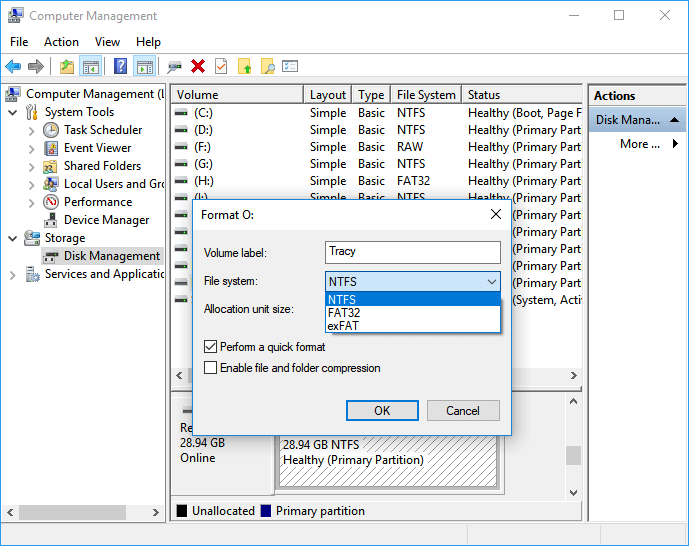
How to Format SD Card on Windows 11?
You can format an SD card in Windows 11 using various methods such as using File Explorer, Disk Management, Command Prompt, or third-party software like Qiling Disk Master. Each method has its own set of steps and requirements, but they all ultimately lead to a formatted SD card that can be used in devices that require specific formats. This article provides a detailed guide on how to format an SD card using these methods, ensuring that the card is properly formatted and ready for use in devices that require specific formats.
How to Format SD Card for Dash Cam on Mac - Disk Utility
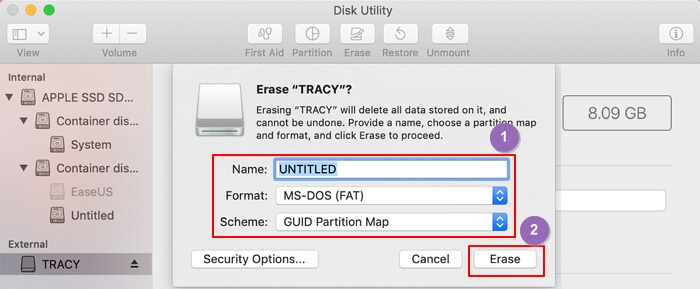
To format an SD card for a Dash Cam using a Mac, you can utilize the built-in Disk Utility tool. This tool allows you to manage both internal and external devices, including the SD card. Simply follow the steps in Disk Utility to format the SD card, making it ready for use with your Dash Cam.
Step 1. Mount the SD card on your Mac.
Step 2. Open "Disk Utility" in "Utilities."
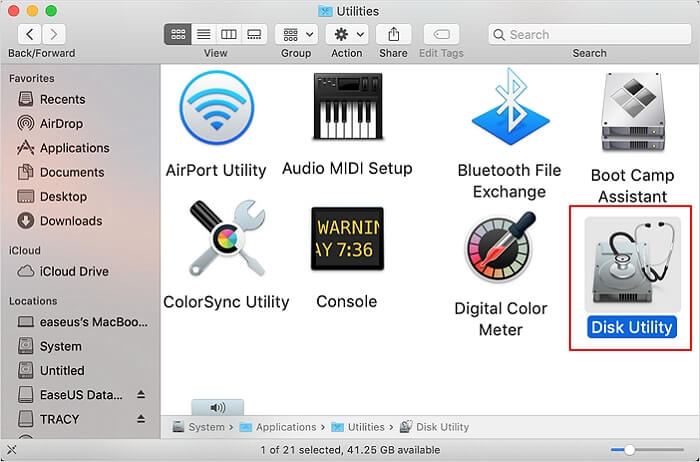
Step 3. Select the SD card for Dash Cam on the left side.
Step 4. Click "Erase" at the top of the page.
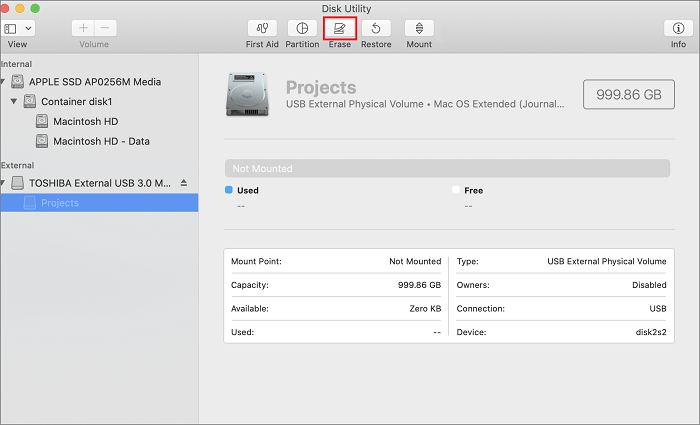
Step 5. Name the SD card, select "FAT" format, and choose "Erase."
How to Format SD Card for Dash Cam on Dash Cam – Screen Menu
To format the SD card for a Dash Cam, you can usually do this directly on the device from the on-screen menu. Alternatively, if you don't want to remove the SD card, you can follow specific steps on the Dash Cam to format the card without taking it out.
Step 1. Turn on the Dash Cam and enter the menu system.
Step 2. Click the "Setup" button in the upper right corner.
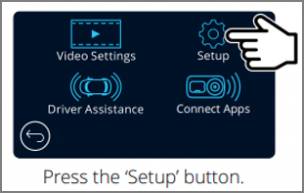
Step 3. Select "Format SD Card" in the lower left corner.
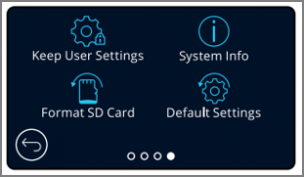
Step 4. Follow the instructions and finish formatting the SD card for Dash Cam.
If you're experiencing issues with your SD card, such as a "Dash Cam says SD card full" error, you can format it on Windows, Mac, or directly on your Dash Cam. To format on Windows, insert the SD card, open File Explorer, right-click on the SD card, select "Format," and choose the file system. On Mac, insert the SD card, open Disk Utility, select the SD card, click "Erase," and choose the file system.
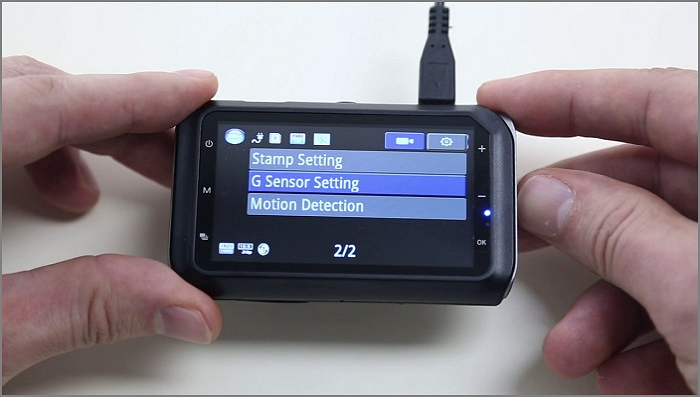
If your dash cam is displaying an "SD card full" error, it means the internal memory is completely filled up and it can't record any more footage. To fix this issue, you can try deleting some of the existing files or footage from the dash cam's memory.
Nikon D3000 users often experience the issue of the memory card being full, despite deleting video clips and having ample space. The camera's dash cam may display a "memory card full" message, even when there's still room on the card. This problem can be frustrating, especially when trying to record more footage. To resolve this issue, users can try the following solutions.
Conclusion
Formatting an SD card for your Dash Cam can be done in three ways. The easiest method is using Qiling Disk Master, while those with macOS can utilize Disk Utility. Alternatively, you can also format the SD card directly on the Dash Cam menu. Regardless of the method you choose, it's essential to format the SD card regularly to ensure your Dash Cam operates at its best condition.
FAQs About How to Format SD Cards for Dash Cam
Are you clear about how to format the SD card for the Dash Cam? I list three questions related to today's topic. I hope it can help you.
1. What format should the SD card be for the Dash Cam?
The Dash Cam requires an SD card formatted as FAT32, which is a common file system format for most cameras. If your SD card is currently in a different format, you'll need to reformat it to FAT32 to use it with the Dash Cam.
2. How often should I format my SD card for the Dash Cam?
Formatting your SD card regularly, ideally every month, can help maintain its performance and overall health.
3. Why does my dash cam say format SD card?
Dash cams will automatically remind you to format the SD card to free up space, deleting old and unnecessary footage.
Related Articles
- [How-to] Format Disk from MBR to GPT with DiskPart in Windows 10
- Can You Convert Basic to Dynamic in Windows 11? Yes, Here Is The Guide
- How to Format Hard Drive from BIOS Windows 10
- Is Partition Magic Server Edition Crack Safe? No, You Have a Better Choice
- [New] Get 2024 Official Qiling Disk Master License Code, Serial Key Here!
If you're looking for a Qiling Disk Master license code, we offer official access to get a genuine license code to upgrade to the full edition and enjoy all features at a low cost. - Qiling Disk Master 16.0 Crack 2024 | Get Qiling Disk Master Crack License Key
The newest version of partition manager is unveiled now. You may seek to get an Qiling Disk Master 16.0 crack. Was it worth downloading the crack version? Stay with Qiling and download the ideal software.
Products
Articles & Tutorials
- Data Recovery
- Data Backup
- File Recovery
- File Backup
- System Backup and Restore
- Disk and Partition Clone
- Technical articles
- Mobile articles
- Disk Master Help
- Windows Data Recovery Tutorials
- Windows Secure Delete Tutorials
- Windows Partition Management Tutorials
- Windows File Backup and Restore Tutorials
- Windows System Backup and Restore Tutorials
- Windows Disk Backup and Restore Tutorials
- Windows Clone Tutorials