How to Format Hard Drive from BIOS Windows 10
Formatting the hard drive can resolve most hard disk-related errors, but sometimes Windows built-in tools may not be able to format it. In such cases, entering the Win-PE environment through BIOS can provide a way to format the hard disk.
In Windows 10, you can format a hard drive from the BIOS settings, but only if you're using a UEFI firmware. If you're using a traditional BIOS, you won't be able to format the hard drive from the BIOS settings. To format a hard drive from the BIOS settings, you'll need to enter the UEFI firmware settings, select the hard drive you want to format, and then follow the on-screen instructions to complete the formatting process. However, keep in mind that formatting a hard drive from the BIOS settings may not be the most efficient way to format a hard drive, and you may want to consider using the built-in formatting tools in Windows 10 instead.
Can I Format Hard Drive from BIOS Windows 10?
You cannot format a hard drive from the BIOS setup. Formatting a drive requires an operating system, which is not available in the BIOS environment. The BIOS is a low-level software that manages the computer's hardware, but it does not have the capability to interact with the operating system or perform tasks that require an OS, such as formatting a drive. If you need to format a hard drive, you will need to boot into your operating system and use a formatting tool from within it.
The BIOS is a crucial part of a computer system that acts as a gatekeeper, ensuring all components are functioning properly when the computer is started. It detects and initializes hardware, such as hard disk drives, and facilitates the booting process into the installed operating system, allowing for the formatting of additional hard disks.
Read Also:
You can't actually format your hard drive from BIOS, but rather, it's your operating system (in this case, Windows 10) that allows you to format the hard drive. To format your hard drive from BIOS in Windows 10, you'll need to follow a specific guide, which typically involves accessing the Disk Management tool in Windows. This tool allows you to format and manage your hard drive, but it's not directly accessible from the BIOS.
- Change the BIOS settings
- To boot your Windows 10 PC from a bootable CD/DVD or USB flash drive, you need to change the boot order in your BIOS settings. Here's how you can do it:
- Format the hard disk with a professional tool
To format a hard drive from BIOS on Windows 10, follow these steps. First, restart your computer and enter the BIOS settings by pressing the designated key (usually F2, F12, or Del). Navigate to the "Boot" or "Storage" section and select the hard drive you want to format.
How to Format Hard Drive From BIOS Windows 10?
Here are three ways to format the hard drive from BIOS:
| Workable Solutions | Efficiency | Difficulity |
|---|---|---|
| 🏅Qiling Bootable USB Format Tool | High - It provides a one-Stop Shop is a tool that allows users to create a bootable USB and format their hard disk in one convenient step. It provides a simple and efficient way to prepare a computer for a fresh installation of an operating system or to troubleshoot issues by booting from a USB drive. | ⭐ |
| 🥈Command Prompt | Medium To use this tool, you need to have basic knowledge of command parameters. Incorrect commands can lead to data issues. | ⭐⭐⭐ |
| 🥉Windows Installation Process | Medium The user needs to be familiar with the Windows installation process in order to locate the Format button. | ⭐⭐⭐ |
A third-You can format your hard disk using Qiling Disk Master, a tool that lets you do it from the BIOS without a CD/DVD. This is a faster and simpler solution compared to using the Windows 10 Media Creation Tool to create installation media.
In this article, you can find a detailed guide for either option you choose.
Method 1. Format Hard Drive from BIOS via Qiling Disk Master
Qiling Disk Master is a versatile hard disk management tool that enables you to create bootable USB drives directly and format hard drives quickly, eliminating the need to locate the system partition manually or enter the Win-PE environment.
Here is the step-Here's a one-paragraph, step-by-step guide to formatting the hard drive from BIOS on Windows 10 using a powerful tool:
Guide 1. Create Bootable USB
Step 1. To create a bootable disk of Qiling Disk Master, prepare a storage media like a USB drive or CD/DVD disc, and connect it to your computer.
Step 2. Launch Qiling Disk Master, and find the "Bootable Media" feature on the left. Click on it.
Step 3. You can choose to save the ISO file to a USB or CD/DVD drive if it's available, or save it to a local drive and burn it to a storage media later. Once you've made your choice, click the "Create" button to start the process.
- Check the Warning message and click "Yes".
Step 4. When the process finishes, a pop-up window will appear, asking if you want to restart your computer from the bootable USB.
- Reboot Now: You want to restart the current PC and boot into Qiling Bootable Media to manage disk partitions without using an operating system.
- Done: You want to use the bootable USB on a new PC, not restart the current one.

Note: To use the bootable disk on a new PC, restart the target computer and press F2/F8/Del key to enter BIOS, then set the USB bootable disk as the first boot disk.
Wait patiently and your computer will automatically boot up from the USB bootable media and enter Qiling WinPE desktop.
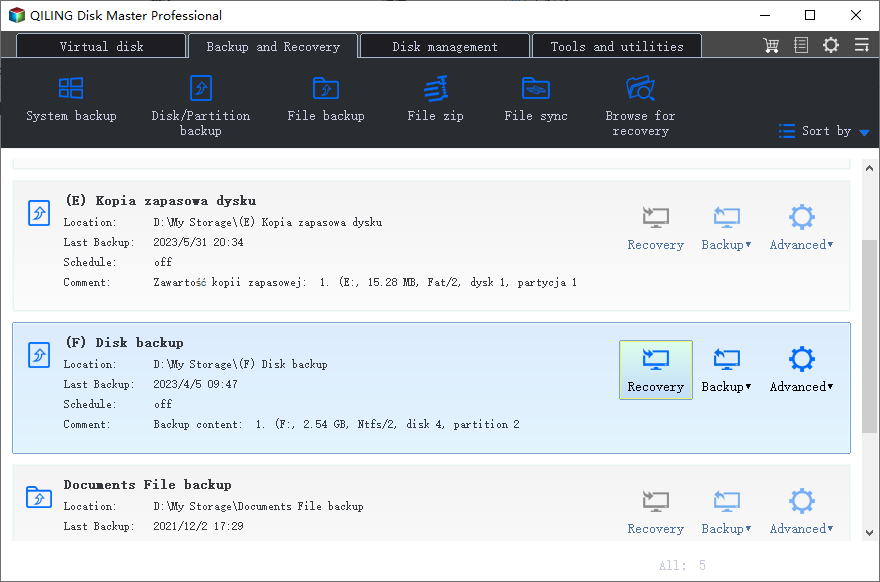
Guide 2. Format Hard Drive from BIOS
After creating the bootable drive, you need to set it up as a boot disk on your Windows 10 computer. To do this, restart your computer and hold F2/Del to go to the BIOS, then under the boot option. Reboot your computer again and go under Qiling Disk Master to format it.
Step 1. Run Qiling Disk Master, right-click the hard drive partition you intend to format and choose "Format".

Step 2. Set the partition label, file system type, and cluster size in the new window for the partition to be formatted.

Step 3. The process of formatting a hard drive is a crucial step in preparing it for use. It involves deleting all existing data and reorganizing the drive's file system, making it ready for new data to be written to it.
Step 4. Then you will see a warning window, click "Yes" in it to continue.
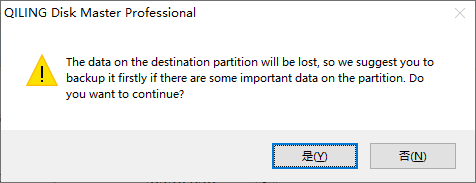
Qiling Disk Master is a powerful tool that offers additional features beyond data recovery, including the ability to wipe, delete, and partition hard drives. If you need to perform these tasks, you can find detailed guidelines by clicking on the relevant topics and searching for further instructions.
Method 2. Format Hard Drive from BIOS via Command Prompt
You can format a hard drive in Windows 10 using the command prompt, relying on the Windows 10 installation media. However, this method is more complicated and requires knowledge of command parameters and the ability to locate the system partition. If you're familiar with computer operation, you can follow the steps to format the hard drive in Windows 10 using the command prompt.
Step 1. Connect the bootable USB to the Windows PC and reboot.
Step 2. To enter the BIOS setup, press a specific key on your computer's keyboard, usually assigned by the manufacturer, such as F2, F8, F10, F11, DEL, or ESC, to access and configure the basic input/output system settings.
Step 3. To change the boot order in BIOS, go to the Boot option and set the Windows installation drive as a boot drive, allowing it to take priority over other drives during the boot process.
Step 4. Boot your computer from the installation media, and set the language, time, format, and other preferences as desired.
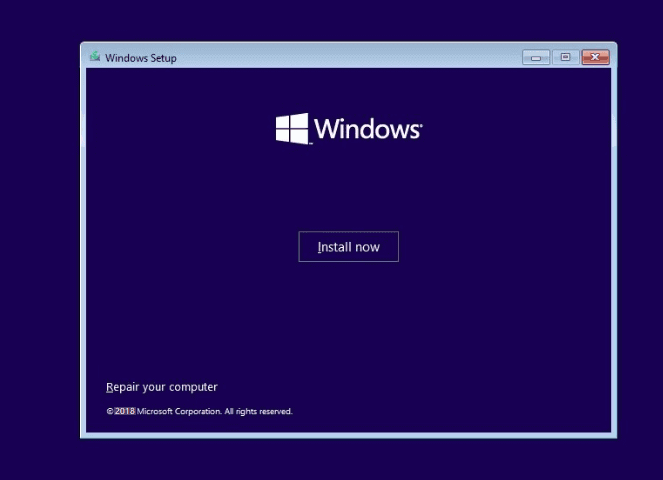
Step 5. In the next step, click on "Repair your computer" in the bottom left corner.
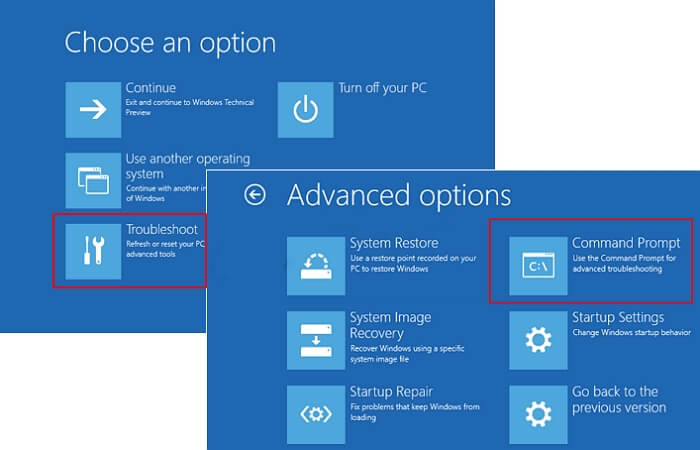
Step 6. Locate Troubleshoot>Command Prompt.
Step 7. Enter the commands in sequence at the command prompt:
- diskpart
- list volume
- exit
- dir C:
- format C: /fs: NTFS
- Y
Method 3. Format Hard Drive from BIOS During Windows Installation
To format the hard disk when installing Windows, start by setting the Windows 10 installation media as a boot drive. This can be done by going into your computer's BIOS settings, usually by pressing F2, F12, or Del, and then setting the USB drive or CD/DVD drive as the first boot option. Save the changes and exit the BIOS settings. Then, restart your computer and it should boot from the installation media.
Step 1. To choose the USB as the boot drive in the BIOS setup, first, enter the BIOS setup by pressing the designated key (usually F2, F12, or Del) as the computer boots up. Then, navigate to the boot order settings, which is usually found under a tab named "Boot" or "Advanced".
Step 2. Select "Install now" in the pop-up screen.
Step 3. Enter the Windows product key and accept the license terms.
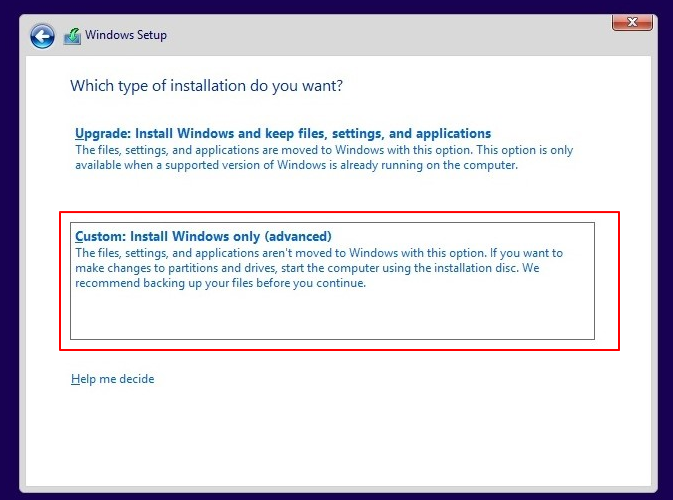
Step 4. Select Custom: Install Windows only(advanced).
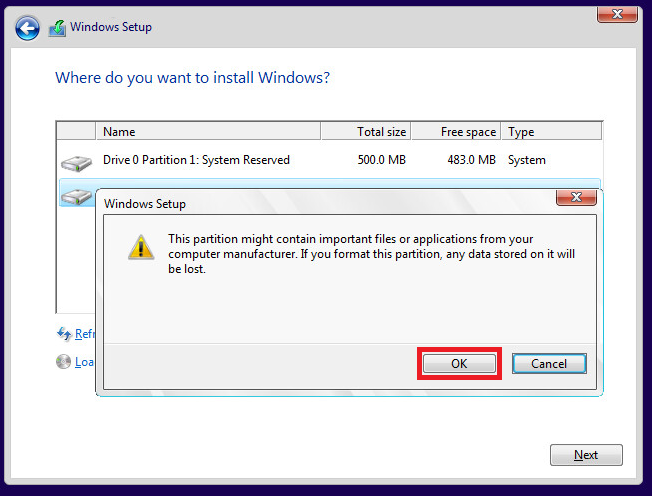
Step 5. Select the partitions and drives to be formatted, then click the "Format" button and click "Next".
Step 6. Select OK in the pop-up reminder window.
Why Do You Format Hard Drive From BIOS Windows 10
Formatting a hard drive from BIOS in Windows 10 can be done in three ways. Users may choose to do this for various reasons, such as reinstalling the operating system, troubleshooting issues, or preparing the drive for a new installation.
Users may need to format their hard drive from the BIOS in Windows 10 due to various reasons, including deleting personal data from the computer, as well as other situations such as reinstalling Windows, removing malware, or fixing a corrupted system.
- Formatting the system partition or disk: Windows 10 computers can't format drives with operating systems.
- When reinstalling the operating system: The C partition cannot be formatted when the computer boots normally because the operating system and essential system files are stored on that partition. Formatting the C partition would erase these files, causing the computer to malfunction or become unbootable.
- When the computer fails to boot: When a computer fails to boot due to hard disk failure or formatting the hard disk on an unbootable computer, it's often necessary to use a different method to access the computer's data. In such cases, a Live USB or CD can be used to boot the computer and access the hard disk, allowing for data recovery or even reinstalling the operating system.
- There is an error in the system drive: A corrupted boot sector can prevent the operating system from booting, potentially requiring the drive to be reformatted to resolve the issue.
Formatting a drive from BIOS involves erasing all data on the drive, so it's essential to back up important data before proceeding. To format a drive from BIOS, you can refer to the specific steps provided in this article, which will guide you through the process for your particular device. Please note that the steps may vary depending on the device and the operating system being used.
Conclusion
To format a hard drive from BIOS in Windows 10, you can use Qiling Disk Master, which is a recommended method to save time and energy. Alternatively, you can also use the built-in Disk Management tool or the Command Prompt with the 'diskpart' command to achieve the task.
You can also use Windows installation media to enter the Win-PE environment, from which you can format the hard drive using Command Prompt or during the Windows installation, if you're familiar with computer operations.
FAQs About Format Hard Drive From BIOS Windows 10
This part provides some additional questions and answers about format hard drives. Keep reading if you are interested.
1. How to format the hard drive from BIOS without CD/DVD?
If you have a CD/DVD, you can create a system repair disc in Windows and then format the drive from the BIOS. If not, you'll need to use a third-party tool to create a bootable USB and adjust BIOS settings.
Then you can follow the method provided in this article to format the drive using the command prompt or a third-party tool.
2. Can I format SSD from BIOS?
In the BIOS, you can't directly format the SSD, but you can enter the Win-PE environment by changing the boot order. From there, you can use the Windows Installation Wizard or a command prompt to format the SSD.
3. How to format the hard drive from BIOS Windows 11?
The scenario for formatting a drive in Windows 11 is the same as in this article for formatting a drive in Windows 10. You can refer to the scenario in this article. Below is a simple process:
- Create Bootable USB or Windows 11 Installation Media
- Change boot configuration in BIOS
- To reboot the computer to the command prompt or Windows installation media, follow these steps:
- Format the drive
Related Articles
- How to Upgrade Steam Deck SSD [Easiest Way]
- How to Format SD Card FAT32 Windows 11
- How to Run Raspberry Pi SD Card Benchmark Test [Step-by-Step Guide]
- Top 6: HP USB Disk Storage Format Tool Alternative Windows
- Top 4 Best Partition Magic Alternatives Recommend
If you're searching for a Partition Magic alternative, you're in luck! This article provides a comprehensive overview of the top 4 best Partition Magic alternatives, offering you a reliable and efficient solution for managing your disk partitions. - Download and Use Partition Magic for Windows Server 2016 [Step-by-Step Guide]
For Windows Server 2016 owners, this page highlights the top partition magic server software to effectively apply and manage disk partitions on Server computers.
Products
Articles & Tutorials
- Data Recovery
- Data Backup
- File Recovery
- File Backup
- System Backup and Restore
- Disk and Partition Clone
- Technical articles
- Mobile articles
- Disk Master Help
- Windows Data Recovery Tutorials
- Windows Secure Delete Tutorials
- Windows Partition Management Tutorials
- Windows File Backup and Restore Tutorials
- Windows System Backup and Restore Tutorials
- Windows Disk Backup and Restore Tutorials
- Windows Clone Tutorials