Fix: Boot Configuration Data File Doesn't Contain Valid Information for an Operating System
The Boot Configuration Data (BCD) file is essential for a Windows computer to boot up, as it stores data related to the Windows Boot Manager. This file is crucial in driving bootmgr to load the operating system from the BCD, allowing the computer to boot into Windows. However, when the BCD becomes corrupted, it can prevent the computer from booting into the Windows system, resulting in error codes and information that indicate specific issues.
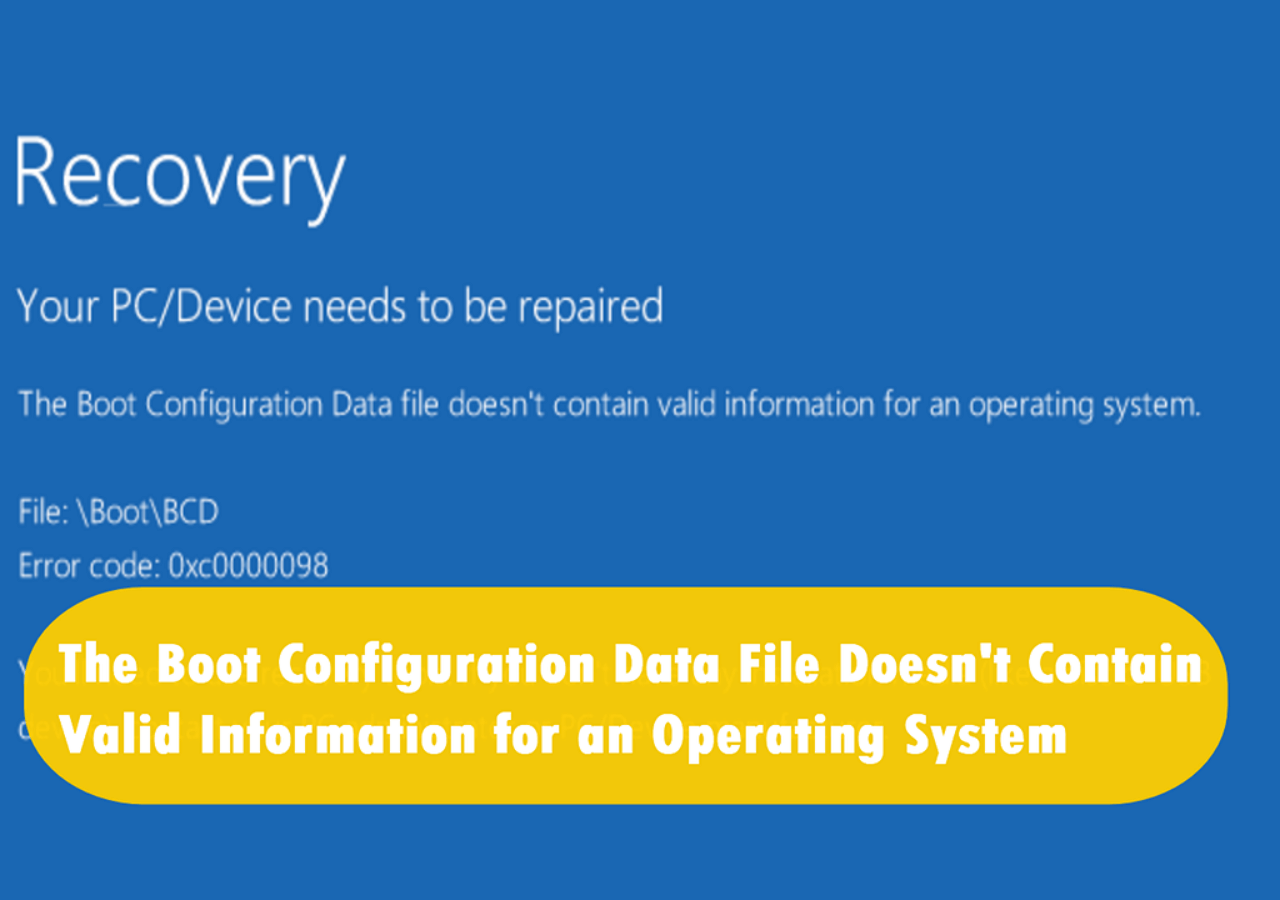
The Boot Configuration Data (BCD) file is corrupted or doesn't contain valid information for an operating system, preventing the computer from starting up properly. This error can occur due to a variety of reasons, such as a corrupted registry, a faulty hard drive, or a malfunctioning BIOS. To resolve this issue, you can try running a System File Checker (SFC) scan to replace any corrupted system files, or use a third-party tool to repair the BCD file.
Recovery
Your PC/Device needs to be repaired
"The Boot Configuration Data file doesn't contain valid information for an operating system" is an error message that typically occurs when the Boot Configuration Data (BCD) file, which is responsible for booting Windows, is corrupted or contains invalid data. This can prevent the operating system from loading properly, resulting in the error message.
File: \BCD
Status: 0xc0000098
The post will present 5 practical methods to repair the error.
5 Ways to Fix The Boot Configuration Data File Doesn't Contain Valid Information for an Operating System
If you're experiencing the error, try the 5 solutions listed below, which might help you repair your Windows and resolve the issue.
🔥Read Also: To fix the issue where a selected file is not a proper BIOS, try the following: 1) Check if the file is corrupted or incomplete, 2) Ensure the file is in the correct format (usually.bin or.
Way 1. Perform Startup Repair
When encountering a boot error, running Startup Repair in the Windows Recovery Environment can automatically diagnose and repair system files causing the issue.
Step 1. To access Automatic Repair, turn your computer on and off repeatedly for three times while the logo appears, which will allow your computer to boot into the Automatic Repair environment.
Step 2. Click "Advanced options" to proceed.
Step 3. Click on "Troubleshoot" > "Advanced options" > "Startup Repair."
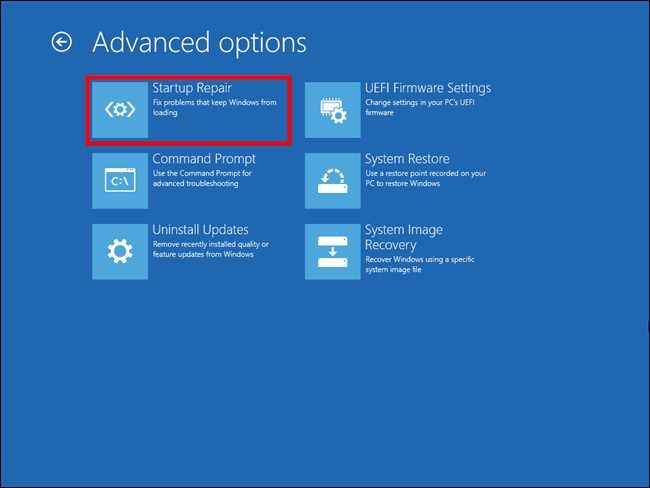
Step 4. Wait for the program to repair the error automatically.
If the method described above doesn't resolve the issue, try the next troubleshooting step. Share this post with friends who have encountered the same error to help them out.
Way 2. Rebuild the BCD File
Rebuilding BCD can usually resolve most issues that are primarily caused by a corrupted or empty BCD file. If you are a beginner who knows a little about using commands to rebuild Boot Configuration Data, I recommend you to download professional third-party software, Qiling Disk Master Professional.
The tool has a feature called Boot Repair, which enables users to rebuild the Boot Configuration Data (BCD) with a user-friendly interface and a straightforward process.
Step 1. To create bootable media using Qiling Disk Master, start the software after connecting an external drive or USB to your computer. Then, navigate to the "Tools and utilities" section and click on "Create bootable media".

Step 2. Insert a USB drive or CD/DVD and click "Proceed" to continue the installation. Alternatively, you can burn the Windows ISO file to the chosen storage media.

Step 3. Connect a bootable drive to the new computer, reboot by pressing F2/Del, set the drive as the boot disk, and exit by pressing F10.
Step 4. Boot the computer again and enter the WinPE interface, then open Qiling Disk Master and click "Fix Boot" under the "Tools and utilities" option.

Step 5: Select the system you want to repair and click "Proceed".

Step 6. The system has been successfully repaired. Click "Finish" to complete the boot repair process.
To explore more available ways of rebuilding BCD, refer to the following guidelines.

How to Rebuild BCD in Windows 10&11
This post provides multiple ways to rebuild the Boot Configuration Data (BCD) file, which can become corrupted or lost, preventing the computer from booting properly.
If the most efficient solution of rebuilding BCD doesn't work, try the next method.
Way 3. Active the Proper Partition
To set the proper partition active, you can use the built-in Disk Management tool in Windows. Here's how: Open Disk Management, select the partition you want to be active, right-click on it, and choose "Mark as active". This will ensure that the correct partition is active and your Boot Configuration Data file will contain valid information for the OS on your hard disk.
Step 1. To access Automatic Repair, turn your computer on and off repeatedly for three times while the logo appears. This will prompt your computer to access the Automatic Repair feature.
Step 2. Click "Advanced options" to proceed.
Step 3. Click on "Troubleshoot" > "Advanced options" > "Command Prompt".
Step 4. Successively input the commands below and hit "Enter" each time.
- diskpart
- list disk
- select disk 0 (replace 0 with the Windows system drive number)
- list partition
- select partition 3 (replace 3 with the number of the partition where the system files are)
- active
- exit
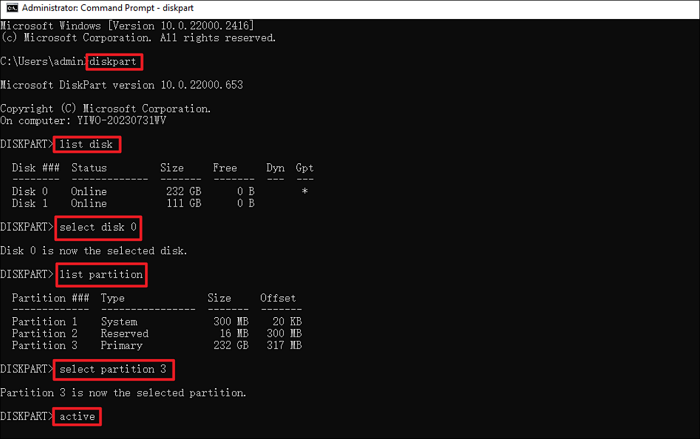
After inputting these commands, you should restart your computer and see if the error is corrected.
Way 4. Run a SFC and CHKDSK Scan
To resolve the issue, run the SFC and CHKDSK commands in the Command Prompt from the Windows Recovery Environment to scan and repair system files, which can also help to fix the corrupted file system.
Step 1. To access Automatic Repair, turn your computer on and off repeatedly for three times while the logo appears, allowing it to boot into the repair environment.
Step 2. Click "Advanced options" to proceed.
Step 3. Click on "Troubleshoot" > "Advanced options" > "Command Prompt".
Step 4. Type in sfc /scannow /offbootdir=C:\ /offwindir=C:\Windows\ and hit "Enter".
Step 5. After the SFC scan is finished, enter the command chkdsk /r /f c: and press Enter to initiate the command.
Note: Replace C with the Windows drive if your OS is installed on another drive.
Here are some command lines that can help with multiple hard drive problems that might be causing the issue: `chkdsk /f /r`, `chkdsk /f /x`, `chkdsk /r`, `sfc /scannow`, `sfc /verifyonly`, `bootrec /fixmbr`, `bootrec /fixboot`, `bootrec /scanos`, `bootrec /rebuildbcd`, `bcdboot /s C:\ /l en-us /v`, `bcdboot /s C:\ /l en-us /v /p`, `bcdboot /s C:\ /l en-us /v /p /s`, `bcdboot /s C:\ /l en-us /v /p /s /f4`, `bcdboot /s C:\ /l en-us /v /p /s /f4 /s`, `bcdboot /s C:\ /l en-us /v /p /s /f4 /s /f2`, `bcdboot /s C:\ /l en-us /v /p /s /f4 /s /f2 /f1`, `bcdboot /s C:\ /l en-us /v /p /s /f4 /s /f2 /f1 /f3`, `bcdboot /s C:\ /l en-us /v /p /s /f4 /s /f2 /f1 /f3 /f5`.
The concept of a "perfect" body has been a societal obsession for centuries, with various cultures and historical periods setting their own standards for beauty and physical perfection. From ancient Greece's emphasis on a muscular physique to the hourglass figures of the Renaissance era, societal beauty standards have evolved significantly over time.
Way 5. Reset Your PC
If you've tried all the above troubleshooting methods and still can't fix the error, you can try resetting your PC. Before doing so, it's a good idea to create a WinPE bootable disk and back up your personal files to prevent losing any important data. Once you've taken these precautions, you can proceed with the reset process.
Step 1. Press the "F11" key when your computer is booting up to access the Windows Recovery Environment (RE).
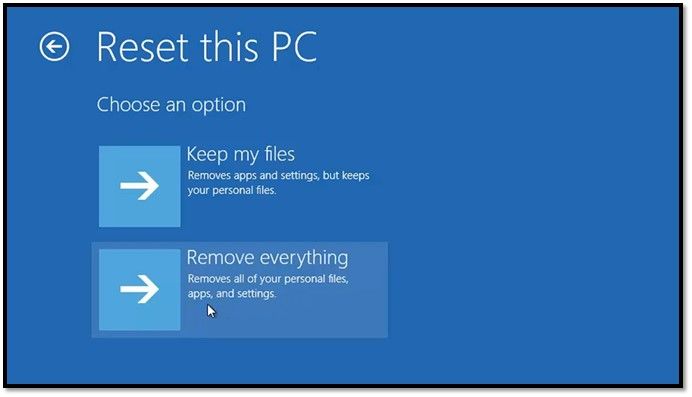
Step 2. Click "Troubleshoot > Reset this PC".
Step 3. After selecting the desired option, "Keep my files" or "Remove everything", follow the on-screen guide to complete the process.
- Notice:
- Although you are allowed to keep personal files like photos, videos, documents, etc., the installed apps and drivers will be removed from your computer.
If you encounter the error "Unable to Reset PC. A required drive partition is missing.", you can try the solutions provided in this article to resolve the issue.
The error "Unable to Reset Your PC. A Required Drive Partition Is Missing" occurs when Windows is unable to find a necessary partition on your hard drive to complete the reset process. This issue can arise due to various reasons such as a corrupted system partition, incorrect boot order, or an issue with the Windows installation media.
This page explains why Windows is unable to reset your PC and provides a solution to fix the issue without losing any data, allowing you to reset your PC successfully. Read more
Main Causes For Boot Configuration Data File Doesn't Contain Valid Information Error
The "Boot Configuration Data File Doesn't Contain Valid Information" message on your computer is likely due to one of two common issues. The exact cause of this problem may vary, but these two reasons are the most frequent culprits.
- The BCD doesn't contain valid entries. The issue is primarily caused by human error in configuring BCD, disk-write errors, malware infections, unexpected power outages, and boot sector problems.
- The driver for the hard drive is incompatible. This usually happens after you install an incompatible new service pack or upgrade an inappropriate version of the system, which can result in the troublesome error.
Here are other issues related to BCD that you may be interested in:
Conclusion
The error "The Boot Configuration Data file doesn't contain valid information for an operating system" in Windows computers is typically caused by damaged BCD or incompatible drivers, and may also be related to hard drive health issues or a faulty RAM stick.
With the help of Qiling Disk Master, a tool that offers various powerful features, you can quickly and safely resolve the issue and restore your PC to its previous functioning state. It's recommended to download and utilize it as soon as possible to resolve the problem.
FAQs on The Boot Configuration Data File Doesn't Contain Valid Information for an Operating System
If you still have other questions related to the Boot Configuration Data file doesn't contain valid information for an operating system, the information below might be able to help you.
1. What is 0xc0000098 Boot Configuration Data file doesn't contain valid information?
0xc0000098 is a BSOD error that often occurs after cloning an OS or upgrading to Windows 10, typically due to either the BCD (Boot Configuration Data) having no entry or an incompatible hard drive driver.
2. How do I fix error code 0xc0000098 on Windows 10?
You can fix this error by trying these methods:
- Run Startup Repair Tool
- Rebuild the BCD File
- Run a CHKDSK and SFC Scan
- Active the Proper Partition
- Reset This PC
3. Why can't the Startup Repair repair my PC?
Startup Repair may not work normally due to various reasons, including a virus or malware infection, incompatible programs, incorrect BIOS settings, hardware component failure, or outdated drivers, among others. These factors can prevent the Startup Repair process from functioning as intended.
Related Articles
- How to Fix "Windows 11 Can't Format Hard Drive" Error
- 3 Efficient Ways to Check SSD for Errors on Windows 10/11
- 2024 Official Access: Get Newest Qiling Disk Master (16.0) Keygen
- How Do I Fix Windows 10 BSOD: Blue Screen of Death Error? Here Is The Guide
- How to Partition SSD From BIOS [2024 New Guide]
To partition an SSD from BIOS, follow these steps: Enter the BIOS settings by pressing the designated key (usually F2, F12, or Del) when your computer starts. Navigate to the “Boot” or “Storage” section and select the SSD as the first boot device. Save the changes and exit the BIOS settings. - How to Partition Western Digital Hard Drive on Windows 11/10/8/7
To partition your Western Digital hard drive on Windows 11/10/8/7, you can use a tool like Qiling Disk Master or the built-in Disk Management feature. This will allow you to easily and quickly partition your hard drive.
Products
Articles & Tutorials
- Data Recovery
- Data Backup
- File Recovery
- File Backup
- System Backup and Restore
- Disk and Partition Clone
- Technical articles
- Mobile articles
- Disk Master Help
- Windows Data Recovery Tutorials
- Windows Secure Delete Tutorials
- Windows Partition Management Tutorials
- Windows File Backup and Restore Tutorials
- Windows System Backup and Restore Tutorials
- Windows Disk Backup and Restore Tutorials
- Windows Clone Tutorials