3 Efficient Ways to Check SSD for Errors on Windows 10/11
Solid-state drives have become more affordable due to increased competition in the market.
SSDs offer improved performance and benefits, but their fragility makes them prone to errors. Fortunately, there are ways to mitigate this issue, which will be explored in this article, providing users with two methods to consider.
Overview About How to Check SSD for Errors on Windows 10/11:
| ⚙️Complex Level | Low, Beginners |
| ⏱️Duration | 2-5 minutes |
| 🚩Applies to | Check SSD for errors on Windows 10/11/8/7 |
| ✏️Ways | |
| ⛏️Tools | A Windows PC, Windows Properties, CMD, Qiling Disk Master |
For users without much computing experience, checking errors on an SSD can be a daunting task, especially when using the built-in "CHKDSK" command in Windows. However, a simple third-party tool can make the process much easier, and one such tool stood out in our test due to its stability, compatibility, and user-friendly interface.
Way 1. Check SSD for Errors via Qiling Disk Master
We recommend using reliable software, such as Qiling Disk Master, to check for errors and locate bad sectors on your SSD. This software can assess the SSD's health status and provide a score based on the test results, warning you if the SSD is unhealthy and has too many errors. You can install it on your PC and start the check.
This tool can help you check errors on an SSD by performing various tasks, including the tasks below.
- Guide 1. Check SSD Health via SMART Status
- Guide 2. Check SSD for Bad Sectors
- Guide 3. Check SSD for File System Errors
Qiling Disk Master can tell you if your SSD is healthy, how many bad sectors your SSD has, and if there is any file system error on your SSD, providing more details than the CHKDSD command.
Guide 1. Check SSD Health via SMART Status
To check the SSD SMART status using Qiling Disk Master, follow these steps:
Step 1. Launch Qiling Disk Master, click the blue arrow to activate the "Disk Health" feature under the "Tools and utilities" section.

Step 2. Select the target disk, and you'll be able to view the health status of your disk.

Guide 2. Check SSD for Bad Sectors
Qiling Disk Master can help you run a disk surface test on your SSD or check hard drive for bad sectors to locate bad sectors, ensuring the health and longevity of your storage devices.
Step 1. Open Qiling Disk Master. Right-click the disk that you want to check, and then click "Surface Test".
Step 2. The operation will be performed immediately, and all bad sectors will be marked as red.
Guide 3. Check SSD for File System Errors
To check for file system errors on your SSD, follow these steps: First, open the Command Prompt as an administrator by searching for "cmd" in the Start menu, right-clicking on the result, and selecting "Run as administrator". Then, type the command "chkdsk /f" followed by the drive letter of your SSD (e.
Step 1. Right-click the target partition that has a problem.
Step 2. Choose "Advanced" > "Check File System".
Step 3. Confirm if you want to hide the partition or not.
Step 4. In the Check File System window, select the "Fix the error on the disk" option to resolve the file system issue.
Step 5. Click "Proceed" to check errors on your partition.
Qiling can do a lot of tasks to help you manage your SSD well, such as defragmentation, disk cleanup, and disk clone, which can help to improve the performance and lifespan of your SSD.
- ✅Wipe/format an SSD
- ✅Initialize a new SSD
- ✅Run SSD SMART test
- ✅Test SSD read/write speed
- ✅Clone SSD to larger SSD
- ✅Merge/split partitions on SSD
To manage your SSD effectively, download this tool, which is essential for checking SSD health and testing SSD speed.
Way 2. Check SSD for Errors by CHKDSK
You can find out bad sectors and file system errors on your SSD by running CHKDSD in Windows, which will report the total number of faulty sectors after inspecting the SSD. Running this command regularly is a good idea. If you want to know more details about your SSD, consider using a different method.
Here is how to run CHKDSK to check your SSD for errors:
Step 1. Type cmd in the Windows search box and select Run Command Prompt as administrator.
Step 2. In the command prompt window, type the command `chkdsk C: /f /r /x` and press Enter to run the Check Disk utility on the C drive, which will scan and repair any errors, recover readable information, and attempt to recover bad sectors. The `/f` option forces the check, `/r` option recovers readable information, and `/x` option forces the volume to dismount before scanning.
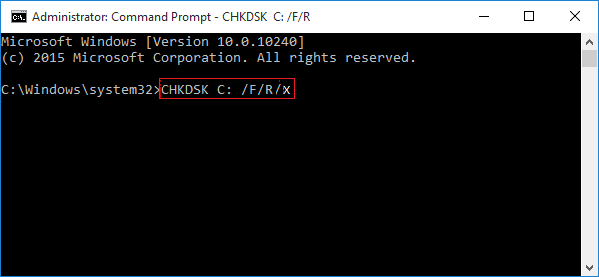
The chkdsk command, specifically "chkdsk C: /f /r /x", can be used to check and scan an SSD for errors, and repair file system corruption and bad sectors if any are found.
Way 3. Check SSD for Errors via Windows Properties
To check SSDs for errors using Windows Properties, you can follow these steps:
Step 1. To check the SSD, click on "This PC" in File Explorer, right-click on the SSD you want to check, and select "Properties".
Step 2. To fix the error, select the "Tools" section in the menu, then click on the "Check" option under the "Error Checking" section.
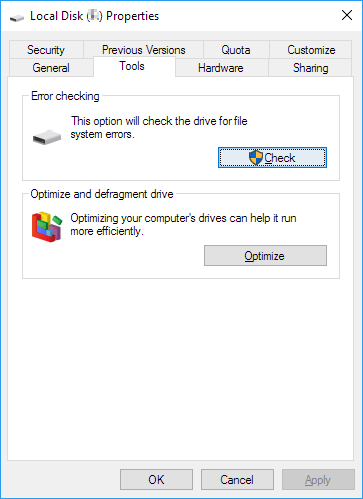
Step 3. You can choose to scan the target drive or repair the drive if errors are found.
Step 4. After the scanning finishes, click the "Show Details link" to view the CHKDSK logs in Event Viewer.
You may also like:
Conclusion
Regularly checking your SSDs or partitions for errors can help you identify and fix issues without hassle. Since disk errors can be caused by various factors such as bad sectors, improper shutdown, malware, or physical damage, it's essential to know how to check for these errors. Fortunately, there are effective methods to help you do so, although if your SSD suffers serious physical damage, it's best to take it for repair or replace it in time to avoid further losses.
Don't forget to share this article on your social media if these ways do help you.
Check SSD for Errors FAQs
Here are some other questions and answers to help you solve issues related to errors on an SSD:
1. Should you scan SSD for errors?
An SSD (solid-state drive) is a storage device that uses integrated circuit components, offering higher stability and faster data access speed compared to traditional HDDs (hard disk drives). However, SSDs have a limited lifespan, which means you'll need to regularly check for and correct errors on your device over time to maintain its performance.
2. How do I make sure my SSD is clean?
To clean your SSD, you'll need to follow these steps. First, you should run a disk cleanup tool to remove temporary files and other items you don't need.
- Ensure your SSD is connected to the PC and is not the boot drive.
- Right-click the Windows icon and select/launch Disk Management.
- In the lower right-hand pane, find the SSD you want to clean.
- Right-click on each partition and select Delete Volume.
3. How to check SSD for errors in Linux?
To check the health of an SSD in Linux, you can use the command line tool smartctl, which is a feature of the smartmontools package that needs to be installed first.
- Install the smartmontools package using the command "sudo apt install smartmontools."
- To run a short self-test on your SSD, use the command "sudo smartctl -t short -a /dev/sdX" (replace sdX with your SSD's name) in your terminal.
- After the test is completed, run the command "sudo smartctl -a /dev/sdX" to display the results.
Related Articles
- Fixed: Blue Screen of Death Error 0x000000C5 | Top Ways
- How to Play Xbox 360 Games From an External Hard Drive
- Windows 10 Password Reset USB Free Download - Easiest
- How Do I Force Format SD Card on Windows 11/10? Your Guide Here
- Guide to Check Disk Space Using PowerShell [2024 Tutorial]
This guide aims to introduce multiple ways to check disk space with PowerShell and an alternative tool to show disk usage. - Guide on Checking Disk Speed in Windows 10 Using CMD [2024 Tutorial]
Protecting your data requires that you keep tabs on your SSD's performance. This article explains how to check disk speed Windows 10 cmd.
Products
Articles & Tutorials
- Data Recovery
- Data Backup
- File Recovery
- File Backup
- System Backup and Restore
- Disk and Partition Clone
- Technical articles
- Mobile articles
- Disk Master Help
- Windows Data Recovery Tutorials
- Windows Secure Delete Tutorials
- Windows Partition Management Tutorials
- Windows File Backup and Restore Tutorials
- Windows System Backup and Restore Tutorials
- Windows Disk Backup and Restore Tutorials
- Windows Clone Tutorials