How to Repair Bad Sectors on External Hard Drive [Step-by-Step Guide]
Bad sectors on an external hard drive are areas where the data stored cannot be read due to physical damage or deterioration. They can be a sign of a more serious issue, such as a failing drive, but ignoring them may not necessarily cause immediate harm. However, it's still recommended to address the problem to prevent data loss and potential further damage. Regularly backing up your data and running disk checks can help identify and potentially fix bad sectors, ensuring the longevity and reliability of your external hard drive.
This article will explain what bad sectors are and guide you on how to fix and repair them on external hard drives, providing a comprehensive solution to this common issue.
Why Bad Sectors Appears on External Hard Drive
A hard disk has millions of sectors, and a bad sector is a small piece of storage space that can't be used. If many bad sectors accumulate, it can reduce the lifespan of an external hard drive. There are two types: logical and physical bad sectors, and this article focuses on fixing the logical ones, which can be done, unlike physical ones.
With the popularity of large-External hard drives, often used to store large files, can be prone to issues such as bad sectors due to various reasons beyond just the quality problems and natural aging of the drive itself. These issues can arise from factors like physical shock, overheating, electrical surges, and even software-related problems, which can cause the drive's internal mechanics to malfunction, leading to bad sectors and potentially causing data loss.
- Dust
- Improper use
- High temperature
- Poor power quality
- Virus infection from media or computer
- Sudden system shutdown while transferring files
Bad sectors on an external hard drive can appear due to various reasons, and if left unchecked, they can lead to data loss or even complete failure of the drive. To address this issue, many users seek ways to fix or repair bad sectors on their external hard drive, and the next paragraph will provide more information on this topic.
Repair Bad Sectors on External Hard Drive - 3 Safe Fixes
Here are some fixes to help you get your external hard drive working again: Try using a disk check tool like CheckDisk to scan the drive for errors, defragment the drive to see if it resolves the issue, check for loose connections, and try a different USB port. If none of these work, you may need to try a more advanced method like using a data recovery software to recover your files. If all else fails, you may need to consider replacing the drive.
To repair bad sectors on an external hard drive using Qiling Disk Master, first, download and install the software. Then, connect the external hard drive to your computer and launch Qiling Disk Master. Select the external hard drive as the target disk and click on the "Repair Bad Sectors" option.
To repair bad sectors on an external hard drive via Windows Explorer, you can follow these steps: Go to File Explorer, right-click on the external hard drive, and select "Properties". In the Properties window, click on the "Tools" tab. Under the "Check" section, select "Check for bad sectors".
To repair bad sectors on an external hard drive using the built-in Windows utility CHKDSK, first, connect the external hard drive to the computer. Open the Command Prompt as an administrator and type the command "chkdsk /r" followed by the drive letter of the external hard drive (e.g.
The first fix is the easiest one, so let's start with that before diving into learning.
Fix 1. Repair Bad Sectors on External Hard Drive via Qiling Disk Master
Qiling Disk Master Professional is a tool that helps test external hard drives, locate bad sectors, and repair them, supporting all Windows versions, with a clear interface and simple process.
To run the surface test on your external hard drive and locate all the bad sectors, first, connect your external hard drive to your computer. Then, download and install the free version of the CrystalDiskInfo software.
Step 1. Open Qiling Disk Master, right-click the disk you want to check and select "Surface Test".
Step 2. The operation will be performed immediately, and all bad sectors will be marked as red.
After identifying your bad sectors, you can utilize the "Check file system errors" feature to attempt to repair the bad sectors on your external hard drive.
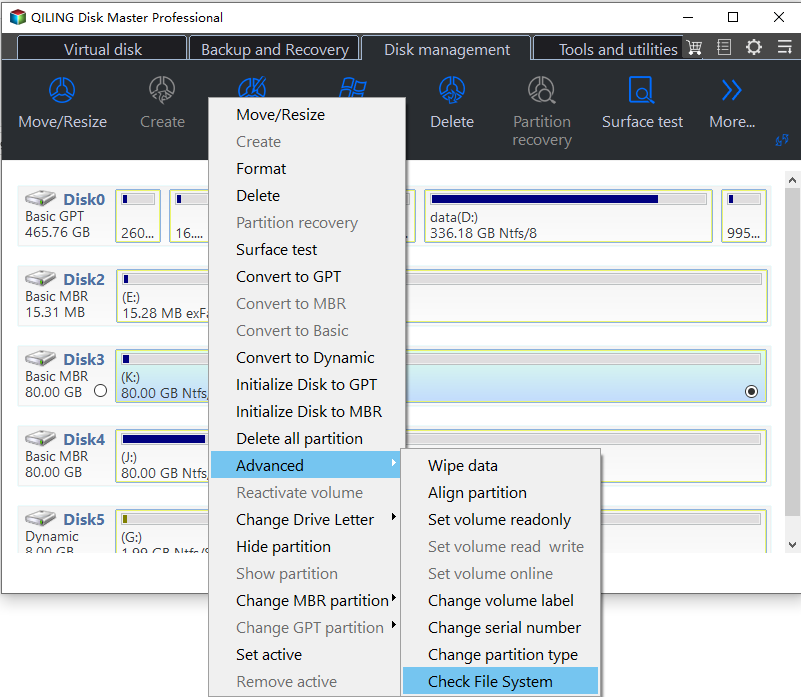
Step 1. Open Qiling Disk Master on your computer, locate the disk, right-click the partition you want to check, and choose "Advanced" > "Check File System".
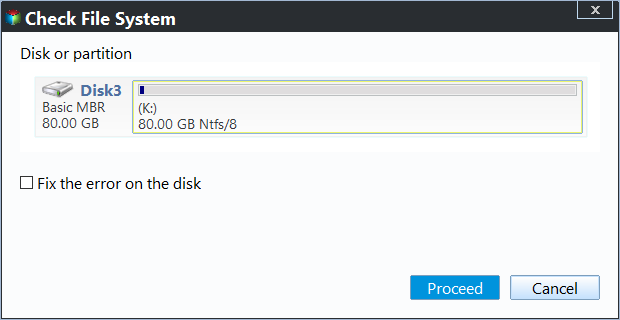
Step 2. Select the "Fix the error on the disk" option in the Check File System window and click "Proceed".
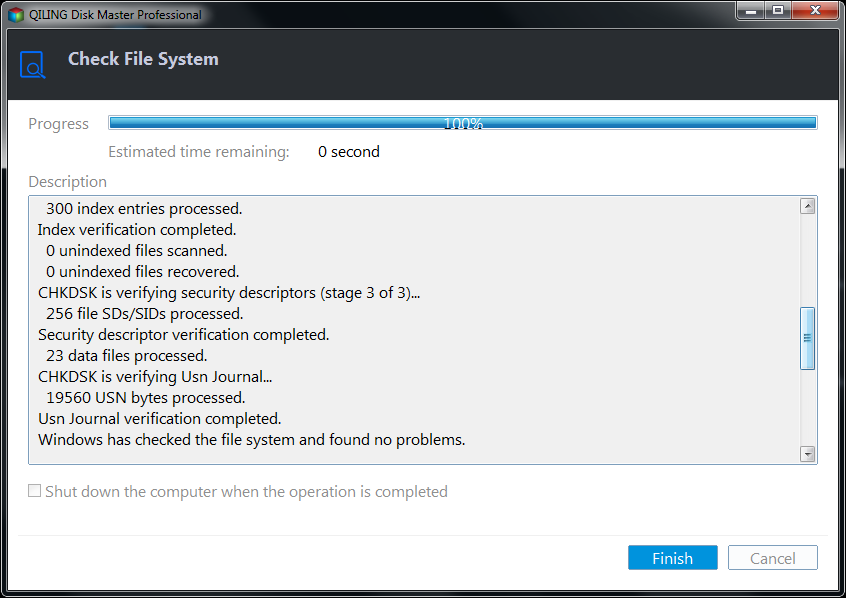
Step 3. The software will start checking your partition file system on your disk. Once it's done, click "Finish".
Key Features of Qiling Disk Master:
Qiling Disk Master is a reliable disk manager with a wide range of features, including disk partitioning, formatting, and cloning, as well as disk wiping and recovery, making it a useful tool for managing and maintaining disk storage.
- Repair bad sectors on SD card
- Clone external hard drive to internal
- Format external hard drive Windows 11/10/8/7
- Extend/shrink/split/merge partitions on SSD and external hard drives
You can download a tool to manage your external hard drives.
Fix 2. Repair Bad Sectors on External Hard Drive via Windows Explorer
Here are the steps to scan and repair bad sectors in Windows Explorer:
Step 1. Double-click "Computer," find the external hard disk to be repaired, and right-click on it to select "Properties."
Step 2. To repair the drive, go to the properties window of the drive and click on the "Tools" tab. Then, click on "Check" and select "Repair drive" from the options.
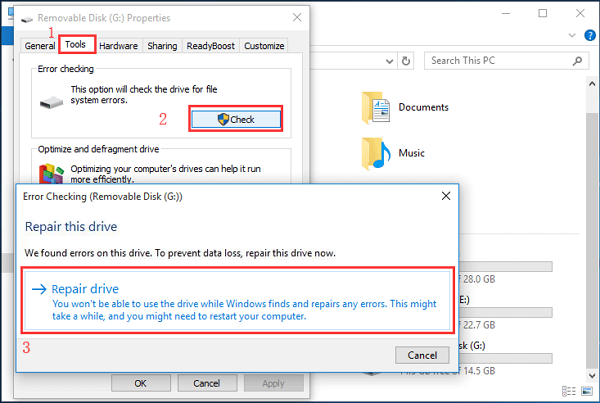
Step 3. Wait for the process to finish.
If you encounter any issues during the process, there's a helpful resource available to you. You can click on the provided link to access more information and assistance.
Fix 3. Repair Bad Sectors on External Hard Drive via CHKDSK
To check your external hard drive using the built-in Windows tool, CheckDisk, follow these steps: Start by opening the Command Prompt as an administrator. Type "chkdsk" followed by the drive letter of your external hard drive, for example, "chkdsk D:", and press Enter. If you're prompted to run the command the next time you restart your computer, type "y" and press Enter. Then, restart your computer and let CheckDisk run. If any errors are found, CheckDisk will attempt to repair them.
Step 1. Connect the target external hard drive to the PC.
Step 2. To open the Command Prompt, press the Windows key + R, type 'CMD' and press Enter.
Step 3. To run a full diagnostic on your external hard drive, type "chkdsk e: /f/r/x" in the command prompt and press Enter. (Replace "e" with the actual letter of your external hard drive.)
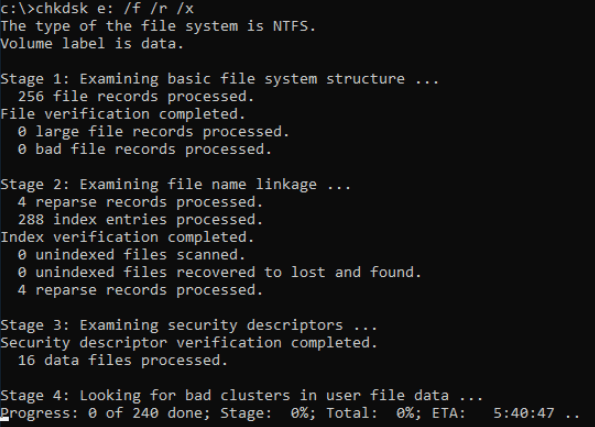
Step 4. Patiently wait for it to finish.
By the way, there are two links for you to learn more about CHKDSK commands:
Conclusion
To fix bad sectors on an external hard drive, you can try one of three methods. However, not all bad sectors can be repaired. In addition to clearing bad sectors, Qiling Disk Master offers many other useful features, including resizing, moving, or deleting partitions, rebuilding the Master Boot Record (MBR), and cloning disks.
Hence, don't hesitate to download and try it to help.
Repair Bad Sectors on External Hard Drive FAQs
This part lists some frequently asked questions for you. If you get similar problems, they can help. Continue to read.
1. Can a bad sector on a hard drive be repaired?
There are two types of hard disk bad sectors: physical and logical. Physical bad sectors occur when a physical part of the disk, such as a sector or track, becomes damaged or faulty, making it unable to store or retrieve data.
Physical bad sectors on a hard drive can be caused by physical damage, such as the hard drive head crashing into the disk or overheating issues.
Logical bad sectors can be caused by malware and interrupted disk writing processes.
Physical bad sectors, which are caused by hardware failures, cannot be repaired. In contrast, logical bad sectors, which are caused by software or data corruption, can be repaired using various methods such as disk checking and data recovery tools.
2. Can CHKDSK fix bad sectors?
CHKDSK can scan a hard drive and either provide reports only or scan and fix file errors and bad sectors.
3. How do I fix bad sectors on the external hard drive in Windows 10?
One fix is to use a third-party tool like Disk Drill or Deep Data Recovery to scan and repair the bad sectors on your hard drive. These tools can identify and fix the damaged sectors, potentially recovering lost data and improving the overall performance of your drive. However, it's essential to note that if the damage is severe, it may not be possible to recover the data, and in such cases, a professional data recovery service may be necessary.
Step 1. Connect the target external hard drive to a Windows PC.
Step 2. To access the target drive, click on "This PC" and then locate the drive you want to access. Once you've found it, right-click on it to open the context menu.
Step 3. Choose Properties > Tools > Check now.
Step 4. Tick the "Automatically fix file system errors" in the new window and click "Start."
Related Articles
- 7 Top Best Free Disk Partition Software For Windows in 2026
- How Do I Clone Windows to New Computer/PC? Your Checklist in 2026 [New]
- SanDisk Format Solution: Format SanDisk to The Best Performance on Your Own
- How to Check Hard Drive Health on Windows 7 [Detailed Guide]
- Benchmark Helps You Know SSD Performance Clearly
This post explains what SSD benchmark is and introduce three SSD benchmark tools as well as benchmark measruement rules to help you know your SSD's performance. - Powerful SSD Data Wiping Software for Windows 10, 8 , 7
Do you want to know how to perform SSD data wiping? This article will introduce a powerful utility to erase all data on SSD and recover its performance.
Products
Articles & Tutorials
- Data Recovery
- Data Backup
- File Recovery
- File Backup
- System Backup and Restore
- Disk and Partition Clone
- Technical articles
- Mobile articles
- Disk Master Help
- Windows Data Recovery Tutorials
- Windows Secure Delete Tutorials
- Windows Partition Management Tutorials
- Windows File Backup and Restore Tutorials
- Windows System Backup and Restore Tutorials
- Windows Disk Backup and Restore Tutorials
- Windows Clone Tutorials