Fix 'Windows Explorer has stopped working' in Windows 11/10/8/7
Windows Explorer, also known as File Explorer in Windows 10, is the file management application in Windows. If you encounter the "Windows Explorer has stopped working" error in Windows 7/8/10/11 (32 or 64 bit), remain calm and try one of the 8 fixes to resolve the issue and get your File Explorer back to work again.
| Workable Solutions | Step-by-step Troubleshooting |
|---|---|
| Fix 1. Update Video Driver | Open Device Manager > Expand "Display adapters" > Right-click graphics card driver...Full steps |
| Fix 2. Run System File Checker | Run Command Prompt as Administrator > Type DISM.exe /Online /Cleanup-image /Restorehealth...Full steps |
| Fix 3. Check Startup Issue | Go to Settings > "Update & Security" > "Recovery" > Choose "Restart now"...Full steps |
| Fix 4. Always Show Icons | Open File Explorer > "View" > "Options" > Under View, check "Always show icons, never thumbnails"...Full steps |
| For More Fixes | Run antivirus, clear log, test ram memory, perform system restore to resolve this issue (in Fix 5, 6, 7, and 8)...Full steps |
About "Windows Explorer has stopped working"
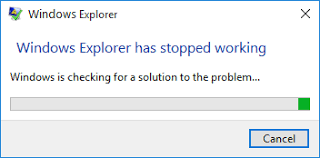
Windows Explorer navigates you to hard drives and displays the contents of folders, and is automatically launched when you open a folder in Windows, often accessed through shortcuts in the Start menu, Taskbar, My Computer, and Windows folder.
In Windows 7/8/10/11, you may encounter the error "Windows Explorer has stopped working" while working on a File Explorer folder, which prevents you from continuing your operation normally. This error is often accompanied by two additional notifications indicating that Windows Explorer has stopped working, and you may need to restart your computer to resolve the issue. To resolve this problem, you can try restarting your computer, checking for Windows updates, running a System File Checker (SFC) scan, or disabling any recently installed software or drivers that may be causing the conflict.
- Windows Installer has stopped working
- Windows Explorer/File Explorer (Not Responding)
File Explorer crashing in Windows 10 can manifest in various ways, such as hanging, not opening, or opening and closing immediately. This issue can be caused by several underlying problems, including corrupted system files, outdated or incompatible drivers, malware infections, and conflicts with other programs or system components.
- The video driver on your computer is outdated or corrupted
- Some system files on your computer are missing or corrupted, which can cause problems with the operating system and other programs. This issue can occur due to various reasons such as a virus infection, incorrect system configuration, or hardware issues.
- Some applications or startup services are conflicting with Windows Explorer, causing issues.
- The file you try to open or manage is corrupted
- Your computer is attacked by a virus or malware
If you're experiencing the issue of "Windows Explorer has stopped working", there are several possible causes and corresponding solutions. These solutions include checking for corrupted system files, running a System File Checker (SFC) scan, checking for malware and viruses, disabling any recently installed software or drivers, and restarting the Windows Explorer process. Additionally, other workable ways to resolve the problem may also be applicable.
8 Ways to Fix "Windows Explorer has stopped working" in Windows 11/10/8/7
If you're experiencing the issue "Windows Explorer has stopped working", as it's often unclear what the specific cause is. To troubleshoot and resolve the problem, try the following methods one by one: identify and fix the issue.
Method 1. Update Video Driver
If Windows File Explorer stops working, updating the video driver on your PC may resolve the issue, as a corrupt or outdated driver has been a proven cause of the problem.
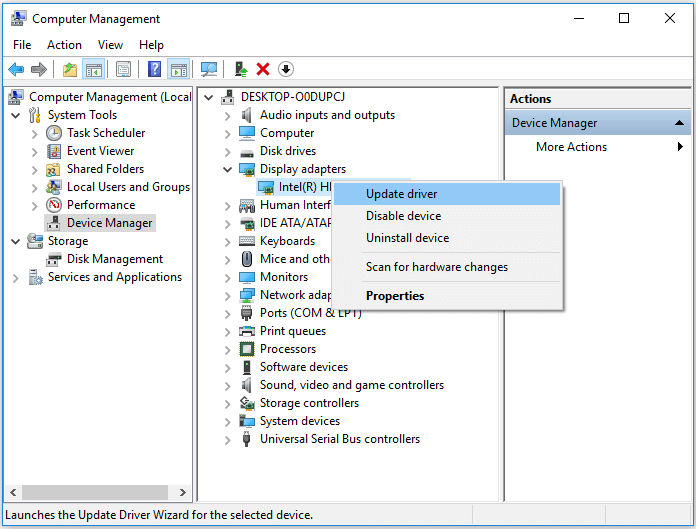
Step 1. Right-click on "This PC" and go to "Manage" > "Device Manager".
Step 2. Expand "Display adapters", right-click on the graphics card driver and choose "Update driver".
Step 3. In the new windows, click "Search automatically for updated driver software" to continue.
Method 2. Run System File Checker Tool
You can resolve the "Windows Explorer has stopped working" issue by running the System File Checker tool, which checks and repairs corrupted system files, potentially fixing the problem.
Step 1. Click "Start" and type cmd.
Step 2. Right-click "Command Prompt" and choose "Run as administrator".
Step 3. Enter the following command lines in order. (The DISM command is used to make a Windows image to protect your data.)
DISM.exe /Online /Cleanup-image /Restorehealth
sfc /scannow
Step 4. Restart the computer and check whether the problem persists.
Method 3. Boot Your PC into Safe Mode to Check Startup Issues
To access Safe Mode, start your computer with only necessary drives and services, which limits Windows operations to basic functions for troubleshooting purposes. You can boot into Safe Mode by restarting your computer and following the steps from the Settings app, which requires referring to this article on another device since the process involves a restart.
Step 1. Click "Start" > "Settings" > "Update & Security" > "Recovery".
Step 2. In the Advanced startup section, choose "Restart now".
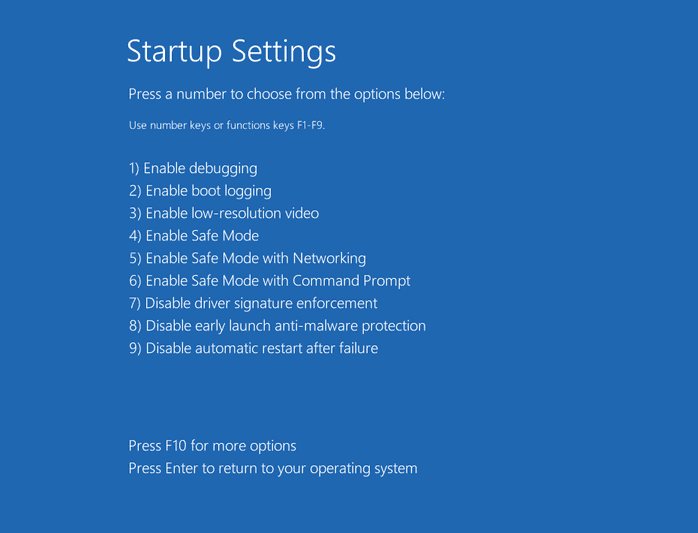
Step 3. After your computer restarts, go to the "Choose an option" screen, select "Troubleshoot" and then "Advanced options". From there, select "Startup Settings" and finally "Restart".
Step 4. After your PC restart, you can choose the safe mode to boot your computer into.
If Windows File Explorer works fine in safe mode, it's likely a startup item or third-party application is causing the issue. To identify the problem, you can try uninstalling the application you recently installed or disabling startup services by following these steps.
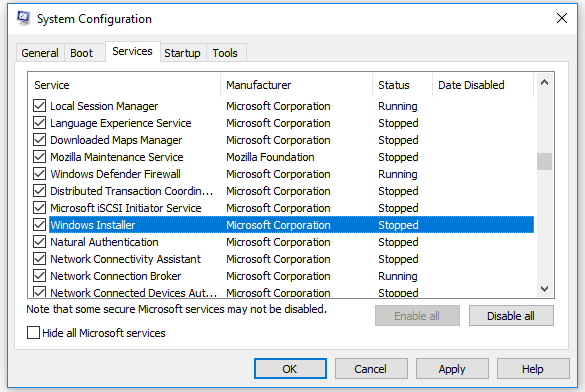
Step 1. Press "Windows + R" and enter msconfig.
Step 2. In the System Configuration window, switch to the "Services" tab.
Step 3. Check "Hide all Microsoft services" and click "Disable all" > "Apply" > "OK".
To troubleshoot the "Windows Explorer has stopped working" issue, check if the problem persists after each method. This will help you identify the cause and apply the corresponding fix to resolve the problem.
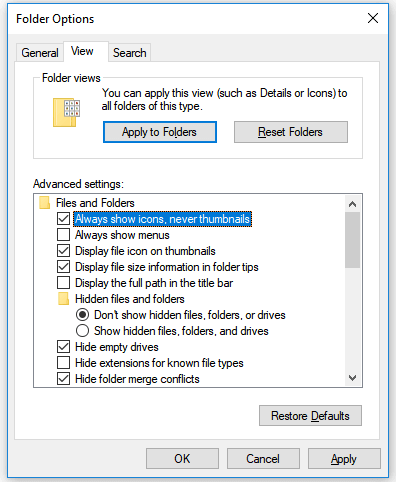
Method 4. Enable "Always show icons, never thumbnails"
Windows Explorer may stop working due to corrupted files, often when trying to open image files. To resolve this, enable the "Always show icons, never thumbnails" option.
On Windows 10 and Windows 8:
Step 1. Open "This PC" and switch to the "View" tab.
Step 2. Click "Options" and click the "View" tab.
Step 3. Check the option "Always show icons, never thumbnails" and click "Apply" > "OK".
On Windows 7:
Step 1. Open "Computer" and go to "Organize" > "Folder and search options".
Step 2. Switch to the "View" tab and check the option "Always show icons, never thumbnails".
Step 3. Click "Apply" > "OK".
Method 5. Remove Virus or Malware Infections
A Windows Explorer that has stopped working may be caused by a virus or malware infection, in addition to common causes. To resolve the issue, running antivirus software on your computer can help remove any possible virus or malware that may be causing the problem.
Step 1. Install and run antivirus software on your PC.
Step 2. San the whole computer hard drive and remove the virus or unknown malware.
Step 3. Restore lost files removed by antivirus software.
Antivirus software may accidentally delete important files. If this happens, you can use Deep Data Recovery software to recover the deleted files.
Deep Data Recovery
- Use data recovery software to scan the device or storage media, locate and retrieve lost or deleted files, documents, photos, audio, music, and emails, restoring them to their original state or saving them to a new location.
- You can recover files from a formatted hard drive, emptied recycle bin, memory card, flash drive, digital camera, and camcorders using specialized software. These tools can scan the device for deleted files and restore them to their original state, often with the original file names and properties intact.
- Data recovery services can help restore lost data in various scenarios, including sudden deletion, formatting, hard drive corruption, virus attacks, and system crashes. Whether it's accidental deletion, a failed system update, or a malicious virus, our data recovery solutions can help retrieve critical files and information, minimizing the impact of data loss and ensuring business continuity.
If the five methods above fail to fix "Windows Explorer has stopped working" on your Windows 10, Windows 8 or Windows 7 PC, don't get frustrated. There are other workable ways for you to apply.
Method 6. Clear Log in Event Viewer
Users have found clearing the Event Viewer logs to be an effective solution when Windows Explorer is not working. This troubleshooting step can be tried in Windows 10.
Step 1. Click "Start" and enter event viewer.
Step 2. Right-click "Event Viewer" and choose "Run as administrator".
Step 3. Expand "Windows Logs" and choose "Application".
Step 3. In the "Actions" section, choose "Clear Log...", then click "Clear" to confirm your operation.

Method 7. Test Your System's RAM Memory
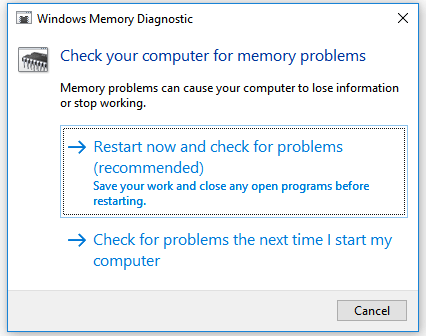
A problematic RAW file can cause the error "Windows Explorer has stopped working". To troubleshoot this issue, run the Windows Memory Diagnostic to test your computer's RAM.
Step 1. Open the "Start" menu, type Memory, and choose "Windows Memory Diagnostics".
Step 2. You can either restart the computer now and run the tool right away, or schedule it to run automatically at the next restart.
Step 3. Windows Memory Diagnostics runs automatically after the computer restarts and performs a standard memory test. If you want to customize the test, press F1, use the arrow keys to select the Test Mix as Basic, Standard, or Extended, and then press F10 to apply the changes and resume testing.
Step 4. When testing is completed, the computer restarts automatically. You'll see the test results when you log on.
Method 8. Perform a System Restore
If you're experiencing the issue of "Windows Explorer has stopped working," you can try resolving it by restoring your system to a previous version, which can resolve the problem but also risks losing any data or programs added since that point. To avoid this, it's essential to back up your important data before attempting any system restoration. This approach can help you recover your system to a working state while preserving your valuable data. However, if you're not comfortable with this process, you can also try other troubleshooting methods, such as checking for software updates or reinstalling Windows Explorer. Ultimately, it's crucial to have a backup plan in place to ensure your data's safety.
The Bottom Line
"Windows Explorer has stopped working" is a common issue on Windows that many users have encountered at some point. If you find this article helpful, consider sharing it with others to assist them in resolving the problem as well.
Related Articles
- Fix Seagate External Hard Drive Light Blinking but Not Working/Detecting Error
- Fix 'The Disk Structure Is Corrupted and Unreadable' Without Losing Data
- How Do I Recover Document in SharePoint? Here Is The Guide
- How to Fix 'USB Says/Shows No Media in Disk Management' Error
If your USB flash drive shows up in Disk Management but has no media. This issue can also affect other removable disks like external hard drives, pen drives, or SD cards. - Top 6 Ways to Fix Windows 10 WHEA Uncorrectable Error
If you're experiencing a Blue Screen of Death (BSoD) problem with a WHEA uncorrectable error in Windows 10 or Windows 11, there are solutions to fix this issue. - Fix Windows 11 File Explorer Not Working (2026 Guide)
Products
Articles & Tutorials
- Data Recovery
- Data Backup
- File Recovery
- File Backup
- System Backup and Restore
- Disk and Partition Clone
- Technical articles
- Mobile articles
- Disk Master Help
- Windows Data Recovery Tutorials
- Windows Secure Delete Tutorials
- Windows Partition Management Tutorials
- Windows File Backup and Restore Tutorials
- Windows System Backup and Restore Tutorials
- Windows Disk Backup and Restore Tutorials
- Windows Clone Tutorials