How Do I Force Format SD Card on Windows 11/10? Your Guide Here
To format an SD card, you'll need a card reader or be able to plug the SD card directly into your device. Then, select the correct options in Windows to format the card, which will erase any existing data and prepare it for new use.
When you encounter an error or cannot format an SD card, you can try force formatting as a potential solution, assuming the issue isn't caused by hardware damage. This approach can help resolve the problem.
Forcing a format on an SD card on your Windows PC is a straightforward process with a couple of methods. You can use the built-in Disk Management tool to format the SD card, or you can use a third-party software like Qiling Partition Master or MiniTool Partition Wizard. To do it using Disk Management, open the tool, select the SD card, right-click on it, and choose Format. Alternatively, you can use a third-party software to format the SD card, which often provides more advanced features and options.
Error: Unable to Format SD Card
The error during SD card formatting is likely caused by a hardware issue, but in most cases, the SD card would simply stop working if it were hardware-related. If it's not a hardware issue, it could be a software problem, such as a corrupted system or a faulty formatting tool. In that case, you might need to try formatting the SD card using a different tool or system. If you're still having trouble, it could be worth trying to format the SD card on a different device or using a different formatting method.
If your PC can't detect your SD card, it's likely that the card is damaged beyond repair. However, if you can read and write files to the card, it's probably due to a compatibility issue or a problem with the card reader. In this case, you can try using a different card reader or a USB adapter to connect the SD card to your PC. If you're still unable to access the card, it's possible that the card itself is faulty and needs to be replaced.
- Hardware damage or carbon build-up on the SD card connector
- The SD card contains a file system error, or the file system has become corrupted.
- SD cards can sometimes have bad sectors, which can prevent them from being properly formatted, making them unusable.
- SD cards may contain viruses or malware that can prevent Windows from formatting them, making it difficult to reuse the card.
- The SD card is formatted into an unsupported file system by Windows, specifically the Apple File System (AFS).
If your SD card won't format on Windows, it might be due to a software issue, or there could be carbon buildup on the connectors that needs to be cleaned with isopropyl alcohol or a rubber eraser.
If your Google Meet or Meet integration is not working, try disconnecting and reconnecting to see if that resolves the issue. If not, there are some other fixes you can try. One possible solution is to check your internet connection and ensure it's stable and fast enough for video conferencing.
How Do I Force Format My SD Card to Format? Two Reliable Ways Available
Formatting an SD Card requires using one of two methods, with various built-in tools within Windows available to help, such as Disk Management or File Explorer.
To force format an SD card, you can try using a card reader and a computer, or a formatting tool specifically designed for SD cards, such as SD Formatter. If the SD card is not recognized by your computer, you can try removing it from your device and formatting it on your computer using the card reader. If the SD card is still not recognized, you can try using a formatting tool like SD Formatter to force format the card.
The latter method of using the System Restore feature is a bit too complicated and not suitable for a novice or new PC user, as it involves multiple steps and requires some technical knowledge.
| Features | Qiling Disk Master | CMD/Diskpart |
|---|---|---|
| Ease of Usage | Yes | No |
| Guaranteed Formatting | Yes | Depends |
| Fixing Bad Sectors | Yes | No |
| Removing Malware by Force Formatting | Yes | Yes |
| Difficulty | Easy | High |
| Fixing Corrupted File System Error | Yes | Yes |
While Diskpart is a reliable method, it may not be the best choice for everyone. A more convenient option is Qiling Disk Master, a free tool that can help you format an SD card. Therefore, it's recommended to download and use Qiling Disk Master instead of Diskpart.
To summarize, backing up your files is crucial before formatting your SD card, and using another tool to do so is a viable option if you're unsure of the process.
- Important
- Formatting is a process of deleting all information and setting up a PC as a brand new one. Before doing so, make a full backup of your data if you care about preserving it. You can find more information on what to backup before formatting your PC by clicking on the provided link.
Guide 1. Force Format SD Card with Qiling Disk Master Free
You can try forcing the format of your SD card using Qiling Disk Master, a tool that cannot only fix your SD card but also serve as a handy utility software on your computer.
Because third-Formatting tools like Qiling Disk Master can help make formatting external devices such as SD cards and USB drives less tedious and time-consuming.
The SD card formatter software is designed to completely erase all data on the SD card, which can be useful for removing sensitive information and freeing up space on the card. The software also allows you to change the file system of the SD card, which can be helpful if you're experiencing issues with compatibility or data transfer.
- A remarkable array of formatting options
- Rebuild MBR if Windows doesn't work properly
- Check file system errors to fix issues like formatting errors
- Format/Wipe partitions or entire volumes with a few clicks
- Merge or delete the partition to ease the formatting process
- You can clone a disk or migrate your OS HDD to another drive.
The best tool you have today to force format your SD card is the tool you've downloaded. Once you've downloaded it, you'll use it to force format your SD card.
Step 1. To format your SD card, locate it and right-click on the partition you want to format, then select the "Format" option.
Step 2. Set a new partition label, file system, and cluster size to the selected partition.
Step 3. Click the "Proceed" button to start formatting your SD card.
Step 4. Click "Yes" on the pop-up window to continue.
Hint: If the SD card is larger than 4GB, you can only choose FAT32, NTFS, or EXT2/EXT3 file systems, but if the partition is smaller than 4GB, you have more options including FAT and EXT2/EXT3.
Guide 2. How to Force Format SD Card Using CMD
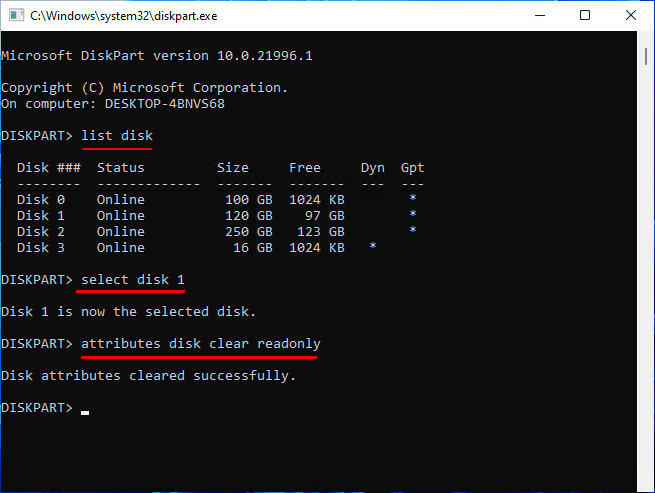
To force format your SD card using the traditional method, you can use the Diskpart commands in the Command Prompt (CMD). Make sure to follow each step carefully, as this process requires attention to detail. You'll use Diskpart commands to format your SD card, so be sure to proceed with caution.
To confirm the Disk number of your SD card, run Disk Management on your PC. This will allow you to verify the correct Disk number for your SD card, ensuring you select the correct one when proceeding with the task.
Once done, follow these steps:
Step 1. Open CMD as Administrator on your PC
Step 2. Type diskpart and press enter
Step 3. Type list disk and press enter
Step 4. Then type select disk 1 (replace 1 with the number of your disk as checked in Disk management earlier)
Step 5. Type attributes disk clear readonly
Step 6. To find the Command Prompt, type "command prompt" in the Search bar in the Start menu.
Step 7. Then right-click on "Command Prompt" and select "Run as administrator"
Step 8. The command to format a drive in FAT32 format to the SD card drive letter is: `FORMAT FS=FAT32 O:` (replace O with the actual drive letter of your SD card).

Step 9. Wait for it to finish
Step 10. Done
Formatting an SD card will erase all data on it and prepare it for use again. It may take a few minutes, depending on the card's size, and once complete, you can access it in File Explorer.
🔥Read More: How to Format SD Card Using CMD | Full Details
Final Verdict
To format an SD card, you have two reliable options. The first method involves using CMD, which doesn't require any downloads but is a bit complicated and comes with a higher margin of error. Alternatively, you can use Qiling Disk Master, a more straightforward and safer approach.
Using Qiling Disk Master allowed you to be in total control of the formatting process, which also enabled you to check for errors with the file system or bad sectors. This made it easy to force format your SD card within a few seconds.
Before attempting to flash your Android device, it's crucial to back up your files from the SD card to prevent any potential data loss. This ensures that your personal data, such as photos, videos, and documents, are safely stored elsewhere.
FAQs about Force Format SD Card on Windows
This section will answer your additional queries:
1. Why an SD card won't format Android?
Android phones may struggle to format an SD card if it has bad sectors or file system errors, or if it's not in the correct format like NTFS or Fat32. Plugging it into a PC and force-formatting it can resolve the issue.
2. How do you fix an SD card that won't format?
Try using the check disk option to see if it has any file system errors on it before using Qiling Disk Master to force format it or formatting it from your file explorer.
3. How to forcefully format SD card using CMD?
To use the Diskpart command in CMD, you can follow these steps:
- Type diskpart
- Type list Volume
- Type select volume # (replace # with your volume number)
- Type format fs=fat32 (replace fat32 with NTFS if you wish)
- Done
4. How do I force my SD card format to FAT32?
When using Diskpart to format an SD card, replace the file system in the command "Format fs=NTFS" with "FAT32" to format the SD card in the FAT32 file system.
For ordinary SD card formatting steps in Windows, read How Do I Format My SD Card in Windows?
Related Articles
- File Too Large for Destination: How to Copy/Transfer Files Larger than 4GB to FAT32
- How to Remove USB Partition on Windows 10/11
- Free Partition Tool for SD Card [With How-to Guide]
- How to Format SD Card to FAT32 on Windows 11/10? [7 Free Methods]
- How to Fix "Local Disk D Almost Full" in Windows 11/10/8/7 [Step-by-Step Guide]
Your local disk D is almost full, there are efficient fixes to free up more space on your D drive. - What Should You Do When Low Disk Space But Nothing to Delete [Full Guide]
What should you do when there is low disk space but nothing to delete? This article provides four fixes for removing this issue and introduces a professional disk manager to help you manage your disk partition.
Products
Articles & Tutorials
- Data Recovery
- Data Backup
- File Recovery
- File Backup
- System Backup and Restore
- Disk and Partition Clone
- Technical articles
- Mobile articles
- Disk Master Help
- Windows Data Recovery Tutorials
- Windows Secure Delete Tutorials
- Windows Partition Management Tutorials
- Windows File Backup and Restore Tutorials
- Windows System Backup and Restore Tutorials
- Windows Disk Backup and Restore Tutorials
- Windows Clone Tutorials