How to Format SD Card to FAT32 on Windows 11/10? [7 Free Methods]
To format an SD card to FAT32, you can use built-in formatting tools on your computer or mobile device, or download a third-party software. Most SD cards, including large ones like 64GB or 128GB, can be formatted to FAT32 using these methods. Simply connect the SD card to your device, open the formatting tool, and follow the on-screen instructions to complete the formatting process. It's recommended to use a reliable and free formatting tool, such as the one provided by the SD card manufacturer, to ensure the formatting process is done correctly and the SD card is properly initialized.
In this article, you'll learn:
- Why Need to Format SD Card to FAT32
- To format an SD card to FAT32 on Windows 10/11, you have 7 free formatting methods to choose from. You can use the built-in Disk Management tool, the Command Prompt, the PowerShell, the File Explorer, the Diskpart command, the MiniTool Partition Wizard, or the Qiling Partition Master to format your SD card to FAT32 and make it compatible with older devices and operating systems.
Why Need to Format SD Card to FAT32
FAT32, also known as File Allocation Table 32, is a widely used file system format that stores data in 32-bit chunks, making it highly compatible with both Windows and Mac computers, and commonly used on various storage devices.
People want to format their SD card to FAT32 for several reasons, mainly aside from the need for FAT32 compatibility. There are other reasons that explain this desire.
- FAT32 is a widely supported file system that is compatible with most operating systems, including Windows, Mac, and Linux.
- FAT32 is compatible with gaming consoles.
- Support maximum file size of 4GB.
- Support maximum volume size of 32GB on Windows.
- Support maximum partition size of 2TB on other operating systems.
To format your SD card to FAT32, you can use a reliable SD card formatter like SD Formatter. It's a free tool that allows you to format your SD card to any desired file system format, including FAT32, with simple steps. Just download the software, insert your SD card, and follow the on-screen instructions to format it to FAT32. This will ensure that your SD card is properly formatted and ready for use with your device.

Follow and find the answer in the next part instantly.
🔥Read More: How to Format SD Card Using CMD | Full Details
How to Format SD Card to FAT32 on Windows 10/11 [7 Free Formatting Methods]
Here are the 6 reliable and free methods to format an SD card to FAT32 on Windows:
- #1. Qiling Disk Master Free
- #2. FAT32 Format
- #3. HP USB Disk Storage Format Tool
- #4. File Explorer
- #5. Disk Management
- #6. DiskPart/CMD
- #7. PowerShell
Which one should I select? You can take a quick view of the comparison table to learn which method suits your needs the most.
| SD Card Formatting Tool | Supported File System | Latest Edition |
|---|---|---|
| Qiling Disk Master |
|
V17.5 (December 1st, 2022) |
| FAT32 Format |
|
V1.07 (September 14th, 2021) |
| HP USB Disk Storage Format Tool |
|
V2.2.3 (November 15, 2018) |
| File Explorer |
|
/ |
| Disk Management |
|
/ |
| DiskPart/CMD |
|
/ |
| PowerShell |
|
/ |
Based on the table, if you need to format your SD card, you should choose Qiling Disk Master as it supports most file system formats, making it a versatile and reliable option.
To efficiently get the most reliable SD card FAT32 formatting tool, consider the following quick checklist: Check the compatibility of the formatting tool with your SD card reader and computer operating system; Look for tools that are specifically designed for FAT32 formatting, such as Qiling Disk Master, and read reviews to ensure they are reliable and efficient; Check the tool's ability to format the SD card to the correct file system and cluster size; Ensure the tool can handle large SD cards and is compatible with your computer's USB ports; Check for any additional features, such as the ability to create a bootable USB drive or recover data from the SD card; and finally, read the tool's user manual and online reviews to ensure it is user-friendly and has a good reputation.
- To format a large SD card (64GB, 128GB or 256GB) to FAT32 for free, you can use Qiling Disk Master Free.
- To format a small SD card (32GB or smaller) to FAT32 without using software, you can use File Explorer.
To format the SD card to FAT32 using the selected tools, refer to the respective tutorial guide for detailed instructions. Follow the steps outlined in the guide to successfully set FAT32 format to your SD card.
#1. Format SD Card to FAT32 with Qiling Disk Master for Free
Qiling Disk Master Free is a reliable SD card formatter that also serves as a best disk tool for Windows users. It allows users of all levels to manage and allocate disk space with ease, all within a few simple steps.
Pros:
- Free, safe and clean
- Easy to use
- Convert FAT32 to NTFS or NTFS to FAT32 for free
- Support all Windows operating systems
Cons:
- Doesn't support macOS
Guide to Format SD Card to FAT32:
Step 1. To format your SD card, locate it and right-click on the partition you want to format, then select the "Format" option from the context menu.
Step 2. Set a new partition label, file system, and cluster size to the selected partition.
Step 3. Click the "Proceed" button to start formatting your SD card.
Step 4. Click "Yes" on the pop-up window to continue.
With Qiling Disk Master, you can format your SD card to any file system format, breaking the FAT32 file system volume size limit and allowing you to format big SD cards to FAT32.
Here are some key features of Qiling Disk Master, aside from the ones mentioned earlier:
- Clone SD card
- Partition SD card for Android
- Convert SD card with raw format to FAT32
- Format SD card to NTFS
#2. Format SD Card to FAT32 with FAT32 Format
FAT32 format is a reliable tool that supports formatting storage devices to FAT32 with simple steps, making it a user-friendly option.
Pros:
- Free
- Easy to use
- Portable to use
Cons:
- Doesn't support Windows 10/11, and Windows Server systems
- Only supports FAT32 format
Guide to Format SD Card to FAT32 with FAT32 Format:
Step 1. Connect the SD card to your PC via a SD card adapter. This will allow you to transfer files from the SD card to your computer.
Step 2. Run the FAT32 Format tool, and select the SD card from the Drive section.
Step 3. Tick "Quick Format" and click "Start".
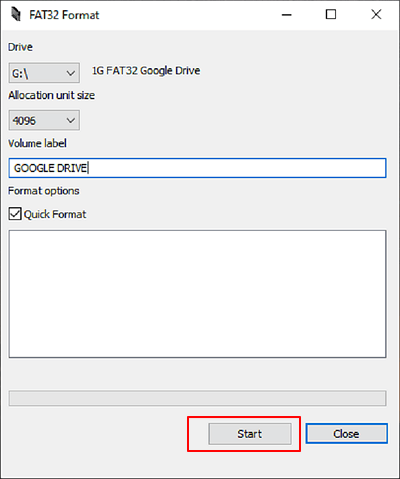
Wait for the process to finish, and you'll get an SD card formatted with FAT32 format.
#3. Format SD Card to FAT32 with HP USB Disk Storage Format Tool
HP provides a free tool called HP USB Disk Storage Format Tool to format USB drives, external hard drives, and SD cards to FAT32 or NTFS.
Pros:
- Free
- Light and portable
- Automatically detect existing USB drives
Cons:
- Doesn't support Windows 11
Guide to Format SD Card with HP USB Disk Storage Format Tool:
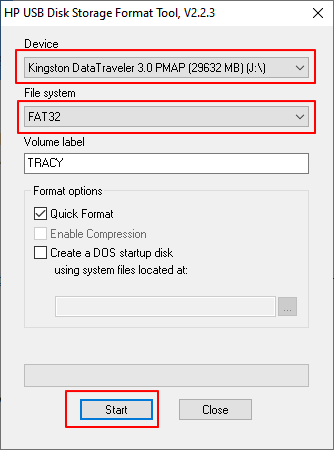
Step 1. Connect SD card to PC via SD card reader.
Step 2. To run the HP USB Disk Storage Format tool, double-click the HPUSBDISK.exe file.
Step 3. Select the SD card and choose FAT32 as the file system, then click "Start".
#4. Format SD Card to FAT32 with File Explorer
File Explorer, also known as Windows Explorer, is a tool created by Microsoft that helps users access and open files and folders on their Windows hard drive partitions and external hard drives efficiently. It also has a formatting feature to simplify the process of formatting internal or external storage devices with a desired file system format.
Pros:
- Easy-to-use
- Free
- Quick format
Cons:
- No software installation is required
- The software only supports formatting a hard drive or SD card with a capacity of 32GB or smaller to FAT32.
Guide to Format SD Card to FAT23 with File Explorer:
Step 1. Insert your SD card into a SD card reader and connect it to your PC.
Step 2. To format an SD card, open File Explorer by pressing the Windows key + E, then right-click on the SD card and select the "Format" option.
Step 3. Set the file system to FAT32, select "Quick Format", and click "Start".

#5. Format SD Card to FAT32 with Disk Management
Disk Management is a Windows built-in tool that allows users to manage their disks, aside from formatting SD cards. It also enables users to extend, shrink, delete, or create partitions on their disks.
Pros:
- Easy-to-use
- Quick format
- No software installation is required
Cons:
- No available on Mac
- Only supports formatting 32GB or smaller SD card to FAT32
Guide to Format SD Card with Disk Management:
Step 1. Connect your SD card to your PC via a SD card reader.
Step 2. Right-click on the Windows icon and select Disk Management to open it. In the Disk Management window, find the drive where you want to install Windows and note its letter (usually C:).
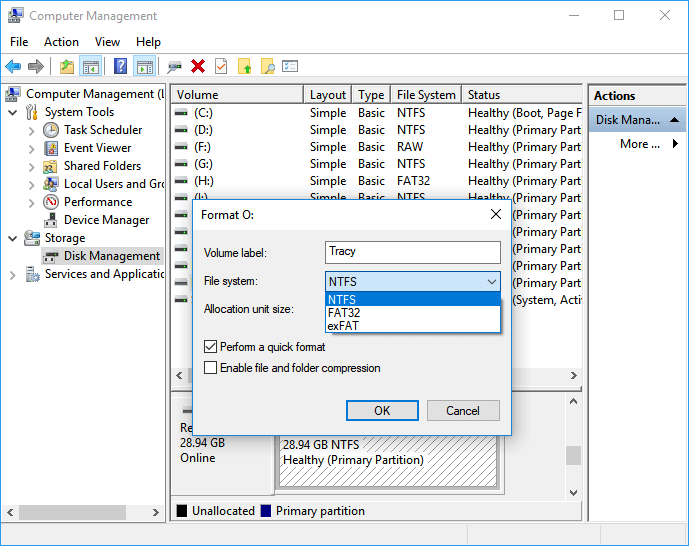
Step 3. Right-click on the SD card and select "Format".
Step 4. Set FAT32 as the format and tick "Perform a quick format" then click "OK".
#6. Format SD Card to FAT32 with DiskPart/CMD
When formatting an SD card, Windows users can use either DiskPart or Command Prompt to partition the disk.
You can use either Disk Management or Rufus to format a small SD card (32GB or smaller) to FAT32 efficiently. Both tools can help you complete this task quickly and effectively.
Pros:
- Fast to format SD card to FAT32
Cons:
- Not for beginners
Guide to Format SD Card to FAT32 Using CMD:
Step 1. Connect the SD card to the computer via a SD card reader to transfer files from the SD card to the computer.
Step 2. To open Command Prompt with administrator privileges, right-click on the Windows icon, select "Search", type "cmd", right-click on the Command Prompt result, and click "Run as Administrator".
Step 3. Check the drive letter of the SD card, then type `format /fs:FAT32 o:` and hit Enter.
Replace o: with the drive letter of your SD card.

Step 4. Type exit to close the command prompt.
Guide to Format SD Card to FAT32 Using DiskPart:
Step 1. Connect SD card to PC via SD card reader.
Step 2. Open Command Prompt and type diskpart, and hit Enter.
Step 3. Here are the commands to type one by one and hit Enter each time:
- list disk
- select disk * (Replace * with the disk number of the SD card)
- list volume
- select volume * (Replace * with the volume number of the SD card)
- format fs=fat32 quick
Step 4. Type exit and hit Enter.
#7. Format SD Card to FAT32 Using PowerShell
PowerShell is a powerful command line tool that many administrators prefer to use to manage operating systems. It also offers features for disk management, such as formatting, creating, and deleting volumes.
Pros:
- Free
Cons:
- Complex
- Not for beginners
Guide to Format SD Card to FAT32 with PowerShell:
Step 1. Connect SD card to computer via SD card reader.
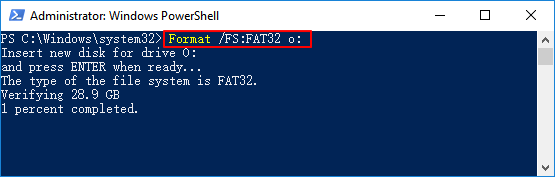
Step 2. To open Windows PowerShell as an administrator, right-click on the Windows icon and select "Windows PowerShell Admin".
Step 3. To open PowerShell and check the SD card drive letter, select "Yes".
Step 4. Type Format /FS:FAT3 O: and hit Enter.
Replace O: with the SD card drive letter.
Step 5. Type exit to close PowerShell.
Final Verdict
To format an SD card to FAT32, you can try one of the 7 methods listed below, which provide detailed step-by-step guidelines for formatting small and big SD cards with success.
For Windows beginners, formatting an SD card can be done using Qiling Disk Master, File Explorer, or Disk Management. However, when it comes to formatting large SD cards to FAT32, Qiling Disk Master is a reliable option.
FAQs about Formatting SD Card to FAT32
Here are some other frequently asked questions about formatting SD cards to FAT32:
1. Why can't I format the SD card to FAT32?
Here are the reasons why you can't format SD cards to FAT32:
- SD card is locked, encrypted, or write-protected.
- SD card is with the corrupted file system.
- SD card contains internal errors or bad sectors.
- The SD card is too large for FAT32, which has a 32GB file size limit. You can use the exFAT file system instead, which has no file size limit.
2. How do I format my SD card to FAT32, not exFAT?
To format the SD card to FAT32 other than exFAT, first confirm the storage capacity of your SD card. If it's 32GB or smaller, you can format it to FAT32.
If the size of your drive is 32GB or less, you can use File Explorer to transfer files from your old computer to your new one.
- To connect the SD card to the PC, insert the SD card into a card reader, which is then plugged into a USB port on the PC. Once the card reader is recognized by the PC, open File Explorer to view the contents of the SD card.
- Right-click on the SD card and select "Format".
- To quickly format a USB drive, select it in the Disk Management tool, tick "Perform a quick format", set a new file system format - FAT32, and click "Start".
If the SD card is larger than 32GB, you can use Qiling Disk Master to help with the formatting process. This tool can handle larger capacity SD cards and ensure they are properly formatted for use with your device.
- Connect SD card to PC and launch Qiling Disk Master.
- Right-click on the SD card and select "Format".
- Set the SD card format as FAT32.
- Click "Proceed".
3. How to format SD card to FAT32 on Mac?
- Connect the SD card to your Mac computer via an external SD card reader. Ensure the reader is securely plugged into the computer and the SD card is properly seated in the reader.
- Open Disk Utility, select the SD card on the left sidebar, and click "Erase".
- To rename the SD card, set the format as "MS-DOS (FAT)", and click "Erase".
Related Articles
- What Is Ext2/Ext3/Ext4 File System Format? What's The Difference [Full Guide]
- Fix Windows PC Won't Boot After Enabling Secure Boot
- How to Format SD Card for Trail Camera [2024 Newest Solution]
- (In-depth Tutorial) How to Format SSD in Windows 11
- How to Repair Windows 10 From USB [Complete Guide]
Having trouble with your Windows 10? Discover the power of USB repair, which allows you to repair Windows 10 from a USB device and easily fix common issues. By following a step-by-step guide, you can troubleshoot and restore your system efficiently. - How to Repair Windows 11 with Command Prompt| 2024🔥
Windows 11 can become corrupted due to various reasons, and one way to resolve these issues is by using the Command Prompt to repair Windows 11. This approach provides an alternative solution to resolve the problems and can be found in the article.
Products
Articles & Tutorials
- Data Recovery
- Data Backup
- File Recovery
- File Backup
- System Backup and Restore
- Disk and Partition Clone
- Technical articles
- Mobile articles
- Disk Master Help
- Windows Data Recovery Tutorials
- Windows Secure Delete Tutorials
- Windows Partition Management Tutorials
- Windows File Backup and Restore Tutorials
- Windows System Backup and Restore Tutorials
- Windows Disk Backup and Restore Tutorials
- Windows Clone Tutorials