How to Remove USB Partition on Windows 10/11
Page Content
Method 1. Delete USB Partition by Qiling Disk Master
Method 2. Use Diskpart to Remove Partitions from USB Drive
Method 3. Remove Partition from USB by Disk Management
If you're looking to remove a USB partition, this guide can help. This guide offers three efficient solutions, including using Qiling Disk Master, Diskpart, and Disk Management. Qiling Disk Master Free is particularly recommended, and the guide provides a step-by-step walkthrough for each method.
Method 1. Delete USB Partition by Qiling Disk Master
Qiling Disk Master is the go-A free partition manager software tool allows users to quickly delete partitions, including FAT/FAT32, NTFS, EXT2/EXT3, and other file systems.
Qiling Disk Master is a comprehensive partitioning solution that enables users to create, format, resize, clone, and move partitions, allowing advanced users to quickly perform complex operations like merging or splitting partitions with one button click.
Step 1. Launch Qiling Disk Master, and click "Partition Manager".
Before deleting any partition on your disk, make sure to back up any important data to prevent loss.
Step 2. You can delete a specific partition or all partitions on your hard drive.
- Delete single partition: Right-click on a partition that you want to delete and choose "Delete".
- Delete all partitions: To delete all partitions from a hard drive, right-click on the drive you want to delete all partitions from and select "Delete All".
Step 3. Click "Yes" to confirm the deletion.
Step 4. Click "Execute xx Task" and then click "Apply" to save the change.
0:00 - 0:26 Delete single volumes; 0:27 - 0:53 Delete all partitions.
Method 2. Use Diskpart to Remove Partitions from USB Drive
This command-To quickly and easily partition or remove partitions on a USB drive, use the Diskpart utility. Simply open Command Prompt, type "diskpart", and follow it with the command to remove the USB partition. This streamlined process saves time and effort compared to traditional methods.
How to Remove Partition from USB Drive:
1. To run the Command Prompt as administrator, type "cmd" in the search box and click "Run as administrator."
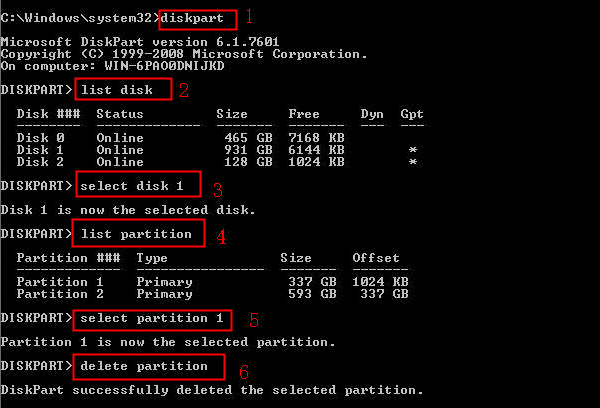
2. On the diskpart window, enter the commands:
Type diskpart and click Enter.
Type list disk and click Enter.
To select the correct disk, type select disk N and press Enter, where N is the correct number of the disk.
To list the partitions on a USB drive, type "list partition" and press Enter. This command will display all the accessible partitions on the drive.
To select all rows from a specific partition, type `select * from table_name partition (N)` and replace `N` with the targeted partition number (e.g., `select * from table_name partition (2)`).
Type delete partition and press Enter.
3. Continue to create a partition:
Type create partition primary and click Enter
Type exit
Removing unnecessary partitions from a USB drive can improve access convenience. Sharing this article can help more users learn how to do this, making it easier for them to manage their USB drives.
Method 3. Remove Partition from USB by Disk Management
To remove any USB partition, you can use the Disk Management tool, which can be accessed through the Control Panel or Settings menu, allowing you to view all hard drives and removable storage devices connected to the computer.
How to Remove Partition on USB Drive:
1. To access Disk Management, right-click the Start icon at the bottom left of your screen and select Disk Management from the list.
2. Locate your USB drive and right-click it.
3. Select "Delete Volume..." from the list, and repeat the process for each volume you want to delete, if desired.
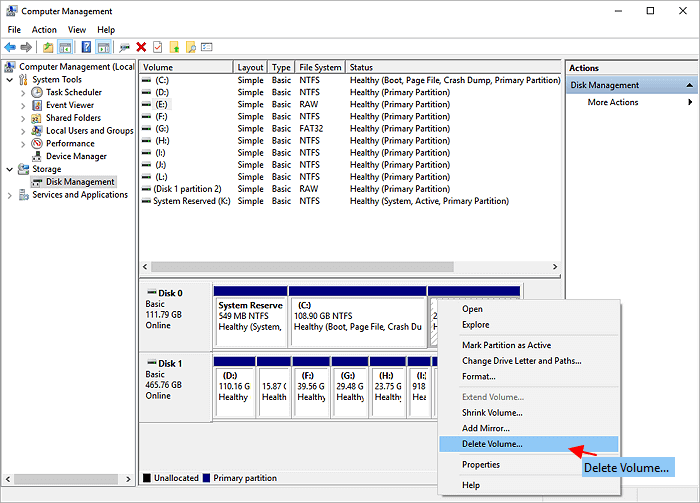
4. The targeted partition on the USB will be deleted, marking the space as unallocated, allowing you to create a new partition.
To create a new partition:
1. Right-click the unallocated space and select New Simple Volume.
2. Click "Next" on the "New Simple Volume Wizard."
3. To create a new partition, set the desired partition size and click "Next". Then, assign a drive letter and proceed by clicking "Next".
4. Choose "Next" to format the partition and click "Finish".
If you're new to computers, you may find Command Prompt and Disk Management overwhelming. However, with Qiling Disk Master, you can easily become an expert and take control of your computer's disk management without needing to know much about computers.
Why Remove USB Partition?
Partitioning a USB drive or other storage device can be a convenient way to manage files and protect sensitive data, but it's equally important to remove partitions when they are no longer needed.
- Removing old partitions from your storage device helps keep it organized and clutter-free, reducing the risk of accidental errors that could damage its contents. This process also prevents outdated partitions from consuming memory.
- Removing partitions from a USB drive can lead to faster transfer speeds, as the unpartitioned space can be used more efficiently.
- A lack of partitions helps improve overall system security by eliminating potential entry points for malware, which could harm the system if old partitions are left behind.
To maximize disk space and preserve data safety, it's crucial to remove unnecessary USB partitions, thereby optimizing storage capacity and minimizing the risk of data loss due to partition-related issues.
- Warning
- Deleting the volume of your USB drive will erase all data on it. Please back up important data before proceeding.
If you found this tutorial helpful in removing the USB partition, you can click the social buttons and share it with others who may need it.
FAQs about Removing USB Partition
If you're interested in learning about removing a USB partition, I can provide you with a list of questions related to the topic. You can follow along and find answers to these questions here.
How do I unpartition a USB drive?
To unpartition a USB drive:
Open cmd and enter the following commands:
- diskpart
- list disk
- select disk X
- list partition
- select partition N
- delete partition
- create partition primary
- exit
How do I merge partitions on a USB drive?
To merge partitions in Disk Management:
Step 1. Type Command Prompt on the search box.
Step 2. The command line interface is a text-based interface that allows users to interact with a computer system by typing commands and viewing output. It is typically used in operating systems and programming environments, and is often used by developers, system administrators, and other technical users.
- diskpart
- list disk
- select disk X
- list partition
- select partition X
- delete partition
- extend
Try other "merge" methods:
How do I remove the EFI partition from USB?
Step 1. Open Disk Management and then right-click the USB drive.
Step 2. Click "Delete Volume". Follow to confirm the process.
Related Articles
- ScanDisk Windows 10: How to Scan and Repair Drive Windows 10/8/7
- How to Check Seagate SSD Temperature on Windows 10/11
- Logical vs Primary | What's the Difference and Which Is Better
- How to Fix Seagate External Hard Drive Write Protected
- Should I Partition an SSD into Multiple Drives?
Is it good to partition an SSD? Given the fact that the capacity of SSDs are getting larger, more and more people are asking a same question if it's necessary to partition an SSD. You may find the answer in the article. - Migrating OS to SSD with 4k Alignment for Higher Performance
Learn how to check SSD 4K alignment and how to migrate Windows 7/10/8 OS to SSD with 4K alignment to get better performance for computer with Qiling Disk Master.
Products
Articles & Tutorials
- Data Recovery
- Data Backup
- File Recovery
- File Backup
- System Backup and Restore
- Disk and Partition Clone
- Technical articles
- Mobile articles
- Disk Master Help
- Windows Data Recovery Tutorials
- Windows Secure Delete Tutorials
- Windows Partition Management Tutorials
- Windows File Backup and Restore Tutorials
- Windows System Backup and Restore Tutorials
- Windows Disk Backup and Restore Tutorials
- Windows Clone Tutorials